
1. Introduction
Thank you for purchasing the Akozon Portable DV Camcorder. This manual provides essential information for the safe and effective operation of your device. Please read it thoroughly before use and retain it for future reference.
This camcorder is designed for capturing video and still images, featuring a 1080P video resolution, 16MP photo capability, a 2.7-inch rotating TFT screen, and 16x digital zoom. It is suitable for various recording scenarios, including family events, travel, and personal vlogging.
2. Product Overview
2.1 Key Features
- Video Resolution: 1080P (1920x1080), HD (1280x720), 640x480
- Image Resolution: 16MP (4608x3456), 12MP, 5MP, 1MP, VGA
- Display: 2.7-inch TFT rotating screen
- Zoom: 16x Digital Zoom
- Storage: Supports up to 32GB Micro SD card (not included)
- Connectivity: USB port for PC connection and charging
- Special Features: Selfie fill light, self-timer (2s/10s), built-in speakers, HD output, recording while charging
2.2 Package Contents
- Akozon Portable DV Camcorder
- Lithium Battery (1020mAh)
- USB Cable
- Wrist Strap
- User Manual (this document)
2.3 Camcorder Components

Figure 2.3.1: Akozon Portable DV Camcorder with included battery and USB cable. This image shows the camcorder, a rechargeable battery, and a USB charging cable, providing a complete view of the product and its essential accessories.
- Video Lens: Main lens for capturing images and videos.
- 2.7-inch TFT Rotating Screen: For viewing, playback, and menu navigation. Can be rotated for selfie mode.
- Selfie Fill Light: Provides additional illumination for close-up shots and selfies.
- Power Button: To turn the camcorder on or off.
- Record/Shutter Button: To start/stop video recording or take a photo.
- Zoom Controls: For digital zoom in/out.
- Menu Button: To access settings and options.
- Navigation Buttons: For moving through menus and selections.
- USB Port: For charging and connecting to a computer.
- Battery Compartment: Houses the rechargeable lithium battery.
- Micro SD Card Slot: For inserting the memory card.

Figure 2.3.2: Close-up view of the Akozon DV Camcorder's video lens. This image highlights the camcorder's lens, showing details like "VIDEO LENS" and "Aperture 5.0".
3. Setup
3.1 Battery Installation
- Locate the battery compartment cover on the camcorder.
- Slide the cover open.
- Insert the provided 1020mAh lithium battery, ensuring the correct polarity (+/-) as indicated inside the compartment.
- Close the battery compartment cover securely.
3.2 Memory Card Installation
The camcorder requires a Micro SD card (up to 32GB, not included) to store videos and photos.
- Locate the Micro SD card slot, usually near the battery compartment or on the side.
- Insert the Micro SD card with the gold contacts facing down (or as indicated by a diagram near the slot) until it clicks into place.
- To remove, gently push the card in until it clicks again, then release, and it will spring out.
Note: Ensure the camcorder is powered off before inserting or removing the memory card.
3.3 Initial Charging
Before first use, fully charge the camcorder battery.
- Connect the small end of the USB cable to the camcorder's USB port.
- Connect the larger end of the USB cable to a USB power adapter (not included) or a computer's USB port.
- The charging indicator light will illuminate. It will turn off or change color when charging is complete.
Note: The camcorder supports recording while charging.
4. Operating Instructions
4.1 Power On/Off
- To Power On: Press and hold the Power button until the screen illuminates.
- To Power Off: Press and hold the Power button until the screen turns off.
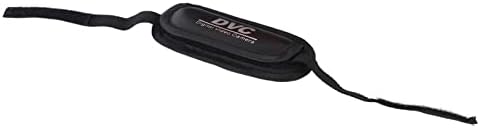
Figure 4.1.1: Akozon DV Camcorder screen displaying the 'Digital Camcorder' startup message. This image shows the camcorder's screen powered on, displaying the initial "Digital Camcorder" text.
4.2 Recording Video
- Ensure the camcorder is in video recording mode (check the icon on the screen). If not, use the Mode button (if available) or menu to switch.
- Frame your subject using the rotating TFT screen.
- Press the Record/Shutter button once to start recording. A red indicator or recording timer will appear on the screen.
- Press the Record/Shutter button again to stop recording. The video file will be saved to the Micro SD card.
4.3 Taking Photos
- Ensure the camcorder is in photo capture mode.
- Frame your subject.
- Press the Record/Shutter button once to take a photo. The image will be saved to the Micro SD card.
4.4 Selfie Mode and Fill Light
The rotating screen allows for easy selfie capture. The front-facing fill light can be used for additional illumination.
- Rotate the TFT screen 180 degrees towards yourself.
- To activate the fill light, navigate to the menu settings or use a dedicated button (if available).
- Utilize the self-timer function (2 seconds or 10 seconds) for hands-free photo or video capture. Access this setting via the menu.

Figure 4.4.1: Akozon Portable DV Camcorder with rotating screen displaying a selfie. This image shows the camcorder's screen rotated, capturing a group selfie, demonstrating its selfie capability.
4.5 Playback
- Enter Playback mode via the Mode button or menu.
- Use the navigation buttons to browse through your recorded videos and photos.
- Press the Record/Shutter button (or a dedicated Play button) to view a selected file.
4.6 Connecting to a Computer (PC Mode)
You can connect the camcorder to a computer to transfer files or use it as a PC camera.
- Ensure the camcorder is powered on.
- Connect the camcorder to your computer using the provided USB cable.
- The camcorder screen may display options like "Mass Storage" (for file transfer) or "PC Camera". Select the desired mode using the navigation buttons and confirm.
- If "Mass Storage" is selected, the camcorder will appear as a removable drive on your computer, allowing you to copy files.
- If "PC Camera" is selected, the camcorder can be used as a webcam with compatible software.
5. Maintenance
- Cleaning: Use a soft, dry cloth to clean the camcorder body. For the lens, use a specialized lens cleaning cloth and solution. Avoid harsh chemicals.
- Storage: Store the camcorder in a cool, dry place away from direct sunlight and extreme temperatures. Remove the battery if storing for extended periods.
- Battery Care: Do not expose the battery to high temperatures or disassemble it. Recharge the battery regularly, even if not in use, to maintain its lifespan.
- Memory Card: Periodically back up your files from the Micro SD card to a computer or other storage device.
6. Troubleshooting
| Problem | Possible Cause | Solution |
|---|---|---|
| Camcorder does not power on. | Battery is depleted or incorrectly installed. | Charge the battery fully. Ensure the battery is inserted with correct polarity. |
| Cannot record video/take photos. | No Micro SD card inserted, card full, or card error. | Insert a Micro SD card. Delete unnecessary files or replace the card. Format the card (this will erase all data). |
| Computer does not recognize camcorder via USB. | Incorrect USB mode selected, faulty cable, or driver issue. | Ensure "Mass Storage" or "PC Camera" mode is selected on the camcorder. Try a different USB port or cable. Restart both camcorder and computer. |
| Poor image/video quality. | Insufficient lighting, dirty lens, or incorrect settings. | Ensure adequate lighting. Clean the lens. Check resolution settings in the menu. |
7. Specifications
| Feature | Specification |
|---|---|
| Model Number | Akozon3v6tcg2u7b-12 |
| Brand | Akozon |
| Image Sensor Technology | CMOS |
| Video Recording Resolution | 1080p (FHD), HD, 640x480 |
| Effective Capture Resolution | 16 Megapixels |
| Flash Memory Type | Micro SD (supports up to 32GB) |
| Video Capture Format | AVI |
| Image Format | JPEG |
| Screen Size | 2.7 Inches (TFT rotating screen) |
| Digital Zoom | 16x |
| Connectivity Technology | USB |
| Special Features | Selfie fill light, Rotating screen |
| Battery | 1020mAh Lithium Battery (included) |
| Self-timer | 2 seconds, 10 seconds |
| TV OUT | NTSC 30fps, PAL 25fps |
| Product Dimensions | 12.5 x 10.5 x 7.2 cm; 210 grams |
| Country of Origin | China |
8. Warranty and Support
For warranty information and technical support, please refer to the documentation provided at the time of purchase or contact your retailer. You may also visit the official Akozon website for further assistance.
Please retain your proof of purchase for any warranty claims.