
Introduction
This manual provides comprehensive instructions for the setup and operation of your Clouree 103-P50 Wireless Remote Controls for Home Security Alarm Kits. Please read this manual thoroughly before using the product to ensure proper functionality and safety.
Product Overview
The Clouree 103-P50 remote controls are designed to enhance your home security alarm system. Each remote features four buttons for various functions, including arming, disarming, partial arming, and an SOS emergency signal. These wireless remote controls operate on a 433MHz frequency and are compatible with specific Clouree alarm systems.
What's Included:
- Wireless Remote Control x2
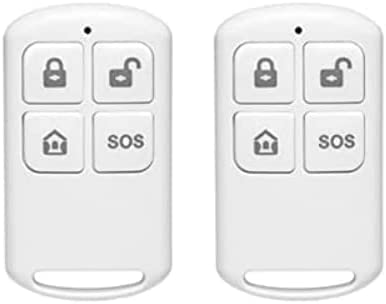
Figure 1: Clouree 103-P50 Wireless Remote Control (Front View)
Specifications
| Brand | Clouree |
| Model Number | PF50-US-AMC (103-P50) |
| Power Source | Battery Powered |
| Connectivity Technology | Wireless (433MHz Frequency) |
| Compatible Devices | Clouree Alarm Systems (PG103I-4G, PG107I-4G, PG108I-4G, PG109I-4G, PG500I-4G) |
| Control Method | Remote |
| Maximum Range | 60 Meters (in open terrain) |
| Item Dimensions (L x W x H) | 1.6 x 1.2 x 0.3 inches |
Setup and Pairing
The Clouree 103-P50 remote controls are designed for easy pairing with compatible Clouree home security alarm systems. Follow the steps below to pair your accessories.
Accessory Pairing Guide
Video 1: Detailed guide on pairing various accessories, including remote controls, RFID cards, infrared sensors, and door magnetic sensors, with the Clouree alarm panel.
1. Pairing Remote Controls
- On the alarm panel, navigate to Menu > Sensors > Remote.
- Select Add. The panel will enter learning mode.
- Press any button on the remote control. The panel will confirm "Learning OK" upon successful pairing.
2. Pairing RFID Cards
- On the alarm panel, navigate to Menu > Sensors > RFID.
- Select Add. The panel will enter learning mode.
- Place the RFID card on the designated RFID sensing area of the alarm panel. The panel will confirm "Learning OK" upon successful pairing.
3. Pairing Infrared Sensors (PIR Motion Detectors)
- Turn on the infrared sensor switch. Wait approximately 30 seconds for the red light to flash rapidly twice, indicating it's ready for pairing.
- On the alarm panel, navigate to Menu > Sensors > Sensor.
- Select Add.
- Choose the desired zone type: System Alarm (for immediate alarm) or Stay Arm Active (for arming when residents are present).
- Wave your hand in front of the infrared sensor to trigger it. The panel will confirm "Learning OK" upon successful pairing.
4. Pairing Door Magnetic Sensors
- Turn on the door magnetic sensor switch.
- On the alarm panel, navigate to Menu > Sensors > Sensor.
- Select Add.
- Choose the desired zone type: Door Alarm (for immediate alarm) or Stay Arm Active (for arming when residents are present).
- Separate the two parts of the door magnetic sensor. The panel will confirm "Learning OK" upon successful pairing.
5. Pairing Smoke Alarms
- On the alarm panel, navigate to Menu > Sensors > Sensor.
- Select Add.
- Choose the desired zone type: Fire Alarm (for immediate alarm) or 24 Hours Active (for continuous monitoring).
- Press the test button on the smoke alarm. The panel will confirm "Learning OK" upon successful pairing.
Operating Instructions
Once paired, your remote controls and other accessories can be used to manage your Clouree alarm system.
Remote Control Functions:
- Lock Button: Arms the system.
- Unlock Button: Disarms the system.
- Home Button: Partially arms the system (arms only internal zone sensors).
- SOS Button: Triggers an emergency alarm signal.
RFID Card Usage:
To arm or disarm the system using an RFID card, simply tap the card on the RFID sensing area of the alarm panel.
Keypad Lock Settings
Video 2: Instructions on how to set the keypad lock password and toggle the keypad lock function on or off on the alarm panel.
1. Setting the Keypad Lock Password
- On the alarm panel, navigate to Menu > Settings > Password.
- Select User.
- Enter your desired 4-digit password and confirm.
2. Turning the Keypad Lock On/Off
- On the alarm panel, navigate to Menu > Settings > Switch.
- Toggle the Keypad Lock option to On or Off as desired.
Maintenance
To ensure optimal performance and longevity of your Clouree remote controls, consider the following maintenance tips:
- Battery Replacement: Replace batteries when the remote control's indicator light dims or its range decreases. Refer to the product's internal compartment for battery type.
- Cleaning: Use a soft, dry cloth to clean the remote control. Avoid using harsh chemicals or abrasive materials.
- Storage: Store the remote controls in a dry place, away from extreme temperatures and direct sunlight.
Troubleshooting
If you encounter issues with your Clouree remote controls, try the following common troubleshooting steps:
- Remote not responding:
- Check the battery. Replace if necessary.
- Ensure the remote is within the 60-meter operating range of the alarm panel.
- Re-pair the remote control with the alarm panel following the "Setup and Pairing" instructions.
- Alarm system not arming/disarming:
- Verify that the remote control is successfully paired.
- Check the alarm panel's status for any error messages or open zones.
- SOS button not triggering alarm:
- Confirm the remote control is paired and functioning for other commands.
- Ensure the alarm panel is powered on and operational.
If problems persist, please contact customer support.
Warranty and Support
Clouree provides customer support for any issues or suggestions regarding this home alarm system remote control. If you have any problems or require assistance, please feel free to contact us via Amazon email. We are committed to providing a satisfactory solution and ensuring your experience is positive.
For returns, please refer to Amazon's return policy, which typically allows for returns or replacements within 30 days of purchase.