
1. Introduction
This manual provides essential information for the safe and efficient use of your Skyworth 75SUE9350F 75-inch 4K UHD Google TV. Please read it thoroughly before operating the device and retain it for future reference.
The Skyworth 75SUE9350F is a 75-inch 4K UHD Smart LED TV designed to deliver an immersive viewing experience. It features a Chameleon Extreme 2.0 processor for exceptional clarity and detail, complemented by MEMC technology for smooth motion handling. The television supports Dolby Vision IQ, which intelligently optimizes picture quality based on the content and ambient light conditions. Powered by Google TV, it offers access to a vast library of streaming content, including movies, TV shows, music, and games. The integrated Google Assistant allows for convenient voice control, while built-in Chromecast enables seamless content casting from your mobile devices. Additional features include a dedicated Game Mode for enhanced gaming performance, a Health Platform for fitness and wellness content, and a built-in web browser for internet access.
2. Safety Information
Always follow these basic safety precautions when using your television:
- Power Source: Ensure the TV is connected to a power supply within the specified voltage range (100-240V AC, 50/60Hz).
- Ventilation: Do not block ventilation openings. Allow adequate space around the TV for proper airflow to prevent overheating.
- Water and Moisture: Do not expose the TV to rain, moisture, or excessive humidity. Keep liquids away from the device.
- Cleaning: Unplug the TV before cleaning. Use a soft, dry cloth. Avoid liquid cleaners or aerosol sprays.
- Placement: Place the TV on a stable, level surface or mount it securely to a wall using a VESA-compliant bracket (800 x 400 mm). Ensure children cannot climb on or pull down the TV.
- Lightning: Unplug the TV during lightning storms or when unused for long periods.
- Servicing: Do not attempt to service the TV yourself. Refer all servicing to qualified service personnel.
3. What's in the Box
Carefully unpack your television and check that all the following items are included:
- Skyworth 75SUE9350F 75-inch 4K UHD Google TV
- Remote Control (requires AAA batteries)
- Power Cable
- Base Stand (2 pieces)
- User Manual (this document)
- Screws for Base Stand
4. Setup
4.1 Attaching the Base Stand
If you are not wall-mounting the TV, attach the included base stand:
- Place the TV screen-down on a soft, clean surface to prevent damage.
- Align each stand piece with the corresponding slots on the bottom of the TV.
- Secure each stand piece with the provided screws. Ensure they are tightened firmly.
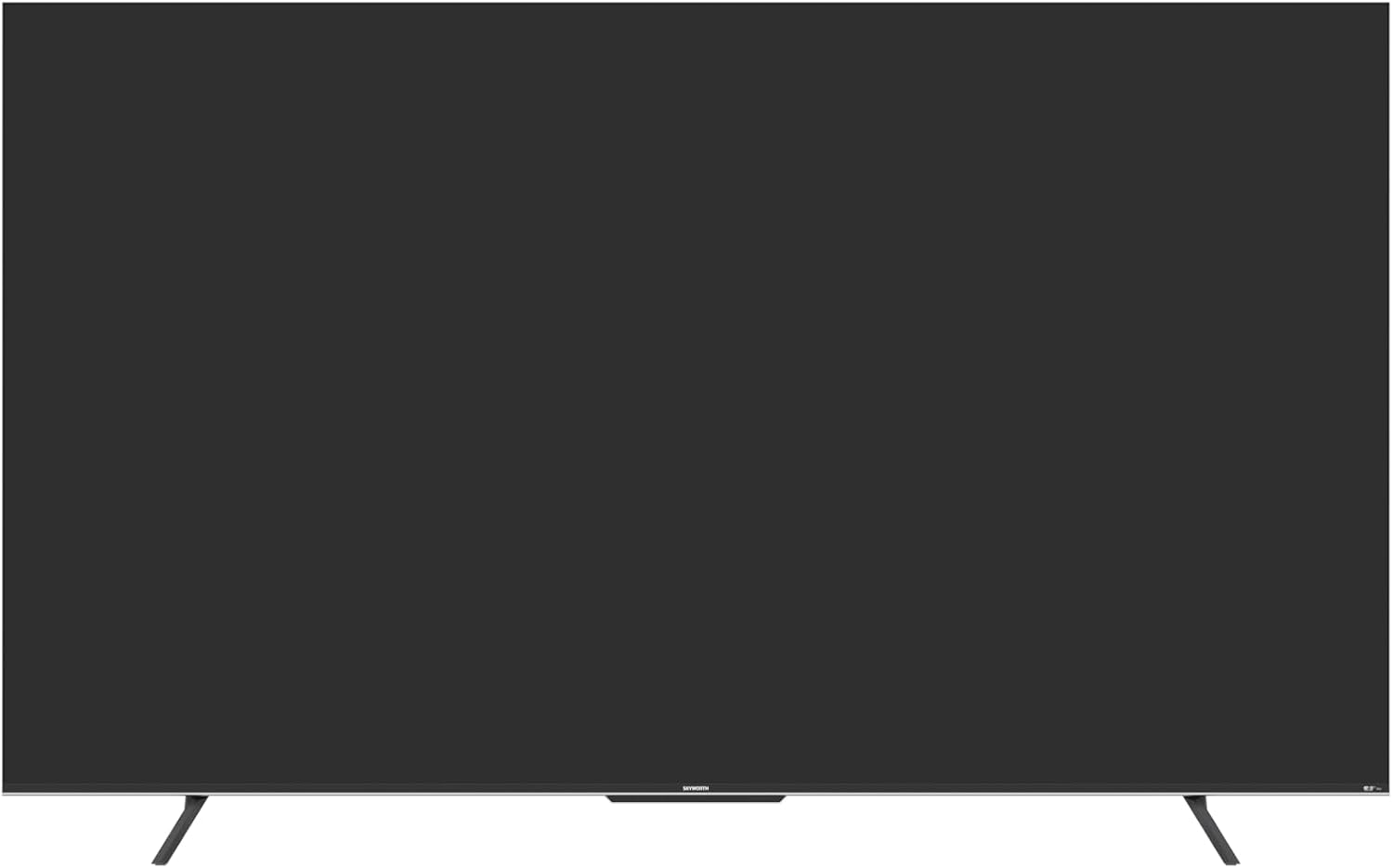
Figure 4.1: Front view of the Skyworth 75SUE9350F TV with the base stand attached.
4.2 Wall Mounting (Optional)
If you choose to wall-mount your TV, ensure you use a VESA-compliant wall mount (800 x 400 mm) and follow the instructions provided with your wall mount. Remove the base stand before wall mounting.

Figure 4.2: Dimensional diagram of the Skyworth 75SUE9350F TV, useful for planning wall mount placement.
4.3 Connecting Devices
Connect your external devices (e.g., Blu-ray player, game console, soundbar) to the TV's ports. Refer to the side view image for port locations.

Figure 4.3: Side view of the Skyworth 75SUE9350F TV, highlighting the various connectivity ports including HDMI, USB, and Ethernet.
- HDMI Ports: Connect high-definition devices like game consoles or streaming boxes. This TV features multiple HDMI ports.
- USB Ports: Connect USB storage devices for media playback. This TV has 2 USB ports.
- Ethernet Port: For a wired internet connection.
- Optical Audio Output: For connecting to a soundbar or audio receiver.
4.4 Initial Power-On and Google TV Setup
- Connect the power cable to the TV and then to a power outlet.
- Press the power button on the remote control or the TV itself.
- Follow the on-screen instructions to complete the initial setup, including language selection, network connection (Wi-Fi or Ethernet), and Google account sign-in for Google TV features.
5. Operating Your TV
5.1 Remote Control Functions
The included Bluetooth remote control allows you to navigate the Google TV interface and control your television. Insert two AAA batteries into the remote control.
- Power Button: Turns the TV on or off.
- Google Assistant Button: Activates voice control. Press and hold to speak commands.
- Navigation Pad: Use up, down, left, right to move through menus. Press the center button to select.
- Back Button: Returns to the previous screen.
- Home Button: Returns to the Google TV home screen.
- Volume +/-: Adjusts the volume level.
- Channel +/-: Changes TV channels.
- App Shortcut Buttons: Dedicated buttons for popular streaming services like Netflix, Prime Video, Disney+, and YouTube.
5.2 Google TV Interface
Google TV organizes your favorite content from various streaming services into one personalized home screen. You can browse recommendations, search for titles, and access your installed apps.
5.3 Picture and Sound Settings
Access the settings menu to customize your viewing and listening experience:
- Picture Modes: Select from various preset modes (e.g., Standard, Vivid, Movie, Game) or customize settings like brightness, contrast, and color.
- Dolby Vision IQ: This feature automatically adjusts picture settings based on ambient light and content type for optimal viewing.
- Sound Modes: Choose from preset sound profiles (e.g., Standard, Music, Movie) or adjust equalizer settings. The TV supports Dolby Vision and DTS Virtual X for enhanced audio.
- MEMC (Motion Estimation, Motion Compensation): Improves motion clarity in fast-moving scenes.
5.4 Chromecast Built-in
Cast content directly from your compatible smartphone, tablet, or computer to your TV. Look for the Cast icon within supported apps.
5.5 Game Mode
Activate Game Mode for reduced input lag and optimized picture settings when playing video games.
6. Maintenance
Proper care ensures the longevity of your TV:
- Screen Cleaning: Gently wipe the screen with a soft, lint-free cloth. For stubborn marks, slightly dampen the cloth with water or a specialized screen cleaner (never spray directly onto the screen).
- Cabinet Cleaning: Wipe the TV cabinet with a soft, dry cloth.
- Dusting: Regularly dust the ventilation openings to prevent dust buildup.
- Avoid Harsh Chemicals: Do not use abrasive cleaners, waxes, or solvents as they can damage the TV's finish.
7. Troubleshooting
Before contacting support, try these common troubleshooting steps:
| Problem | Possible Cause / Solution |
|---|---|
| No power | Check if the power cable is securely connected to the TV and the power outlet. Ensure the outlet is working. Try a different power outlet. |
| No picture, but sound is present | Ensure the correct input source is selected. Check HDMI/AV cable connections. Try a different HDMI port or cable. |
| No sound, but picture is present | Check the volume level and ensure the TV is not muted. Verify audio cable connections. If using external speakers, check their power and connections. |
| Remote control not working | Replace the AAA batteries in the remote. Ensure there are no obstructions between the remote and the TV. Re-pair the Bluetooth remote if necessary (refer to TV settings). |
| Cannot connect to Wi-Fi | Check your router and modem. Ensure the Wi-Fi password is correct. Try restarting your router. Move the TV closer to the router or use a wired Ethernet connection. |
| Picture is distorted or blurry | Check the resolution settings of your connected device. Ensure the input source is providing a high-quality signal. Adjust picture settings on the TV. |
8. Specifications
Below are the technical specifications for the Skyworth 75SUE9350F TV:
| Model Name | 75SUE9350F |
| Brand | Skyworth |
| Screen Size | 75 inches |
| Display Technology | LED |
| Resolution | 4K UHD (3840 x 2160) |
| Refresh Rate | 60 Hz |
| Operating System | Google TV |
| Processor | Chameleon Extreme 2.0 |
| Picture Enhancement | Dolby Vision IQ, MEMC |
| HDR Support | Dolby Vision, HDR10 |
| Audio Output | 2.0 Channel, 16W per channel |
| Audio Technology | Dolby Vision, DTS Virtual X |
| Connectivity | HDMI (multiple ports), USB (2 ports), Ethernet, Bluetooth |
| Wireless Connectivity | Wi-Fi, Bluetooth |
| Memory Storage | 16 GB |
| Power Supply | AC 100-240V, 50/60Hz |
| Product Dimensions (with stand) | 166.7 cm (W) x 96.4 cm (H) x 36.31 cm (D) |
| Product Dimensions (without stand) | 166.7 cm (W) x 96.4 cm (H) x 8.3 cm (D) |
| Weight (with stand) | 29.4 KG |
| Weight (without stand) | 28.8 KG |
| VESA Mounting Standard | 800 x 400 mm |
| Special Features | Parental Control, Wide Viewing Angle, Chromecast Built-in, Built-in Speaker, Google Assistant, Game Mode, Health Platform, Web Browser |
Note: Specifications are subject to change without notice for product improvement.
9. Warranty and Support
Your Skyworth 75SUE9350F TV comes with a 2-year manufacturer warranty. Please retain your proof of purchase for warranty claims.
For technical support, service, or warranty inquiries, please contact Skyworth customer service through their official website or the contact information provided with your purchase documentation. Do not attempt to repair the TV yourself, as this may void your warranty.