
1. Introduction and Overview
The VOCA V543 is an easy-to-use unlocked 4G flip phone designed with the needs of the elderly, children, and visually impaired individuals in mind. It features a user-friendly operating system with larger, green fonts for eye protection, clear menu icons, and a hands-free speakerphone. This phone supports seamless operation across 2G, 3G, and 4G cellular networks globally, ensuring reliable communication.
Its lightweight and compact design allows it to fit comfortably in the palm of your hand or pocket. The V543 comes equipped with essential features for safety and convenience, including a dedicated SOS button and a practical charging dock.
2. Key Features
- User-friendly Operating System: Redesigned UI with bigger, green fonts (Eye Protection Mode), clearer menu icons, and hands-free speakerphone for ease of use.
- Lightweight Design: Compact and easy to carry, fitting comfortably in hand or pocket.
- Charging Dock Provided: Simplifies charging for users, especially those with impaired vision. Just place the phone in the dock.
- SOS Button & Quick Dial: A dedicated SOS button on the rear allows immediate dialing to a preferred contact in emergencies. Supports speed dial for M1, M2, M3, and numbers 2-9.
- SMS Low Battery Notification: Automatically sends an SMS to emergency contacts when the battery level reaches 15%, helping family members monitor the phone's charge.
- Dual Screen: Features a front screen (4.5 cm) and a main screen (6.1 cm) for convenient information display.
- LED Notification Light: Indicates SMS and upcoming call notifications.
- Additional Functions: Includes SMS, Calendar, Alarm, Bluetooth, Radio, Flashlight, Gallery, and Camera.

Figure 2.1: VOCA V543 Flip Phone in Red Gold, showcasing its dual screen and charging dock.

Figure 2.2: Overview of VOCA V543's user-friendly features.

Figure 2.3: The convenient charging dock for the VOCA V543.

Figure 2.4: The SOS button for emergency calls and SMS.

Figure 2.5: Big button design and speed dial support.
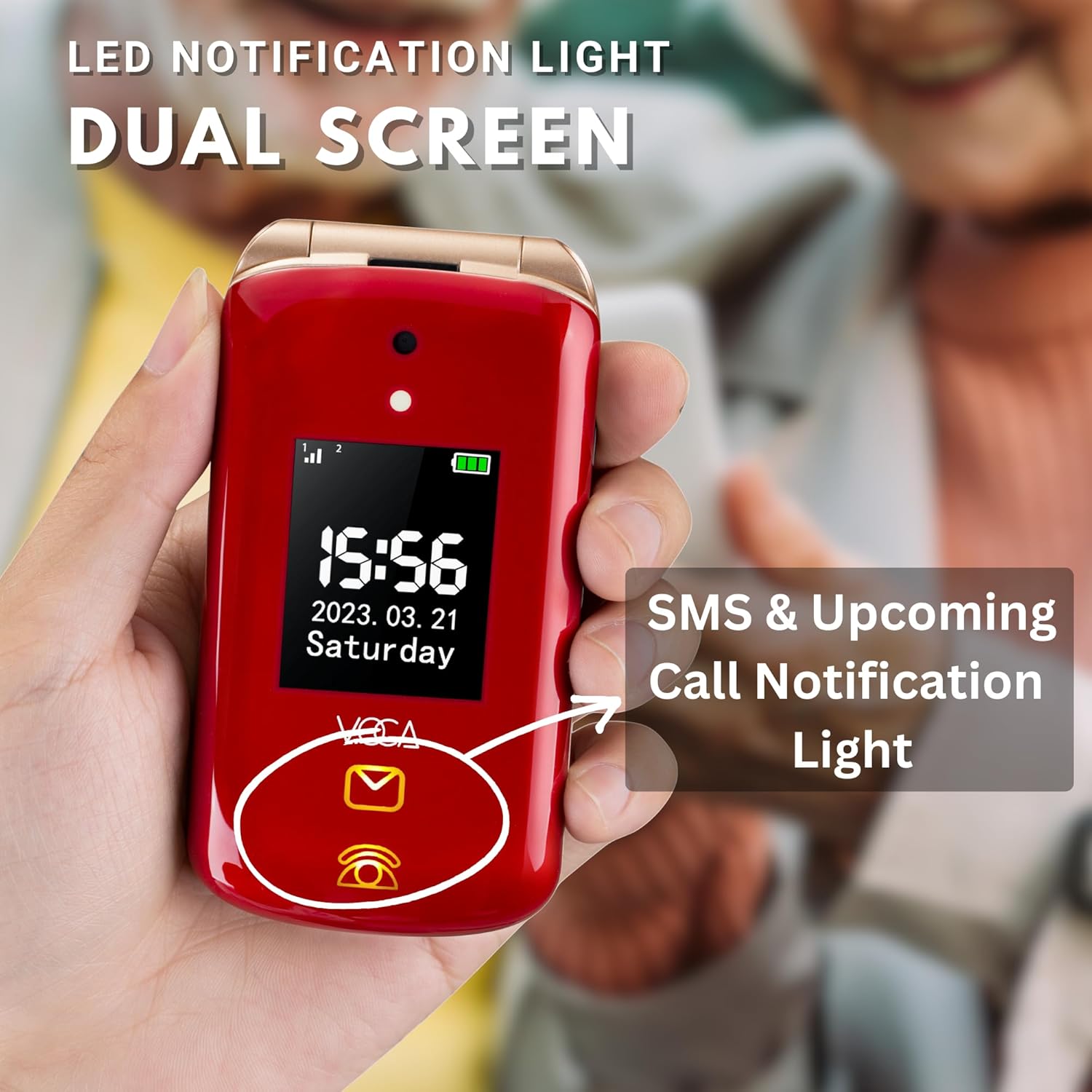
Figure 2.6: Dual screen and LED notification light.

Figure 2.7: SMS low battery notification setup and function.
3. Setup Guide
3.1. Installing the SIM Card and Battery
- Open the Phone: Gently open the back cover of the phone.
- Insert SIM Card: Locate the SIM card slot(s). The VOCA V543 supports a full-size standard SIM card. Carefully insert the SIM card into the designated slot until it clicks into place. Ensure the gold contacts face downwards. The phone supports dual SIM.
- Insert Battery: Align the battery contacts with the terminals inside the phone and gently press the battery into its compartment.
- Close Cover: Replace the back cover, ensuring it is securely fastened.
3.2. Initial Charging
Before first use, fully charge the phone. Place the phone into the provided charging dock. Ensure the phone is correctly seated and the charging indicator light on the dock illuminates. Alternatively, connect the charging cable directly to the phone's charging port. A full charge typically takes a few hours.
3.3. Setting Up SOS Contacts
The SOS button is a critical safety feature. To set up emergency contacts:
- Navigate to the "SOS Settings" menu.
- Select "SOS Numbers" and add up to five emergency contacts.
- You can also customize the "SOS SMS" message that will be sent to these contacts during an emergency.
3.4. Setting Up Speed Dial
The VOCA V543 supports speed dial for quick access to frequently called numbers:
- Access the "Settings" or "Phonebook" menu.
- Locate the "Speed Dial" option.
- Assign contacts to the M1, M2, M3 buttons, and numbers 2-9 as desired.
4. Operating Instructions
4.1. Powering On/Off
- To Power On: Press and hold the Power/End Call button (red button) until the screen illuminates.
- To Power Off: Press and hold the Power/End Call button until the power-off options appear, then select "Power Off".
4.2. Making and Receiving Calls
- Making a Call:
- Dialing: Enter the phone number using the keypad and press the Call button (green button).
- From Contacts: Navigate to the "Phonebook", select a contact, and press the Call button.
- Speed Dial: Press and hold the assigned speed dial button (M1, M2, M3, or 2-9) for a few seconds.
- Receiving a Call: When the phone rings, open the flip or press the Call button (green button) to answer. To end a call, close the flip or press the End Call button (red button).
4.3. Using the SOS Button
In an emergency, press and hold the SOS button located on the rear of the phone. The phone will automatically dial the pre-set emergency contacts one by one until an answer is received. Simultaneously, an emergency SMS message will be sent to all designated SOS contacts.
4.4. Sending and Receiving SMS Messages
- Sending SMS: Navigate to the "Messages" menu, select "Write Message", enter your text, and choose a recipient from your contacts or enter a number.
- Receiving SMS: New messages will be indicated by an LED notification light on the external screen and an alert. Access the "Messages" menu to read them.
4.5. Other Functions
- Calendar: Access the calendar to view dates and set reminders.
- Alarm: Set multiple alarms for daily reminders.
- Bluetooth: Connect to Bluetooth headsets or other devices.
- FM Radio: Listen to FM radio stations.
- Flashlight: Activate the built-in flashlight for illumination.
- Camera: Use the integrated camera for basic photo capture.
5. Maintenance
5.1. Battery Care
- Always use the original VOCA charging dock or cable provided.
- Avoid exposing the battery to extreme temperatures.
- Do not puncture, disassemble, or modify the battery.
- If the phone will not be used for an extended period, charge it to about 50% before storing and recharge every few months to prevent deep discharge.
5.2. Cleaning the Device
Use a soft, dry, lint-free cloth to clean the phone's exterior. Avoid using harsh chemicals, cleaning solvents, or strong detergents, as these may damage the phone's finish or internal components. Keep the charging port and speaker grilles free of dust and debris.
6. Troubleshooting
| Problem | Possible Cause / Solution |
|---|---|
| Phone does not power on. | Battery is depleted. Charge the phone using the charging dock or cable. Ensure battery is correctly installed. |
| Cannot make or receive calls. | No SIM card inserted or SIM card not properly seated. Check network signal strength. Ensure sufficient credit/plan. |
| Poor call quality / Low volume. | Adjust call volume using the side buttons. Ensure speaker/microphone are not obstructed. Move to an area with better network coverage. |
| Battery not charging. | Check if the charging dock/cable is properly connected to the phone and power source. Ensure the charging port is clean. Try a different power outlet. |
| SOS button not working. | Ensure SOS contacts are correctly set up in the phone's settings. Check if the phone has network signal. |
If problems persist, please refer to the full user manual or contact VOCA customer support for assistance.
7. Specifications
| Feature | Detail |
|---|---|
| Brand | VOCA |
| Model | V543 |
| Model Year | 2023 |
| Operating System | VOCA OS |
| Cellular Technology | 4G (LTE B1/B3/B7/B8/B21), 3G (UMTS 850/900/2100), 2G (GSM 850/900/1800/1900) |
| Processor Type | A-Series |
| Processor Speed | 1.3 GHz |
| RAM Memory Installed Size | 48 MB |
| Digital Storage Capacity | 1 GB |
| Display Type | LCD |
| Main Screen Size | 6.1 cm (internal) |
| Front Screen Size | 4.5 cm (external) |
| Resolution | 1080 x 1920 (main), 480 x 800 (front) |
| Battery Type | Lithium Ion |
| Battery Power Rating | 1200 mAh |
| Human Interface Input | Buttons |
| Form Factor | Foldable Case (Flip Phone) |
| Item Weight | 320 Grams |
| Package Dimensions | 13 x 12.9 x 6.2 cm |
| Mounting Hardware | User Manual, Phone, Battery, Charging Dock, Charging Cable |
8. Warranty and Support
For information regarding the product warranty, please refer to the warranty card included in the product packaging or contact your retailer. VOCA is committed to providing reliable products and customer support.
For technical assistance or further inquiries, please visit the official VOCA website or contact their customer service department using the contact information provided with your purchase documentation.