
HP HP Z840
HP Z840 Tower Workstation User Manual
Model: HP Z840
Introduction
This manual provides comprehensive instructions for the setup, operation, maintenance, and troubleshooting of your HP Z840 Tower Workstation. Please read this manual carefully before using the workstation to ensure optimal performance and longevity.
The HP Z840 workstation is designed for demanding professional applications, featuring dual Intel Xeon E5-2680 v4 processors, 1TB DDR4 RDIMM memory, 1.92TB SSD storage, and an AMD Radeon WX5100 graphics card, running on Windows 10 Pro.
Product Overview

Figure 1: Front view of the HP Z840 Tower Workstation, showcasing its robust chassis and front panel access.

Figure 2: Internal view of the HP Z840 Tower Workstation, showing the organized layout of components and drive bays.
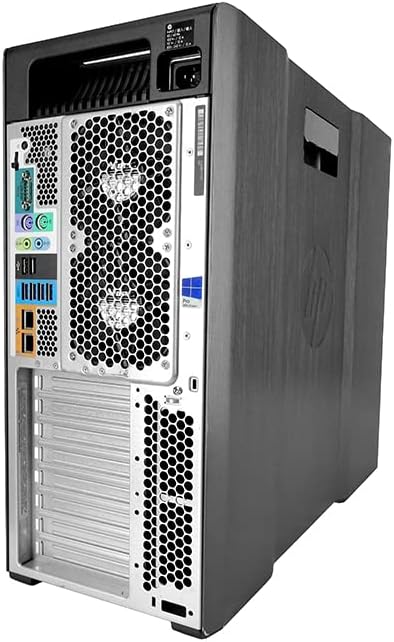
Figure 3: Rear view of the HP Z840 Tower Workstation, highlighting the various input/output ports and ventilation.
Setup
1. Unpacking and Inspection
Carefully remove the workstation from its packaging. Inspect for any visible damage. Retain all packaging materials for future transport or service.
2. Connecting Peripherals
- Connect your monitor(s) to the appropriate display ports (DisplayPort, DVI, HDMI) on the graphics card.
- Connect your keyboard and mouse to the USB ports.
- Connect any other necessary peripherals (e.g., external hard drives, printers) to available USB ports.
- Connect an Ethernet cable to the network port for internet access, or install a wireless adapter if desired.
3. Power Connection
Connect the power cord to the workstation's power supply unit and then to a grounded electrical outlet. Ensure the power supply switch (if present) is in the 'On' position.
4. Initial Boot-up
Press the power button on the front of the workstation. The system will boot into Windows 10 Pro. Follow any on-screen prompts for initial setup, such as language selection and network configuration.
Operating the Workstation
Power On/Off
- To Power On: Press the power button on the front panel.
- To Shut Down: Click the Start button in Windows, then select Power > Shut down.
- To Restart: Click the Start button in Windows, then select Power > Restart.
Operating System Basics (Windows 10 Pro)
Your workstation comes pre-installed with Windows 10 Pro. Familiarize yourself with basic Windows operations:
- Start Menu: Access applications, settings, and power options.
- Taskbar: Pin frequently used applications and view open programs.
- File Explorer: Manage your files and folders.
- Settings: Configure system preferences, devices, network, and updates.
Installing Software and Drivers
For optimal performance, ensure all drivers are up-to-date. Drivers can typically be found on the HP support website or through Windows Update. Install software applications as required for your professional tasks.
Maintenance
Regular Cleaning
- Exterior: Use a soft, damp cloth to clean the exterior surfaces. Avoid harsh chemicals.
- Ventilation: Periodically clean dust from the ventilation grilles using compressed air to ensure proper airflow and prevent overheating.
- Internal Components: For advanced users, carefully open the side panel and use compressed air to remove dust from internal components like fans and heatsinks. Ensure the system is powered off and unplugged before opening.
Software Maintenance
- Windows Updates: Regularly check for and install Windows updates to ensure security and stability.
- Driver Updates: Keep graphics card drivers (AMD Radeon WX5100) and other hardware drivers updated.
- Antivirus/Antimalware: Maintain up-to-date antivirus software to protect against malicious threats.
- Disk Cleanup: Periodically run disk cleanup utilities to remove temporary files and free up storage space on the 1.92TB SSD.
Data Backup
Regularly back up your important data to an external drive or cloud storage to prevent data loss.
Troubleshooting
This section provides solutions to common issues you might encounter with your HP Z840 Workstation.
No Power
- Ensure the power cord is securely connected to both the workstation and the electrical outlet.
- Verify the power outlet is functional by plugging in another device.
- Check the power supply switch on the back of the workstation (if applicable).
No Display
- Confirm the monitor is powered on and connected correctly to the graphics card.
- Try a different display cable or monitor if available.
- Ensure the correct input source is selected on your monitor.
System Slowdown or Freezing
- Close unnecessary applications running in the background.
- Check Task Manager (Ctrl+Shift+Esc) for high CPU, memory, or disk usage.
- Ensure sufficient free space on the SSD.
- Run a full system scan with your antivirus software.
- Restart the workstation.
Unusual Noises
- Loud fan noise may indicate overheating or dust buildup. Clean the fans and vents.
- Clicking or grinding noises from storage drives could indicate a failing drive. Back up data immediately.
Specifications
| Component | Detail |
|---|---|
| Model | HP Z840 Tower Workstation |
| Processor | 2x Intel Xeon E5-2680 V4 (2.4GHz, 14 Cores each) |
| RAM | 1TB (16 x 64GB) DDR4 RDIMM |
| Storage | 1.92TB SSD |
| Graphics Card | AMD Radeon WX5100 (Dedicated) |
| Operating System | Windows 10 Pro |
| Hardware Platform | PC |
| Color | Black |
| Memory Slots | 16 |
| Hard Drive Interface | Serial ATA |
| Special Feature | DVD Drive |
Warranty and Support
This HP Z840 Tower Workstation is a renewed product. Please refer to the seller's specific warranty and return policy for details. Typically, renewed products may come with a limited warranty or a return period.
- Return Policy: This product typically includes a 90-day refund/replacement return policy from the date of purchase. Please check your purchase details for exact terms.
- Technical Support: For technical assistance, please contact the seller or refer to the official HP support website for general documentation related to the Z840 series.
- Online Resources: Visit HP Support for drivers, manuals, and troubleshooting guides.