
Introduction
Thank you for choosing the A.JAZZ 87-Key Wireless Mechanical Keyboard. This compact TKL keyboard is designed for versatility and performance, offering dual-mode connectivity (2.4Ghz wireless and Bluetooth 5.0), hot-swappable switches, and a detachable magnetic frame for ease of use and maintenance. This manual provides detailed instructions to help you set up, operate, and maintain your keyboard for an optimal experience.

The A.JAZZ 87-Key Wireless Mechanical Keyboard, featuring its compact design and included accessories.
Key Features
- 75% TKL Compact Design: Maximizes desktop space while retaining essential functionality, ideal for gaming, typing, and office use.
- Dual-mode Connectivity: Seamlessly switch between 2.4Ghz wireless and Bluetooth 5.0 for stable and fast connections across multiple devices.
- 2-in-1 Detachable Magnetic Frame: Offers classic integrated mode for dust protection and a floated mode for easy cleaning.
- Full Key Hot-Swappable PCB: Allows for easy replacement of 3-pin mechanical switches without soldering, compatible with most major switch brands.
- Non-Backlit & Smart Power Saving: Extends battery life significantly, allowing for up to six months of use on two AAA batteries (not included).
- Customizable OEM Keycaps: Features unique mixed-color keycaps and includes eight additional keycaps for DIY customization.
- Wide Compatibility: Supports Windows XP/7/8/10/11, Mac OS, laptops, PCs, MacBooks, XBOX ONE, and PS4.
Package Contents
- A.JAZZ 87-Key Wireless Mechanical Keyboard
- Keycap Puller
- Switch Puller
- Replaceable 7 Keycaps
- Extra 4 Red Switches
- Keyboard Instructions (this manual)

All items included in the A.JAZZ 87-Key Wireless Mechanical Keyboard package.
Setup
1. Battery Installation
The keyboard requires two AAA batteries (not included) for operation. Locate the battery compartment on the underside of the keyboard. Open the cover, insert the batteries according to the polarity indicators, and close the cover securely.

Insert two AAA batteries into the designated compartment on the keyboard's underside.
2. Power On/Off
Locate the power switch on the underside of the keyboard. Slide it to the 'ON' position to power on the keyboard. Slide it to 'OFF' when not in use to conserve battery life. The keyboard will automatically enter sleep mode after 30 minutes of inactivity.
3. Connecting Your Keyboard (Dual Mode)
Your A.JAZZ keyboard supports two wireless connection modes: 2.4Ghz and Bluetooth 5.0. It can connect to up to three devices simultaneously (one 2.4Ghz and two Bluetooth devices).
2.4Ghz Wireless Mode
- Locate the 2.4Ghz USB receiver, typically stored in a slot on the keyboard's underside.
- Plug the USB receiver into an available USB port on your computer or device.
- On the keyboard, press Fn + Q to switch to 2.4G wireless mode. The keyboard should connect automatically.
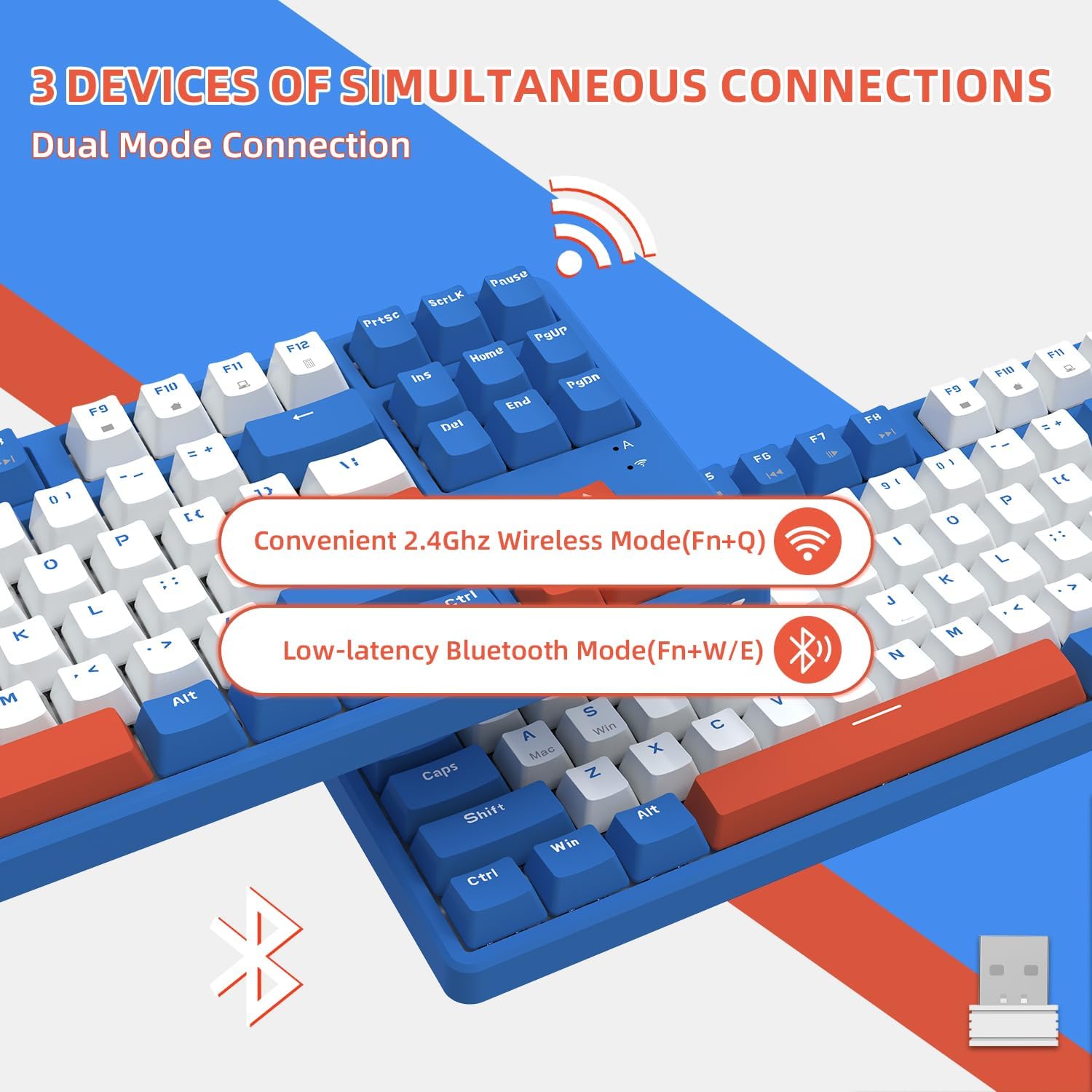
The keyboard supports both 2.4Ghz wireless and Bluetooth connections.
Bluetooth 5.0 Mode
- On the keyboard, press Fn + W or Fn + E to select one of the two Bluetooth channels.
- The indicator light will flash, indicating the keyboard is in pairing mode.
- On your device (PC, Mac, PS4, etc.), go to Bluetooth settings and search for available devices.
- Select "A.JAZZ Keyboard" (or similar name) from the list to pair.
- Once paired, the indicator light will stop flashing and remain solid.

Connect your keyboard to up to three devices, switching easily between them.
Operating Instructions
Switching Between Connected Devices
- To switch to 2.4Ghz wireless mode: Press Fn + Q.
- To switch to Bluetooth channel 1: Press Fn + W.
- To switch to Bluetooth channel 2: Press Fn + E.
Hot-Swappable Switches
The A.JAZZ keyboard features a hot-swappable PCB, allowing you to easily change mechanical switches without soldering. This enables customization of your typing experience.
- Using the included switch puller, gently grip the switch you wish to remove.
- Pull straight up with even pressure until the switch detaches from the PCB.
- Align the pins of the new 3-pin switch with the holes on the PCB.
- Gently push the new switch down until it clicks into place. Ensure it is seated firmly and evenly.

Easily customize your typing feel by hot-swapping switches.
Detachable Magnetic Frame
The keyboard features a unique 2-in-1 design with a detachable magnetic upper cover. This allows you to switch between a classic integrated look and a floated keycap style.
- Classic Mode: With the magnetic cover attached, the keyboard has a more integrated and dustproof appearance.
- Floated Mode: Remove the magnetic cover to expose the switches, making cleaning easier and providing a different aesthetic.

Switch between integrated and floated keycap styles with the detachable magnetic frame.
Keycap Customization
The keyboard comes with unique mixed-color OEM keycaps and includes 7 additional replaceable keycaps for personal customization. Use the included keycap puller to carefully remove and replace keycaps.

Customize your keyboard's appearance with the included replaceable keycaps.
Maintenance
- Cleaning Keycaps: Use a keycap puller to remove keycaps. Clean them with a soft cloth dampened with mild soap and water. Ensure they are completely dry before reattaching.
- Cleaning the Keyboard Body: Wipe the keyboard surface with a soft, dry, or slightly damp cloth. Avoid excessive moisture.
- Dust Removal: Use compressed air to remove dust and debris from between the keys and switches. The detachable magnetic frame can be removed for easier access.
- Battery Care: Replace batteries when performance degrades. If storing the keyboard for an extended period, remove the batteries to prevent leakage.
- Storage: Store the keyboard in a cool, dry place away from direct sunlight and extreme temperatures.
Troubleshooting
| Problem | Solution |
|---|---|
| Keyboard not responding. | Ensure the keyboard is powered on. Check battery levels and replace if necessary. Verify the correct connection mode (2.4Ghz or Bluetooth) is selected. For 2.4Ghz, ensure the USB receiver is properly plugged in. For Bluetooth, ensure it's paired and within range. |
| Lag or intermittent connection. | Move the keyboard closer to the receiver/device. Avoid interference from other wireless devices. Re-pair the Bluetooth connection or re-plug the 2.4Ghz receiver. |
| Keys not registering or double-typing. | This could indicate a faulty switch. Use the switch puller to replace the affected switch with one of the extra switches provided. Ensure the switch is fully seated. |
| Cannot connect to a new Bluetooth device. | Ensure the keyboard is in pairing mode (Fn+W or Fn+E, indicator light flashing). Check your device's Bluetooth settings. If issues persist, try forgetting the device on your computer and re-pairing. |
Specifications
| Feature | Detail |
|---|---|
| Brand | MAGIC-REFINER |
| Model | 87-Key Blue & White/Red Switch |
| Connectivity Technology | 2.4Ghz Wireless, Bluetooth 5.0 |
| Keyboard Description | Mechanical |
| Number of Keys | 87 |
| Switch Type | Red Switch (Hot-swappable, compatible with 99.9%+ 3-pin switches) |
| Keycap Type | OEM Keycaps, Mixed Color |
| Power Source | 2 x AAA Batteries (not included) |
| Battery Life | Up to six months (non-backlit design, smart power saving) |
| Special Features | 19 Keys Anti-ghosting, Detachable Magnetic Frame, Dual Modes, Full Keys Hot-swappable, Hotkeys and Media Keys |
| Compatible Devices | Gaming Console, PC (Windows XP/7/8/10/11, Mac OS, laptops, MacBooks, XBOX ONE, PS4) |
| Item Weight | 2.33 pounds |
| Package Dimensions | 15.43 x 8.39 x 2.24 inches |
Warranty and Support
For warranty information and technical support, please refer to the contact details provided on the product packaging or visit the official MAGIC-REFINER website. Keep your purchase receipt for warranty claims.
For further assistance, you may also contact the seller directly through the platform where the product was purchased.