
Introduction
This manual provides essential information for the setup, operation, and maintenance of your WEELIAO Intel NUC 13 Mini PC NUC13ANHi5. This compact computer is designed for efficiency and performance, featuring a 13th Gen Intel Core i5-1340P processor. As a barebone system, it offers flexibility for users to install their preferred RAM and SSD.
The Intel NUC 13 Pro Mini PC offers a combination of size, performance, sustainability, and reliability suitable for modern business applications. It is powered by 13th Gen Intel Core processors, delivering performance in a 4x4 form factor. The system is designed to be upgradable, repairable, and reusable.
Safety Information
- Always disconnect the power adapter before cleaning or performing any maintenance.
- Ensure proper ventilation to prevent overheating. Do not block ventilation openings.
- Avoid exposing the device to moisture, extreme temperatures, or direct sunlight.
- Use only the power adapter supplied with the device or a compatible replacement.
- Handle internal components with care, especially when installing RAM or SSD.
Package Contents
The WEELIAO Intel NUC 13 Mini PC NUC13ANHi5 (Barebone) package typically includes:
- Intel NUC 13 Mini PC Unit (NUC13ANHi5)
- Power Adapter
- VESA Mounting Bracket
- Documentation (Quick Start Guide, Safety Information)

Product Overview
The Intel NUC 13 NUC13ANHi5 is a small form factor computer measuring approximately 117mm x 112mm x 38mm. Its compact design allows for versatile placement in various environments.

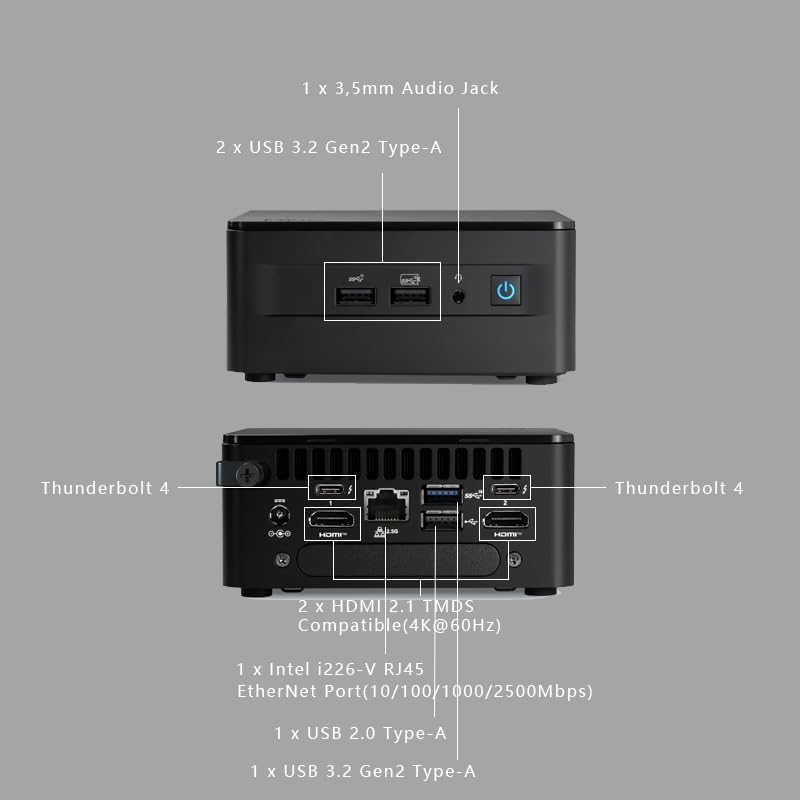
Front Panel Ports: The front panel includes two USB 3.2 Gen 2 Type-A ports, a 3.5mm stereo headset jack, and the power button.
Rear Panel Ports: The rear panel offers extensive connectivity, including two Thunderbolt 4 ports (supporting DisplayPort 2.1 and USB4), an Intel i226V 2.5 Gigabit Ethernet port, one USB 3.2 Gen 2 Type-A port, and two HDMI 2.1 TMDS Compatible ports (4K@60Hz).
Video: An overview of the Intel NUC 13 Pro Mini PC, showcasing its features and compact design.
Setup Instructions
1. Installing RAM and SSD (Barebone Model)
This model is a barebone system, requiring the installation of RAM and an SSD. The original box may be opened for pre-installation of RAM/SSD/OS if purchased with these components.
- Open the Chassis: Carefully open the NUC chassis according to the included quick start guide to access the internal components.
- Install RAM: Insert DDR4 SDRAM modules into the SO-DIMM slots. Ensure they are seated correctly until the clips lock them in place.
- Install SSD: Install an M.2 SSD into the designated slot. Secure it with the provided screw.
- Close the Chassis: Carefully close and secure the chassis.
2. Connecting Peripherals
- Connect Display: Connect your monitor(s) to the HDMI or Thunderbolt 4 (DisplayPort compatible) ports. This NUC supports one 8K display or four 4K displays.
- Connect Keyboard and Mouse: Plug your USB keyboard and mouse into the available USB ports.
- Connect Network: For wired internet, connect an Ethernet cable to the RJ45 port. For wireless, ensure Wi-Fi 6E is enabled in the operating system.
- Connect Power: Plug the power adapter into the NUC and then into a power outlet.
Video: A promotional video for the Intel NUC Arena Canyon Mini PC, highlighting its features and applications.
Operating Instructions
Power On/Off
- Power On: Press the power button located on the front panel. The power indicator light will illuminate.
- Power Off: To shut down, use the operating system's shutdown function. Alternatively, press and hold the power button for several seconds for a forced shutdown (not recommended for regular use).
Initial Boot and Operating System Setup
Upon first power-on, if an operating system is not pre-installed, you will need to install one. This model supports Windows 11 Pro. Follow the on-screen prompts for operating system installation and initial setup.

Maintenance
- Cleaning: Use a soft, dry cloth to clean the exterior. For dust accumulation in vents, use compressed air.
- Software Updates: Regularly update your operating system, drivers, and firmware to ensure optimal performance and security.
- Ventilation: Ensure the NUC is placed in an area with adequate airflow to prevent overheating.
Troubleshooting
| Issue | Possible Solution |
|---|---|
| No Power | Check power adapter connection to the NUC and wall outlet. Ensure the outlet is functional. |
| No Display | Verify display cable connections. Ensure the monitor is powered on and set to the correct input source. Test with a different display or cable if possible. |
| System Not Booting | If barebone, ensure RAM and SSD are correctly installed. Check BIOS settings for boot order. |
| No Network Connection | For wired, check Ethernet cable. For wireless, ensure Wi-Fi is enabled and connected to a network. Update network drivers. |
Technical Specifications
| Feature | Detail |
|---|---|
| Model Number | NUC13ANHi5 |
| Processor | 13th Gen Intel Core i5-1340P (12 Cores: 4P+8E, 16 Threads, up to 4.60 GHz Turbo) |
| Graphics | Integrated Intel Iris Xe Graphics |
| Memory (Max) | Up to 64GB DDR4-3200 SO-DIMM |
| Storage | M.2 SSD (NVMe), 2.5" Drive support (Thick variant) |
| Video Output | 2x HDMI 2.1, 2x Thunderbolt 4 (DisplayPort 2.1 compatible) |
| USB Ports | 3x USB 3.2 Gen 2 Type-A (2 front, 1 rear), 2x USB 2.0 headers |
| Networking | Intel i226V 2.5 Gigabit Ethernet, Intel Wi-Fi 6E (Gig+), Bluetooth 5.3 |
| Audio | 3.5mm front stereo headset jack, Up to 7.1 multichannel digital audio via HDMI/DP |
| Operating System | Windows 11 Pro (or user-installed) |
| Dimensions (LxWxH) | 4.61 x 4.41 x 2.13 inches (117mm x 112mm x 54mm) |
| Weight | 2.64 pounds |

Warranty and Support
The Intel NUC 13 Pro Mini PC is designed for durability and comes with a three-year warranty from Intel. For technical support, driver downloads, and further assistance, please refer to the official Intel NUC support website or contact your vendor.
You can also visit the WEELIAO Store for product information and customer service.