
MOGEMYTH MG0301
MOGEMYTH MG0301 Wireless Controller User Manual
Model: MG0301
1. Introduction
The MOGEMYTH MG0301 Wireless Controller is a versatile gaming peripheral designed for multi-platform compatibility. It features dual vibration, a 6-axis gyroscope, programmable back buttons, and customizable RGB lighting. This manual provides detailed instructions for setup, operation, and maintenance across various devices including Nintendo Switch, PC (Windows), Android, and iOS.

Image: MOGEMYTH MG0301 Multi-Mode Gamepad banner, highlighting features like vibration, turbo, macro, RGB, pairing, six-axis, ALPS, NFC, and 1000mAh battery.
2. Package Contents
Please verify that all items are present in your package:
- MOGEMYTH MG0301 Wireless Controller
- USB-C Charging Cable
- USB Bluetooth Dongle (for PC connection)
- User Manual
3. Controller Layout
Familiarize yourself with the buttons and features of your MOGEMYTH MG0301 controller:

Image: Front view of the MOGEMYTH MG0301 controller, showing the main buttons (A, B, X, Y, D-pad, joysticks, Home, Share, +, -) and indicating the M1, M2, M3, M4 back buttons along with the included USB dongle.
- A/B/X/Y Buttons: Standard action buttons.
- D-Pad: Directional input.
- Left/Right Joysticks: Analog input for movement and camera control.
- L/R Buttons: Shoulder buttons.
- ZL/ZR Triggers: Analog triggers.
- Home Button: Powers on the controller and returns to the system home screen.
- Share Button: Captures screenshots or video clips.
- +/- Buttons: Menu navigation.
- M1/M2/M3/M4 Buttons: Programmable back buttons.
- Function Buttons: Dedicated buttons for Turbo, Vibration, and RGB lighting adjustments.

Image: Rear view of the MOGEMYTH MG0301 controller, emphasizing the ergonomic design and the placement of the four programmable back buttons (M1, M2, M3, M4).
4. Setup and Connection
4.1. Charging the Controller
Before initial use, fully charge the controller using the provided USB-C cable. Connect the cable to the controller's USB-C port and a power source (e.g., computer USB port, USB wall adapter).

Image: Illustration of the controller charging, indicating a built-in 1000mAh battery and fast charging capability (5 minutes charge for 3 hours standby).
4.2. Connecting to Nintendo Switch
- On your Nintendo Switch, go to the HOME Menu.
- Select Controllers > Change Grip/Order.
- Press and hold the Home button on the MOGEMYTH controller for 3-5 seconds until the indicator lights flash rapidly.
- Once connected, the indicator light(s) on the controller will remain solid.
The controller supports one-touch wake-up for the Nintendo Switch. Press the Home button to wake up your console and automatically reconnect the controller.

Image: A hand pressing the Home button on the controller, illustrating the one-touch wake-up feature for the Nintendo Switch.
4.3. Connecting to PC (Windows 7/8/10/11)
The controller can connect to a PC via the included USB Bluetooth dongle or your PC's native Bluetooth.
4.3.1. Using the USB Bluetooth Dongle
- Insert the USB Bluetooth dongle into an available USB port on your PC.
- The PC will automatically install the necessary drivers.
- Press and hold the Home button on the MOGEMYTH controller for 3-5 seconds until the indicator lights flash rapidly.
- The controller will automatically pair with the dongle. Once connected, the indicator light(s) will remain solid.

Image: A MOGEMYTH controller wirelessly connected to a PC monitor, with the USB receiver shown plugged into a computer, illustrating easy PC connection.
4.3.2. Using PC's Native Bluetooth
- Ensure your PC has Bluetooth enabled.
- Go to Settings > Devices > Bluetooth & other devices > Add Bluetooth or other device.
- Select Bluetooth.
- Press and hold the Home button on the MOGEMYTH controller for 3-5 seconds until the indicator lights flash rapidly.
- Select the controller (it may appear as "Pro Controller" or similar) from the list of available devices.
- The controller will connect as an Xinput device for broad game compatibility.
4.4. Connecting to Android (6.0 or higher) / iOS (iPhone 6 or above, iOS 13 or higher)
- Enable Bluetooth on your Android or iOS device.
- Press and hold the Home button on the MOGEMYTH controller for 3-5 seconds until the indicator lights flash rapidly.
- On your device, search for Bluetooth devices and select the MOGEMYTH controller from the list.
- Once connected, the indicator light(s) on the controller will remain solid.
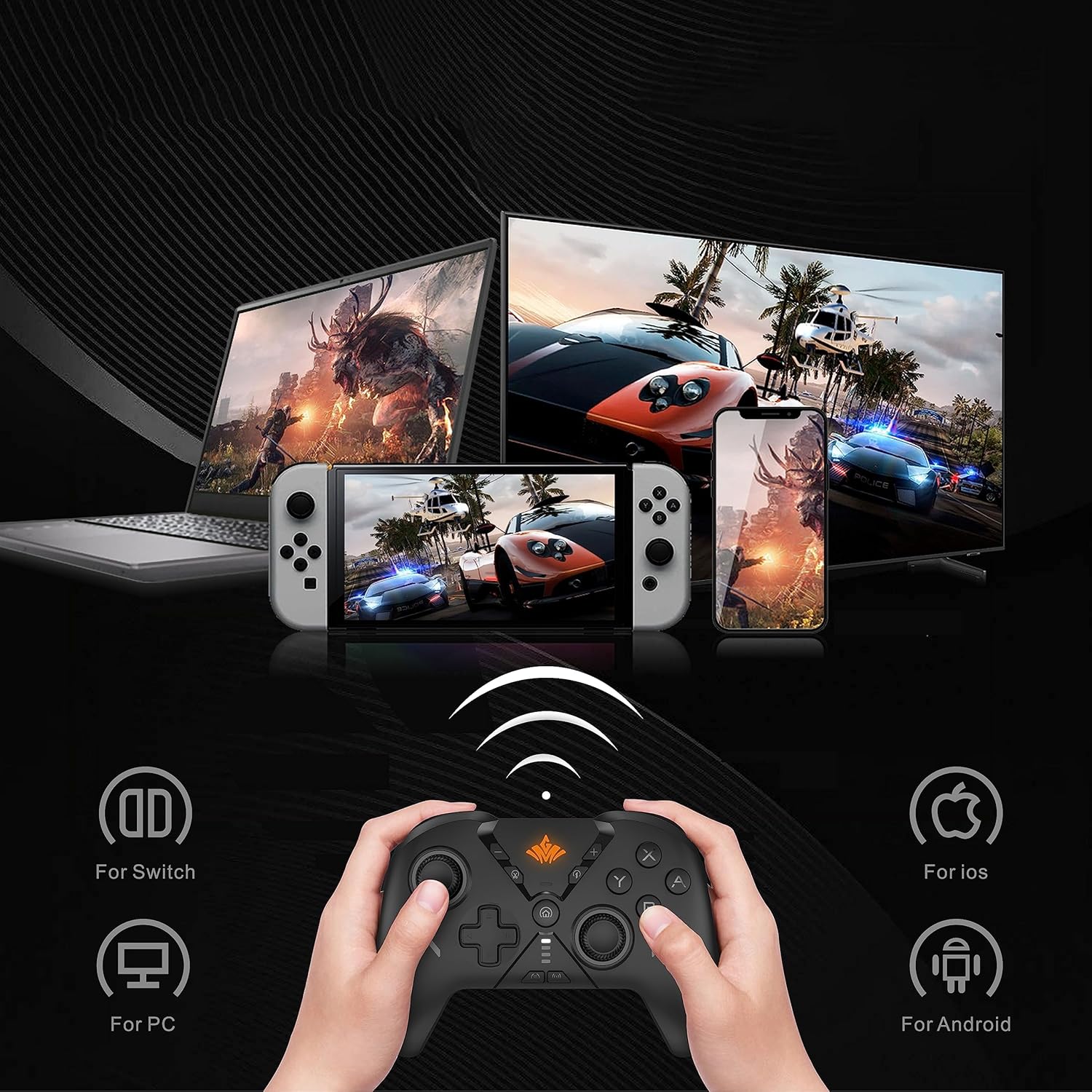
Image: A MOGEMYTH controller held by hands, with various screens in the background (laptop, Switch, smartphone), illustrating its wide compatibility with Switch, PC, iOS, and Android platforms.
5. Operating Instructions
5.1. Power On/Off
- Power On: Press the Home button.
- Power Off: Press and hold the Home button for 5 seconds until the controller powers down. The controller will also automatically power off after a period of inactivity.
5.2. Programmable Back Buttons (M1-M4)
The controller features 4 programmable back buttons (M1, M2, M3, M4) that can be mapped to other buttons for simplified complex actions. It supports up to 21 key customizations.
- Press and hold the Macro button (often located near the back buttons) and the desired M button (M1, M2, M3, or M4) simultaneously. The indicator light will flash.
- Press the button(s) you wish to map to the M button (e.g., A, B, X, Y, L, R, ZL, ZR, D-pad directions).
- Press the Macro button again to save the mapping. The indicator light will stop flashing.
- To clear a mapping, repeat step 1, then press the Macro button twice.
5.3. Turbo Function
The Turbo function allows a button to be pressed repeatedly as long as it is held down, with adjustable speed settings.

Image: A MOGEMYTH controller illustrating the eight levels of Turbo function, indicating increased speed with higher levels.
- Activate Turbo: Press and hold the Turbo button, then press the desired action button (e.g., A, B, X, Y, L, R, ZL, ZR). The button will now have Turbo functionality.
- Adjust Turbo Speed: Press and hold the Turbo button, then move the Right Joystick Up or Down to cycle through 8 adjustable speed levels.
- Deactivate Turbo: Press and hold the Turbo button, then press the action button again.
5.4. RGB Lighting
The controller features four modes of adjustable RGB light effects.

Image: A MOGEMYTH controller displaying a rainbow arc of RGB lighting, with indicators for four adjustable light effect modes (orange, green, light blue, blue).
- Change RGB Mode: Press the RGB button (often indicated by a light bulb icon) to cycle through the available lighting modes.
5.5. Vibration Adjustment
The controller offers 5 levels of adjustable motor vibration for enhanced gaming immersion.

Image: A MOGEMYTH controller illustrating the adjustable motor vibration feature, showing concentric circles emanating from the controller to represent vibration intensity with 5 levels.
- Adjust Vibration: Press and hold the Vibration button (often indicated by a vibration icon), then move the Left Joystick Up or Down to cycle through the 5 vibration levels.
5.6. 6-Axis Gyroscope
The built-in 6-axis gyro sensor detects the controller's inclination and movement, providing precise motion control in compatible games.
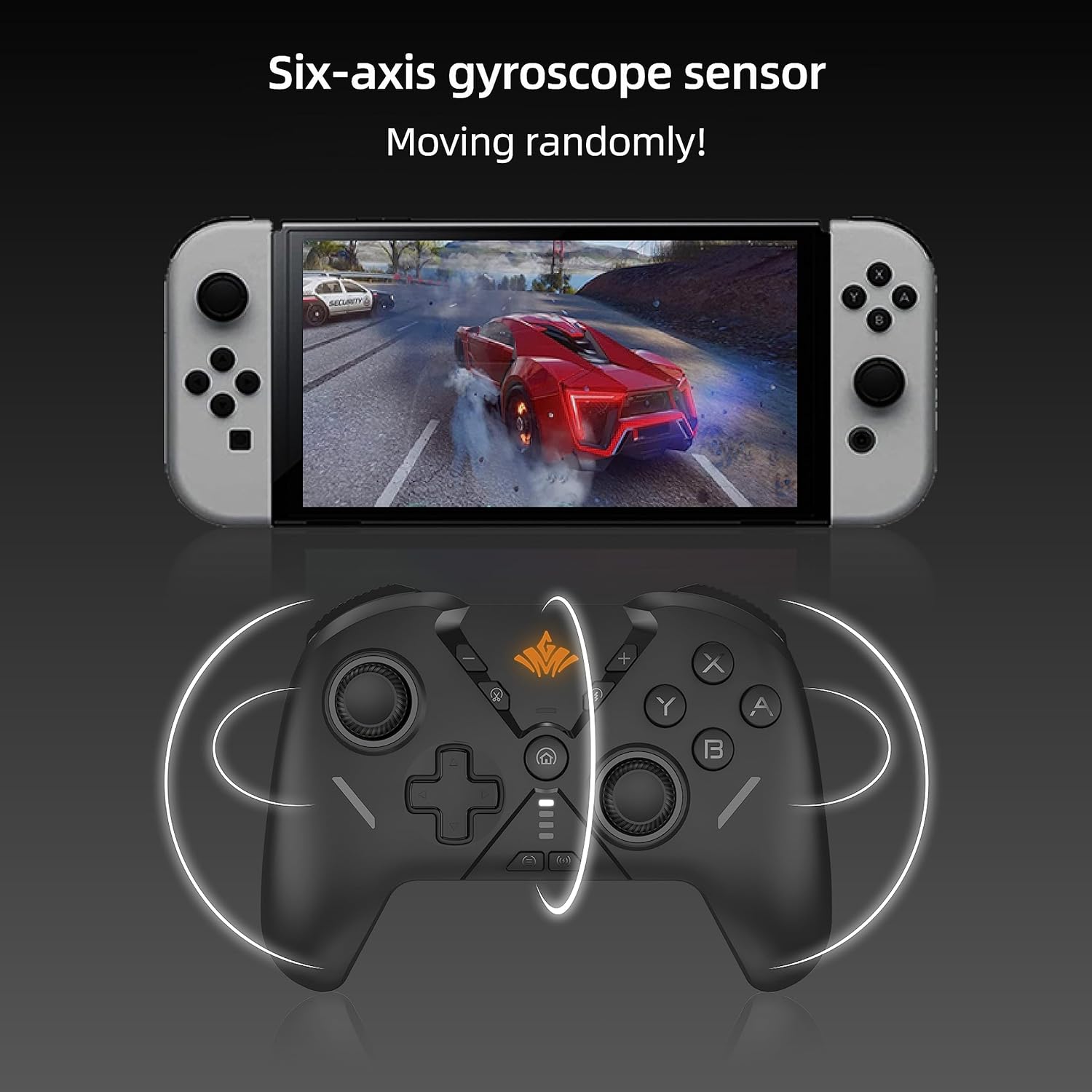
Image: A MOGEMYTH controller positioned below a Nintendo Switch screen displaying a racing game, with white arcs indicating the controller's motion sensing capability via its six-axis gyroscope.
5.7. NFC Functionality
The controller includes NFC (Near Field Communication) for compatibility with Amiibo figures on the Nintendo Switch.

Image: A MOGEMYTH controller positioned below a Nintendo Switch screen displaying a game, with a hand holding an Amiibo figure near the controller's center, indicating NFC support.
- To use Amiibo, ensure NFC is enabled in your Switch settings and touch the Amiibo figure to the NFC detection area on the controller (usually the center).
5.8. Screenshot Function
Capture in-game moments easily.
- Press the Share button (often indicated by a camera icon) to take a screenshot.
6. Maintenance
6.1. Battery Care
The controller is equipped with a built-in 1000mAh Lithium Ion battery, providing over 30 hours of playtime on a single charge.
- Avoid fully discharging the battery frequently to prolong its lifespan.
- Charge the controller regularly, even if not in use for extended periods.
- Use only the provided USB-C cable or a certified equivalent for charging.
6.2. Cleaning and Storage
- Clean the controller with a soft, dry cloth. Avoid using harsh chemicals or abrasive materials.
- Store the controller in a cool, dry place away from direct sunlight and extreme temperatures.
- Keep the controller away from liquids and dust.
7. Troubleshooting
7.1. Controller Does Not Connect
- Ensure the controller is fully charged.
- Verify that Bluetooth is enabled on your device (Switch, PC, Android, iOS).
- Make sure the controller is in pairing mode (indicator lights flashing rapidly).
- Try restarting both the controller and the device you are trying to connect to.
- If connecting to PC, try using the included USB Bluetooth dongle.
- Remove previous Bluetooth pairings for the controller on your device and attempt to pair again.
7.2. Buttons Not Responding or Input Lag
- Ensure the controller is within the effective Bluetooth range (up to 32 feet).
- Check for any physical obstructions or interference between the controller and the device.
- Recharge the controller if the battery is low.
- Restart the controller and the game/application.
7.3. Gyroscope or Vibration Issues
- Ensure the game or application supports gyroscope/vibration features.
- Check the controller's vibration settings (refer to section 5.5).
- Some games may require in-game calibration for motion controls.
8. Specifications
| Model Number | MG0301 |
| Connectivity | Bluetooth 4.0, USB (with dongle) |
| Compatibility | Nintendo Switch, PC (Windows 7/8/10/11), Android (6.0+), iOS (13+, iPhone 6+) |
| Battery Capacity | 1000mAh Lithium Ion (included) |
| Playtime | Over 30 hours (on a single charge) |
| Wireless Range | Up to 32 feet (10 meters) |
| Features | Dual Vibration, 6-Axis Gyroscope, Programmable Back Buttons (M1-M4), Adjustable Turbo Function (8 levels), RGB Lighting (4 modes), NFC (Amiibo support) |
| Item Weight | 15.2 ounces |
| Package Dimensions | 7.95 x 5.67 x 2.52 inches |
9. Warranty and Support
MOGEMYTH products are designed for quality and reliability. For any questions, technical support, or warranty inquiries, please contact MOGEMYTH customer service through the retailer where the product was purchased or visit the official MOGEMYTH website for support contact information.
Please retain your proof of purchase for warranty claims.