
Pomya Pomyars50fx924q
Mini Body Camera User Manual
Model: Pomyars50fx924q | Brand: Pomya
Introduction
This user manual provides detailed instructions for the operation and maintenance of your Mini Body Camera. Please read this manual thoroughly before using the device to ensure proper functionality and to maximize its lifespan. This portable digital voice and video recorder is designed for various recording needs, offering high-definition capture and extended battery life.
Product Overview
Key Features:
- Portable Design: Made of premium ABS material, compact size, lightweight and easy to carry, convenient and practical.
- High Definition Recording: Capable of shooting HD photos and videos with picture and video resolution of 1920x1080 and image ratio of 16:9.
- Large Capacity Storage: Supports up to 256GB (not included) memory card, allowing easy storage of videos and photos.
- Long Battery Life: Built-in 600mAh lithium-ion battery provides approximately 5 hours of continuous recording.
- Multifunctional: Supports recording, video loop recording, and other functions, designed to be shockproof.
- Adjustable Lens: The lens can be adjusted 180 degrees for flexible shooting scenarios.
Components:
Familiarize yourself with the various parts of your Mini Body Camera:

Figure 1: Front view of the Mini Body Camera, showing the lens and main body.

Figure 2: Top view of the camera, highlighting the ON/OFF switch, recording mode switch, and microphone.

Figure 3: The Mini Body Camera shown alongside its data charging cable.

Figure 4: Close-up view of the camera lens, showing its detailed construction.
Setup
Charging the Device:
- Connect the provided data cable to the camera's charging port.
- Plug the other end of the cable into a USB power adapter or a computer's USB port.
- The indicator light will show charging status (refer to LED indicator section for details).
- A full charge provides approximately 5 hours of recording time.
Inserting a Memory Card:
The device supports memory cards up to 256GB (not included). Ensure the device is powered off before inserting or removing the memory card.
- Locate the memory card slot on the side of the camera.
- Gently insert the memory card into the slot until it clicks into place.
- To remove, push the card in slightly until it springs out.
Operating Instructions
The Mini Body Camera features simple controls for various functions. Toggle the corresponding switch to use each function.
Powering On/Off:
- To power on, slide the ON/OFF switch to the "ON" position.
- To power off, slide the ON/OFF switch to the "OFF" position.
Recording Video:
- Ensure a memory card is inserted and the device is powered on.
- Slide the mode switch to the video recording icon.
- The device will begin recording video. An indicator light will confirm recording status.
- To stop recording, slide the mode switch back to the neutral position or power off the device.
Taking Photos:
- Ensure a memory card is inserted and the device is powered on.
- Slide the mode switch to the photo icon.
- Press the designated button (if any, or a quick toggle of the switch) to capture a photo.
Recording Audio:
- Ensure a memory card is inserted and the device is powered on.
- Slide the mode switch to the microphone icon.
- The device will begin recording audio.
- To stop recording, slide the mode switch back to the neutral position or power off the device.
Lens Adjustment:
The camera's lens can be manually rotated 180 degrees to adjust the viewing angle for different shooting requirements.

Figure 5: Example of the camera being used in a video conference setting, demonstrating its versatility.

Figure 6: Illustrates the camera's application in diverse environments such as meetings, outdoor activities, and educational settings.
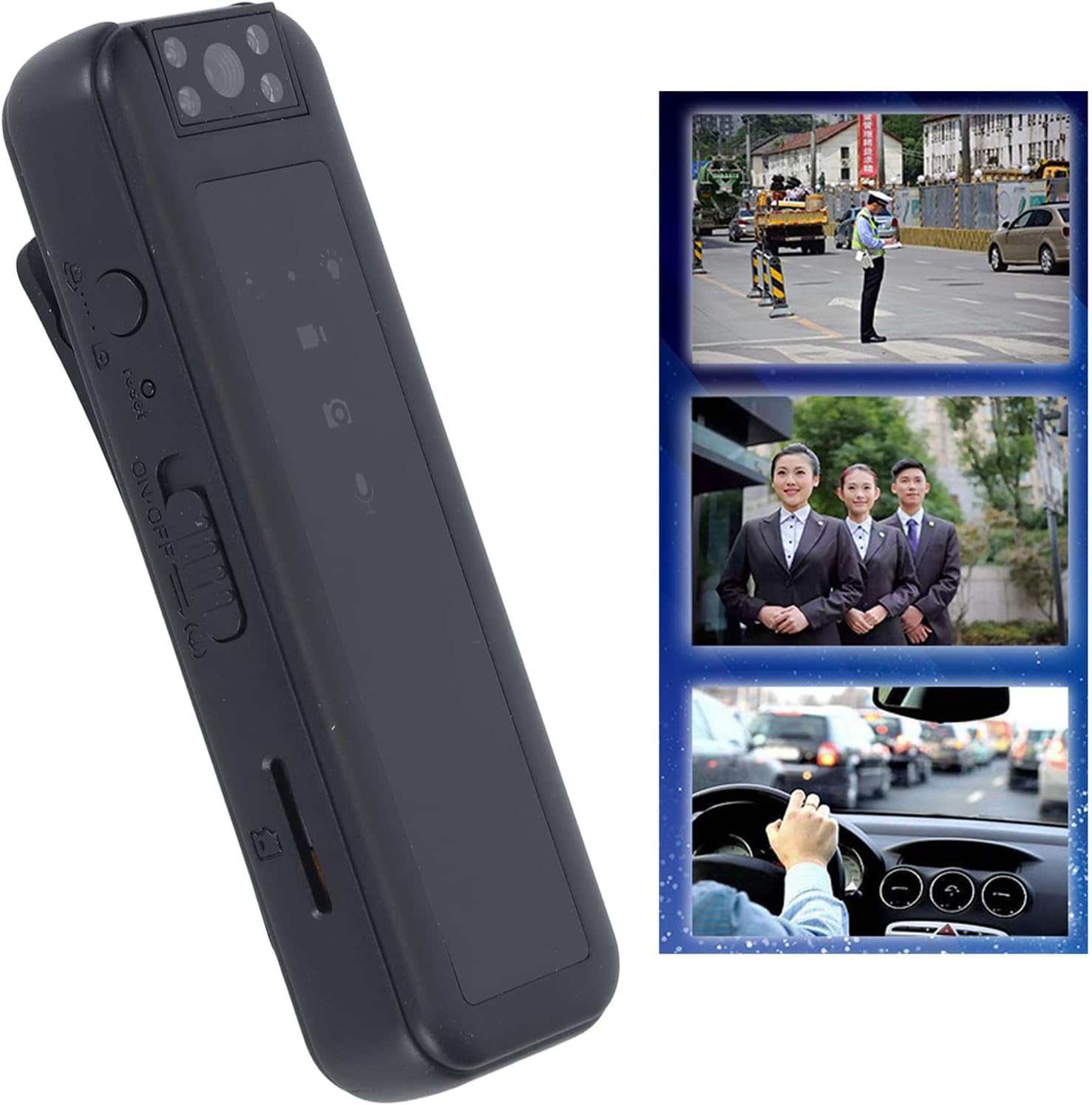
Figure 7: Shows the camera's utility for recording in traffic, professional interactions, or while driving.

Figure 8: Depicts the 180-degree rotatable lens feature, allowing for flexible recording angles.
Viewing Files:
To view recorded videos and photos, connect the camera to a computer using the provided USB cable. The device will appear as a removable disk, allowing you to access and transfer files.
Official Product Video:
Video 1: An official product video demonstrating the features and usage of the Mini Body Camera, including its rotatable lens and various applications.
Maintenance
- Keep the device clean by wiping it with a soft, dry cloth.
- Avoid exposing the camera to extreme temperatures, direct sunlight, or high humidity.
- Do not attempt to disassemble the device, as this will void the warranty and may cause damage.
- Store the camera in a cool, dry place when not in use.
Troubleshooting
| Problem | Possible Cause | Solution |
|---|---|---|
| Device does not power on. | Low battery; device malfunction. | Charge the battery fully. If problem persists, contact customer support. |
| Cannot record video/audio or take photos. | No memory card inserted; memory card full or corrupted. | Insert a compatible memory card. Delete old files or format the card (backup important data first). |
| Poor video/audio quality. | Insufficient lighting; microphone obstruction; dirty lens. | Ensure adequate lighting. Check for obstructions near the microphone. Clean the lens gently. |
| Device not recognized by computer. | Faulty USB cable; driver issue; incorrect connection. | Try a different USB port or cable. Ensure the camera is powered on when connected. |
Specifications
| Feature | Detail |
|---|---|
| Model Name | Pomyars50fx924q |
| Material | ABS |
| Image Resolution | 1920x1080 |
| Image Format | JPG |
| Video Resolution | 1920x1080 |
| Video Format | AVI |
| Image Ratio | 16:9 |
| Recording Format | WAV |
| Lens Adjustment | 180 Degrees |
| Battery Capacity | Built-in 600mAh Lithium-Ion Battery |
| Working Time | Approx. 5 hours of video recording |
| Memory Support | Memory Card, Up To 256GB (Not Included) |
| Item Weight | 2.82 ounces |
| Package Dimensions | 5 x 3.35 x 1.34 inches |
Warranty and Support
For warranty information and technical support, please refer to the documentation included with your purchase or visit the official Pomya website. Keep your proof of purchase for warranty claims.
Manufacturer: Pomya
Date First Available: May 18, 2023
Related Documents - Pomyars50fx924q
 |
1080P Mini Body Camera User Manual & Specifications Comprehensive user manual and technical specifications for the 1080P Mini Body Camera. Learn how to operate, set up, and troubleshoot your device, including details on recording, file management, and device parameters. |
 |
Mini Bodycam User Manual - VD02 User manual for the Mini Bodycam VD02, detailing setup, operation, Wi-Fi connectivity, app instructions, product diagrams, technical specifications, and FAQs. |
 |
ONCHEER P95 Body Camera FAQ and User Guide Frequently asked questions and operational guidance for the ONCHEER P95 body camera, covering date/time settings, audio, memory card expansion, clip replacement, and software management. |
 |
CUGUU ZC-M11 4K Body Camera User Manual and Features Comprehensive guide and feature overview for the CUGUU ZC-M11 4K wearable body camera, featuring WiFi, night vision, 180-degree rotatable lens, and motion detection. |
 |
Model L17 Voice Recorder User Manual - Comprehensive Guide Comprehensive user manual for the Model L17 voice recorder, a 64GB magnetic portable device. Covers setup, operation, recording, playback, advanced settings (voice control, 1536kps), specifications, and troubleshooting. Includes instructions in English, Italian, Spanish, French, and German. |
 |
Fillman Compact Voice Recorder User Manual | Features, Operation, and Troubleshooting User manual for the Fillman Compact Voice Recorder. This guide provides detailed instructions on button functions, recording, playback, file management, time setting, voice-activated recording, charging, and troubleshooting common issues. Features include 64GB storage and long battery life. |
Ask a question about this manual
Ask about setup, troubleshooting, compatibility, parts, safety, or missing instructions. Manuals+ will review the question and use this page’s manual context to help answer it.