
ForHelp 15.6 inch 4K
ForHelp 15.6-inch 4K Portable Monitor
User Instruction Manual
Model: 15.6 inch 4K
1. Introduction
This manual provides detailed instructions for the setup, operation, and maintenance of your ForHelp 15.6-inch 4K Portable Monitor. This monitor features a 3840x2160 UHD resolution IPS panel, offering accurate colors and sharp details. Its lightweight and slim design make it suitable for various applications, including gaming, photography, programming, and multitasking on the go.

Image: The ForHelp 15.6-inch 4K Portable Monitor, showcasing its sleek design and integrated stand.
2. Product Features
- True 4K UHD Resolution: 3840x2160 resolution on a 15.6-inch IPS panel for sharp and detailed images.
- Exceptional Color Accuracy: 100% Adobe RGB color space, 16.7 million colors, and 1200:1 contrast ratio for vivid and cinematic visuals.
- Wide Viewing Angle: IPS technology ensures consistent and accurate colors from a 178° viewing angle.
- High Brightness: Up to 400 nits peak brightness for clear visibility.
- Ultra-Slim and Lightweight Design: Measures 0.3 inches in thickness and weighs approximately 1.8 lbs, making it highly portable.
- Versatile Connectivity: Features USB-C (full function) and Mini HDMI ports for broad compatibility.
- Integrated Speakers: Built-in speakers for audio output.

Image: Visual representation of the monitor's display features, including Low Blue Light, 1200:1 Contrast Ratio, 178° View Angle, 400 Nits Brightness, 16.7 Million Colors, and 100% Color Mode (Adobe RGB).

Image: Illustration highlighting the monitor's lightweight (1.4 lbs) and ultra-slim (0.3 inches) profile, emphasizing its portability.
3. Package Contents
Please verify that all items are present in the package:
- ForHelp 15.6-inch 4K Portable Monitor
- USB-C to USB-C Cable
- USB-C to USB-A Cable
- Mini-HDMI to HDMI Cable
- Smart Cover (Two-angle)
- Wall Charge (Fast-charge)
- User Manual (This document)

Image: A visual guide to the accessories included in the product packaging, such as various cables, the smart cover, wall charger, and user manual.
4. Setup
4.1 Identifying Ports and Controls

Image: A close-up view of the monitor's side, detailing the Power Button, Power Indicator Light, Multi-function Key, 3.5mm Headphone Jack, Mini HDMI port, and Type-C (Full Function) port, along with compatible devices.
- Power Button: Used to turn the monitor on/off.
- Power Indicator Light: Indicates the power status of the monitor.
- Multi-function Key: Used to navigate the On-Screen Display (OSD) menu and adjust settings.
- 3.5mm Headphone Jack: For connecting external audio devices.
- Mini HDMI Port: For video input from devices with HDMI output.
- Type-C (Full Function) Port: Supports both power delivery and video signal transmission with a single cable.
4.2 Connecting Your Device
The monitor supports two primary signal input methods: USB-C and Mini HDMI.
- USB-C Connection (Single Cable Solution):
- Ensure your device's USB-C port supports DisplayPort Alternate Mode (DP Alt Mode) for video output and Power Delivery for power.
- Connect one end of the provided USB-C to USB-C cable to the monitor's Type-C (Full Function) port and the other end to your device's compatible USB-C port.
- If your device cannot provide sufficient power, connect the included wall charger to the monitor's other USB-C port (if available) or directly to the power source.
- Mini HDMI Connection:
- Connect one end of the provided Mini-HDMI to HDMI cable to the monitor's Mini HDMI port and the other end to your device's HDMI output.
- For power, connect the included USB-C to USB-A cable from the monitor's USB-C port to a USB-A port on your device or to the included wall charger.
Note: For 4K resolution, especially with certain devices, additional power may be required even with USB-C connections. Always ensure the monitor receives adequate power for optimal performance.
5. Operating
5.1 Powering On/Off
- To turn on the monitor, press the Power Button. The Power Indicator Light will illuminate.
- To turn off the monitor, press and hold the Power Button for a few seconds until the screen goes blank and the indicator light turns off.
5.2 Using the On-Screen Display (OSD) Menu
The Multi-function Key allows you to access and navigate the OSD menu to adjust various display settings.
- Accessing the Menu: Press the Multi-function Key to bring up the OSD menu.
- Navigation: Use the Multi-function Key (push up/down or left/right, depending on its design) to scroll through menu options.
- Selection: Press the Multi-function Key (or push in) to select an option.
- Adjusting Values: Once an option is selected, use the Multi-function Key to increase or decrease values (e.g., brightness, contrast).
- Exiting: Navigate to the 'Exit' option or press the Multi-function Key repeatedly to go back through menus and eventually exit.
5.3 Common OSD Settings
- Brightness/Contrast: Adjust the overall luminance and distinction between light and dark areas.
- Color Settings: Fine-tune color temperature, hue, and saturation.
- Input Source: Manually select between USB-C and Mini HDMI inputs if auto-detection fails.
- Aspect Ratio: Adjust the display's aspect ratio (e.g., 16:9).
- Volume: Control the audio output level from the built-in speakers or headphone jack.
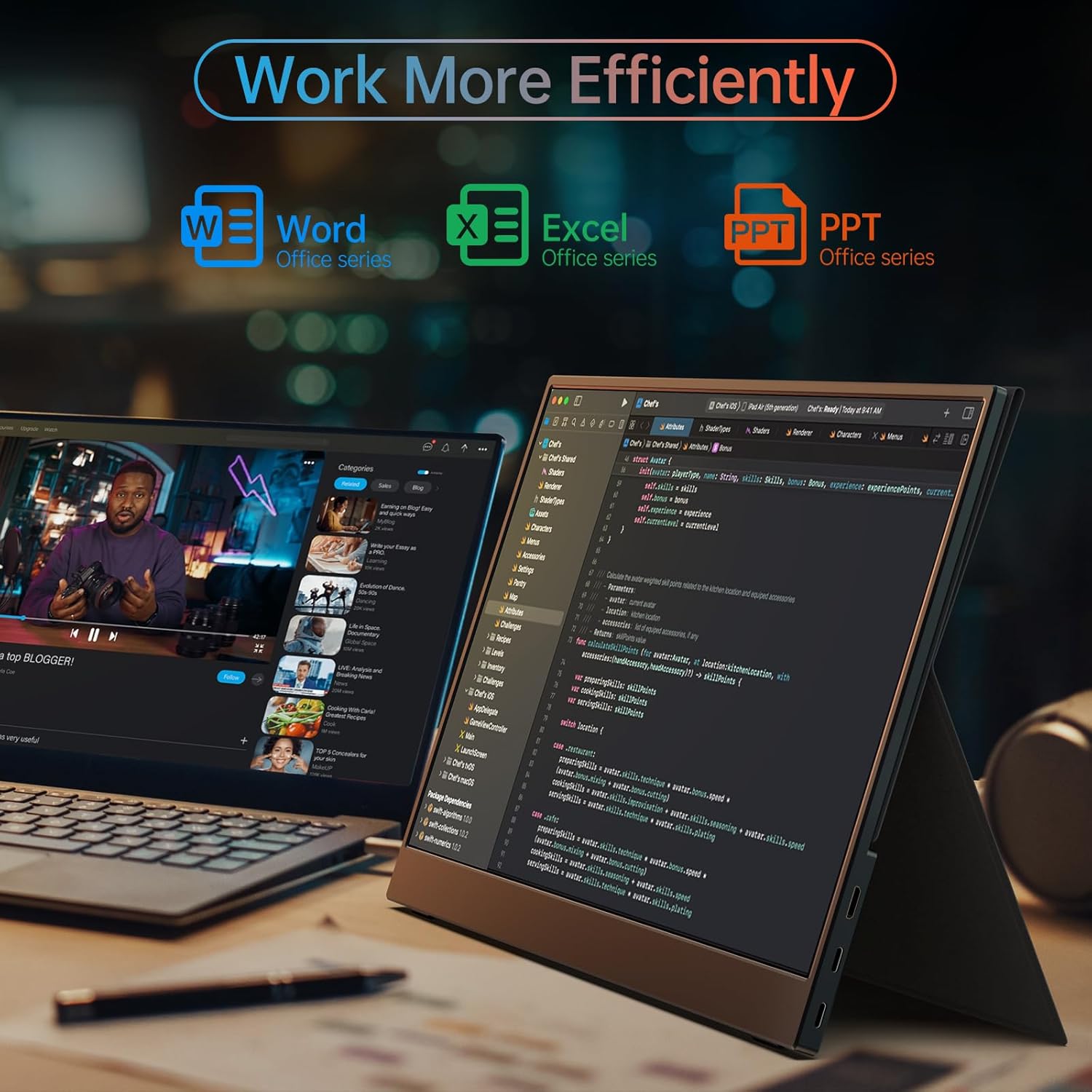
Image: The portable monitor being used in a professional setting, demonstrating its capability to extend a laptop's display for enhanced productivity with office applications and coding environments.
6. Maintenance
Proper maintenance ensures the longevity and optimal performance of your portable monitor.
- Cleaning the Screen: Use a soft, lint-free cloth slightly dampened with water or a non-abrasive screen cleaner. Avoid using alcohol, ammonia, or harsh chemicals. Do not spray liquid directly onto the screen.
- Cleaning the Casing: Wipe the monitor's casing with a soft, dry cloth.
- Storage: When not in use, store the monitor in its smart cover to protect it from dust and scratches. Avoid placing heavy objects on top of the monitor.
- Environmental Conditions: Keep the monitor away from extreme temperatures, direct sunlight, high humidity, and dusty environments.
- Cable Management: Handle cables carefully to prevent damage to the connectors and ports.
7. Troubleshooting
If you encounter issues with your monitor, please refer to the following common problems and solutions:
| Problem | Possible Cause | Solution |
|---|---|---|
| No signal / Black screen | Incorrect input source selected; Loose cable connection; Insufficient power; Device not outputting signal. | Check cable connections (USB-C, HDMI). Ensure cables are fully inserted. Select the correct input source via the OSD menu. Ensure the monitor is receiving adequate power, especially for 4K resolution. Restart the connected device. |
| Flickering screen | Unstable power supply; Faulty cable; Graphics driver issue. | Ensure stable power supply. Try a different cable. Update graphics drivers on your connected device. |
| No audio | Volume too low; Incorrect audio output selected on device; Faulty cable. | Increase monitor volume via OSD. Check audio output settings on your connected device to ensure it's sending audio to the monitor. Ensure the cable supports audio transmission. |
| Monitor not turning on | No power; Faulty power adapter/cable. | Ensure the power adapter is securely connected to a working power outlet and the monitor. Try a different power outlet or adapter if available. |
| Image quality is poor / Resolution incorrect | Incorrect display settings on device; Cable limitation. | Adjust display resolution settings on your connected device to 3840x2160. Ensure the cable used supports 4K resolution. |
If the problem persists after trying these solutions, please contact ForHelp customer support.
8. Specifications
| Feature | Specification |
|---|---|
| Product Dimensions | 16.9 x 1.96 x 11.4 inches |
| Item Weight | 1.8 pounds |
| Manufacturer | ForHelp |
| Item Model Number | 15.6 inch 4K |
| Standing Screen Display Size | 15.6 inches |
| Aspect Ratio | 16:9 |
| Voltage | 20 Volts (DC) |
| Resolution | 3840 x 2160 (UHD 4K) |
| Image Brightness | 400 nits |
| Total USB Ports | 1 (Type-C Full Function) |
| Screen Surface Description | Matte |
9. Warranty and Support
Your ForHelp 15.6-inch 4K Portable Monitor comes with a 2-year warranty from the date of purchase.
For any technical assistance or inquiries, ForHelp provides lifetime technical support and 24/7 customer service. Any issues will be addressed promptly, typically within 8 hours.
Please retain your proof of purchase for warranty claims.
For support, please visit the official ForHelp website or contact their customer service channels as provided in your product packaging or purchase documentation.
Related documents15.6 inch 4K


Ask a question about this manual
Ask about setup, troubleshooting, compatibility, parts, safety, or missing instructions. Manuals+ will review the question and use this page’s manual context to help answer it.