1. Introduction
This user manual provides comprehensive instructions for the setup, operation, and maintenance of your new SAMSUNG 65-inch LED Smart TV Crystal 4K UHD, model UN-65CU7010. Please read this manual thoroughly before using your television to ensure proper and safe operation.

Figure 1.1: Front view of the SAMSUNG 65-inch Crystal 4K UHD Smart TV. This image displays the television screen with a vibrant, abstract background, showcasing the "Crystal UHD" branding on the display. The TV is supported by two sleek, black stand legs.
Package Contents:
- SAMSUNG 65-inch Crystal 4K UHD Smart TV (Model: UN-65CU7010)
- Remote Control
- User Manual (this document)
- Stand Legs and Screws
- Power Cable
2. Setup
2.1 Installing the Stand
Carefully place the TV screen-down on a soft, flat surface to prevent damage. Align the stand legs with the corresponding slots on the bottom of the television. Secure the legs using the provided screws. Ensure the stand is firmly attached before placing the TV upright.
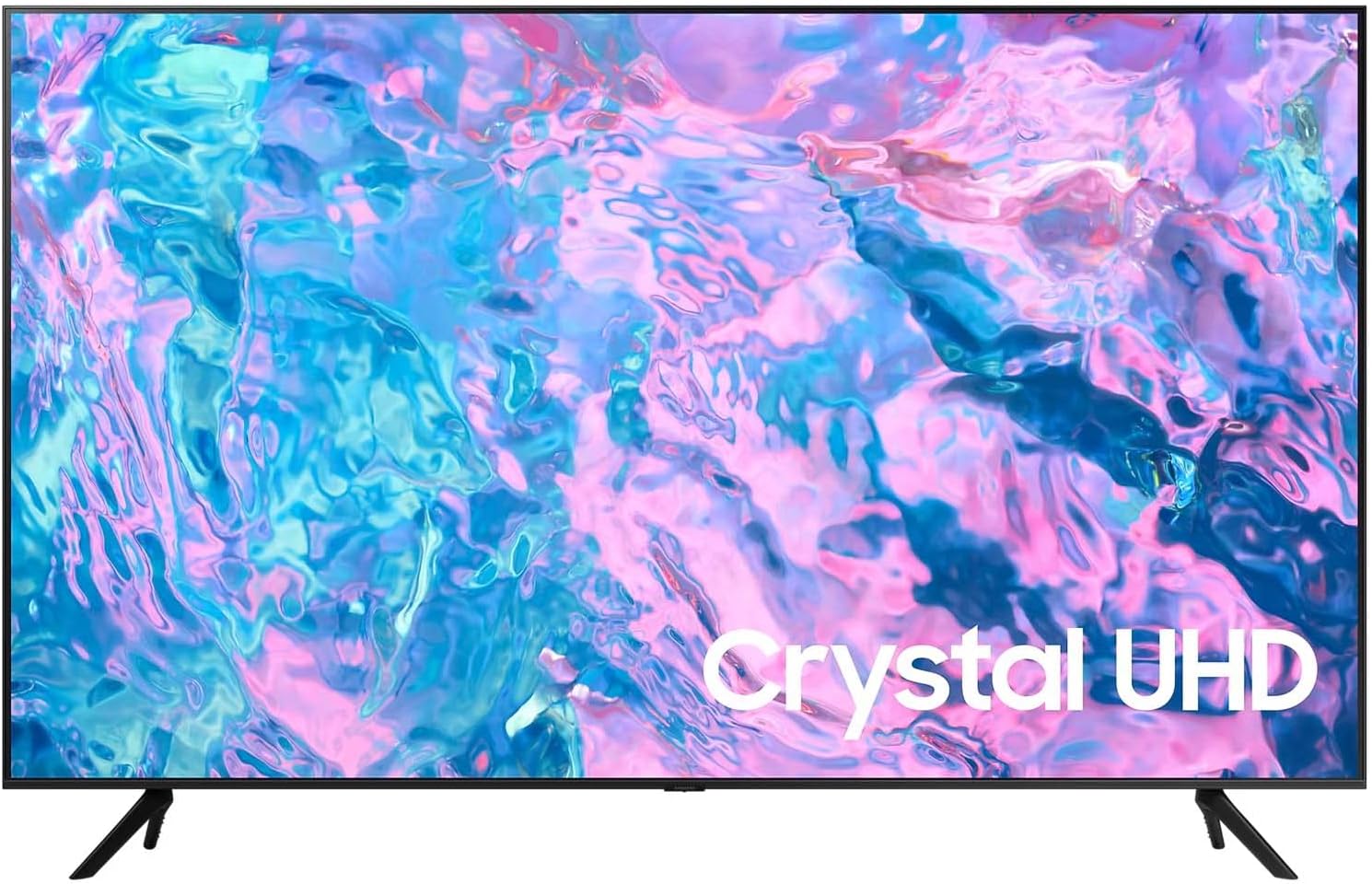
Figure 2.1: Front angle view of the SAMSUNG 65-inch Crystal 4K UHD Smart TV, illustrating the television with its stand legs attached.
2.2 Connecting External Devices
Your SAMSUNG TV is equipped with multiple HDMI ports for connecting various external devices such as Blu-ray players, gaming consoles, and soundbars.
- Locate the HDMI ports on the back of your TV.
- Connect an HDMI cable from your external device to any available HDMI port on the TV.
- For optimal audio, consider connecting a soundbar or home theater system via HDMI ARC/eARC or optical audio out.

Figure 2.2: Side profile view of the SAMSUNG 65-inch Crystal 4K UHD Smart TV, highlighting its slim design and the location of side-mounted ports (if any are visible).
2.3 Initial Power-On
After connecting all necessary cables, plug the power cord into an electrical outlet. Press the power button on the remote control or on the TV itself. Follow the on-screen instructions to complete the initial setup, including network connection and channel scanning.
3. Operating Your Smart TV
3.1 Smart Hub Navigation
The Smart Hub is your central access point for all smart features, including streaming apps, live TV, and connected devices. Use your remote control's directional pad and select button to navigate.
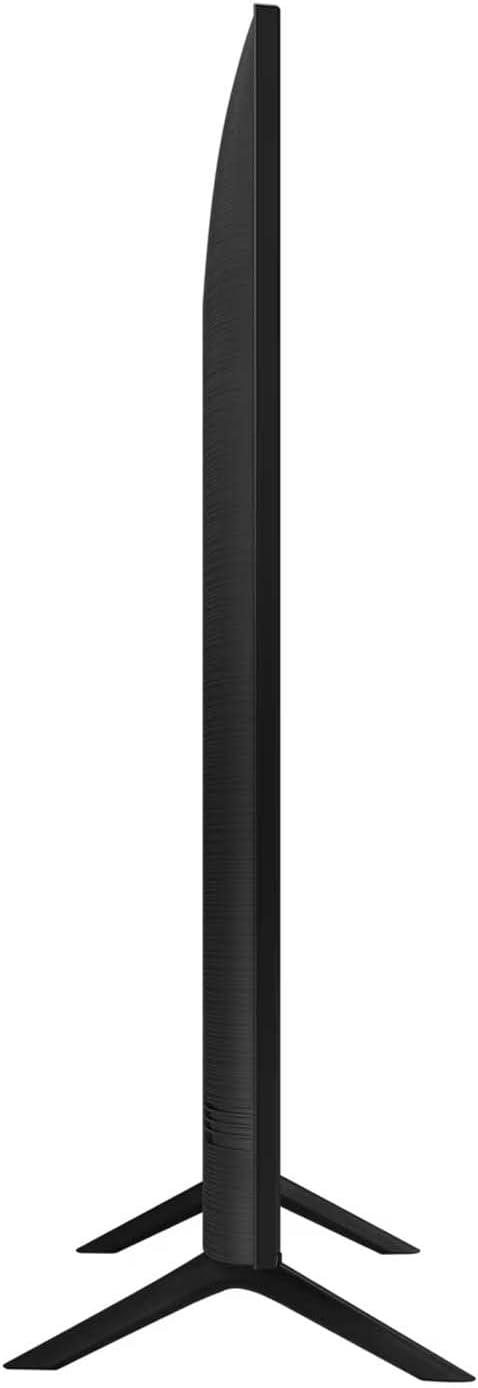
Figure 3.1: A screenshot of the Samsung Smart Hub interface, displaying various streaming applications and content recommendations. The interface is powered by Tizen.
3.2 Voice Control
Utilize the integrated voice control feature to change channels, adjust volume, and control playback simply by speaking commands into your remote. Refer to your remote control's specific instructions for activating voice commands.
3.3 Multi View
The Multi View function allows you to split your TV screen into two sections, enabling you to watch television content on one side and mirror your smartphone screen on the other simultaneously. This feature is ideal for multitasking or sharing content.
3.4 Picture and Sound Enhancement
Your Crystal 4K UHD TV features Quantum Dot technology for impressive and accurate color reproduction. The Crystal UHD Processor 4K enhances picture quality by upscaling content to near 4K resolution. For audio, OTS (Object Tracking Sound) and Q-Symphony provide an immersive sound experience.

Figure 3.2: A visual comparison demonstrating the enhanced color vibrancy and accuracy achieved with PurColor technology compared to conventional color processing.

Figure 3.3: An illustration of the Samsung Crystal UHD Processor 4K chip, central to the television's advanced picture processing capabilities.
3.5 SmartThings Integration
Connect your TV to the SmartThings ecosystem to control compatible smart home devices directly from your television screen. This allows for centralized management of your smart home environment.

Figure 3.4: A user interacting with the SmartThings application displayed on a Samsung TV, showing control over various smart home devices.
4. Maintenance
4.1 Cleaning Your TV
To clean the screen, gently wipe it with a soft, dry microfiber cloth. For stubborn smudges, lightly dampen the cloth with water or a screen-specific cleaning solution. Avoid using harsh chemicals, abrasive materials, or direct spraying onto the screen.
4.2 General Care
- Do not block ventilation openings.
- Keep the TV away from direct sunlight, heat sources, and excessive dust.
- Unplug the TV during lightning storms or when unused for long periods.
5. Troubleshooting
If you encounter issues with your television, refer to the following common troubleshooting steps before contacting support.
| Problem | Possible Solution |
|---|---|
| No Power | Ensure the power cord is securely plugged into both the TV and a working electrical outlet. Test the outlet with another device. |
| No Picture / No Sound | Check all cable connections (HDMI, antenna, etc.). Ensure the correct input source is selected on the TV. Restart connected devices. |
| Remote Control Not Working | Replace the batteries in the remote control. Ensure there are no obstructions between the remote and the TV's IR sensor. |
| Smart Features Not Responding | Check your internet connection. Restart the TV by unplugging it for a few minutes and plugging it back in. Update the TV's software if an update is available. |
6. Specifications
Below are the technical specifications for the SAMSUNG 65-inch Crystal 4K UHD Smart TV (Model: UN-65CU7010).
| Feature | Detail |
|---|---|
| Brand | SAMSUNG |
| Model Name | Crystal 4K UHD UN-65CU7010 |
| Model Number | UN65CU7010FXZX |
| Screen Size | 65 Inches (166 cm visible diagonal) |
| Display Technology | LED |
| Resolution | 3840 x 2160 (4K UHD) |
| Refresh Rate | 60 Hz |
| Aspect Ratio | 16:9 |
| Connectivity Technology | HDMI |
| Audio Output Mode | Surround, Digital |
| Mounting Type | Table Stand |
| Product Dimensions (W x D x H) | 160 x 19 x 96 cm |
| Product Weight | 28 kg |
| Compatible Internet Services | Smart TV (Tizen OS) |
| Included Components | Television, Remote Control, User Manual |
7. Warranty and Support
7.1 Manufacturer's Warranty
Your SAMSUNG television comes with a manufacturer's warranty. Please refer to the warranty card included with your product for specific terms, conditions, and duration. Keep your proof of purchase for warranty claims.
7.2 Customer Support
For technical assistance, service requests, or further information, please visit the official SAMSUNG support website or contact their customer service hotline.
SAMSUNG Support Website: www.samsung.com/support/


