
1. Introduction
Thank you for choosing the ZHXINSD P10 Indoor Security Camera. This manual provides detailed instructions for setting up, installing, and operating your camera to ensure optimal performance and security for your home. Please read this manual thoroughly before use and retain it for future reference.
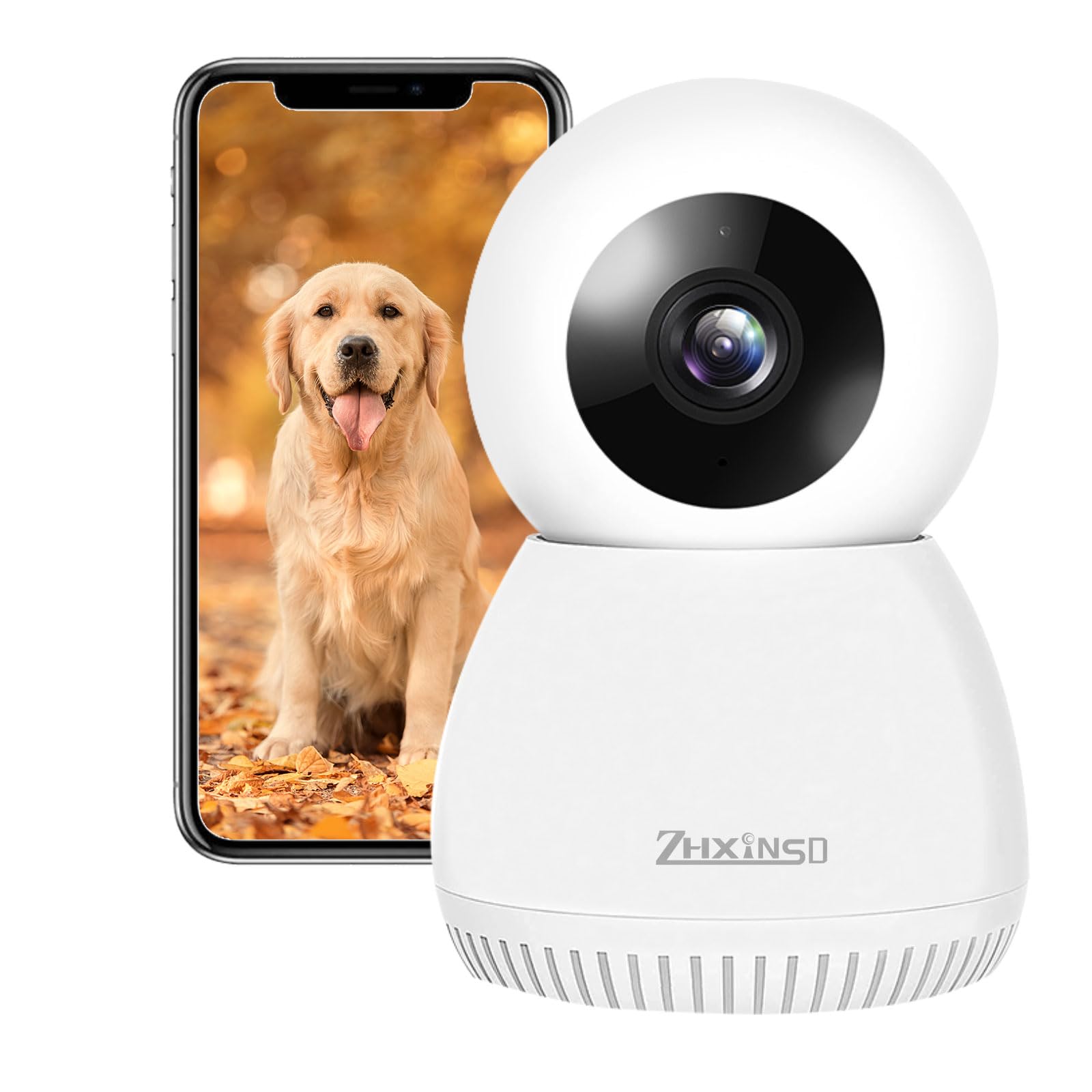
The ZHXINSD P10 Indoor Security Camera offers comprehensive coverage with pan and tilt capabilities.
2. Product Overview
The ZHXINSD P10 is a 1080P Pan & Tilt Home Security Camera designed for indoor use. It features 360° rotation, IR night vision, two-way audio, and motion detection, making it ideal for monitoring pets, babies, or elders. The camera connects via 2.4GHz Wi-Fi and is compatible with Amazon Alexa.
Key Features:
- 1080P HD Video: Crystal clear live streaming and recordings.
- Pan & Tilt Functionality: Horizontal 355° and Vertical 90° rotation for wide coverage.
- IR Night Vision: Clear visibility even in low-light conditions.
- Two-Way Audio: Built-in microphone and speaker for communication.
- Motion Detection: Alerts and recording upon detecting movement.
- Local & Cloud Storage: Supports Micro SD card (up to 128GB, not included) and cloud storage options.
- 2.4GHz Wi-Fi: Stable wireless connection.
This video provides a brief overview of the ZHXINSD P10 Wireless Pan-tilt Camera's features, including its power supply, flexible installation options (flat mounting, ceiling hanging), horizontal and vertical rotation, intelligent motion detection, and the EseeCloud app interface.
3. Setup Guide
Getting Started:
- Power On: Connect the camera to a power outlet using the provided USB cable and adapter. The camera will power on and initiate its self-test.
- Download App: Download the "EseeCloud" app from the App Store (iOS) or Google Play Store (Android).
- Register Account: Open the EseeCloud app and register for a free account if you don't already have one.
Connecting Your Camera:
Follow these steps to connect your camera to your Wi-Fi network using the EseeCloud app:
- In the EseeCloud app, tap the "+" icon to add a new device.
- Select the option to scan the QR code.
- Scan the QR code located on the bottom of your camera. The app will detect the camera's ID.
- Confirm the device ID and proceed to network configuration.
- The app will prompt you to connect your mobile phone to the camera's hotspot (usually named IPC****). Go to your phone's Wi-Fi settings, find and connect to this network.
- Return to the EseeCloud app. You will be asked to select your home 2.4GHz Wi-Fi network and enter its password. Note: The camera only supports 2.4GHz Wi-Fi networks.
- The camera will then attempt to connect to your home Wi-Fi. This process may take 1-2 minutes.
- Once connected, you will receive a confirmation message. You can then name your device (e.g., Living Room, Office) and start live viewing.
This video demonstrates the step-by-step process of setting up the ZHXINSD P10 camera, including scanning the QR code, connecting to the camera's Wi-Fi hotspot, entering the network password, and successfully adding the device to the EseeCloud app for live viewing.
4. Installation Methods
The ZHXINSD P10 camera offers flexible installation options to suit your needs:
- Flat Mounting: Place the camera on a flat surface such as a table, shelf, or cabinet.
- Wall Mounting: Secure the camera to a wall using the provided mounting accessories.
- Ceiling Hanging: Mount the camera to the ceiling for an overhead view.
Ensure the camera is placed within range of your 2.4GHz Wi-Fi network for stable connectivity.

Various installation methods for the ZHXINSD P10 camera.
5. Operating Instructions
Pan & Tilt Control:
From the live view in the EseeCloud app, use the directional controls to remotely adjust the camera's viewing angle. The camera supports 355° horizontal rotation and 90° vertical rotation.

Control the camera's pan and tilt directly from the app.
Two-Way Audio:
Tap the microphone icon in the app's live view to speak through the camera's speaker. Tap the speaker icon to listen to audio from the camera's surroundings. This allows for real-time communication.

Engage in two-way communication through the camera.
Motion Detection & Alerts:
The camera features human detection that automatically tracks and captures movement. When motion is detected, the camera sends image notifications to your phone via the EseeCloud app. Motion-triggered events can also be recorded to a Micro SD card.

Receive alerts and recordings when motion is detected.
Night Vision:
The camera automatically switches between day and infrared night vision modes, providing clear visuals even in complete darkness. This ensures 24/7 monitoring capability.
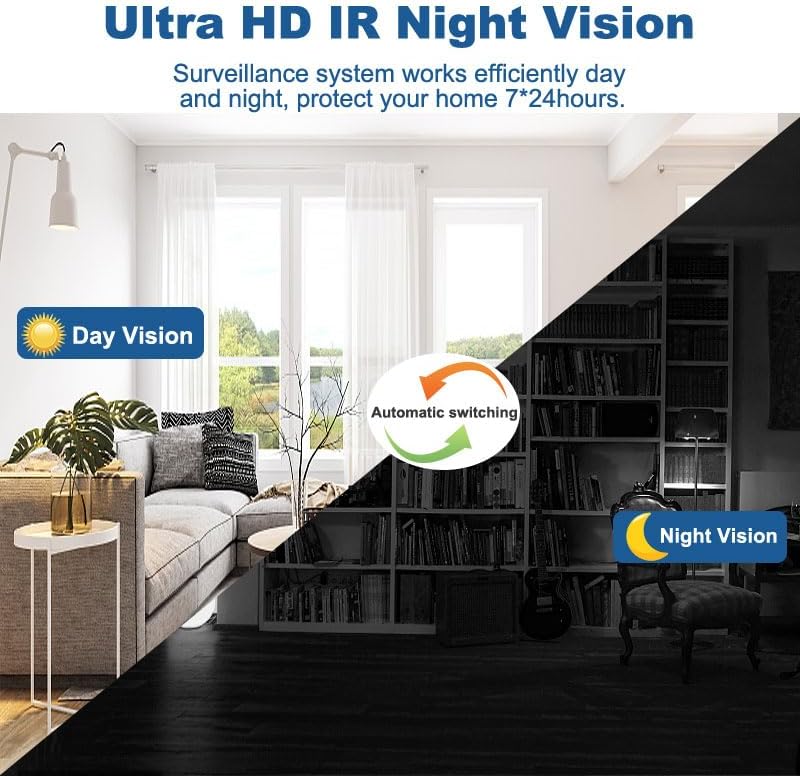
Automatic day and night vision for continuous monitoring.
6. Storage Options
The ZHXINSD P10 camera supports local storage via a Micro SD card (Class 10 or above, up to 128GB, not included). Insert the SD card into the designated slot on the camera. The camera also offers cloud storage options, which can be managed through the EseeCloud app.
7. Sharing Access
You can share access to your camera with other household members. All shared accounts require your authorization to access the application and view images, ensuring your privacy and control over the device.
8. Specifications
| Feature | Specification |
|---|---|
| Model Number | P10 |
| Video Capture Resolution | 1080p |
| Pan Rotation | 355° Horizontal |
| Tilt Rotation | 90° Vertical |
| Connectivity Technology | Wireless (Wi-Fi) |
| Wireless Communication Technology | Wi-Fi (2.4GHz only) |
| Controller Type | Amazon Alexa |
| Indoor/Outdoor Usage | Indoor |
| Storage | Micro SD Card (up to 128GB), Cloud Storage |
| Alert Type | Motion Only |
| Power Source | Corded Electric |
| Item Weight | 11.3 ounces |
| Manufacturer | ZHXINSD |
9. Troubleshooting
- Camera not connecting to Wi-Fi:
- Ensure your Wi-Fi network is 2.4GHz. The camera does not support 5GHz.
- Check if the Wi-Fi password is entered correctly.
- Make sure the camera is within range of your Wi-Fi router.
- Restart the camera and your router, then try the setup process again. - No live view or offline status:
- Verify your internet connection is stable.
- Check if the camera is powered on.
- Restart the camera and the EseeCloud app. - Motion detection not working:
- Ensure motion detection is enabled in the app settings.
- Adjust the motion sensitivity settings.
- Check if notifications are enabled for the EseeCloud app on your phone. - Two-way audio issues:
- Check the volume settings on your phone and within the app.
- Ensure the microphone and speaker permissions are granted to the EseeCloud app on your phone. - SD card not recording:
- Ensure the Micro SD card is inserted correctly.
- Check if the SD card is Class 10 or above and formatted correctly (usually FAT32).
- Verify that recording to SD card is enabled in the app settings.
- The SD card may be full; consider formatting it or replacing it.
10. Safety Information
- Use only the provided power adapter and cable to prevent damage.
- Do not expose the camera to extreme temperatures, humidity, or direct sunlight.
- Keep the camera away from water or other liquids.
- Do not attempt to disassemble or repair the camera yourself. Contact customer support for assistance.
- Ensure the camera is securely mounted to prevent it from falling.
11. Warranty and Support
For warranty information or technical support, please refer to the product packaging or contact ZHXINSD customer service through the retailer where you purchased the product. Our support team is available to assist you with any questions or issues you may encounter.
