
1. Introduction
This manual provides detailed instructions for the setup, operation, maintenance, and troubleshooting of your UNISHEEN UR500A-MINI 4K Capture Box. Please read this manual thoroughly before using the device to ensure proper functionality and to prevent damage.
2. Safety Information
- Do not expose the device to water or excessive moisture.
- Avoid placing the device near heat sources or in direct sunlight.
- Use only the provided power adapter.
- Do not attempt to open or repair the device yourself. Refer all servicing to qualified personnel.
- Keep the device out of reach of children.
3. Package Contents
Verify that all items listed below are included in your package:
- UNISHEEN UR500A-MINI Video Recorder Box
- MMI Cable (Multi-Media Interface Cable for CVBS/VGA/YPbPr inputs)
- USB Cable
- HDMI Cable
- Remote Control
- Power Adapter
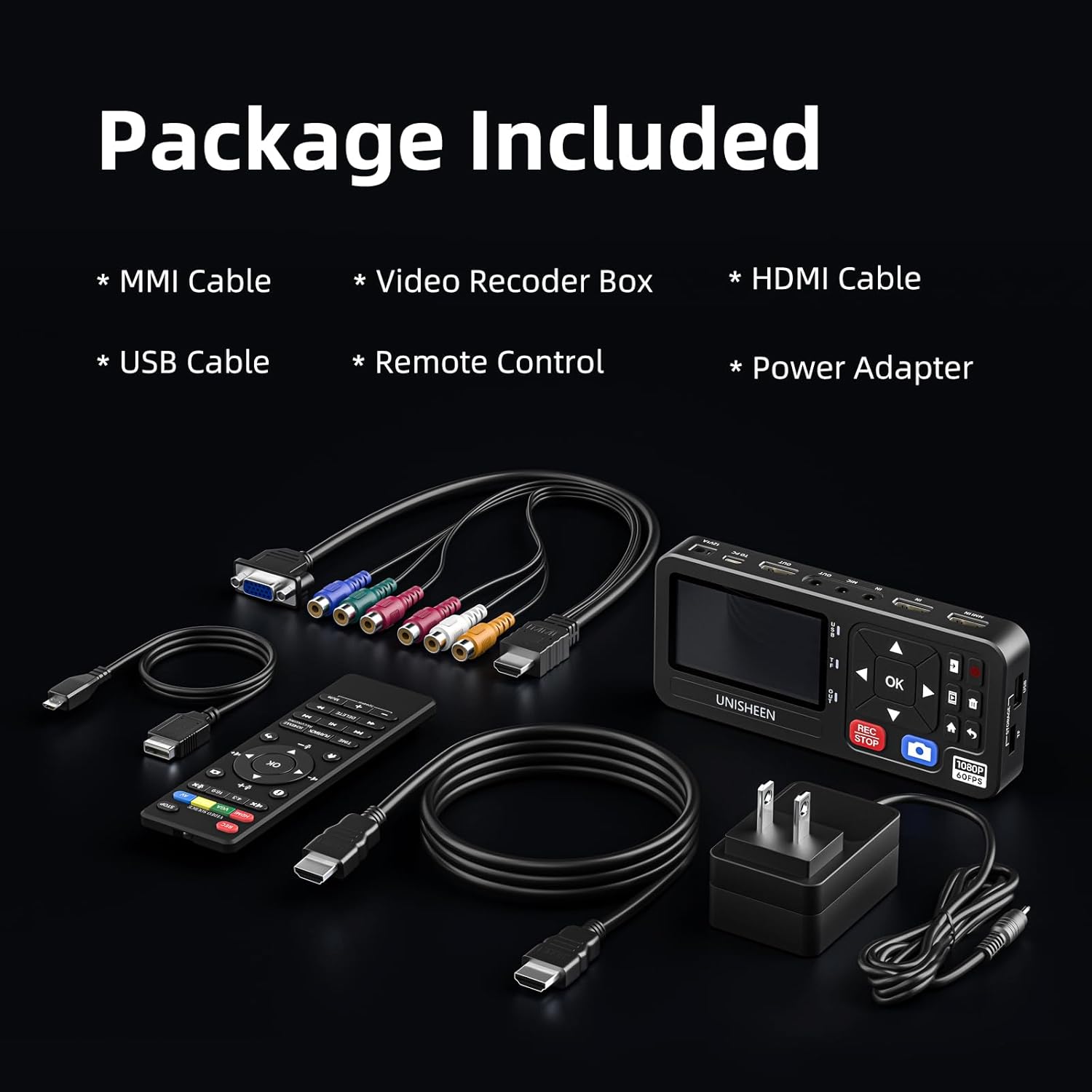
Image: All components included in the UNISHEEN UR500A-MINI package, including the main unit, various cables, remote control, and power adapter.
4. Product Overview
The UNISHEEN UR500A-MINI is a versatile video capture box designed to convert and record video from various sources to digital formats. It supports 4K input and 1080p 60FPS recording, offering multiple input options including HDMI, VGA, YPbPr, and CVBS.
4.1 Device Layout and Ports

Image: A detailed diagram illustrating the various input and output ports on the UNISHEEN UR500A-MINI, including HDMI In, HDMI Loop Out, CVBS/YPbPr/VGA Input, Mic In, Line In, Audio Out, USB, TF Card slot, and Power Input.
- HDMI Input: Connects to HDMI source devices (e.g., gaming consoles, Blu-ray players).
- HDMI Loop Out: Connects to a monitor or TV for real-time preview of the input signal.
- CVBS/YPbPr/VGA Input: Connects to analog video sources via the MMI cable (e.g., VCRs, camcorders).
- Mic In: For external microphone connection.
- Line In: For external audio input.
- Audio Out: For connecting headphones or external speakers.
- USB Port: For connecting USB storage devices (flash drives, external HDDs).
- TF Card Slot: For inserting a TF (MicroSD) card for storage.
- Power Input (12V/1A): Connects to the power adapter.
- Control Buttons: Navigation (Up, Down, Left, Right, OK), Record/Stop, Snapshot, Menu, Home, Return.
5. Setup
5.1 Connecting Power
Connect the provided power adapter to the 12V/1A power input port on the device and plug it into a wall outlet. The device will power on automatically.

Image: The underside of the UNISHEEN UR500A-MINI showing the slot for an optional battery pack (NP-F550, NP-F750, NP-F970) and the power adapter connection, illustrating dual power options.
5.2 Connecting Input Sources
Choose the appropriate cable for your source device and connect it to the corresponding input port on the UR500A-MINI.
- HDMI Source: Use an HDMI cable to connect your source device (e.g., game console, DVD player) to the HDMI Input port.
- VGA/YPbPr/CVBS Source: Use the MMI cable to connect your analog source device (e.g., VCR, camcorder) to the MMI Input port.

Image: The UNISHEEN UR500A-MINI connected to various input sources like a VCR and a camcorder, demonstrating HDMI, VGA, CVBS, and YPbPr input capabilities.
5.3 Connecting Storage
Insert a compatible storage device into the UR500A-MINI.
- USB Drive/HDD: Plug your USB flash drive or external hard disk (up to 8TB) into the USB port.
- TF Card: Insert a TF (MicroSD) card (up to 512GB) into the TF card slot.

Image: A close-up of the UNISHEEN UR500A-MINI's side, highlighting the USB and TF card slots, with a USB flash drive and a TF card inserted, demonstrating support for various storage types.
5.4 Connecting Output (Optional)
To preview your input source on a larger screen while recording, connect an HDMI cable from the HDMI Loop Out port to your TV or monitor.

Image: The UNISHEEN UR500A-MINI connected to a source device and a television, showing the HDMI loop-out feature for real-time preview of the recording on a larger screen.
6. Operating Instructions
6.1 Basic Recording
- Ensure your input source is connected and powered on.
- Select the correct input source using the remote control or the device's navigation buttons.
- Press the REC/STOP button to begin recording. A red indicator will typically appear on the screen.
- Press the REC/STOP button again to stop recording.
6.2 Loop Recording
When enabled, loop recording automatically overwrites the oldest recorded files when the storage device is full, ensuring continuous recording without interruption.
- Navigate to the System Settings menu.
- Locate the "Loop Recording" option and set it to "On".

Image: The UNISHEEN UR500A-MINI display showing a video playing, with text overlay indicating "Loop Recording" and its function of ensuring continuous recording by overwriting old files.
6.3 Auto Stop Recording
This feature allows you to define a specific duration for your recording session, after which the device will automatically stop recording.
- Access the System Settings menu.
- Find the "Autostop" setting and configure the desired recording duration.
6.4 Scheduled Recording
The device supports scheduling specific recording times and recurring schedules.
- Go to the System Settings menu.
- Select "Schedule Mode" to set up your recording schedule.

Image: The UNISHEEN UR500A-MINI display showing a video, with a clock graphic in the background, illustrating the precision capture and scheduling features for uninterrupted recordings.
6.5 Playback
To review your recorded videos:
- Press the Home button to return to the main menu.
- Select the playback option (usually represented by a play icon).
- Browse and select the desired video file for playback.
6.6 System Settings
Access the System Settings menu to configure various parameters:

Image: A television screen displaying the UNISHEEN UR500A-MINI's System Setting menu, showing options like Show time, Record Resolution, Bitrate, File size, Loop Recording, Time Watermark, Autostop, and System time, controlled by a remote.
- Show time: Display or hide the current time on the screen.
- Record Resolution: Adjust the recording resolution (e.g., 1920x1080).
- Bitrate: Configure the video bitrate for recording quality.
- File size: Set the maximum file size for recorded segments (e.g., 4GB).
- Loop Recording: Enable or disable automatic overwriting of old files.
- Time Watermark: Add a timestamp watermark to recordings.
- Autostop: Set a duration for automatic recording cessation.
- System time: Adjust the device's internal clock.
6.7 Remote Control Functions
The included remote control provides convenient access to various functions:
- Schedule Recording
- Snapshot (take a still image)
- Speaker control
- Switch the signal source
- Record/Stop
- Set time
- Auto Stop Recording
- Play Back
- Schedule Mode
7. Maintenance
- Clean the device with a soft, dry cloth. Do not use liquid cleaners or aerosols.
- Keep ports free of dust and debris.
- Store the device in a cool, dry place when not in use.
8. Troubleshooting
| Problem | Possible Cause | Solution |
|---|---|---|
| No power | Power adapter not connected or faulty. | Ensure power adapter is securely connected and plugged into a working outlet. Try a different outlet. |
| No video signal on screen | Incorrect input source selected; input cable loose or faulty; source device not powered on. | Verify the correct input source is selected. Check all cable connections. Ensure the source device is powered on and outputting a signal. |
| Recording fails or stops unexpectedly | Storage full; incompatible storage device; storage device faulty; auto-stop feature enabled. | Check available storage space. Ensure storage device is formatted correctly (FAT32/NTFS). Try a different storage device. Disable auto-stop or adjust its duration. |
| Remote control not working | Batteries low or incorrectly inserted; obstruction between remote and device. | Replace remote batteries. Ensure batteries are inserted with correct polarity. Remove any obstructions. |
| Poor video quality | Low recording resolution or bitrate settings; poor quality source signal. | Adjust recording resolution and bitrate in System Settings to higher values. Ensure the source signal is clear. |
9. Specifications
| Feature | Detail |
|---|---|
| Model Number | UR500A-MINI |
| Product Dimensions | 7 x 5 x 3 inches |
| Item Weight | 1.49 pounds |
| Hardware Interface | HDMI, USB 2.0 |
| Video Capture Resolution | 1080p |
| Operating System Compatibility | Linux, Mac OS (for file transfer, device operates standalone) |
| Recommended Use | Video Recording |
| Input Support | 4K HDMI, CVBS, VGA, YPbPr |
| Storage Support | USB drives up to 512GB, Hard disks up to 8TB, SD cards up to 512GB |
| Recording Codec | H.264 |
| Power Options | Power Adapter, Compatible with NP-F550, NP-F750, NP-F970 batteries (not included) |
10. Warranty and Support
For any questions or assistance regarding your UNISHEEN UR500A-MINI, please contact the seller directly through your purchase platform. Most issues can be resolved by following the troubleshooting steps in this manual or by contacting customer support.
- Contacting Seller: Locate your order and click the "Contact Seller" button.
- Damaged Product: If you receive a damaged product, you may apply for an exchange through the Amazon platform within 30 days of purchase.

