
1. Introduction
The MojoBox Digital Lockbox is a secure and flexible access device designed for storing keys, key cards, and key fobs. It features Bluetooth connectivity for app-based control and offline access code generation, making it suitable for various applications without requiring an internet connection for daily operation. This manual provides instructions for setup, operation, and maintenance of your MojoBox.
2. Product Overview and Included Components
The MojoBox is a robust digital lockbox constructed from metal, designed for durability and security. It offers both electronic keypad access and Bluetooth control via the MojoAccess app.
2.1 Key Features
- Bluetooth connectivity for app control.
- Generates offline access codes (one-time, temporary, permanent, date/time specific).
- Keypad for direct code entry.
- USB-C port for emergency power backup.
- Weather-resistant design, operating in temperatures from -31°F to 140°F.
- Mountable on various surfaces or used with a detachable shackle.
2.2 Package Contents
Verify that all components are present in your MojoBox package:
- MojoBox Digital Lockbox
- Detachable Shackle
- Shackle Hole Plugs (for wall mounting)
- Mini Screwdriver (for battery cover)
- Battery Cover

Image: MojoBox Digital Lockbox with its included accessories, including the detachable shackle, shackle hole plugs, mini screwdriver, and battery cover.
3. Setup
3.1 Battery Installation
The MojoBox requires three AA alkaline batteries (not included). Use the provided mini screwdriver to open the battery compartment.
- Locate the battery cover on the back of the MojoBox.
- Use the mini screwdriver to remove the screw securing the battery cover.
- Insert three AA alkaline batteries, ensuring correct polarity (+/-).
- Replace the battery cover and secure it with the screw.
3.2 App Download and Pairing
The MojoAccess app is essential for managing your lockbox and generating access codes.
- Download the MojoAccess Mobile App: Search for "MojoAccess" in the Apple App Store (iOS) or Google Play Store (Android) and install it.
- Create an Account: Open the app and create a free account, or sign in if you already have one.
- Add Lock: Follow the on-screen instructions in the app to add your MojoBox. This typically involves touching any key on the MojoBox to put it in pairing mode, then selecting "Add Lock" in the app.
- Create Access Codes: Once paired, you can create permanent, temporary, or one-time access codes directly from the app.
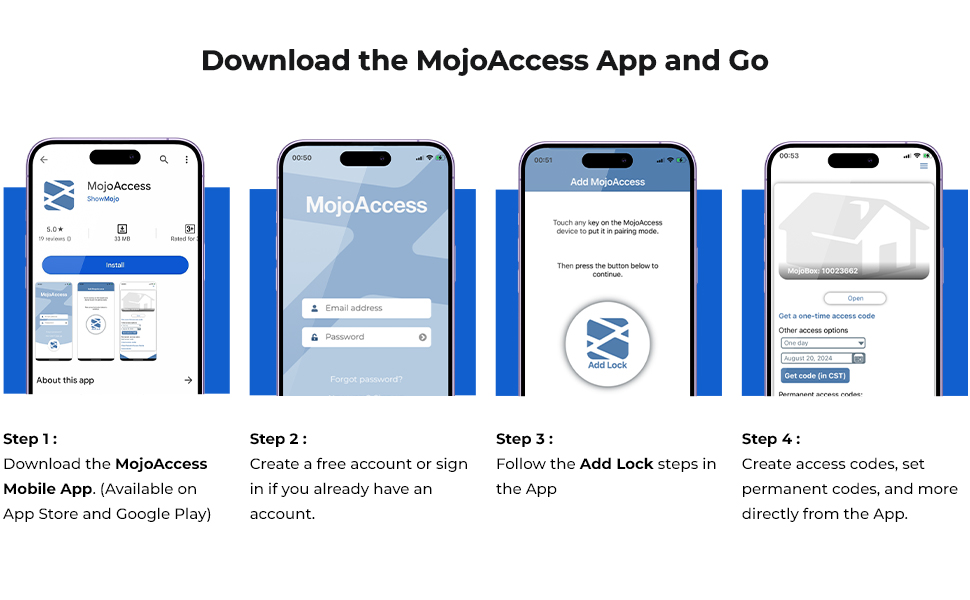
Image: A four-step visual guide demonstrating how to download the MojoAccess app, create an account, add the lockbox, and generate access codes.
3.3 Mounting Options
The MojoBox can be mounted in two ways: using the detachable shackle or by wall-mounting.
3.3.1 Shackle Attachment
The detachable shackle allows the lockbox to be hung on a door knob or similar fixture.
- Ensure the shackle safety lock inside the lockbox is in the released (down) position.
- Insert the shackle ends into the designated holes at the top of the open lockbox.
- Move the shackle safety lock to the locked (up) position to secure the shackle.

Image: Visual guide showing the correct method to insert and remove the shackle when the lockbox is open and the safety is released, contrasted with incorrect methods.
3.3.2 Wall Mounting
For permanent installation, the MojoBox can be wall-mounted. Remove the shackle if it is attached.
- Remove the mounting hole plugs from the back of the lockbox.
- Position the lockbox on the desired surface and mark the drilling points.
- Drill appropriate holes and secure the lockbox using suitable screws (not included).
- Insert the shackle hole plugs into the shackle holes for waterproofing.

Image: Examples of the MojoBox mounted on a door, wall, and gate, along with detailed instructions for removing mounting hole plugs and inserting shackle plugs for waterproofing during wall installation.
4. Operating Instructions
4.1 Accessing the Lockbox via Keypad
To open the MojoBox using an access code:
- Enter the valid access code on the keypad.
- Press the "OK" button. A green LED light will indicate successful code entry.
- Move and hold the slider to the right to release the latch and open the lockbox.
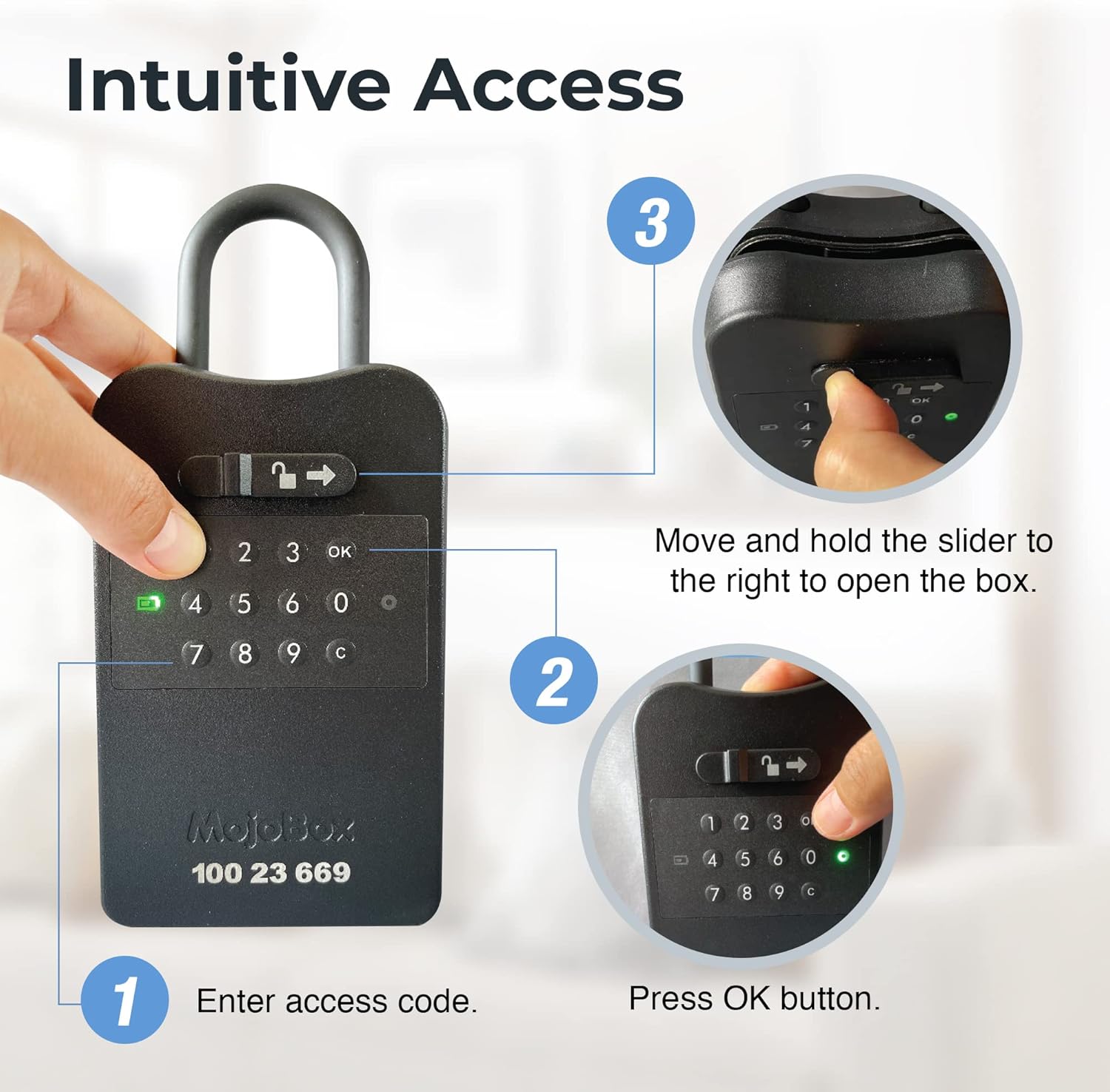
Image: A three-step visual guide demonstrating how to enter an access code, press OK, and slide the latch to open the MojoBox.
4.2 Generating Access Codes via MojoAccess App
The MojoAccess app allows for flexible code management without an internet connection at the lockbox location.
- One-Time Use Codes: Generate codes that expire after a single use.
- Temporary Use Codes: Set codes with specific date and time restrictions, valid for durations from 1 hour to 28 months.
- Permanent Use Codes: The lockbox includes four customizable permanent access codes that do not expire. Additional permanent codes can be generated via the app.
Codes can be generated remotely and distributed to users. The lockbox does not require an active internet connection to validate these pre-generated codes.

Image: Screenshot of the MojoAccess app showing options to generate one-time, temporary, and permanent access codes, highlighting the Bluetooth connection for code distribution.
4.3 USB-C Power Backup
If the batteries are depleted and the lockbox cannot power on, a USB-C port is available for emergency power.
- Locate the USB-C port on the side of the lockbox.
- Connect any standard USB-C power bank or charger to the port.
- The lockbox may take up to five minutes to power up and display a green LED light, indicating it is ready for code entry.

Image: The MojoBox with a USB-C cable plugged into its side port, illustrating the emergency power backup feature. Text indicates it may take up to five minutes for the green LED to appear.
5. Maintenance
5.1 Battery Replacement
Replace the three AA alkaline batteries when the low battery indicator appears in the app or if the lockbox becomes unresponsive. Refer to section 3.1 for battery installation steps.
5.2 Cleaning
Clean the exterior of the MojoBox with a soft, damp cloth. Avoid using abrasive cleaners or solvents, as these can damage the finish or electronic components.
6. Troubleshooting
- Lockbox not responding: Check battery levels. If batteries are low or depleted, use the USB-C power backup feature (Section 4.3) or replace the batteries (Section 5.1).
- Access code not working: Verify that the correct code is being entered. Ensure the code has not expired or reached its usage limit if it's a temporary or one-time code. Check the code status in the MojoAccess app.
- Unable to pair with app: Ensure Bluetooth is enabled on your mobile device. Make sure the lockbox is in pairing mode (touch any key). Try restarting both the app and the lockbox (by temporarily removing and reinserting batteries).
- Shackle not detaching/attaching: Ensure the shackle safety lock inside the lockbox is in the correct position (released for removal/attachment, locked for security). Do not force the shackle.
7. Specifications
| Feature | Detail |
|---|---|
| Brand | MojoBox |
| Model Number | MojoBox |
| Product Dimensions (D x W x H) | 1.45" x 3.7" x 5.9" |
| Lock Type | Electronic, Keypad |
| Material | Metal |
| Color | Black |
| Item Weight | 1.75 Pounds |
| Power Source | 3 x AA Alkaline Batteries (not included) |
| Emergency Power | USB-C Port |
| Water Resistance Level | Water Resistant |
| Operating Temperature | -31°F to 140°F (-35°C to 60°C) |
| Special Features | Anti-Theft, Bluetooth App Control, Offline Code Generation |
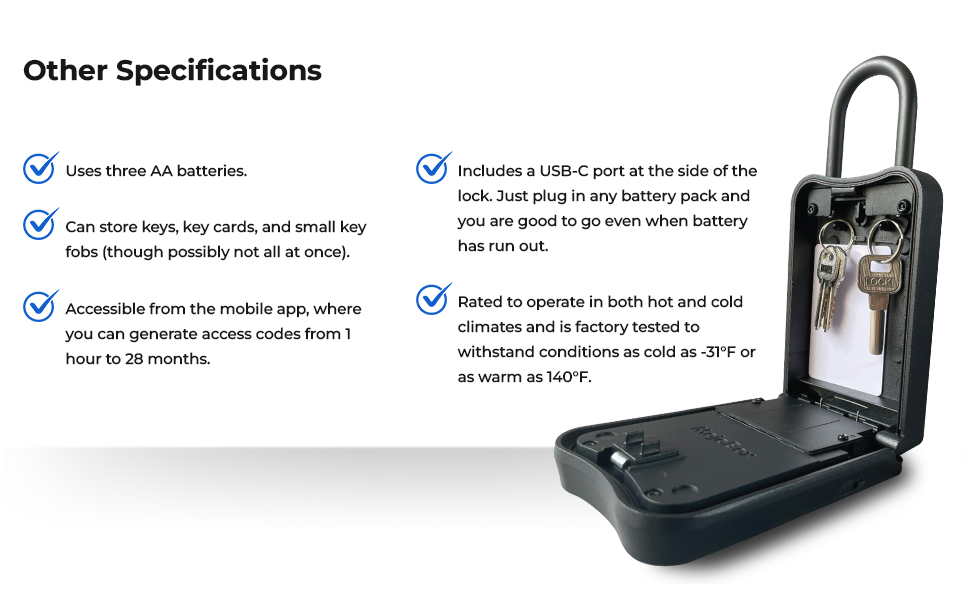
Image: The MojoBox Digital Lockbox shown open with keys inside, accompanied by a list of its key specifications and features.
8. Warranty and Support
Specific warranty details and direct support contact information are not provided within this manual. For warranty claims, technical assistance, or further support, please refer to the official MojoBox website or contact the retailer from whom the product was purchased. Ensure you have your purchase receipt and product serial number available.