
1. Introduction
This manual provides detailed instructions for the installation, operation, and maintenance of your VIMIN 8-Port 2.5G Unmanaged Ethernet Switch with 10G SFP. This device is designed to expand your network capacity and provide high-speed data transfer for various applications. Please read this manual thoroughly before using the product to ensure proper setup and optimal performance.
2. Product Overview
The VIMIN 8-Port 2.5G Unmanaged Ethernet Switch (Model VM-S250801) is a high-performance network device featuring eight 2.5 Gigabit Ethernet ports and one 10 Gigabit SFP port. It is designed for desktop use, housed in a durable metal casing, and operates silently due to its fanless design. This switch offers a 60Gbps switching capacity, ensuring efficient data flow across your network.
2.1 Package Contents
- VIMIN 8-Port 2.5G Unmanaged Ethernet Switch (VM-S250801)
- Power Adapter
- User Manual (this document)
2.2 Front Panel Layout

Image Description: The image displays the front panel of the VIMIN 8-Port 2.5G Unmanaged Ethernet Switch. It features eight 2.5G RJ45 Ethernet ports, one 10G SFP port, a VLAN ON/OFF switch, and a power indicator LED. The ports are clearly labeled.
- 2.5G RJ45 Ports (1-8): Connect network devices such as computers, NAS, routers, and other switches. These ports support 10/100/1000Mbps and 2.5Gbps speeds.
- 10G SFP Port: Connects to a 10G SFP+ optical fiber module (not included) for high-speed uplink connections.
- VLAN Switch: Toggles the VLAN function on or off. When ON, ports 1-8 are isolated from each other but can communicate with the SFP port.
- Power Port: Connects to the provided power adapter.
- LED Indicators: Provide status information for power, link/activity for each RJ45 port, and link/activity for the SFP port.
2.3 LED Indicators

Image Description: This image highlights the LED indicators on the VIMIN switch. It shows that for 8*2.5Gbps Ports, Yellow indicates 2.5G Link and Green indicates Link Success. For 1*10G SFP, Yellow indicates 10G Link and Green indicates Link Success. For PWR (Power), Red indicates Powered On and Off indicates Powered Off.
- RJ45 Port LEDs (Yellow/Green):
- Yellow: 2.5G Link established.
- Green: 1G/100Mbps Link established.
- Blinking: Data activity.
- Off: No link or device connected.
- SFP Port LEDs (Yellow/Green):
- Yellow: 10G Link established.
- Green: 1G/2.5G Link established.
- Blinking: Data activity.
- Off: No link or module connected.
- Power LED (Red):
- On: Device is powered on.
- Off: Device is powered off.
3. Setup Instructions
The VIMIN Ethernet Switch is designed for plug-and-play operation, requiring no complex configuration. Follow these steps for basic setup:
3.1 Connecting the Power Adapter
- Ensure the switch is placed on a stable, flat surface with adequate ventilation.
- Connect the provided power adapter to the power port on the switch.
- Plug the power adapter into a standard electrical outlet. The Power LED on the switch will illuminate red, indicating it is powered on.
Important Safety Note: Only use the power adapter supplied with this device. Using an incorrect power adapter may damage the switch or pose a safety risk.
3.2 Connecting Network Devices
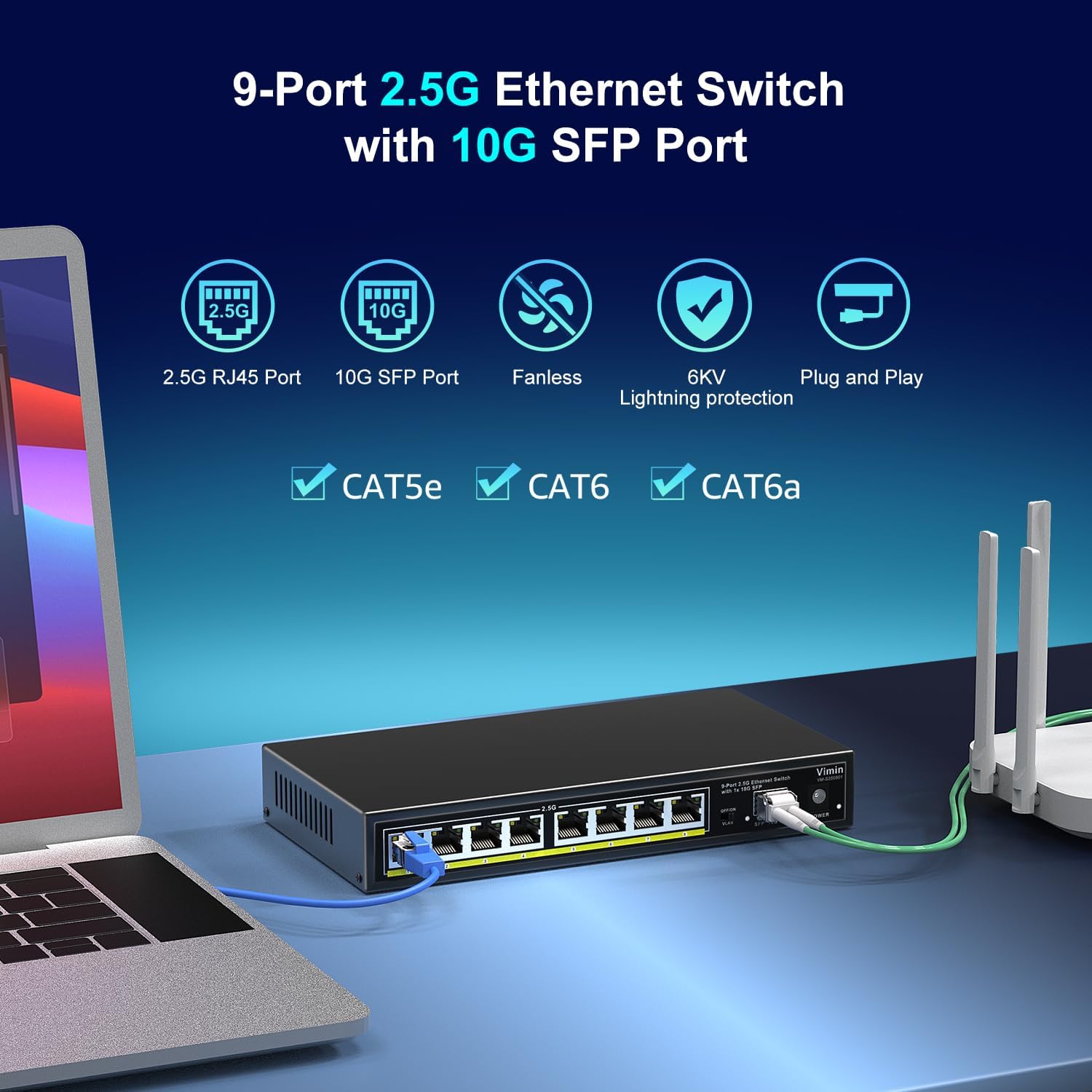
Image Description: The VIMIN switch is shown connected to a laptop via a blue Ethernet cable and to a white router via a green Ethernet cable. This illustrates a typical network setup.
- Connect your router or modem to any of the 2.5G RJ45 ports (1-8) using an Ethernet cable (Cat5e, Cat6, or Cat6a recommended for optimal performance).
- Connect your network devices (e.g., computers, NAS, gaming consoles, printers) to the remaining 2.5G RJ45 ports.
- If using the 10G SFP port, insert a compatible 10G SFP+ optical fiber module (not included) into the SFP slot, then connect your fiber optic cable.
- Verify the LED indicators for each connected port. A solid yellow or green light indicates a successful link, and blinking indicates data activity.
3.3 Network Expansion Compatibility

Image Description: This image illustrates the broad compatibility of the VIMIN switch, showing it can connect to various devices such as 2.5G Network Attached Storage (NAS), Access Points (AP), Routers, Computers, devices for 4K Video streaming, and Gaming PCs.
The switch is compatible with a wide range of devices, including:
- 2.5G Network Attached Storage (NAS)
- Access Points (AP)
- Routers
- Desktop Computers and Laptops
- Gaming Consoles
- Printers
- Devices requiring 4K video streaming capabilities
4. Operating Instructions
4.1 Basic Operation
Once connected, the switch operates automatically. It is an unmanaged switch, meaning it does not require software configuration. It automatically detects the speed and duplex mode of connected devices and adjusts accordingly.
4.2 VLAN Functionality
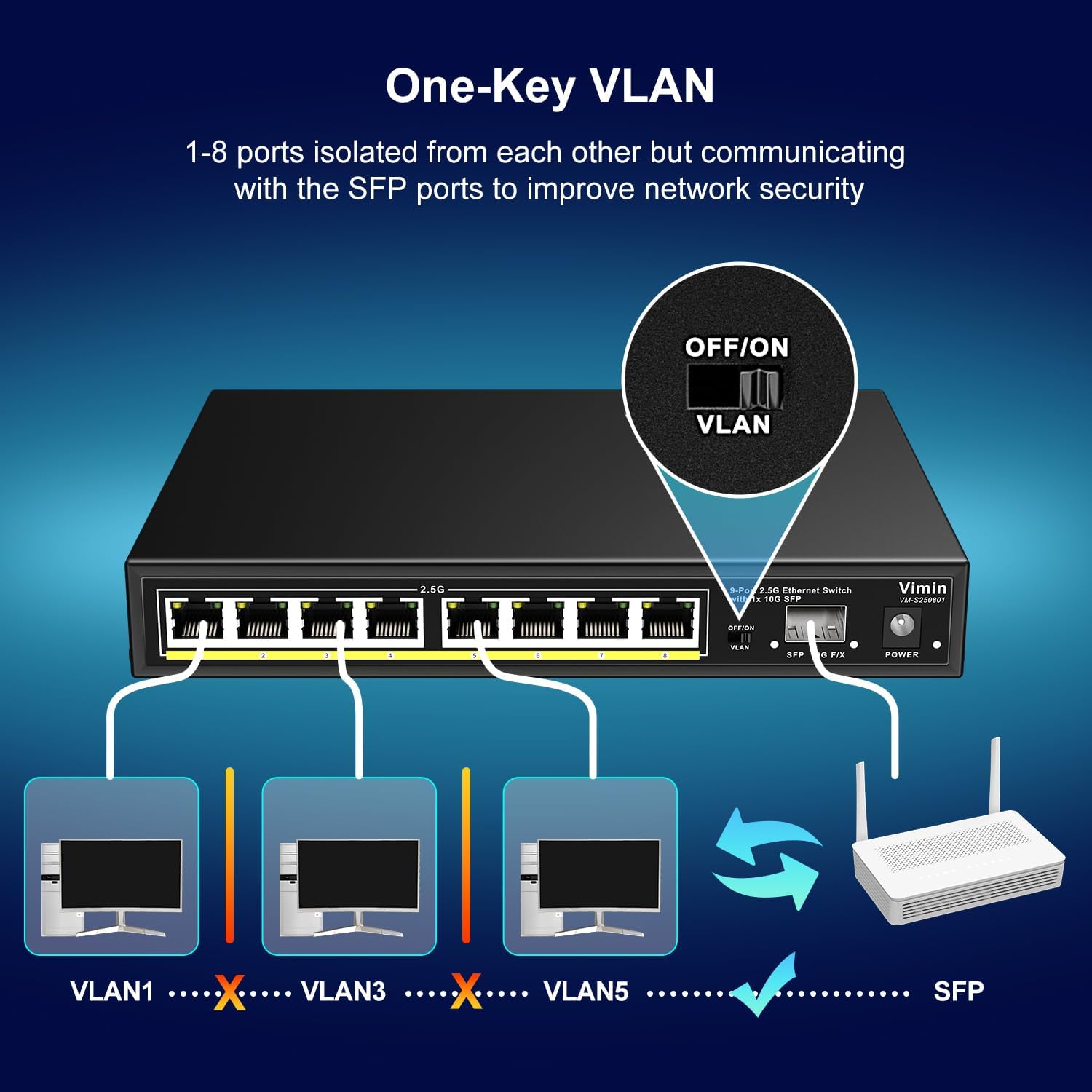
Image Description: This diagram illustrates the VLAN functionality. When the VLAN switch is ON, ports 1-8 are isolated from each other, preventing direct communication between them. However, all ports can still communicate with the SFP port, enhancing network security by segmenting local traffic.
The switch includes a physical VLAN switch on the front panel:
- VLAN OFF (Default): All 2.5G RJ45 ports (1-8) can communicate with each other and with the 10G SFP port. This is standard switch behavior.
- VLAN ON: Ports 1-8 are isolated from each other. Devices connected to different RJ45 ports cannot communicate directly. However, all RJ45 ports can still communicate with the 10G SFP port. This feature enhances network security by segmenting local traffic, useful for guest networks or isolating specific devices.
To activate or deactivate the VLAN function, simply toggle the physical switch labeled "VLAN" on the front panel.
5. Maintenance
The VIMIN Ethernet Switch is designed for reliable, long-term operation with minimal maintenance. Its fanless design contributes to quiet operation and reduced dust accumulation.
- Cleaning: Use a soft, dry cloth to clean the exterior of the switch. Do not use liquid or aerosol cleaners.
- Ventilation: Ensure the ventilation holes on the sides of the switch are not obstructed to allow for proper heat dissipation.
- Environment: Operate the switch within the recommended temperature range of 14°F to 131°F (-10°C to 55°C) and avoid excessively humid or dusty environments.
- Firmware: As an unmanaged switch, no user-upgradable firmware is typically required.

Image Description: This image shows a side view of the VIMIN switch, emphasizing its fanless quiet design, durable metal case, and wide working environment temperature range of 14°F to 131°F.
6. Troubleshooting
If you encounter issues with your VIMIN Ethernet Switch, refer to the following common problems and solutions:
- No Power:
- Ensure the power adapter is securely connected to the switch and a working electrical outlet.
- Verify the power outlet is functional by plugging in another device.
- Confirm you are using the original VIMIN power adapter.
- No Link Light for a Connected Device:
- Check if the Ethernet cable is securely plugged into both the switch port and the device port.
- Try a different Ethernet cable to rule out a faulty cable.
- Ensure the connected device is powered on and its network adapter is functioning correctly.
- If using the SFP port, ensure the SFP module is correctly inserted and compatible.
- Slow Network Speed:
- Ensure you are using Cat5e, Cat6, or Cat6a Ethernet cables for 2.5G speeds. For 10G SFP, use appropriate fiber optic cables and modules.
- Check the link speed indicated by the port LEDs (Yellow for 2.5G/10G, Green for 1G).
- Verify that your connected devices (e.g., network card, NAS) support 2.5G or 10G speeds.
- Consider network congestion. Disconnect some devices temporarily to see if performance improves.
- Devices Cannot Communicate (VLAN ON):
- If devices connected to different RJ45 ports cannot communicate, check the VLAN switch. If it is ON, this is expected behavior. Turn the VLAN switch OFF if you require direct communication between all RJ45 ports.
- Remember that even with VLAN ON, all RJ45 ports can communicate with the SFP port.
7. Specifications
| Feature | Description |
|---|---|
| Brand | VIMIN |
| Model Number | VM-S250801 |
| Number of Ports | 9 (8x 2.5G RJ45, 1x 10G SFP) |
| Switching Capacity | 60 Gbps |
| Data Transfer Rate | 2.5 Gbps (RJ45), 10 Gbps (SFP), also supports 10/100/1000 Mbps |
| Interface | RJ45, SFP |
| Compatible Devices | Camera, Desktop, Gaming Console, Laptop, Printer, Router |
| Product Dimensions (L x W x H) | 6.3" x 4.3" x 1.3" (21cm x 11cm x 3.2cm) |
| Item Weight | 1.28 Kilograms |
| Case Material Type | Metal |
| Voltage | 220 Volts (Input voltage for power adapter may vary by region) |
| Maximum Power Consumption | 12 Watts |
| Operating Temperature | 14°F to 131°F (-10°C to 55°C) |
| Features | Unmanaged, Fanless, Metal Housing, 6KV Lightning Protection, VLAN Function |
8. Official Product Videos
8.1 Lightning-Speed 2.5G Network
Video Description: This video demonstrates the high-speed capabilities of the VIMIN 2.5G Ethernet Switch, showcasing its performance in a network environment. It highlights the ease of setup and the benefits of upgrading to a 2.5G network.
8.2 VIMIN 8 Port 2.5G Ethernet Switch with 60G Switch Capacity
Video Description: This video provides an overview of the VIMIN 8-Port 2.5G Ethernet Switch, detailing its features, including the 60Gbps switching capacity and its application in various network setups.
9. Warranty and Support
For warranty information and technical support, please refer to the contact details provided by VIMIN at the point of purchase or visit the official VIMIN website. You may also contact VIMIN customer support via email at support@vimintech.com.