
amazon basics B0C58TDFPR
Amazon Basics Handheld Gimbal Stabiliser User Manual
Model: B0C58TDFPR
Introduction
The Amazon Basics Handheld Gimbal Stabiliser is designed to provide smooth and steady footage for your smartphone photography and videography. This manual provides essential information for setting up, operating, maintaining, and troubleshooting your device.

Image: The Amazon Basics Handheld Gimbal Stabiliser with a smartphone attached, ready for use.
Package Contents
Before you begin, please verify that all items are present in the package:
- 1N Handheld Gimbal with attached holder
- 1N Charging cable
- 1N User Manual (this document)
- 1 Tripod
- 1N Hanging belt
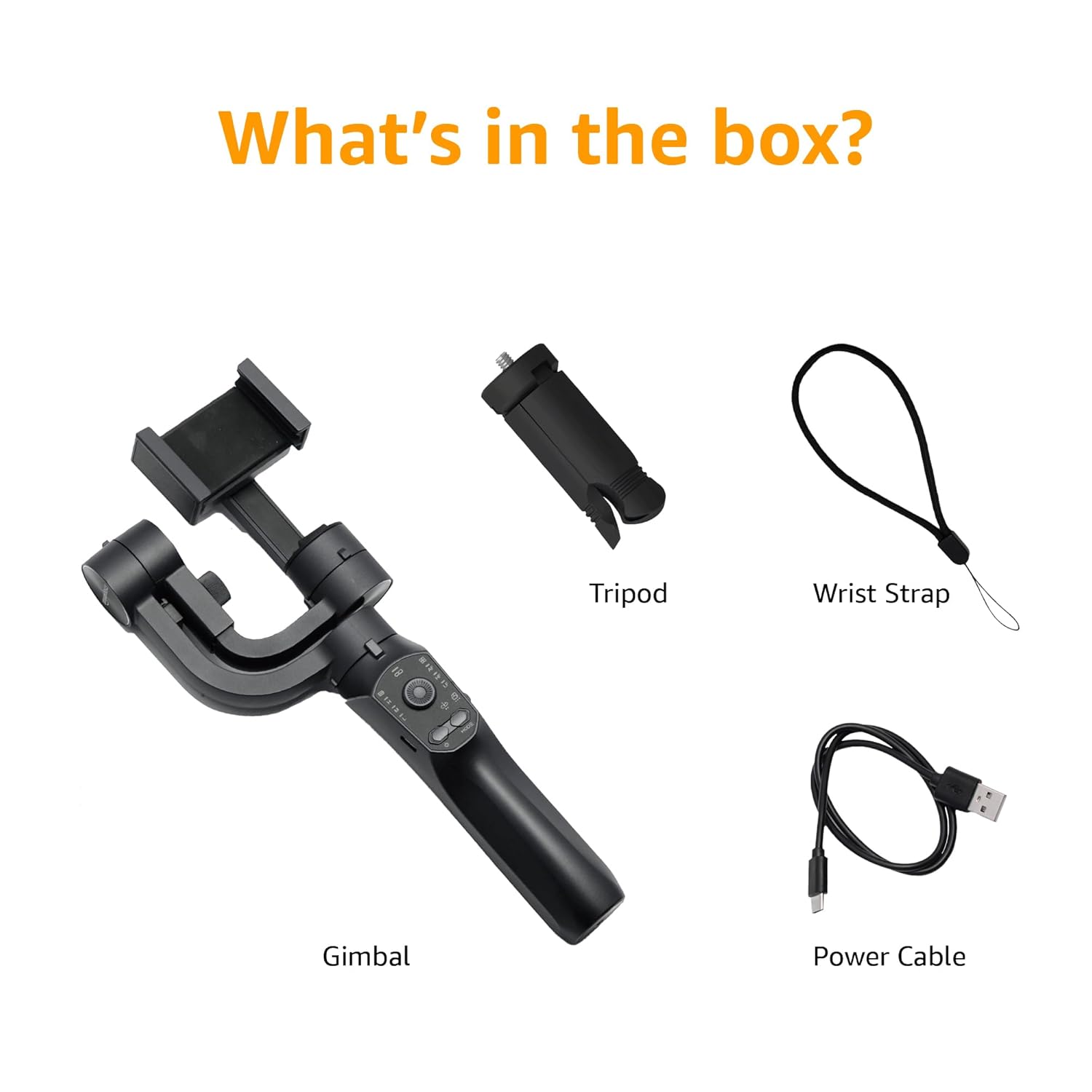
Image: A visual representation of the package contents, including the gimbal, tripod, power cable, and wrist strap.
Product Components
Familiarize yourself with the different parts of your gimbal stabiliser:
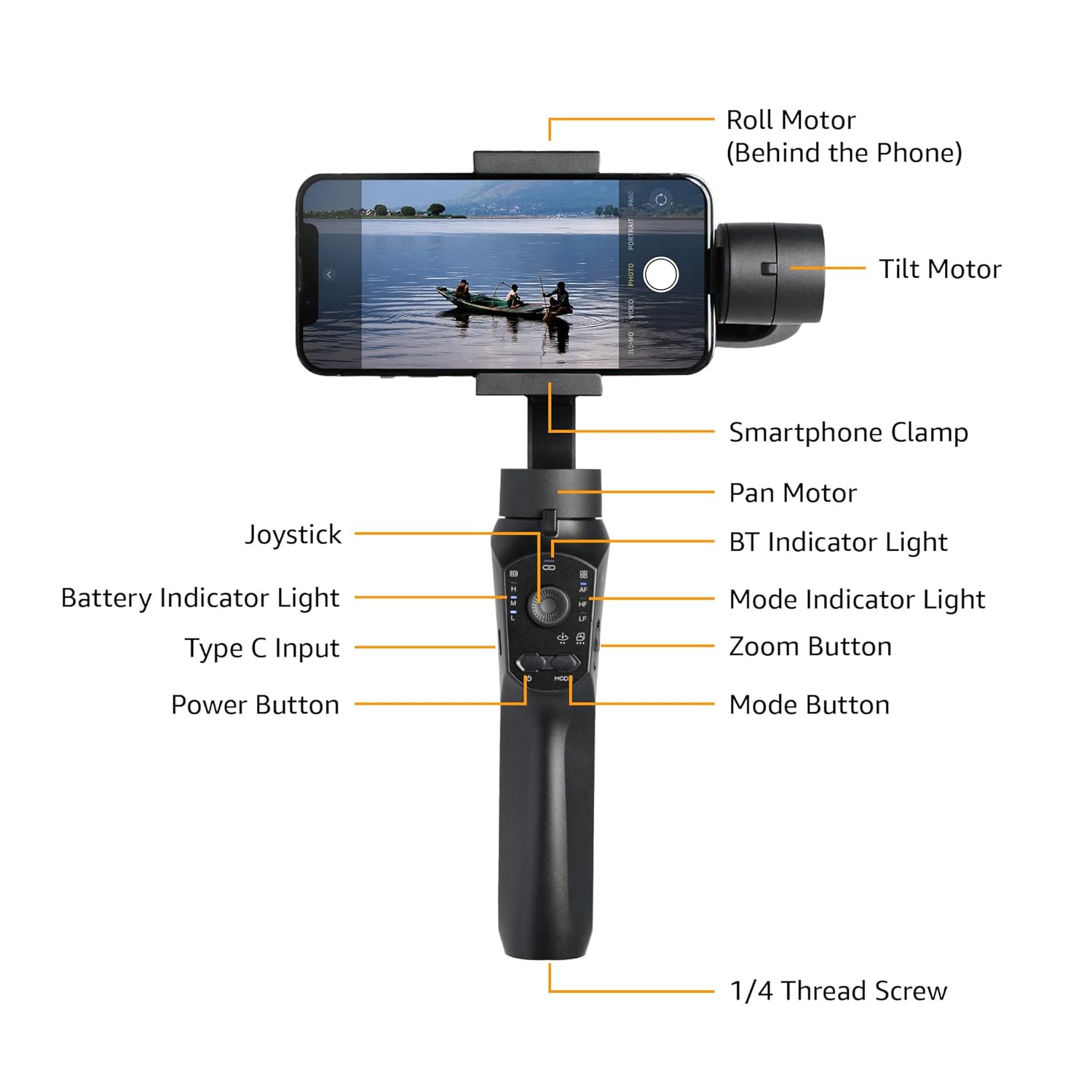
Image: Labeled diagram showing the various components of the gimbal, including the Roll Motor, Tilt Motor, Smartphone Clamp, Pan Motor, BT Indicator Light, Mode Indicator Light, Zoom Button, Mode Button, Power Button, Type C Input, Battery Indicator Light, Joystick, and 1/4 Thread Screw.
- Roll Motor: Controls the roll axis (rotation along the lens axis).
- Tilt Motor: Controls the tilt axis (up and down movement).
- Smartphone Clamp: Securely holds your smartphone.
- Pan Motor: Controls the pan axis (left and right rotation).
- Joystick: For manual control of gimbal movement.
- BT Indicator Light: Indicates Bluetooth connection status.
- Battery Indicator Light: Shows current battery level.
- Type C Input: Charging port for the gimbal.
- Power Button: Turns the gimbal on/off.
- Mode Indicator Light: Displays the current operating mode.
- Zoom Button: Controls digital zoom (via app).
- Mode Button: Switches between different operating modes.
- 1/4 Thread Screw: For attaching accessories like the included tripod.
Setup
- Charge the Gimbal: Before first use, fully charge the gimbal using the provided Type-C charging cable. The battery indicator light will show charging status.
- Install the Smartphone:
- Extend the smartphone clamp and carefully place your smartphone in the center.
- Ensure the phone is balanced as centrally as possible within the clamp to reduce motor strain.
- Manual Balancing (Crucial):
Important: Do not switch on this Gimbal without manual balancing. Doing so may lead to motor damage and fast battery draining.
- With the smartphone mounted, adjust the position of the phone within the clamp until it remains level when you release it. This minimizes the work the motors need to do.
- Adjust the horizontal arm if necessary to achieve perfect balance.
- Power On: Press and hold the Power Button until the gimbal powers on and stabilizes.
- Download the App: Download the "Gimbal Pro" app from your smartphone's app store (available for Android and iOS). This app unlocks advanced features and controls.
- Connect via Bluetooth: Open the Gimbal Pro app and follow the on-screen instructions to connect your gimbal via Bluetooth. The BT Indicator Light will confirm a successful connection.

Image: An illustration demonstrating the three axes of stabilization: Tilt Axis, Roll Axis, and Pan Axis, which work together to keep footage steady.
Operating Instructions
Basic Operation
- Power On/Off: Press and hold the Power Button.
- Joystick Control: Use the joystick to manually control the pan and tilt movements of the gimbal.
- Mode Button: Press the Mode Button to cycle through different operating modes (e.g., Pan Follow, Lock Mode, FPV). The Mode Indicator Light will change accordingly.
- Zoom Button: Use the Zoom Button to zoom in or out within the Gimbal Pro app.
- Multifunction Push Key: This key allows you to focus or zoom, providing a more professional photography experience.
Advanced Features (via Gimbal Pro App)
The Gimbal Pro app unlocks a variety of advanced shooting modes and features:
- Facial Tracking: Automatically tracks a subject's face to keep them in frame.
- Time Lapse: Capture stunning time-lapse videos.
- Slow Motion: Record high-frame-rate videos for slow-motion effects.
- Intelligent Zoom: Provides precise zoom control.
- Hitchcock Mode: Creates a "Dolly Zoom" effect.
- Mad Dog Mode: A dynamic, fast-response mode.
- Inception Mode: Rotates the camera 360 degrees along the roll axis.
- FPV Mode: Follows the gimbal's orientation for an immersive first-person view.

Image: Visual examples of features available through the mobile app, including Facial Tracking, Time Lapse Shooting, Slow Motion, and Intelligent Zoom.

Image: Icons illustrating various shooting modes such as Mad Dog Mode, Hitchcock Mode, Inception Mode, and FPV Mode, available on the gimbal.
Portrait-to-Landscape Rotation
The gimbal supports effortless rotation between portrait and landscape orientations for versatile shooting.

Image: A three-panel image demonstrating the gimbal's ability to effortlessly rotate a smartphone from portrait to landscape orientation.
Battery and Charging
The gimbal is equipped with a 3600mAh Lithium Ion battery, providing up to 10 hours of operational time.
- Charging: Connect the provided Type-C cable to the gimbal's charging port and a suitable USB power source.
- Power Bank Function: The gimbal can also function as a power bank to charge your smartphone during extended shoots. Connect your smartphone to the gimbal's Type-C port using a compatible cable.
- Battery Indicator: Monitor the battery level using the Battery Indicator Lights on the control panel.
Maintenance
- Cleaning: Use a soft, dry cloth to clean the gimbal. Avoid using harsh chemicals or abrasive materials.
- Storage: Store the gimbal in a cool, dry place away from direct sunlight and extreme temperatures.
- Battery Care: For long-term storage, charge the battery to approximately 50-60% to prolong its lifespan. Recharge every 3 months if not in use.
- Avoid Overloading: Do not mount smartphones heavier than the recommended payload capacity (approx. 180 grams, as per user experience). Overloading can damage the motors.
Troubleshooting
| Problem | Possible Cause | Solution |
|---|---|---|
| Gimbal not powering on. | Low battery. | Charge the gimbal fully. |
| Gimbal motors vibrate or do not stabilize properly. | Improper manual balancing. | Ensure the smartphone is perfectly balanced before powering on. Refer to the "Manual Balancing" section under Setup. |
| Gimbal disconnects from phone or app features not working. | Bluetooth connection issue; App malfunction. |
|
| Footage is still shaky. | Improper balancing; Exceeding gimbal's stabilization limits. |
|
Specifications
| Feature | Detail |
|---|---|
| Model Number | B0C58TDFPR |
| Stabilization | 3-Axis (Pan, Tilt, Roll) |
| Battery Type | Lithium Ion |
| Battery Capacity | 3600mAh |
| Operational Time | Up to 10 hours |
| Charging Port | Type-C |
| Compatible Devices | Smartphones |
| Product Dimensions (LxWxH) | 10 x 7 x 28.9 cm |
| Item Weight | 460 g |
| Color | Black |
| Manufacturer | SHENZHEN JX ROBOT TECHNOLOGY CO. LTD |

Image: A diagram illustrating the dimensions of the gimbal in both folded and extended states.
Warranty and Support
This Amazon Basics Handheld Gimbal Stabiliser comes with a 1-year limited warranty from the date of purchase.
For warranty claims, technical support, or any product-related inquiries, please contact Amazon Basics customer service or refer to the official Amazon support channels.
Related Documents - B0C58TDFPR
 |
Amazon Basics 64-inch Extendable Tripod User Manual User manual for the Amazon Basics 64-inch Extendable Tripod, detailing its features for iPhones and smartphones in both selfie stick and tripod modes. Includes setup and usage instructions. |
 |
Amazon Basics Adjustable Tripod Boom Microphone Stand User Manual Comprehensive user guide for the Amazon Basics adjustable tripod boom microphone stand (models B07R47JWYW, B07R57SVFG). Includes setup, safety warnings, specifications, and support information. |
 |
Amazon Basics 2-in-1 Stick Vacuum Cleaner with ECO Motor User Manual This user manual provides comprehensive instructions for the Amazon Basics 2-in-1 Stick Vacuum Cleaner with ECO Motor. Learn about safety guidelines, operation, cleaning, maintenance, troubleshooting, and specifications for models B07SG47NS3, B07SH66PXX, VSC02B16T-EU, and VSC02B16T-UK. |
 |
Amazon Basics 2-in-1 Stick Vacuum Cleaner User Manual Comprehensive user manual for the Amazon Basics 2-in-1 Stick Vacuum Cleaner, covering safety instructions, operation, cleaning, maintenance, and troubleshooting. |
 |
Amazon Basics 3-Port USB 3.0 Adapter with Gigabit Ethernet User Manual User manual for the Amazon Basics 3-Port USB 3.0 Adapter with RJ45 Gigabit Ethernet Port, detailing setup, usage, safety, and specifications. |
 |
Amazon Basics Smart Light Switch & Dimmer Troubleshooting Guide Comprehensive troubleshooting guide for Amazon Basics Smart Light Switch and Dimmer, covering installation, setup, device features, LED indicator meanings, Alexa integration, and common issues. Find solutions for connectivity, manual operation, and device management. |
Ask a question about this manual
Ask about setup, troubleshooting, compatibility, parts, safety, or missing instructions. Manuals+ will review the question and use this page’s manual context to help answer it.