
Introduction
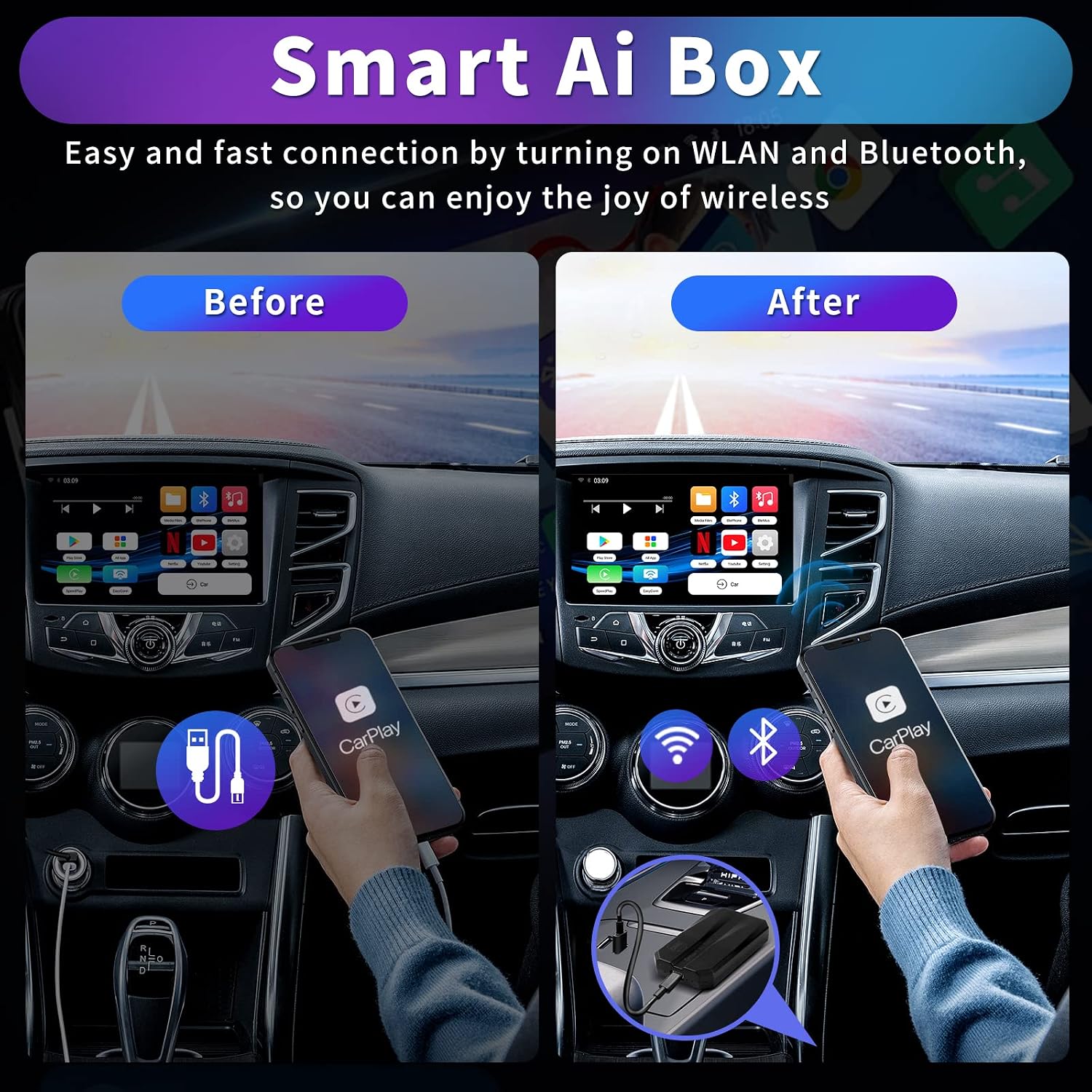
The OneCarStereo Wireless CarPlay Smart AI Box Elite is designed to transform your driving experience by converting your car's existing wired CarPlay system into a wireless one, and also supporting wireless Android Auto. This device integrates an Android 11.0 multimedia system directly into your car's display, providing access to popular streaming services like Netflix and YouTube, and allowing you to download various applications from the Playstore. It also offers seamless phone mirroring capabilities for both Apple and Android devices, ensuring enhanced connectivity and entertainment on the go.
What's in the Box
- Smart Ai Box x 1
- USB to Type-C cable x 1
- Type-C to Type-C cable x 1
- Instructions x 1
Setup Guide
Initial Connection
The Smart AI Box is designed for plug-and-play convenience. Ensure your car has OEM wired CarPlay or wired & wireless CarPlay. Connect the Smart AI Box to your car's USB port using the appropriate cable (USB to Type-C or Type-C to Type-C) provided.
Video: How to connect Smart Ai Box. This video demonstrates the simple plug-and-play connection process of the Smart AI Box to your car's system.
Wireless CarPlay and Android Auto Connection
- First, ensure your car's Bluetooth is turned on.
- Click the "SpeedPlay" icon on your car's display to enter the connection interface.
- On your iPhone (iOS 10+) or Android phone (11.0+), open Settings and turn on Bluetooth and Wi-Fi.
- Search for the Bluetooth name "Smart Ai Box" in your phone's Bluetooth list and pair with it.
- A notification will pop up on your phone; click to use CarPlay or Android Auto.
Video: How to connect wireless Apple CarPlay and Android Auto. This video guides you through the steps to establish a wireless connection for both Apple CarPlay and Android Auto.
Operating Instructions
Streaming Media & App Downloads
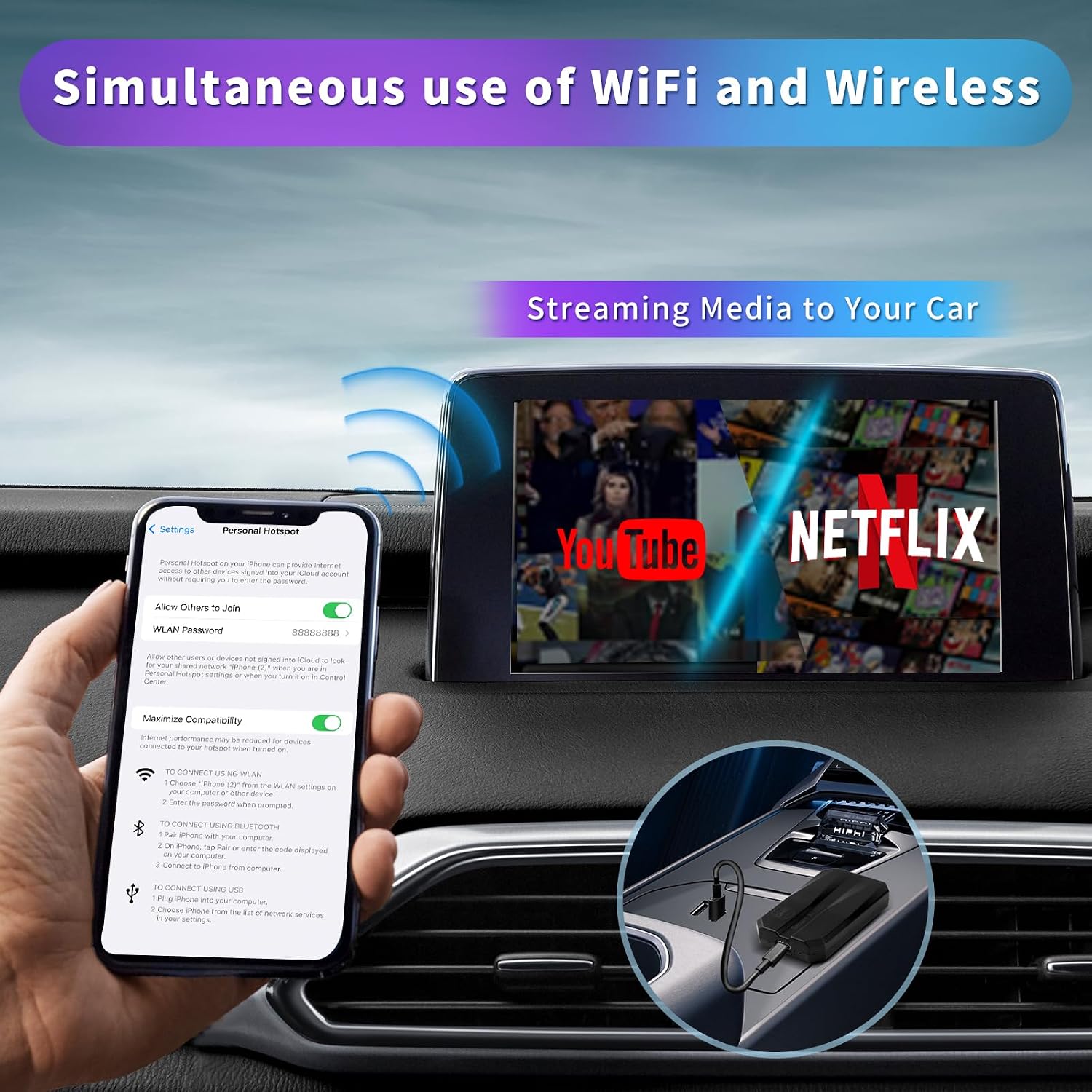
- Connect the Magic CarPlay Box to Wi-Fi or a mobile hotspot.
- Access built-in Netflix, YouTube, and Playstore applications directly from your car's display.
- Stream online audio and video content or download your favorite applications.
- Optionally, insert a TF card to play pre-downloaded audio or video content.
Video: How to watch YouTube online and download Apps. This video demonstrates how to connect to Wi-Fi and use streaming apps like YouTube and download others from the Playstore.
Phone Mirroring (Apple AirPlay & Android Wireless MirrorLink)
- Enable your phone's personal hotspot.
- Connect the Smart AI Box to your phone's activated hotspot.
- For Apple AirPlay: Open the "Easyconn" app on your vehicle's display screen and turn on "Airplay" on your iPhone.
- For Android Wireless MirrorLink: Download the "Carbitlink" app on your phone in advance. Open "Easyconn" on the car display, then open "Carbitlink" on your phone and click on Screen mirroring. A message will pop up; click "Start now". Connect your phone to the box's Bluetooth "Smart Ai Box".
Video: How to connect Android wireless MirrorLink. This video provides a step-by-step guide for setting up Android wireless MirrorLink.
Product Visuals




Maintenance
To ensure optimal performance and longevity of your Smart AI Box, keep the device clean and free from dust and debris. Avoid exposing it to extreme temperatures or moisture. Regularly check for software updates to benefit from the latest features and improvements. If you encounter any issues, refer to the troubleshooting section or contact customer support.
Troubleshooting
Compatibility Check
The Smart AI Box is compatible with cars that have OEM wired CarPlay or both wired & wireless CarPlay. It is NOT compatible with vehicles that only have wireless CarPlay (e.g., some BMW models). To check if your car has built-in Apple CarPlay, plug an iPhone (iOS 10+) into the car USB port with a genuine factory lightning cable. If a notification pops up on your iPhone, or if there's a CarPlay icon in the car stereo menu, your car has built-in Apple CarPlay.
Multiple Device Connection
You can pair multiple smartphones with the Smart AI Box. However, only one device will work at a time. To switch between devices, ignore the Bluetooth/Wi-Fi connection of the device you do not wish to use.
No Sound After Android Wireless MirrorLink Connection
If you experience no sound after connecting via Android wireless MirrorLink, ensure your phone is connected to the box's Bluetooth named "Smart Ai Box". If you use an Android phone to connect to the box's Bluetooth, it will automatically connect to wireless Android Auto. To prevent this, go to the SeedPlay APP - Settings and turn off the wireless auto-connect option.
Specifications
| Feature | Detail |
|---|---|
| Package Dimensions | 4.29 x 3.15 x 1.46 inches |
| Item Weight | 3.84 ounces |
| ASIN | B0C58GD5WS |
| Item Model Number | Smart Ai Box |
| Date First Available | May 15, 2023 |
| Manufacturer | One Car Stereo |
| Country of Origin | China |
| Special Feature | Bluetooth, Hands-Free Calls |
| Connectivity Technology | Bluetooth |
| Power Source | Battery Powered |
| Material | Plastic, Metal |
Warranty and Support
Safety Information
Ensure your car is compatible with the device and does not have only built-in wireless CarPlay connectivity (like BMW) to avoid potential issues. Always prioritize safe driving practices and adhere to local traffic laws while using the device.
Customer Support
One Car Stereo offers 24-hour online after-sales service. If you are uncertain about product suitability for your car or encounter any problems while using the product, please do not hesitate to contact us via Amazon message or email.
Manufacturer Email: support@onecarstereo.com