
1. Introduction
The ZARMST 512GB 4-in-1 USB Flash Drive is a versatile external storage solution designed for seamless data transfer and backup across multiple devices. Featuring USB-C, iOS Port, Micro USB, and Standard USB-A connectors, it offers broad compatibility with iPhones, iPads, Android phones, Macbooks, and other computers. This manual provides essential instructions for setup, operation, maintenance, and troubleshooting to ensure optimal performance of your flash drive.

Image 1: Overview of the ZARMST 4-in-1 USB Flash Drive and its multi-device compatibility.
2. Product Features
- 512GB Storage Capacity: Provides ample space for photos, videos, and documents.
- 4-in-1 Design: Integrated USB-C, iOS Port, Micro USB, and Standard USB-A connectors for universal compatibility.
- High-Speed Transmission: Up to 80MB/s read and 30MB/s write speeds for efficient file transfers. (Performance may vary based on host device, interface, usage conditions, and other factors).
- Offline Data Transfer: Allows memory release from your storage device without a data cable or cloud service.
- App for Easy File Management: The LUV-Share app (available on the App Store) facilitates viewing, accessing, backing up, and encrypting files on iOS devices.
- Retractable Design: Compact and lightweight for portability and protection of connectors.
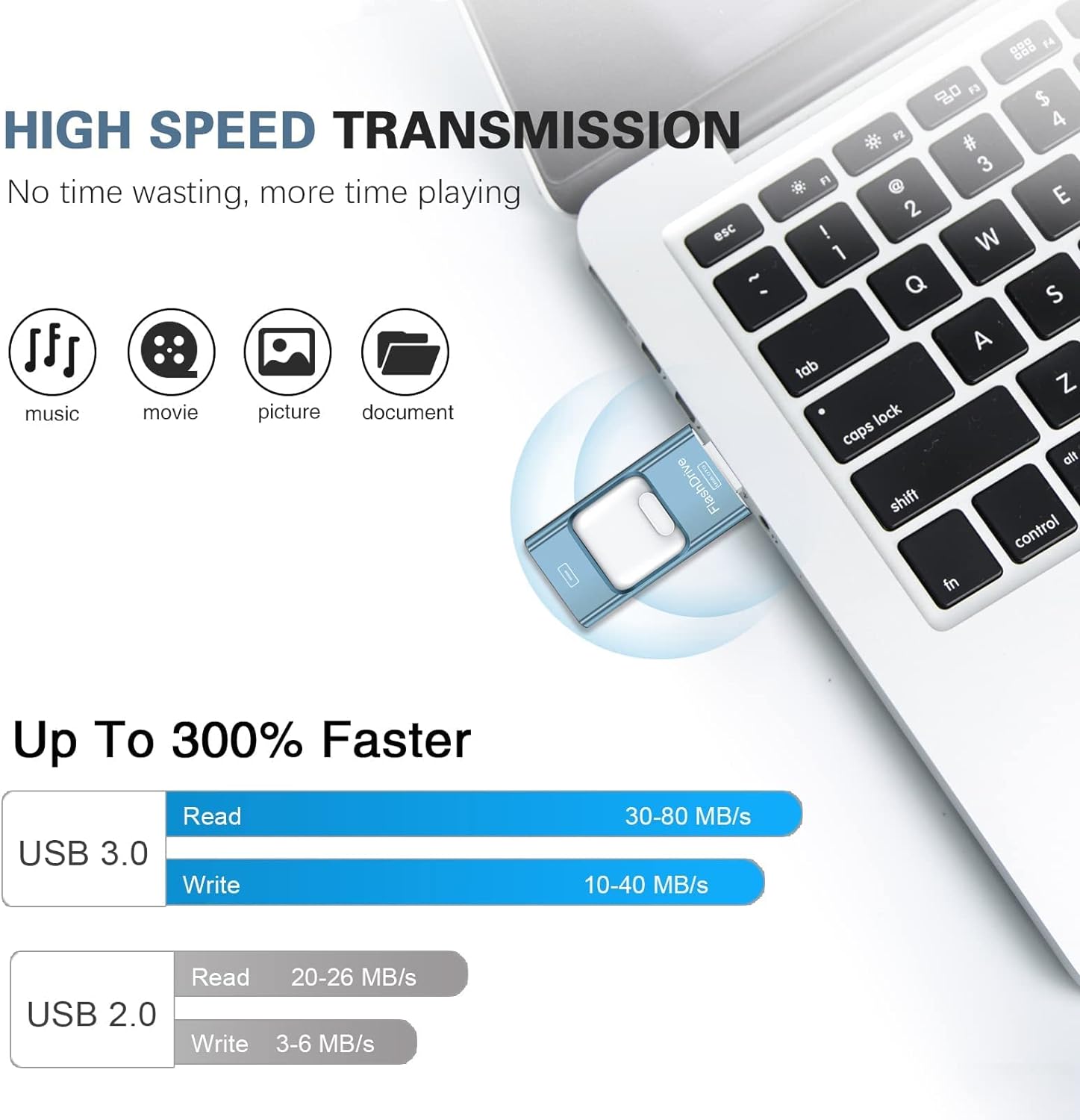
Image 2: High-speed data transmission capabilities of the flash drive.
3. Setup & Operating Instructions
This section guides you through connecting and using your ZARMST 4-in-1 USB Flash Drive with various devices.
3.1. For iOS Devices (iPhone/iPad)
- Download the App: Search for and download the "LUV-Share" app from the App Store on your iOS device.
- Connect the Flash Drive: Insert the iOS connector (Lightning or USB-C, depending on your iPhone/iPad model) into your device. Ensure the flash drive's logo side is facing up for correct insertion.
- Grant Permissions: When prompted, allow the LUV-Share app to communicate with the FlashDrive.
- Transfer Files: Within the app, navigate to "From Library" to select and copy photos and videos from your device to the external storage.
- View/Play Media: Access the "External Storage" section in the app to view pictures, documents, or play videos and music directly from the flash drive.
- Encrypt/Decrypt Files: The app allows you to lock files with a password for enhanced privacy. Select files, choose "Lock," and enter your password. To unlock, select the file and choose "Unlock."
- Direct Capture: Use the "Take Photo" or "Take Video" options within the app to save media directly to the flash drive, bypassing your device's internal storage.
3.2. For Android Devices
- Connect the Flash Drive: Insert the appropriate connector (USB-C or Micro USB) into your Android device. For Micro USB, ensure the correct orientation.
- Access Files: Android devices typically do not require a dedicated app. You can access the flash drive directly through your phone's notification panel (look for "USB drive mounted") or by opening your device's native "File Manager" or "Files" app.
- Transfer Files: Use your device's file manager to copy, move, or manage files between your Android device and the flash drive.
3.3. For Computers (Windows/Mac)
- Connect the Flash Drive: Insert the Standard USB-A connector into an available USB port on your computer. For USB-C ports, use the USB-C connector.
- Access Files: The flash drive will appear as a removable drive in your computer's file explorer (Windows) or Finder (Mac). You can then drag and drop files to transfer them.

Image 3: Correct insertion methods for iPhone and Android devices.
3.4. Instructional Video
Video 1: A comprehensive guide demonstrating the usage of the ZARMST 4-in-1 USB Flash Drive with iOS and Android devices, including app installation, file transfer, and media playback.
4. Maintenance
- Keep Dry: Avoid exposure to water or high humidity to prevent damage.
- Avoid Extreme Temperatures: Store the flash drive in a moderate temperature environment.
- Handle with Care: Utilize the retractable design to protect the connectors when not in use. Avoid dropping or subjecting the device to strong impacts.
- Regular Backup: Periodically back up important data from the flash drive to another storage medium (e.g., computer hard drive, cloud service) to prevent data loss.
- Safe Removal: Always safely eject the flash drive from your computer or device before physically removing it to prevent data corruption.
5. Troubleshooting
- Device Not Recognized:
- Ensure the flash drive is fully and correctly inserted into the device's port.
- For iOS, verify the LUV-Share app is installed and permissions are granted.
- For Android, check your device's notification panel or file manager.
- Try connecting to a different port or device to rule out port issues.
- Displayed Capacity is Lower Than Advertised:
- This is normal. Storage manufacturers calculate 1GB as 1,000MB, while computers and operating systems read 1GB as 1,024MB. Therefore, the actual displayed capacity will be slightly less than the nominal value.
- Slow Transfer Speeds:
- Transfer speeds can vary based on the host device, interface (USB 3.0 is faster than USB 2.0), file size, and usage conditions. Transferring many small files can be slower than transferring a few large files.
- Ensure your device supports USB 3.0 for optimal speeds.
- Files Not Opening or Disappearing (iOS App):
- Ensure the LUV-Share app is up-to-date.
- If files were encrypted, ensure you are using the correct password to decrypt them.
- Avoid removing the drive during active file transfers or operations.
6. Specifications
| Brand | ZARMST |
| Model | 512GB 4-in-1 USB Type C Memory Stick |
| Memory Storage Capacity | 512 GB |
| Connectivity Technology | USB |
| Hardware Connectivity | Lightning, USB Type A, USB Type C |
| Flash Memory Type | USB |
| Write Speed | 30 MB/s |
| Item Weight | 1.13 ounces |
| Package Dimensions | 4.29 x 3.78 x 0.67 inches |
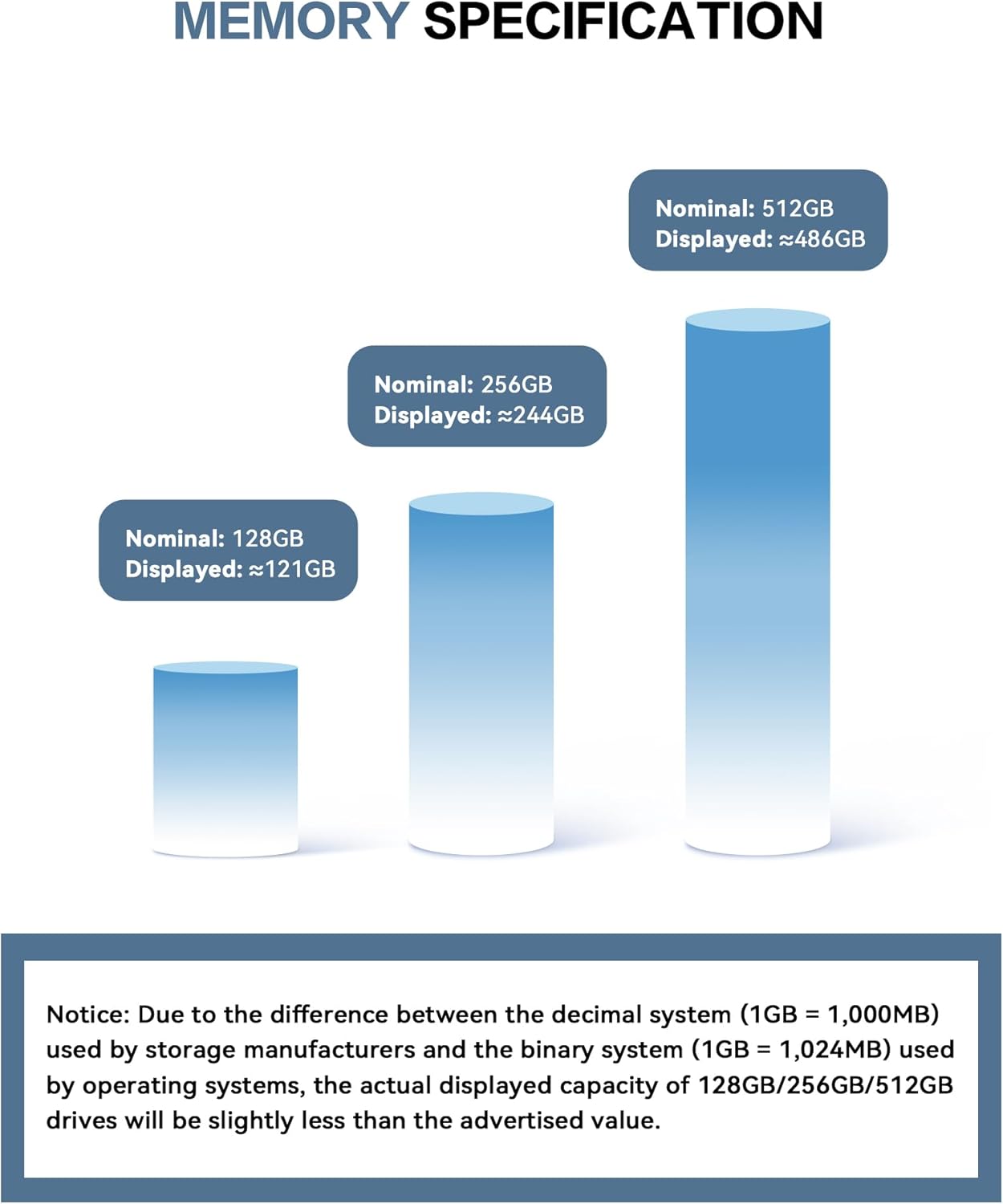
Image 4: Explanation of nominal vs. displayed memory capacity.
7. Warranty and Support
All ZARMST Pen Drives undergo rigorous testing and formatting before leaving the factory to ensure quality and reliability. For any questions or support needs regarding your flash drive, please feel free to reach out to ZARMST customer service. Our professional team is committed to responding and resolving your issues within 24 hours.
For further assistance, please refer to the contact information provided with your product packaging or visit the official ZARMST store online.