
KVAGO iPad Air 11" M3, M2/Pro 11"/Air 10.9"
KVAGO Keyboard Case User Manual
Model: iPad Air 11" M3, M2/Pro 11"/Air 10.9" | Brand: KVAGO
1. Introduction
This manual provides comprehensive instructions for the KVAGO Keyboard Case, designed to enhance your iPad experience. It covers setup, operation, maintenance, and troubleshooting to ensure optimal performance and longevity of your device.

Image: The KVAGO Keyboard Case, shown with an iPad inserted, featuring a backlit keyboard and a sleek design.
What's in the Box:
- KVAGO Keyboard Case
- Type-C Charging Cable
- User Manual (this document)
2. Compatibility
The KVAGO Keyboard Case is compatible with a range of iPad models. Please verify your iPad's model number on the back of your device to ensure compatibility.
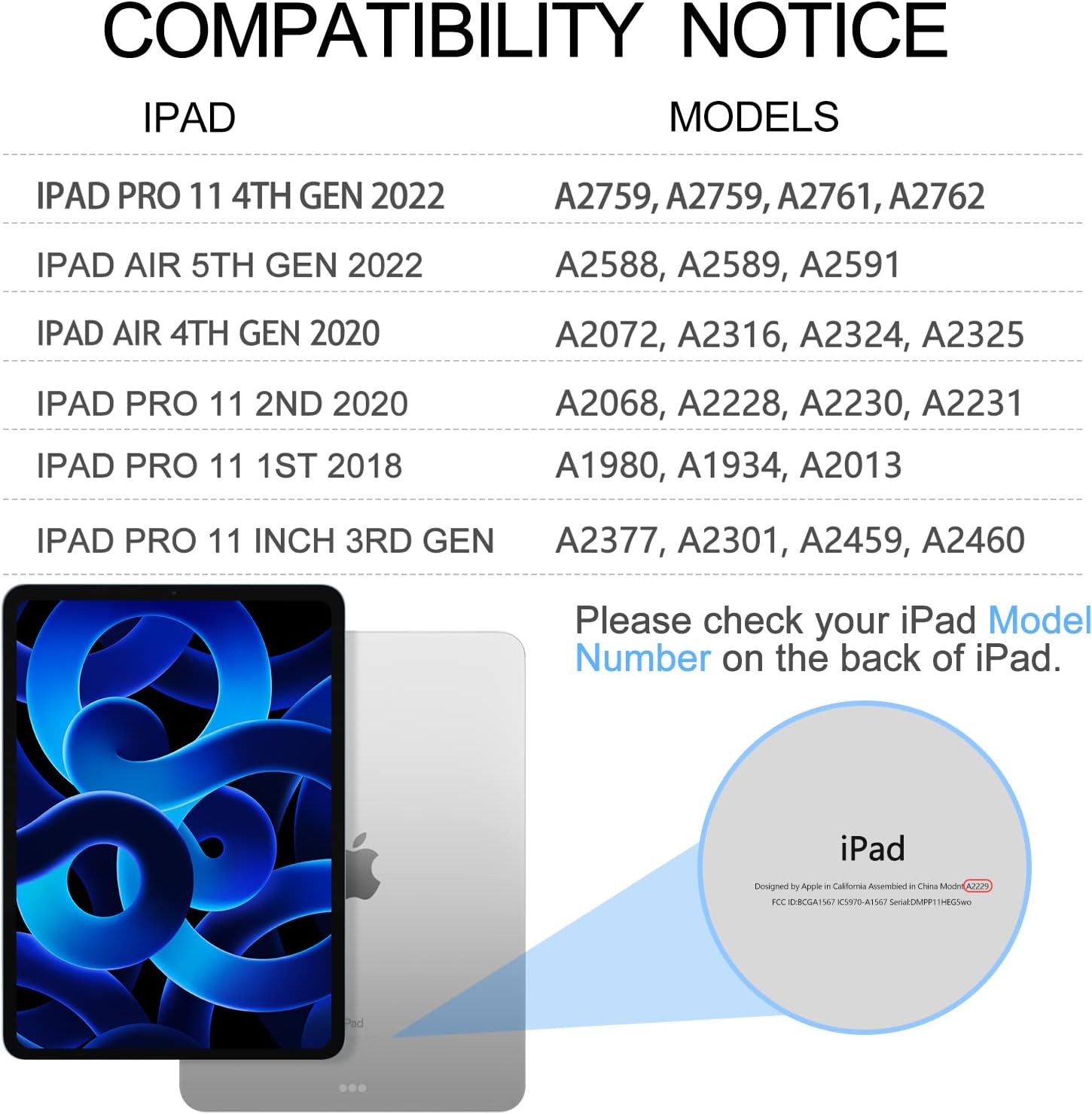
Image: A chart detailing compatible iPad models and their corresponding model numbers, along with an illustration showing where to find the model number on an iPad.
This keyboard case is designed for the following iPad models:
- iPad Air 11-inch (M3) 2025 (Model: A3266 / A3267 / A3270)
- iPad Air 11-inch (M2) 2024 (Model: A2902 / A2903 / A2904)
- iPad Air 5th Generation 10.9-inch 2022 (Model: A2588 / A2589 / A2591)
- iPad Air 4th Generation 10.9-inch 2020 (Model: A2072 / A2316 / A2324 / A2325)
- iPad Pro 11-inch 4th Generation 2022 (Model: A2759 / A2435 / A2761 / A2762)
- iPad Pro 11-inch 3rd Generation 2021 (Model: A2377 / A2459 / A2301 / A2460)
- iPad Pro 11-inch 2nd Generation 2020 (Model: A2228 / A2068 / A2230 / A2231)
- iPad Pro 11-inch 1st Generation 2018 (Model: A1980 / A2013 / A1934)
3. Setup and Connection
Initial Charging:
Before first use, fully charge the keyboard for 2 to 4 hours using the provided Type-C charging cable. Connect the cable to the keyboard's charging port and a suitable USB power source.
Pairing the Keyboard with your iPad:
- Ensure the keyboard is fully charged and turned on. The power indicator light will flash for approximately 3 seconds and then turn off.
- Press the 'Connect' button on the keyboard to activate its Bluetooth pairing mode.
- On your iPad, navigate to Settings > Bluetooth.
- Locate and select 'Bluetooth 3.0 Keyboard' from the list of available devices.
- The keyboard will connect automatically. For subsequent uses, simply turn on your iPad's Bluetooth and the keyboard's power, then press any key on the keyboard for automatic reconnection.
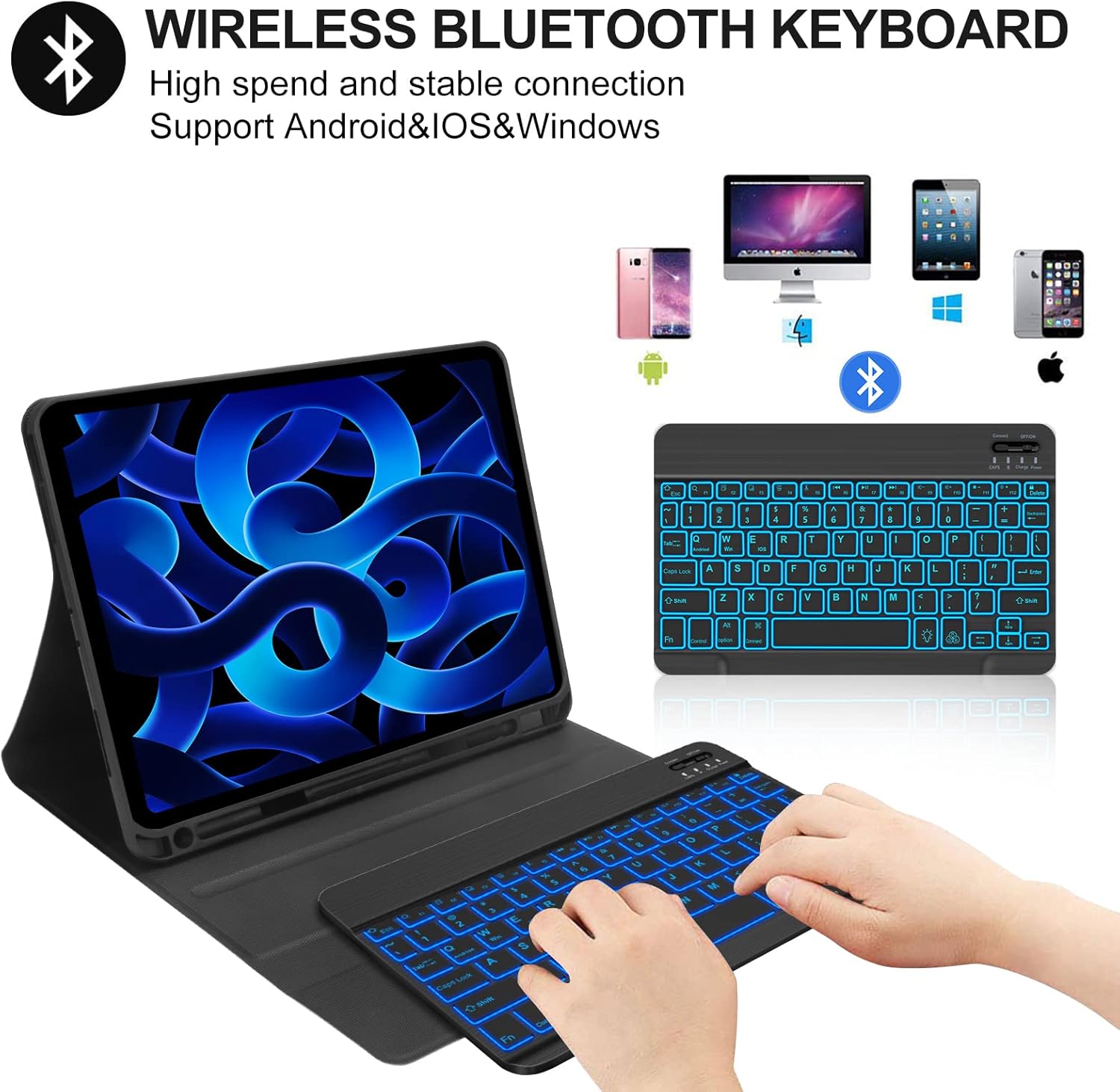
Image: An illustration showing the wireless Bluetooth keyboard connected to an iPad, with icons representing compatibility with iOS, Android, and Windows systems.
4. Operating Instructions
Multi-Touch Trackpad:
The integrated trackpad allows for precise navigation of your iPad, similar to a laptop. Use it to control the cursor, edit documents, browse the web, and create presentations efficiently, reducing the need for direct screen interaction or an external mouse.
Backlit Keyboard with Shortcuts:
The keyboard features a backlit design with 7 color options, enhancing visibility in low-light conditions. The well-spaced, laser-etched keys provide a comfortable and responsive typing experience. A full row of PadOS shortcuts allows for quick access to functions such as changing backlight colors, adjusting tablet brightness, controlling volume, and managing media playback.

Image: A close-up view of the KVAGO keyboard, showcasing its 7-color backlighting options and silent, comfortable keys.
Multiple Viewing Modes and Detachable Keyboard:
The case supports three versatile modes: Typing, Viewing, and Reading, catering to various daily needs. The keyboard is magnetically detachable, allowing you to use the case independently or adjust the keyboard's position for optimal comfort. The anti-slip slots ensure your iPad remains stable at your chosen viewing angle.

Image: The KVAGO Keyboard Case demonstrating its multiple viewing angles, indicating support for free adjustment.

Image: An illustration showing the magnetic detachment feature of the keyboard from the case, highlighting the magnets.
Auto Sleep/Wake Function:
The smart case features an auto sleep/wake function. Opening the folio instantly wakes your iPad, and closing it puts the iPad to sleep, helping to conserve battery life.

Image: A visual representation of the auto sleep/wake feature, showing the iPad screen turning on when the case is opened and off when closed, due to magnetic closure.
Apple Pencil Holder:
A built-in holder is provided to securely store your Apple Pencil, keeping it accessible and preventing loss.
5. Care and Maintenance
To ensure the longevity and optimal performance of your KVAGO Keyboard Case, follow these care guidelines:
- Cleaning: Use a soft, damp cloth to wipe the exterior of the case and keyboard. Avoid harsh chemicals or abrasive cleaners.
- Protection: The case is designed with a premium hard-shell and TPU full edge coverage to protect your iPad from bumps, scratches, and minor impacts. While it offers robust protection, avoid dropping the device from significant heights.
- Heat Dissipation: The inner layer features a honeycomb grid pattern to aid in heat dissipation. Ensure proper airflow around the case during extended use.
- Storage: When not in use for extended periods, store the keyboard case in a cool, dry place.

Image: A diagram illustrating the features of the premium TPU cover case, including full edge coverage, honeycomb grid for heat dissipation, easy iPad snug fit, dropping shock absorption, and auto sleep-wake feature.
6. Troubleshooting
If you encounter issues with your KVAGO Keyboard Case, refer to the following common problems and solutions:
- Keyboard not connecting via Bluetooth:
- Ensure the keyboard is fully charged.
- Make sure the keyboard is turned on and Bluetooth pairing mode is activated (press the 'Connect' button).
- Verify Bluetooth is enabled on your iPad.
- Forget the device in your iPad's Bluetooth settings and attempt to re-pair.
- Restart both your iPad and the keyboard.
- Backlight not working or dim:
- Check if the keyboard battery is low. Charge the keyboard.
- Press the backlight adjustment key (often a sun icon or Fn + light key) to cycle through brightness levels or turn it on/off.
- Keys are unresponsive or typing incorrectly:
- Ensure the keyboard is properly connected to your iPad.
- Recharge the keyboard.
- Clean any debris from around the keys.
- If the issue persists, try re-pairing the keyboard.
- Trackpad not responding:
- Ensure the keyboard is connected and powered on.
- Check iPad settings for trackpad functionality.
- Restart the iPad and keyboard.
7. Product Specifications
| Attribute | Detail |
|---|---|
| Brand | KVAGO |
| Model Number | iPad Air 11" M3, M2/Pro 11"/Air 10.9" |
| Compatible Devices | iPad Air 11-inch (M3, M2), iPad Air 5th/4th Gen 10.9-inch, iPad Pro 11-inch 4th/3rd/2nd/1st Gen |
| Connectivity Technology | Bluetooth |
| Keyboard Description | Multi Functional |
| Special Features | Backlit, Lightweight, Portable, Rechargeable, Multi-Touch Trackpad, Auto Sleep/Wake, Pencil Holder |
| Color | Deep Black |
| Number of Keys | 78 |
| Product Dimensions | 11.3"L x 8.46"W x 1.26"H (28.7 cm x 21.5 cm x 3.2 cm) |
| Item Weight | 1.69 pounds (0.77 kg) |
8. Warranty and Customer Support
KVAGO products are designed for durability and performance. We are committed to quality and customer satisfaction.
Warranty Information:
Specific warranty details are typically provided with your purchase documentation. Please refer to any included warranty cards or product inserts for precise terms and conditions.
Customer Support:
For any issues, questions, or assistance with your KVAGO Keyboard Case, our customer service team is available to help. KVAGO provides 24-hour email contact service and a 30-day money-back guarantee.
Please contact us through the platform where you made your purchase or refer to the contact information provided in your product packaging for direct support.