
1. Introduction
This manual provides comprehensive instructions for the installation, operation, and maintenance of your new PX9 Car Radio Multimedia Navigation System. Please read this manual thoroughly before using the device to ensure proper functionality and safety. This system is designed to enhance your driving experience with advanced multimedia and navigation features.
2. Product Overview
The PX9 Car Radio Multimedia Navigation System is an Android 11-based 2DIN autoradio designed specifically for Toyota RAV4 XA30 models from 2005-2013. It features a 9-inch 2.5D capacitive screen and a Quad Core 1.2GHz CPU, offering a responsive and intuitive user experience.
Key Features:
- High-Definition Display: 9-inch 2.5D Capacitive Screen with 1024*600 resolution for clear visuals.
- Powerful Performance: Quad Core 1.2GHz CPU with various RAM/ROM configurations (1GB/16GB, 2GB/32GB, 4GB/64GB options).
- Integrated Navigation: Built-in GPS with free map updates.
- Wireless Connectivity: Built-in Wi-Fi module (4G optional) for internet access.
- Bluetooth Functionality: Supports hands-free calling and Bluetooth music streaming.
- Smartphone Integration: Mirror Link function for both Android and iOS devices, and support for CarPlay & Android Auto (PX9s models).
- Steering Wheel Control: Compatible with original steering wheel controls for convenience.
- Multimedia Playback: Supports 1080P video playback, FM/AM radio with RDS.
- Advanced Driving Assistance: Supports USB DVR ADAS and Tire Pressure Monitoring System (TPMS).
- Voice Control: Operate the system using voice commands for navigation, music, and calls.
- Split Screen Functionality: Run two applications simultaneously on the screen.

Figure 2.1: Main user interface of the PX9 Car Radio Multimedia Navigation System.

Figure 2.2: AI Assistant functionality for voice control of navigation, music, and calls.

Figure 2.3: CarPlay and Android Auto compatibility for seamless smartphone integration.
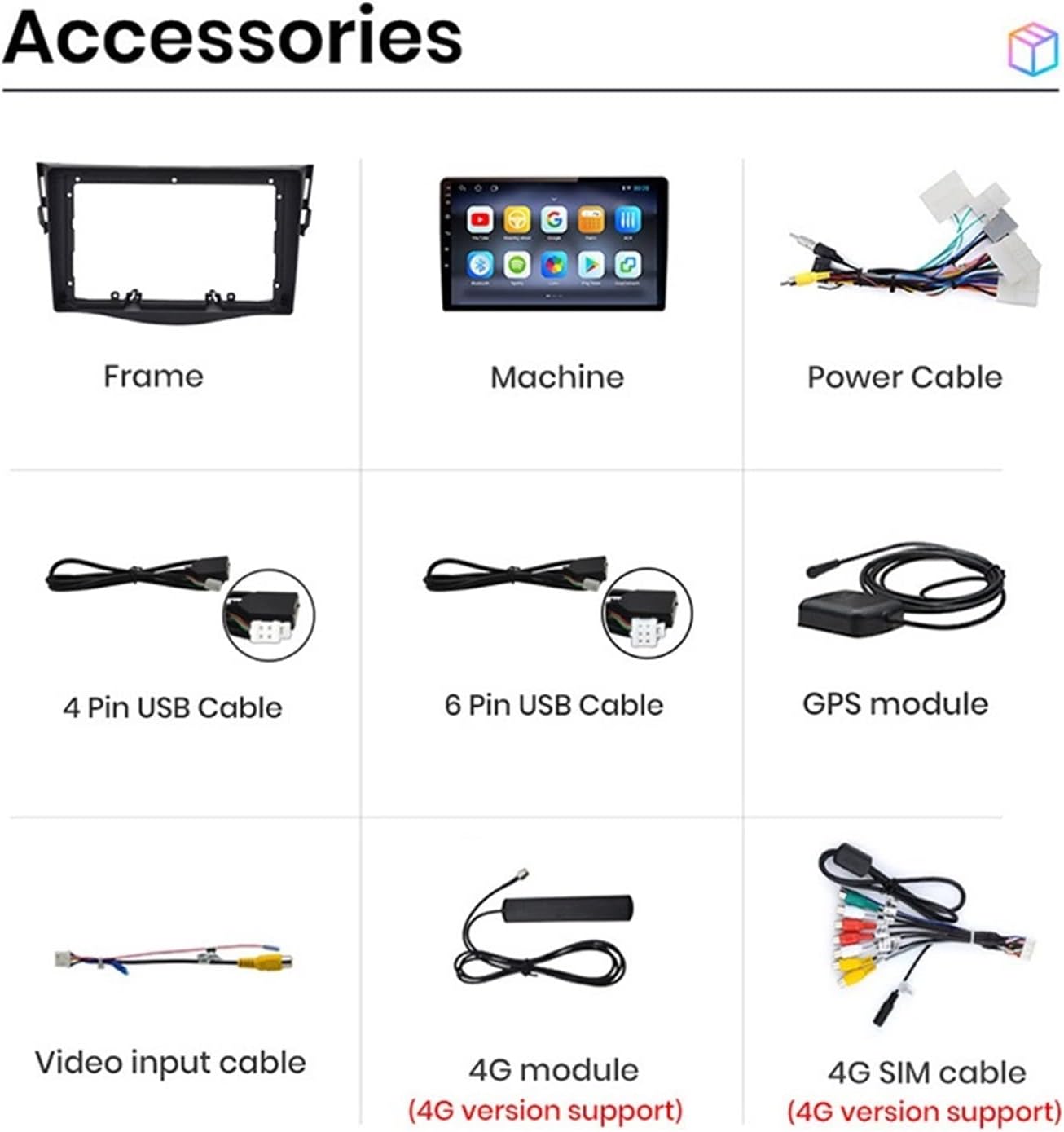
Figure 2.4: Split screen feature allowing two applications to be displayed concurrently.
3. Package Contents
Please verify that all items listed below are included in your package. If any items are missing or damaged, please contact your vendor immediately.

Figure 3.1: Included accessories with the PX9 Car Radio Multimedia Navigation System.
- Main Unit (Machine)
- Installation Frame
- Power Cable Harness
- 4 Pin USB Cable
- 6 Pin USB Cable
- GPS Module
- Video Input Cable
- 4G Module (for 4G version support)
- 4G SIM Cable (for 4G version support)
4. Setup and Installation
This multimedia system is designed for direct fitment in Toyota RAV4 XA30 models (2005-2013). Professional installation is highly recommended to ensure correct wiring and optimal performance. Incorrect installation may damage the unit or your vehicle's electrical system.
4.1 Compatibility Check
Ensure your vehicle is a Toyota RAV4 XA30 manufactured between 2005 and 2013. The system is designed to replace the original factory radio.
4.2 Installation Steps (General Guidelines)
- Disconnect Battery: Before starting, disconnect the negative terminal of your vehicle's battery to prevent electrical shorts.
- Remove Original Radio: Carefully remove the trim panels and screws securing the factory radio. Disconnect all wiring harnesses and antenna cables.
- Connect Wiring: Connect the provided power cable harness to the vehicle's wiring. Connect the GPS module, USB cables, and any other necessary input/output cables (e.g., video input for reverse camera).
- Mount New Unit: Secure the new PX9 unit into the dashboard opening using the provided installation frame and screws.
- Reconnect Battery: Once all connections are secure and the unit is mounted, reconnect the vehicle's battery.
- Test Functionality: Turn on the vehicle and test all functions of the new multimedia system, including power, audio, touch screen, GPS, Bluetooth, and steering wheel controls.

Figure 4.1: Visual comparison of the dashboard before and after the PX9 system installation.
5. Operating Instructions
5.1 Basic Operation
- Power On/Off: The unit typically powers on with the vehicle's ignition. Press and hold the power button (if available) for manual power control.
- Touch Screen: Navigate the interface by tapping, swiping, and pinching on the capacitive touch screen.
- Volume Control: Adjust volume using the on-screen controls or your vehicle's steering wheel controls.
5.2 Navigation
The system comes with pre-installed GPS navigation. Ensure the GPS antenna is properly connected and positioned for optimal signal reception.
- Starting Navigation: Tap the 'Navigation' or 'Maps' icon on the home screen.
- Entering Destination: Use the on-screen keyboard to enter addresses or search for points of interest.
- Map Updates: Maps can be updated via Wi-Fi connection. Refer to the navigation application's settings for update options.
5.3 Bluetooth Connectivity
Connect your smartphone via Bluetooth for hands-free calling and audio streaming.
- Pairing: Go to the 'Bluetooth' settings on the unit. Enable Bluetooth on your phone and search for available devices. Select 'PX9' (or similar name) from the list and confirm pairing.
- Hands-Free Calling: Once paired, you can make and receive calls directly from the unit's screen.
- Bluetooth Music: Stream audio from your phone to the car speakers via the Bluetooth music player.
5.4 Wi-Fi and Internet Access
Connect to a Wi-Fi hotspot (e.g., from your smartphone) to access online features and download apps.
- Connecting to Wi-Fi: Go to 'Settings' > 'Network & Internet' > 'Wi-Fi'. Select your desired network and enter the password.
- App Installation: Use the pre-installed Google Play Store to download and install various applications.
5.5 Mirror Link / CarPlay / Android Auto
These features allow you to display and control your smartphone's screen on the unit.
- Mirror Link: Connect your phone via USB or Wi-Fi and follow the on-screen instructions for screen mirroring.
- CarPlay (for iOS): Connect your iPhone via USB. The CarPlay interface will automatically launch.
- Android Auto (for Android): Connect your Android phone via USB. The Android Auto interface will automatically launch.
5.6 Voice Control
Activate the voice assistant by tapping the microphone icon or using a designated voice command (if configured). Speak clear commands for navigation, music playback, or making calls.
5.7 Split Screen Function
The unit supports running two applications simultaneously.
- Activating Split Screen: Open the first application. Then, long-press the recent apps button or drag the app to one side of the screen. Select the second application from the recent apps list or app drawer to fill the other half.
- Adjusting Split: Drag the divider bar in the middle to adjust the size of each application window.
5.8 Rear View Camera & ADAS DVR
- Rear View Camera: When a compatible rear camera is connected, the screen will automatically switch to the rear view with parking lines when the vehicle is put into reverse gear.
- ADAS DVR: If an ADAS-compatible DVR is connected, the system can provide advanced driving assistance warnings, such as lane departure warnings or front collision alerts.
6. Maintenance
Proper maintenance ensures the longevity and optimal performance of your PX9 Car Radio Multimedia Navigation System.
- Cleaning the Screen: Use a soft, lint-free cloth to gently wipe the screen. For stubborn smudges, slightly dampen the cloth with water or a screen-safe cleaner. Avoid abrasive materials or harsh chemicals.
- Temperature: Avoid exposing the unit to extreme temperatures (very hot or very cold) for extended periods, as this can affect performance and lifespan.
- Software Updates: Periodically check for software updates through the system's settings to ensure you have the latest features and bug fixes.
- Avoid Liquids: Do not spill liquids on the unit. In case of accidental spills, power off the unit immediately and allow it to dry completely before powering on again.
7. Troubleshooting
If you encounter issues with your PX9 system, refer to the following common problems and solutions:
| Problem | Possible Cause | Solution |
|---|---|---|
| Unit does not power on | Loose power connection, blown fuse, vehicle battery issue. | Check power cable connections. Inspect vehicle's fuse box for blown fuses. Ensure vehicle battery is charged. |
| No sound | Volume too low, mute activated, speaker wiring issue, incorrect audio source. | Increase volume. Check if mute is active. Verify speaker wiring connections. Select correct audio source (e.g., Radio, Bluetooth, USB). |
| GPS signal weak or lost | GPS antenna not properly connected or positioned, environmental interference. | Ensure GPS antenna is securely connected and placed in an unobstructed location (e.g., dashboard, away from metal). Move to an open area. |
| Bluetooth connection issues | Phone not in pairing mode, unit not discoverable, interference. | Ensure Bluetooth is enabled on both devices and in pairing mode. Delete previous pairings and re-pair. Restart both devices. |
| Touch screen unresponsive | Software glitch, screen calibration needed. | Restart the unit. If issue persists, check system settings for screen calibration options or perform a factory reset (note: this will erase data). |
If the problem persists after trying these solutions, please contact customer support or a qualified technician.
8. Specifications
| Feature | Specification |
|---|---|
| Model | PX9 |
| Operating System | Android 11 |
| CPU | Quad Core 1.2GHz |
| Display Size | 9 inches |
| Display Type | 2.5D Capacitive LCD |
| Resolution | HD 1024*600 |
| RAM / ROM (Optional) | 1GB/16GB, 2GB/32GB, 4GB/64GB |
| Connectivity | Bluetooth, Wi-Fi, Cellular (4G optional) |
| Audio Output Mode | Stereo |
| Map Type | Europe (Free update) |
| Vehicle Service Type | Car (Toyota RAV4 XA30 2005-2013) |
| Item Weight | 1 Grams (packaging weight may vary) |
9. Warranty and Support
For warranty information, technical support, or service inquiries, please refer to the warranty card included with your product or contact the seller/manufacturer directly. Keep your purchase receipt as proof of purchase.
Manufacturer: 78667Mall