
1. Introduction
Thank you for purchasing the ZUONU K5 Mini Portable Projector. This manual provides essential information for the safe and efficient use of your device. Please read this manual carefully before operating the projector and retain it for future reference.
The ZUONU K5 projector is designed to deliver a crisp, bright, and immersive viewing experience, perfect for home cinema, gaming, and outdoor gatherings. Its portable design and wide compatibility make it a versatile entertainment solution.

Figure 1.1: ZUONU K5 Mini Portable Projector with its carrying case and a smartphone on top.
2. Safety Information
To ensure safe operation and prevent damage, please observe the following safety precautions:
- Do not block the ventilation openings. Ensure adequate airflow around the projector.
- Do not expose the projector to rain or moisture to avoid electric shock or fire.
- Do not open the projector casing. Refer all servicing to qualified service personnel.
- Avoid direct eye exposure to the projector lens when the lamp is on.
- Place the projector on a stable, level surface to prevent it from falling.
- Use only the power adapter supplied with the projector.
- Unplug the projector during lightning storms or when unused for long periods.
3. Package Contents
Please check that all items are present and in good condition upon unpacking:
- ZUONU K5 Mini Portable Projector
- Power Adapter
- Remote Control (batteries not included)
- HDMI Cable
- AV Cable
- User Manual
- Carrying Case
4. Product Overview
4.1 Projector Ports and Controls
Familiarize yourself with the various ports and controls on your K5 projector:
- Lens: Projects the image onto the screen.
- Focus Ring: Adjusts image clarity.
- Keystone Correction: Adjusts image shape (if distorted).
- Power Button: Turns the projector on/off.
- Navigation Buttons: For menu navigation.
- HDMI Port: Connects to devices like laptops, game consoles, TV boxes.
- USB Port: Connects to USB flash drives for media playback.
- AV Port: Connects to older devices using an AV cable.
- Audio Out (3.5mm Jack): Connects to external speakers or headphones.
- Power Input: Connects to the power adapter.

Figure 4.1: The ZUONU K5 Mini Portable Projector demonstrating wide compatibility with devices such as HDMI-enabled devices, USB drives, headsets, DVD players, and Bluetooth speakers.
5. Setup
5.1 Placement
Choose a flat, stable surface for the projector. For optimal viewing, position the projector directly in front of your projection surface (wall or screen). The K5 projector supports a flexible big screen size from 50 to 200 inches, depending on the projection distance.
- For a 70-inch screen, the recommended distance is approximately 2.5 meters.
- For a 100-inch screen, the recommended distance is approximately 3.5 meters.
- For a 200-inch screen, the recommended distance is approximately 6 meters.

Figure 5.1: Illustration of recommended projection distances for various screen sizes (50-200 inches).
5.2 Power Connection
- Connect the power adapter to the projector's power input port.
- Plug the power adapter into a wall outlet.
- The power indicator light on the projector will illuminate.
5.3 Focus and Keystone Adjustment
- Turn on the projector.
- Rotate the Focus Ring on the projector until the image appears sharp and clear.
- If the image appears trapezoidal (wider at the top or bottom), adjust the Keystone Correction dial until the image is rectangular.
5.4 Connectivity
5.4.1 WiFi Connection (Screen Mirroring)
The K5 projector supports wireless screen mirroring from compatible smartphones and tablets via WiFi.
- Navigate to the 'Screen Mirroring' or 'WiFi Display' option in the projector's main menu.
- Ensure your mobile device is connected to the same WiFi network as the projector (or directly to the projector's hotspot if available).
- On your mobile device, enable screen mirroring (e.g., 'Smart View' for Android, 'Screen Mirroring' for iOS) and select the projector from the list of available devices.
5.4.2 Bluetooth Connection
Connect external Bluetooth speakers or headphones for enhanced audio experience.
- Go to the 'Bluetooth' settings in the projector's menu.
- Enable Bluetooth on the projector and put your Bluetooth audio device into pairing mode.
- Select your audio device from the list of available devices on the projector's screen to pair.

Figure 5.2: The ZUONU K5 Mini Portable Projector demonstrating Bluetooth 5.0 connectivity with headphones and a portable speaker.
5.4.3 HDMI Connection
Connect devices such as laptops, game consoles, or TV boxes using an HDMI cable.
- Connect one end of the HDMI cable to the HDMI port on the projector.
- Connect the other end to the HDMI output port of your source device.
- Select 'HDMI' as the input source on the projector.
5.4.4 USB Connection
Play media files directly from a USB flash drive.
- Insert your USB flash drive into the USB port on the projector.
- Select 'USB' as the input source and navigate to your desired media files.
5.4.5 AV Connection
Connect older devices with AV output using the provided AV cable.
- Connect the AV cable to the AV port on the projector.
- Connect the other end to the AV output ports of your source device (matching colors).
- Select 'AV' as the input source on the projector.
6. Operating Instructions
6.1 Power On/Off
- Power On: Press the Power button on the projector or remote control.
- Power Off: Press the Power button again. Confirm shutdown if prompted.
6.2 Input Source Selection
From the main menu, select the desired input source (e.g., HDMI, USB, AV, Screen Mirroring) corresponding to your connected device.
6.3 Menu Navigation
Use the navigation buttons on the projector or remote control to browse through menu options. Press 'OK' or 'Enter' to confirm selections and 'Back' or 'Exit' to return to the previous screen.
6.4 Media Playback
When playing media from a USB drive, navigate through folders and files using the remote control. The projector supports various video, audio, and image formats.

Figure 6.1: The ZUONU K5 Mini Portable Projector is versatile for various uses, including home movies, gaming, and outdoor parties.
7. Maintenance
7.1 Cleaning the Lens
Use a soft, lint-free cloth specifically designed for optical lenses. Do not use abrasive cleaners or excessive force.
7.2 Cleaning the Projector Body and Vents
Wipe the projector body with a soft, dry cloth. Use a small brush or compressed air to gently clear dust from the ventilation openings to ensure proper cooling.
7.3 Storage
When not in use, store the projector in a cool, dry place, away from direct sunlight and extreme temperatures. Use the provided carrying case for protection during storage and transport.
8. Troubleshooting
If you encounter issues with your projector, refer to the following common problems and solutions:
| Problem | Possible Cause | Solution |
|---|---|---|
| No power | Power cable loose; outlet faulty | Check power connections; try a different outlet. |
| No image | Incorrect input source; cable not connected; device not outputting signal | Select correct input source; check cable connections; ensure source device is on and outputting. |
| Image blurry | Focus not adjusted; projector too close/far | Adjust the focus ring; reposition the projector. |
| Image distorted (trapezoid) | Keystone not adjusted; projector not perpendicular to screen | Adjust the keystone correction dial. |
| No sound | Volume too low; external audio device not connected; source device volume low | Increase projector volume; check Bluetooth/audio cable connection; increase source device volume. |
| Screen mirroring not working | Not on same WiFi; device not compatible; firewall issues | Ensure both devices are on the same WiFi; check device compatibility; temporarily disable firewalls. |
9. Specifications
The following table lists the key specifications of the ZUONU K5 Mini Portable Projector:
| Feature | Specification |
|---|---|
| Brand | ZUONU |
| Model | K5 |
| Native Resolution | 1920 x 1080 (Full HD 1080P) |
| Supported Resolution | Up to 4K |
| Connectivity | WiFi, Bluetooth 5.0, HDMI, USB, AV |
| Form Factor | Portable |
| Recommended Projection Size | 50-200 inches |
| Item Weight | Approximately 1 gram (Note: This value is as provided in product data and may be a typo. Actual weight may vary.) |
| Manufacturer Reference | 787658909876 |
| First Available Date | May 14, 2023 |
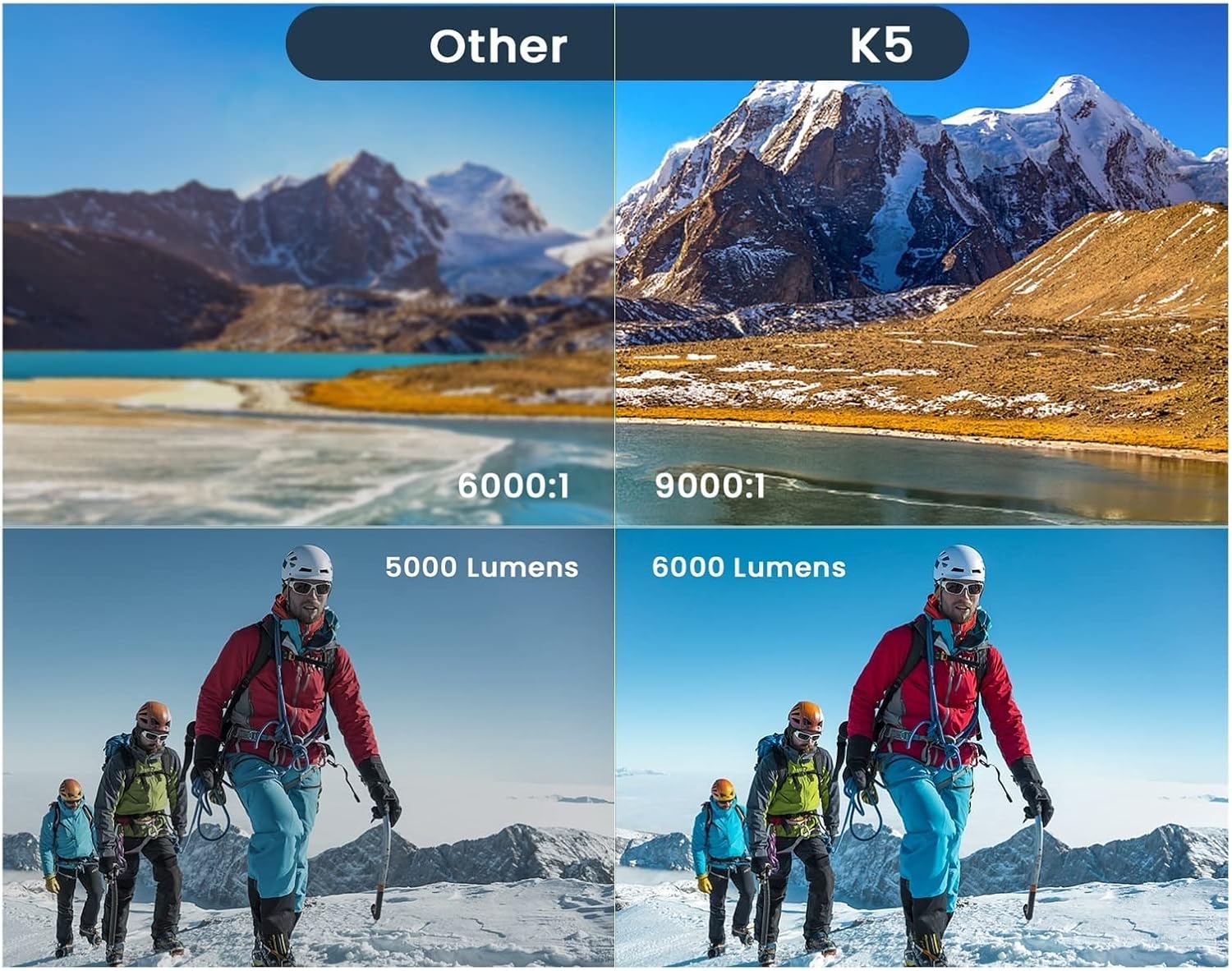
Figure 9.1: Visual comparison highlighting the K5 projector's enhanced image quality, contrast, and brightness.
10. Warranty and Support
For warranty information and technical support, please refer to the warranty card included with your product or contact ZUONU customer service through the retailer where you purchased the projector. Please have your model number (K5) and purchase date ready when contacting support.