
Introduction
This manual provides essential information for setting up, operating, and maintaining your TechMagnet Zeus Pro 6 Gaming Desktop PC. Please read these instructions carefully before use to ensure optimal performance and longevity of your system.
What's in the Box
Your TechMagnet Zeus Pro 6 package includes the following components:
- TechMagnet Zeus Pro 6 Desktop PC Tower
- 27-inch Gaming Monitor
- RGB Gaming Keyboard
- RGB Gaming Mouse
- RGB Gaming Headset
- RGB Soundbar
- Webcam
- Power Cables
- Display Cable (HDMI or DisplayPort)
- User Manual (this document)
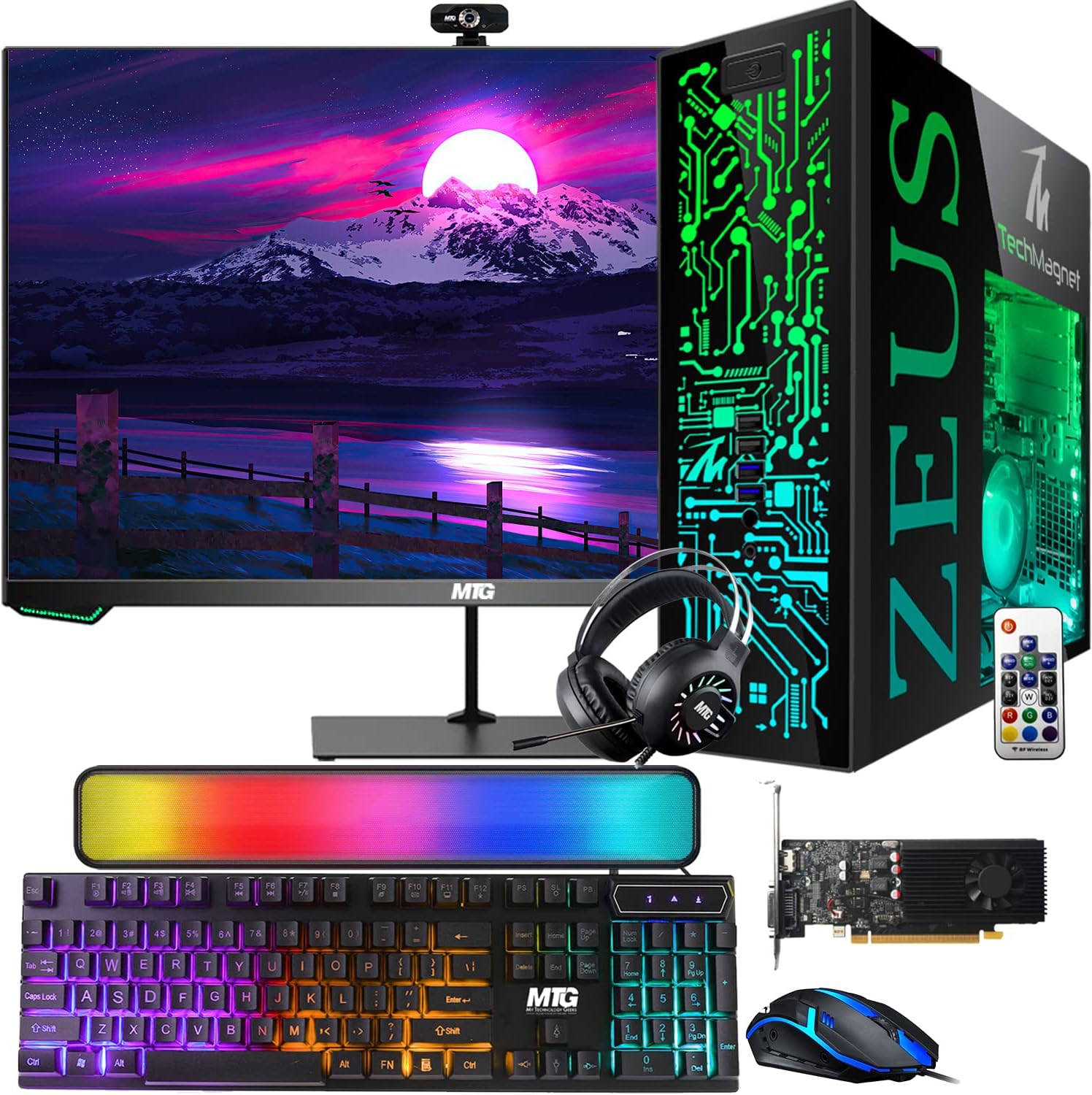
Image: Overview of the TechMagnet Zeus Pro 6 Gaming PC system, including the desktop tower, 27-inch monitor, keyboard, mouse, headset, soundbar, and webcam.
Setup Instructions
- Unpacking: Carefully remove all components from their packaging. Retain packaging for future transport or warranty claims.
- Placement: Place the desktop tower on a stable, flat surface with adequate ventilation. Ensure the monitor is positioned comfortably for viewing.
- Connect Monitor:
Connect the display cable (HDMI or DisplayPort) from the graphics card port on the back of the PC tower to the corresponding input on the 27-inch monitor. Connect the monitor's power cable to an electrical outlet.

Image: The 27-inch 165Hz gaming monitor, a key component of the setup, shown with its features.
- Connect Peripherals:
Connect the USB cables for the keyboard, mouse, webcam, headset, and soundbar to the available USB ports on the back or front of the PC tower. Ensure the soundbar is also connected to power if required.

Image: Detailed view of the front panel ports on the Zeus PC tower, indicating locations for power, USB 2.0, audio, microphone, and USB 3.0 connections.

Image: The included RGB gaming keyboard and mouse, ready for connection.

Image: The gaming headphone and webcam, showing their design and features.

Image: The MTG speaker, highlighting its connectivity options such as AUX, USB, TF Card, and DC/5V ports.
- Connect Power: Connect the PC tower's power cable to the power supply unit (PSU) on the back of the tower, then plug it into an electrical outlet.
- Network Connection: The system includes built-in Wi-Fi. For initial setup, ensure the Wi-Fi antennas are securely attached to the back of the PC tower for optimal signal reception.

Image: Illustration showing the PCI-E WiFi adapter with external antennas for high-speed internet and better range, contrasting it with a less powerful USB WiFi adapter.
- Power On: Press the power button on the front of the PC tower. The monitor should display the boot sequence.
- Windows 11 Setup: Follow the on-screen prompts to complete the initial Windows 11 setup, including language, region, network connection, and user account creation. Windows 11 is pre-installed and activated.
Operating Instructions
Basic PC Operation
- Starting Up: Press the power button on the front of the PC.
- Shutting Down: Click the Start button in Windows 11, then select Power > Shut down.
- Restarting: Click the Start button, then select Power > Restart.
- Sleep Mode: Click the Start button, then select Power > Sleep.
RGB Lighting Control
The Zeus Pro 6 features ARGB lighting for the RAM and case fans, along with RGB peripherals. Specific software or physical buttons may be available to customize lighting patterns and colors. Refer to the individual peripheral manuals for detailed RGB control instructions.

Image: Internal components of the Zeus PC, showcasing the ARGB fan and ARGB RAM modules.
Monitor Settings
Use the buttons on your 27-inch monitor to access its On-Screen Display (OSD) menu. From here, you can adjust settings such as brightness, contrast, color, and refresh rate (ensure it is set to 165Hz for optimal gaming experience).
Graphics Card (NVIDIA GT 1030)
The NVIDIA GT 1030 graphics card is suitable for casual 1080p gaming and multimedia tasks. Ensure you have the latest NVIDIA drivers installed for best performance. Drivers can be downloaded from the official NVIDIA website.

Image: The NVIDIA GT 1030 graphics card, indicating its suitability for entry-level gaming.
Maintenance
- Cleaning: Use a soft, dry cloth to clean the exterior of the PC tower and monitor. For stubborn dust, a slightly damp cloth can be used, ensuring no liquid enters ventilation openings. Do not use harsh chemicals.
- Ventilation: Ensure all ventilation openings on the PC tower are clear of obstructions to prevent overheating.
- Software Updates: Regularly update Windows 11 and graphics drivers to ensure system stability, security, and optimal performance.
- Data Backup: Periodically back up important data to an external drive or cloud storage.
Troubleshooting
No Power
- Check if the power cables for the PC and monitor are securely connected to both the device and the electrical outlet.
- Verify the power outlet is functional by plugging in another device.
- Ensure the power switch on the back of the PC's power supply unit (PSU) is in the 'ON' position.
No Display on Monitor
- Confirm the display cable (HDMI/DisplayPort) is firmly connected to both the PC's graphics card output and the monitor's input.
- Ensure the monitor is powered on and set to the correct input source (e.g., HDMI 1, DisplayPort).
- Try a different display cable if available.
Peripherals Not Responding
- Check USB connections for the keyboard, mouse, headset, and webcam. Try plugging them into different USB ports.
- Restart the PC.
- Ensure drivers for specific peripherals are installed if required (usually Windows automatically installs basic drivers).
No Internet Connection
- Verify Wi-Fi antennas are securely attached to the PC.
- Check Wi-Fi settings in Windows 11 to ensure you are connected to the correct network.
- Restart your router/modem.
Specifications
| Component | Detail |
|---|---|
| Model Name | Zeus Pro 6 |
| Processor | Intel Core i5 (6th Gen), 3.4 GHz |
| RAM | 32 GB DDR4 SDRAM (ARGB) |
| Storage | 256 GB SSD + 1 TB HDD (7200 RPM) |
| Graphics Card | NVIDIA GT 1030 (Dedicated) |
| Operating System | Windows 11 (Pre-installed & Activated) |
| Monitor | 27-inch, 1920 x 1080 (Full HD), 165Hz |
| Connectivity | Built-in Wi-Fi, Bluetooth, USB 2.0, USB 3.0, Audio, Mic |
| Color | Black |
| Hardware Platform | PC |
Warranty and Support
For warranty information and technical support, please refer to the documentation provided with your purchase or contact TechMagnet customer service. Keep your proof of purchase for warranty claims.
This product is a renewed item and has undergone a rigorous quality control process. For specific details regarding the renewed product warranty, please consult the seller's terms and conditions.