
1. Introduction
This manual provides instructions for the installation, configuration, and operation of the TP-Link TL-SG3428X-M2 24-Port Multi-Gigabit L2+ Managed Switch. This device is designed to provide high-performance network connectivity with advanced management features.
Key features include:
- 24x 2.5-Gigabit Ethernet ports for high-speed connections.
- 4x 10 Gbps SFP+ slots for high-bandwidth uplinks.
- Support for Omada Software Defined Networking (SDN) for centralized cloud management.
- Enhanced network security features including 802.1Q VLAN, IP-MAC-Port binding, ACL, and DoS defend.
- L2+ features such as Static Routing for efficient network resource utilization.
2. Product Overview
2.1 Front Panel

Image 2.1: Front view of the TP-Link TL-SG3428X-M2 switch, showing 24 2.5G Ethernet ports, 4 10G SFP+ ports, console port, and LED indicators.
2.2 Side View
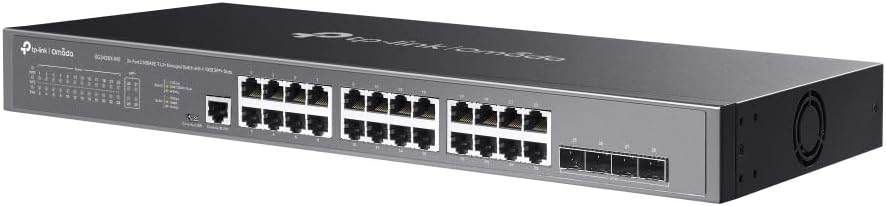
Image 2.2: Side view of the TP-Link TL-SG3428X-M2 switch, highlighting the ventilation and overall chassis design.
2.3 Rear Panel

Image 2.3: Rear view of the TP-Link TL-SG3428X-M2 switch, showing the power input and grounding screw.
2.4 Angled View

Image 2.4: Angled view of the TP-Link TL-SG3428X-M2 switch, providing a comprehensive look at its form factor.
2.5 Port and Dimension Diagram

Image 2.5: Detailed diagram illustrating the port layout, including 1x RJ45 Console Port, 1x Micro-USB Console Port, 24x 2.5 Gigabit Ethernet Ports, and 4x 10G SFP+ Fiber Ports. Dimensions are also indicated: 440 mm width, 220 mm depth, and 44 mm height, with a switching capacity of 128 Gbps.
3. Setup
3.1 Package Contents
Verify that the following items are included in your package:
- TP-Link TL-SG3428X-M2 Switch
- Power Cord
- Rackmount Kit (if applicable)
- Rubber Feet
- Quick Installation Guide
3.2 Physical Installation
- Mounting: Place the switch on a flat, stable surface or install it in a standard 19-inch equipment rack using the provided rackmount kit. Ensure adequate ventilation around the device.
- Power Connection: Connect the power cord to the switch's power inlet and then to a grounded electrical outlet.
- Grounding: For enhanced safety, connect a grounding cable (not included) from the switch's grounding screw to a protective ground.
3.3 Network Connections
- Ethernet Ports: Connect your network devices (computers, servers, access points) to the 2.5 Gigabit Ethernet ports using standard RJ45 Ethernet cables.
- SFP+ Ports: For high-speed uplinks or connections to other fiber-optic devices, insert compatible 10G SFP+ modules (not included) into the SFP+ slots and connect fiber optic cables.
- Console Port: For initial configuration or advanced management, connect a console cable (RJ45 to RS232 or Micro-USB to USB) from your computer to the switch's console port.
4. Operation
4.1 Initial Configuration
Upon powering on, the switch will perform a self-test. You can access the switch's management interface via a web browser or through the console port.
- Web-based GUI: Connect your computer to an Ethernet port on the switch. Configure your computer's IP address to be in the same subnet as the switch's default IP address (refer to the Quick Installation Guide for default IP). Open a web browser and enter the switch's IP address to access the login page.
- CLI (Console): Use a terminal emulator program (e.g., PuTTY) on your computer to connect to the console port. Configure the serial port settings (e.g., 115200 baud rate, 8 data bits, no parity, 1 stop bit, no flow control).
4.2 Omada SDN Integration
The TL-SG3428X-M2 supports TP-Link's Omada Software Defined Networking (SDN) platform, allowing for centralized management of your network devices.
- Omada Controller: The switch can be managed by an Omada Hardware Controller, Omada Software Controller, or Omada Cloud-based Controller.
- Cloud Access: Remote cloud access and the Omada app enable management of your entire network from a single interface, anywhere, anytime.
- Standalone Mode: The switch can also operate in standalone mode, configured directly via its web GUI or CLI.
4.3 Advanced Features
Utilize the switch's advanced features for optimized network performance and security:
- VLANs (Virtual Local Area Networks): Segment your network to improve security and performance.
- Static Routing: Configure static routes to direct traffic efficiently within your network.
- QoS (Quality of Service): Prioritize network traffic for critical applications.
- Security Features: Implement IP-MAC-Port Binding, Access Control Lists (ACLs), Port Security, DoS Defend, Storm Control, DHCP Snooping, and 802.1X Radius Authentication.
5. Maintenance
Regular maintenance ensures optimal performance and longevity of your switch.
- Firmware Updates: Periodically check the TP-Link website for the latest firmware versions. Updating firmware can provide new features, performance improvements, and security patches.
- Cleaning: Keep the switch and its ventilation openings clean and free of dust. Use a soft, dry cloth for cleaning. Do not use liquid or aerosol cleaners.
- Environmental Conditions: Ensure the switch operates within its specified temperature and humidity ranges. Avoid placing it in direct sunlight or near heat sources.
- Configuration Backup: Regularly back up your switch's configuration settings to prevent data loss in case of unexpected issues.
6. Troubleshooting
If you encounter issues with your switch, refer to the following common troubleshooting steps:
- No Power: Ensure the power cord is securely connected to both the switch and the power outlet. Verify the power outlet is functional.
- No Link Light: Check the Ethernet cable connections. Ensure the connected device is powered on and functioning correctly. Try a different port or cable.
- Network Connectivity Issues: Verify IP address settings on connected devices. Check VLAN configurations if applicable. Ensure there are no IP conflicts.
- Slow Performance: Check for network loops, excessive broadcast traffic, or faulty cables. Monitor port utilization.
- Accessing Management Interface: Confirm your computer's IP address is in the same subnet as the switch. Clear your browser's cache or try a different browser.
- Factory Reset: If configuration issues persist, you may need to perform a factory reset. Refer to the Quick Installation Guide or the full user manual on the TP-Link website for instructions on how to reset the device. Note: A factory reset will erase all custom configurations.
7. Specifications
| Feature | Specification |
|---|---|
| Model Number | TL-SG3428X-M2 |
| Brand | TP-Link |
| Number of Ports | 24 (2.5Gbps Ethernet) + 4 (10Gbps SFP+) |
| Interface Type | RJ45, SFP+ |
| Data Transfer Rate | 2.5 Gigabits Per Second (Ethernet), 10 Gigabits Per Second (SFP+) |
| Product Dimensions | 17.32 x 7.09 x 1.73 inches (440 x 180 x 44 mm) |
| Item Weight | 4.95 pounds (2.25 Kilograms) |
| Voltage | 100-240 Volts (AC) |
| Case Material | Metal |
| Operating Temperature | 0°C to 40°C (32°F to 104°F) |
| Storage Temperature | -40°C to 70°C (-40°F to 158°F) |
| Operating Humidity | 10% to 90% non-condensing |
| Storage Humidity | 5% to 90% non-condensing |
8. Warranty and Support
TP-Link provides a comprehensive warranty and technical support for this product.
- Warranty: This product is backed by a 5-year manufacturer warranty. Please retain your proof of purchase for warranty claims.
- Technical Support: Free 24/7 technical support is available.
For further assistance, please contact TP-Link support:
- Phone: (866) 225-8139
- Website: myproducts.tp-link.com/us
- Email: support.USA@tp-link.com


