
1. Introduction
This manual provides comprehensive instructions for the setup, operation, maintenance, and troubleshooting of your new seenda Wireless Mechanical Blue Colorful Keyboard. Designed for enhanced typing comfort and versatility, this keyboard offers multiple connectivity options and customizable features to suit your needs across various devices.
2. Key Features
- Tactile Quiet Low-Profile Switches: Engineered for a comfortable and responsive typing experience with reduced noise.
- Multi-Mode Connectivity: Seamlessly switch between Bluetooth (BT1, BT2), 2.4G wireless (via USB dongle), and wired (USB-C) connections.
- Rechargeable Battery: Built-in 2000mAh lithium battery provides up to 144 hours of use without backlight, or 4 months without backlight on a single 30-minute charge.
- White Backlit Design: Features 3 modes and 14 brightness levels for enhanced visibility in various lighting conditions.
- Universal Compatibility: Supports Windows, macOS, Android, and iOS devices.
- Customizable Driver: Allows for personal settings, including key remapping and light customization.
- Ergonomic Design: Adjustable feet for 3°, 6°, and 9° typing angles to ensure maximum comfort.
3. Package Contents
- seenda Wireless Mechanical Keyboard (Blue)
- USB-C Charging Cable
- 2.4G USB Receiver (stored in the keyboard's back compartment)
- Keycap Puller
- Additional Blue ESC Keycap
- User Manual
4. Setup
4.1. Charging the Keyboard
Before first use, fully charge the keyboard using the provided USB-C cable. Connect the USB-C end to the keyboard's port and the USB-A end to a power source (e.g., computer USB port, wall adapter). A full charge takes approximately 30 minutes.
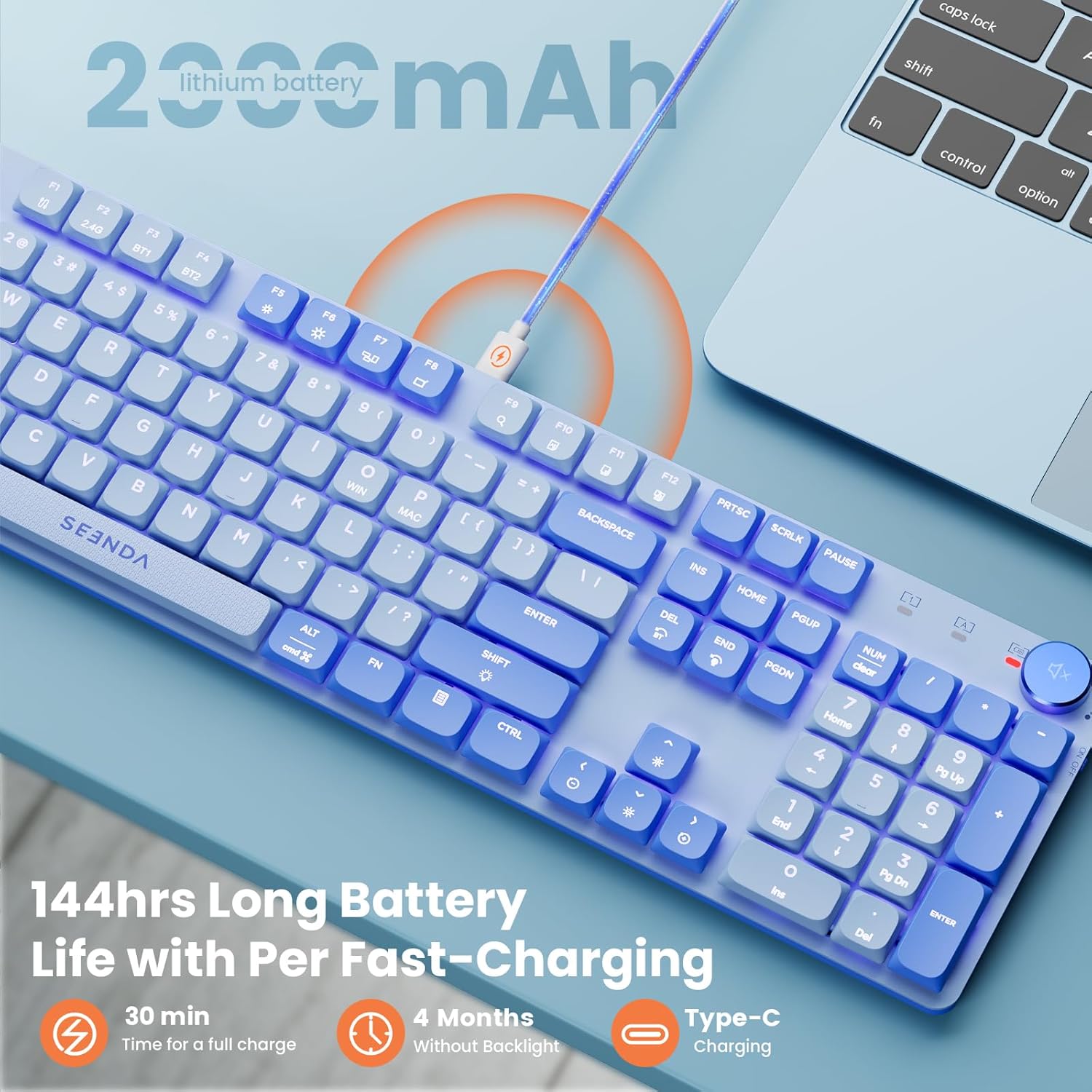
Figure 4.1: Keyboard charging via USB-C, highlighting battery life and charging speed.
4.2. Connecting the Keyboard
The seenda keyboard supports three connection modes: 2.4G Wireless, Bluetooth, and Wired.

Figure 4.2: Overview of the keyboard's four connection methods.
2.4G Wireless Connection:
- Locate the 2.4G USB receiver stored in the compartment on the back of the keyboard.
- Plug the 2.4G USB receiver into an available USB port on your computer.
- Turn on the keyboard using the power switch located on the top right side.
- The keyboard should automatically connect. If not, press Fn + 2.4G key to activate 2.4G mode.

Figure 4.3: Location of the 2.4G USB receiver on the back of the keyboard.
Bluetooth Connection (BT1/BT2):
- Turn on the keyboard using the power switch.
- Press and hold Fn + BT1 or Fn + BT2 for 3-5 seconds until the indicator light flashes rapidly, indicating pairing mode.
- On your device (computer, tablet, smartphone), enable Bluetooth and search for new devices.
- Select "seenda Keyboard" (or similar name) from the list of available devices to pair.
- Once connected, the indicator light will stop flashing. You can pair up to two Bluetooth devices.
Wired Connection:
- Connect the USB-C end of the provided cable to the keyboard's port.
- Connect the USB-A end to an available USB port on your computer.
- The keyboard will automatically switch to wired mode.
5. Operating Instructions
5.1. Backlight Control
The keyboard features a white backlight with multiple modes and brightness levels.

Figure 5.1: Backlight modes and brightness levels.
- Brightness Adjustment: Press Fn + ↑ to increase brightness, Fn + ↓ to decrease brightness.
- Mode Switching: Press Fn + → to cycle through 14 different lighting modes (e.g., Breathing, Waterfall, Constant Bright).

Figure 5.2: Backlight brightness control keys.
5.2. Multimedia and Function Keys
The keyboard features dedicated function keys (F1-F12) and multimedia controls accessible via the Fn key.
- Volume Control: Use the dedicated rotary knob on the top right for volume adjustment. Press to mute/unmute.
- Fn + F1-F12: Access various multimedia and system functions (e.g., media playback, screen brightness, search). Refer to the keycap legends for specific functions.

Figure 5.3: Dedicated volume control knob.
5.3. Customization (Programmable Driver)
For advanced customization, including key remapping and light effects, download the dedicated driver from the official seenda website. This allows for personalized settings to enhance your user experience.
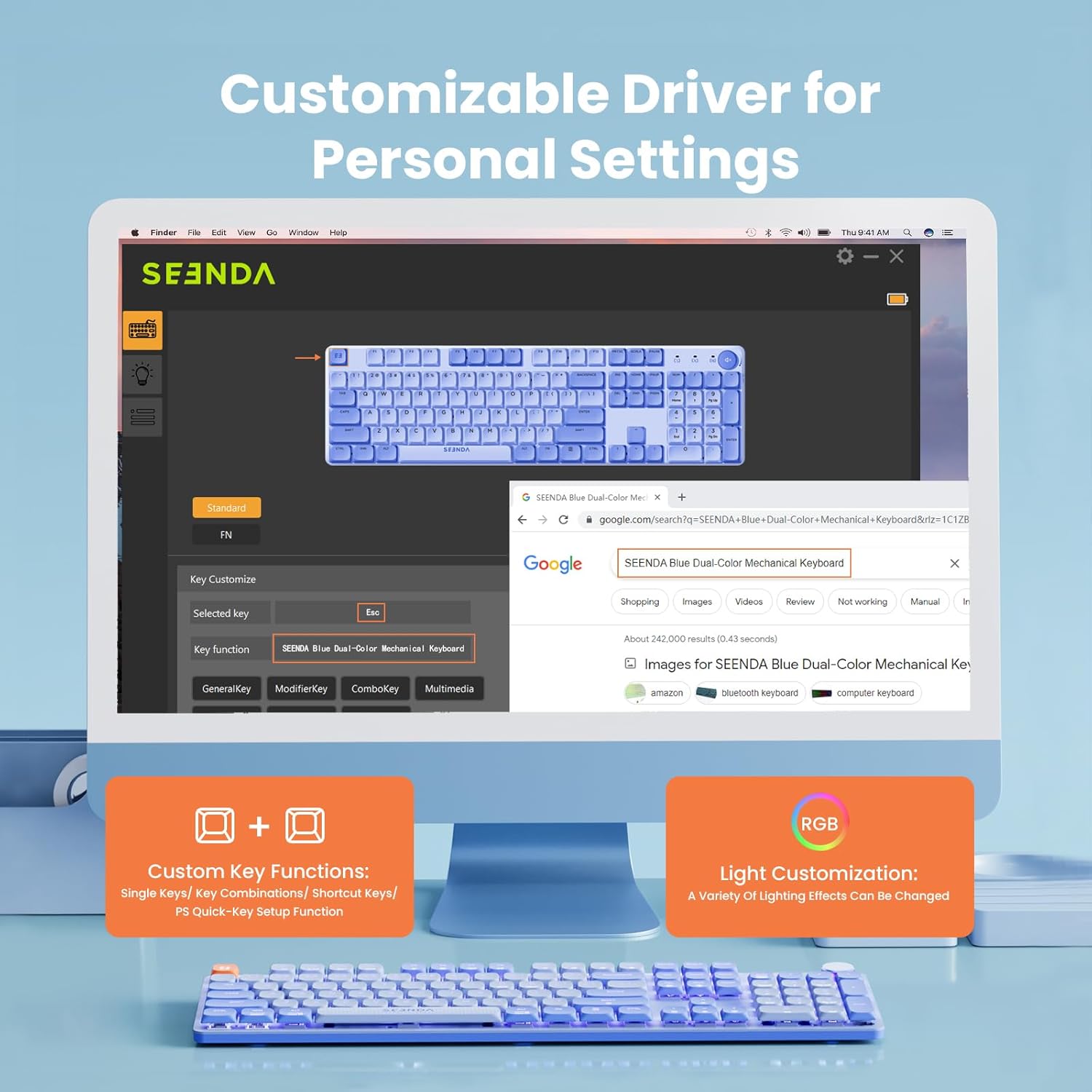
Figure 5.4: Customizable driver interface for personal settings.
6. Maintenance
To ensure the longevity and optimal performance of your seenda keyboard, follow these maintenance guidelines:
- Cleaning: Use a soft, dry cloth to wipe the surface of the keyboard. For deeper cleaning, use a can of compressed air to remove dust and debris from between the keycaps.
- Keycap Removal: The keycaps are removable for cleaning or customization. Use the provided keycap puller to gently remove keycaps. Avoid excessive force to prevent damage.
- Storage: When not in use for extended periods, store the keyboard in a cool, dry place away from direct sunlight and extreme temperatures.
- Liquid Exposure: Avoid spilling liquids on the keyboard. In case of accidental spills, immediately disconnect the keyboard and allow it to dry completely before reconnecting.

Figure 6.1: Using the keycap puller for maintenance.
7. Troubleshooting
If you encounter issues with your keyboard, refer to the following common solutions:
- Keyboard not responding:
- Ensure the keyboard is charged.
- Check the connection mode (2.4G, BT1, BT2, Wired) and ensure it matches your device's connection.
- For 2.4G, ensure the USB receiver is securely plugged in.
- For Bluetooth, ensure Bluetooth is enabled on your device and the keyboard is paired. Try re-pairing if necessary.
- Try connecting via the wired USB-C cable to rule out wireless issues.
- Keys not registering or ghosting:
- Clean under the affected keycaps to remove any debris.
- Ensure the keycaps are properly seated on the switches.
- If using wireless, ensure there is no significant interference or distance from the receiver/device.
- Backlight not working:
- Ensure the keyboard is charged.
- Adjust brightness using Fn + ↑.
- Cycle through modes using Fn + →.
- Bluetooth pairing issues:
- Ensure the keyboard is in pairing mode (rapidly flashing indicator light).
- Forget the device on your computer/tablet/phone's Bluetooth settings and try pairing again.
- Ensure your device's Bluetooth version is compatible.
8. Specifications
| Feature | Specification |
|---|---|
| Product Dimensions | 16.9 x 4.8 x 0.8 inches (42.9 x 12.2 x 2.0 cm) |
| Item Weight | 2.27 pounds (1.03 kg) |
| Model Number | OWKOU600 |
| Connectivity Technology | Bluetooth, 2.4G Wireless, USB Wired |
| Compatible Devices | Windows, macOS, Android, iOS |
| Keyboard Description | Multi Functional Mechanical Keyboard |
| Color | Blue |
| Number of Keys | 104 |
| Material | Metal |
| Battery Capacity | 2000mAh |
| Charging Time | Approx. 30 minutes for full charge |
| Battery Life (No Backlight) | Up to 4 months |
9. Warranty and Support
seenda products come with a standard manufacturer's warranty. For detailed warranty information, technical support, or service inquiries, please visit the official seenda website or contact their customer service directly. Please retain your proof of purchase for warranty claims.
Official seenda Store: Visit the seenda Store on Amazon