
1. Introduction
This manual provides detailed instructions for the installation, operation, and maintenance of your Leadsign 8-inch Double Din Linux Car Stereo. This unit is designed to enhance your driving experience with advanced features such as Wireless CarPlay, Android Auto, and a high-definition touch screen.
Key features include:
- Wireless & Wired Apple CarPlay: A smart and safe interface for using your iPhone while driving, allowing phone calls, music access, messaging, and navigation with Siri voice control.
- Wireless & Wired Android Auto: Use voice commands like "OK Google" for calls, messages, and music, maintaining focus on the road.
- Mirrorlink: Supports screen mirroring for most iOS and Android smartphones, displaying maps and media on the 8-inch 1024*600 resolution screen.
- Steering Wheel Controls & Reversing Camera Input: Integrates with existing steering wheel controls for convenience and supports a rear-view camera (not included) for automatic display when reversing.
- HD Touch Screen Multimedia Player Linux System: Features a 7-inch high-definition full touch capacitive screen with 1024*600 resolution, offering a stable, smooth, and responsive user experience.

Image: Front view of the Leadsign car stereo displaying Apple CarPlay and Android Auto interfaces, highlighting wireless connectivity.
2. Applicable Models
This car stereo is compatible with various Volkswagen, SEAT, and SKODA models. Please verify your vehicle's compatibility before installation.

Image: A table listing compatible Volkswagen, SEAT, and SKODA vehicle models and years. Also shows various OEM radio designs.
Compatible Vehicles:
- For VW: SAGITAR/JATTA/JETTA, MAGOTAN/MAGOTAN V6, PASSAT B6, PASSAT V6, MAGOTAN VARIANT, GOLF BLUE MOTION, Altea ab 05/2004, PASSAT B7, PASSAT NMS, PASSAT Variant, PASSAT CC, PASSAT TSI, BEETLE, SPORTLINE, Leon ab 09/2005, TOURAN, GOLF V, GOLF VI, GOLF VARIANT, TIGUAN / TIGUAN GP, MULTIVAN, BORA, Altea XL ab 04/2007/Alhambra ab 2010, SHARAN, CADDY, POLO, EOS, SCIROCCO, GOLF CROSS, AMAROK
- For SEAT: Fabia Limousine ab 02/2007 bis 2012, Fabia Combi ab 04/2007 bis 2012, Octavia Combi 06/2004 bis Facelift, Praktik ab 04/2007 bis 2012, Roomster ab 04/2006 bis 2012, Superb/3 T ab 2008 bis 2012
- For SKODA: Octavia Limousine ab 06/2004 bis Facelift, Yeti ab 2009 bis 2012
Note: To retain the factory reversing camera, an Eonon A0580 decoder box (not included) may be required for installation.
Inapplicable Volkswagen OEM Radios: RCD 550/RNS 810/RNS 850
3. Setup and Installation
3.1 Package Contents
Before beginning installation, please ensure all components are present:

Image: A visual representation of the package contents, including the head unit, various cables, and accessories.
- Main Head Unit
- Remote Control
- Power Cables (2 types)
- Audio Output Cable
- USB Adapter Cables (2)
- Video Input Cable
- Radio Antenna
- External Microphone
- CAN Bus Decoder
3.2 Pre-Installation Check
Confirm your dashboard opening size before ordering. The stereo requires a 218x132mm opening. If your dashboard size is not suitable, a dash kit may be required (not included).
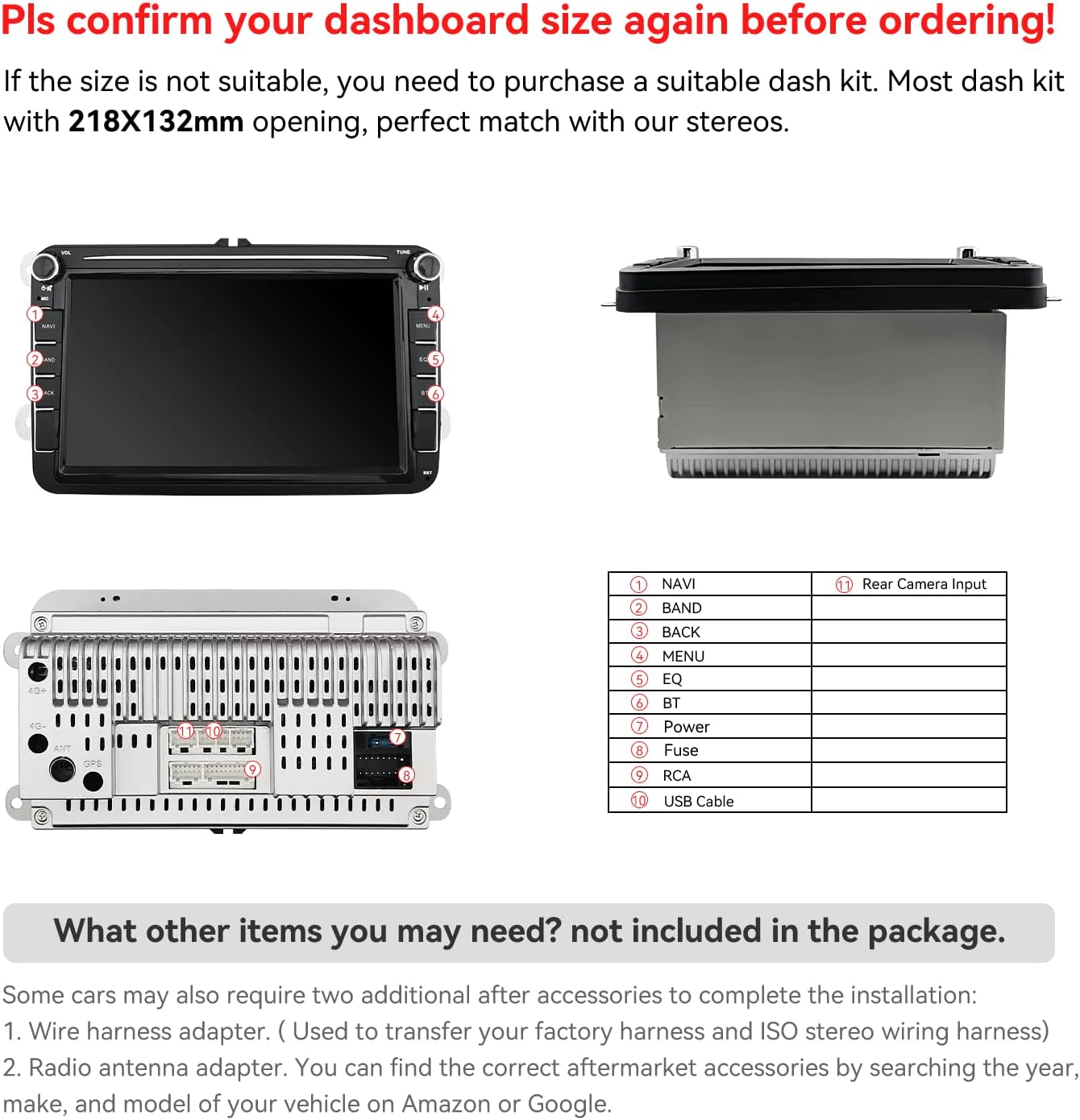
Image: Top, side, and rear views of the car stereo with dimensions and labeled connection points for installation.
3.3 Wiring Diagram Overview
Refer to the diagram above for connection points:
- NAVI (Navigation)
- BAND (Radio Band Selection)
- BACK (Return/Previous)
- MENU (Main Menu)
- EQ (Equalizer)
- BT (Bluetooth)
- Power
- Fuse
- RCA (Audio/Video Connections)
- USB Cable
- Rear Camera Input
3.4 Additional Items (Not Included)
Depending on your vehicle, you may require:
- Wire harness adapter: Used to transfer your factory harness to the ISO stereo wiring harness.
- Radio antenna adapter: For connecting the car's antenna to the new stereo.
4. Operating Instructions
4.1 Wireless Apple CarPlay
Connect your iPhone wirelessly or via USB to access CarPlay features. This allows for phone calls, music, messages, and navigation, all controllable via the touch screen or Siri voice commands.

Image: The car stereo screen showing the Apple CarPlay interface, with a smartphone held below, indicating wireless and wired connection options.
4.2 Wireless Android Auto
Connect your Android phone wirelessly or via USB to use Android Auto. Utilize voice command "OK Google" for hands-free operation of calls, messages, and music applications.

Image: The car stereo screen showing the Android Auto interface, with a smartphone held below, indicating wireless and wired connection options.
4.3 Mirrorlink Functionality
Mirrorlink allows you to display your smartphone's screen directly onto the car stereo's display. This is useful for viewing maps, videos, or other applications from your phone on a larger screen.
4.4 Steering Wheel Controls
The unit supports integration with your vehicle's existing steering wheel controls, allowing you to manage audio functions without taking your hands off the wheel.
4.5 Rear View Camera Input
Connect a compatible rear-view camera (not included) to the dedicated input. The stereo will automatically display the camera feed when the vehicle is shifted into reverse.
4.6 Bluetooth 5.0
Pair your smartphone via Bluetooth 5.0 for hands-free calling and audio streaming. This provides a stable and high-quality wireless connection.
4.7 Touch Screen Operation
The 8-inch IPS touchscreen provides intuitive control over all stereo functions. Navigate menus, select apps, and adjust settings with simple touch gestures.

Image: The 8-inch IPS touchscreen integrated into a car dashboard, displaying the Apple CarPlay interface.
4.8 Smart Functions and App Support
The Linux system supports various applications for navigation, music, and communication. Enjoy features like split-screen multitasking and voice assistants (Siri, Google Assistant).

Image: Multiple screen views demonstrating Apple CarPlay, Android Auto, navigation, and music playback, along with icons of supported applications.
4.9 Additional Features Overview

Image: A grid of icons illustrating key features such as Siri, Google Assistant, 8-inch IPS touchscreen, 1024*600 resolution, built-in DSP, multiple themes, Wi-Fi, Bluetooth 5.0, USB, AM/FM radio, navigation, parking sensors, steering wheel control, app installation, split-screen multitasking, and 4*48W output power.
5. Maintenance
To ensure the longevity and optimal performance of your Leadsign car stereo, follow these maintenance guidelines:
- Screen Cleaning: Use a soft, lint-free cloth to gently wipe the touchscreen. For stubborn smudges, slightly dampen the cloth with water or a screen-safe cleaner. Avoid harsh chemicals or abrasive materials.
- General Cleaning: Keep the unit free from dust and debris. Use a soft brush or compressed air to clean around buttons and vents.
- Temperature Control: Avoid exposing the unit to extreme temperatures. Prolonged exposure to direct sunlight or very cold conditions can affect performance and lifespan.
- Software Updates: Periodically check the manufacturer's website for any available software updates to ensure optimal performance and access to new features.
6. Troubleshooting
If you encounter issues with your car stereo, refer to the following common troubleshooting steps:
- No Power:
- Check all power connections and ensure they are securely fastened.
- Verify the vehicle's fuse box and the stereo's inline fuse for any blown fuses.
- Ensure the vehicle's ignition is on.
- No Sound:
- Check speaker wire connections for proper polarity and secure contact.
- Ensure the volume is not muted or set to minimum.
- Verify audio source selection (e.g., Radio, Bluetooth, CarPlay/Android Auto).
- CarPlay/Android Auto Not Connecting:
- Ensure your phone's Wi-Fi and Bluetooth are enabled.
- For wired connections, try a different USB cable.
- Restart both your phone and the car stereo.
- Check your phone's settings to ensure CarPlay/Android Auto is enabled and allowed for the device.
- Touchscreen Unresponsive:
- Perform a soft reset by pressing the reset button (if available) or turning the vehicle off and on.
- Ensure the screen is clean and free of obstructions.
- Radio Reception Poor:
- Check the antenna connection at the back of the stereo.
- Ensure an antenna adapter is correctly installed if required.
- Poor reception can also be due to environmental factors or damaged antenna.
If these steps do not resolve the issue, please contact Leadsign customer support for further assistance.
7. Specifications
| Feature | Specification |
|---|---|
| Product Dimensions | 9.7 x 2 x 2.7 inches |
| Item Weight | 3.41 pounds |
| Item Model Number | 8inch for VW, SEAT, SKODA |
| Connectivity Technology | Auxiliary, Bluetooth, USB, Wi-Fi |
| Controller Type | Android, iOS |
| Special Features | ARC, Equalizer, Touchscreen |
| Compatible Devices | Smartphone, Speaker |
| Total HDMI Ports | 1 |
| Connector Type | USB |
| Audio Output Mode | Stereo |
| Surround Sound Channel Configuration | 4.0 |
| Color | Black |
| Manufacturer | LEADSIGN |
8. Warranty and Support
For warranty information and technical support, please contact Leadsign directly. Refer to the product packaging or the official Leadsign website for contact details and warranty terms.
Manufacturer: LEADSIGN
Brand: Leadsign