
1. Introduction
This manual provides comprehensive instructions for the UNITOPSCI USB Car DVR Camera, Model RM. It covers product features, setup, operation, maintenance, and troubleshooting to ensure optimal performance and safe use of your device. Please read this manual thoroughly before using the product.
2. Product Overview & Package Contents
The UNITOPSCI USB Car DVR Camera is a compact video recorder designed for vehicle use, featuring a 170° wide-angle lens, G-sensor, loop recording, and ADAS (Advanced Driving Alarm Systems) support. It connects via USB to compatible Android car stereo systems.

Image: Overview of the UNITOPSCI USB Car DVR Camera, showing its camera lens, indicator light, TF card slot, and dimensions (80mm length, 30mm width, 10mm height). Also shown is the 2.3-meter long USB cable.
Package Contents:
- 1 x UNITOPSCI USB Car DVR Camera
- 1 x 32GB Micro SD Card (may be pre-installed)
3. Key Features
- ADAS (Advanced Driving Alarm Systems): Enhances driving safety with Lane Departure Warning System (LDWS) and Forward Collision Warning System (FCWS). LDWS alerts drivers when the vehicle drifts from its lane at speeds over 50 km/h. FCWS calculates real-time distance to the vehicle ahead, providing 3-level warnings to prevent collisions.
- 170° Wide Angle Lens: Provides an expansive field of view, capturing more details across up to four lanes, offering comprehensive road coverage.
- Loop Recording: Automatically overwrites the oldest recordings when the memory card is full, ensuring continuous recording. Locked videos (triggered by G-sensor) are protected from being overwritten.
- G-Sensor: Built-in motion detection and G-sensor automatically detect and lock video recordings during a collision or sudden movement, preserving important event footage.
- Night Vision (WDR Full HD): Equipped with HD WDR (Wide Dynamic Range) technology, the dash cam captures clear video and images in low-light conditions, automatically balancing exposure for optimal visibility.
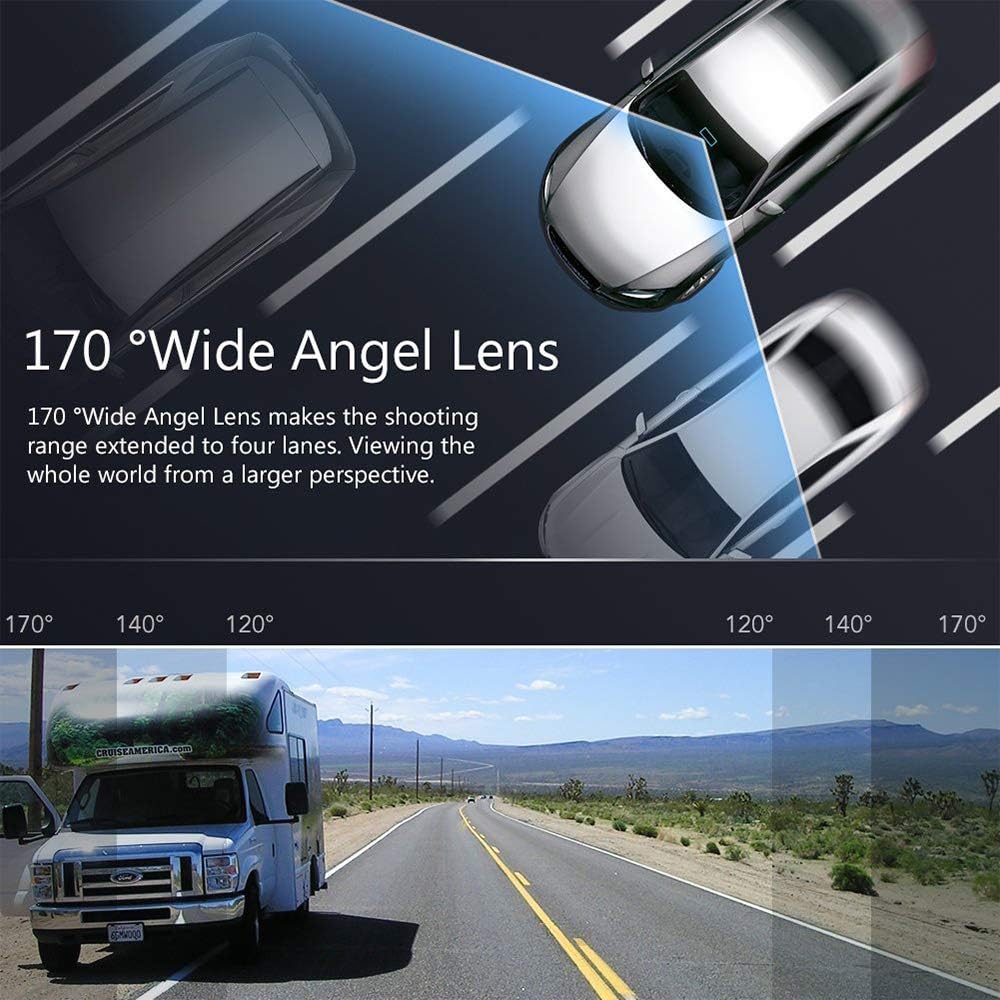
Image: Illustration of the 170° wide-angle lens, demonstrating its ability to cover multiple lanes for a broader view.

Image: Visual representation of seamless loop recording, where new footage overwrites the oldest when the memory card is full, ensuring continuous recording without missing frames.

Image: Depiction of the G-sensor feature, which automatically locks footage in the event of a collision to preserve critical evidence.

Image: Visual comparison demonstrating the 720P Full HD video quality during both daytime and nighttime conditions.
4. Setup & Installation
This dash cam is designed to work exclusively with Android car stereo systems. Ensure your car stereo supports Android OS.
4.1 Physical Installation
- Mounting the Camera: Use the provided 3M adhesive to securely attach the DVR camera to your car's windshield. Position it to ensure a clear view of the road ahead, ideally near the rearview mirror to avoid obstructing your driving view.
- Connecting to Car Stereo: Connect the USB cable from the DVR camera directly to an available USB port on your Android car stereo. No complex wiring is required beyond this USB connection.

Image: The dash cam is shown mounted on the windshield, with its live feed displayed on the car's Android stereo unit.

Image: The USB dash cam is shown connected to the rear of an Android car stereo, illustrating the simple plug-and-play connection.
4.2 Software Installation (APK)
- Access File Manager: After connecting the USB camera, open the file manager application on your Android car stereo.
- Locate APK: Find the USB device (often labeled as "Builidwin U Disc" or similar) and navigate to its contents. Locate the "DVR apk" file.
- Install APK: Click on the "DVR apk" file to begin the installation process. Follow any on-screen prompts to complete the installation.
- Open Application: Once installation is complete, open the newly installed DVR application.

Image: Step-by-step guide on how to install the DVR application (APK) from the USB device onto the Android car stereo.
4.3 ADAS Function Activation
After successful installation, it is recommended to check for updates within the DVR application settings to enable the ADAS function.
- Access Settings: In the DVR application, navigate to the settings menu.
- Check for Updates: Look for an option like "Check update" or "Application update" and initiate the update process.
- Allow Permissions: Grant any necessary permissions requested by the application during or after installation/update.
- ADAS Ready: Once the update is complete, the ADAS features will be active and ready for use.
Video: This official video from UNITOPSCI demonstrates the connection and use instructions for the USB Car DVR Camera, including APK installation and ADAS activation.
5. Operating Instructions
5.1 Basic Operation
- The camera automatically starts recording when the car stereo powers on.
- Live video feed is displayed on your Android car stereo screen.
- Access recorded videos through the DVR application's playback function.
5.2 Loop Recording
The camera continuously records video in segments. When the memory card is full, the oldest unlocked video files are automatically overwritten by new recordings. This ensures that you always have the most recent footage available.
5.3 G-Sensor Activation
In the event of a sudden impact or collision, the built-in G-sensor detects the event and automatically locks the current video segment, preventing it from being overwritten by loop recording. These locked files are crucial for evidence in case of an accident.
5.4 ADAS Features
Once activated (refer to Section 4.3), the ADAS system provides audible and visual alerts for:
- Lane Departure Warning System (LDWS): Alerts if your vehicle drifts out of its lane without signaling.
- Forward Collision Warning System (FCWS): Warns you if you are approaching a vehicle ahead too quickly.
6. Maintenance
6.1 SD Card Management
- Regularly format the Micro SD card (at least once a month) to maintain optimal performance and prevent data corruption.
- To remove the SD card, gently push it inward until it clicks, then release to eject.
- It is recommended to use a high-quality Class 10 or higher Micro SD card for reliable recording.
6.2 Cleaning
- Use a soft, dry cloth to clean the camera lens and body.
- Avoid using abrasive cleaners or solvents that could damage the device.
7. Troubleshooting
- Camera Not Detected: Ensure the USB cable is securely connected to both the camera and the car stereo. Verify that the car stereo's USB port is functional. Restart the car stereo.
- APK Installation Failure: Check if your Android car stereo has sufficient storage space. Ensure you are installing the correct APK file. If issues persist, try downloading the APK from the manufacturer's support website if available.
- ADAS Not Functioning: Confirm that the ADAS update has been successfully installed (refer to Section 4.3). Ensure the camera is properly aligned and has a clear view of the road. ADAS performance can be affected by windshield angle or obstructions.
- Poor Video Quality: Clean the camera lens. Ensure the camera is securely mounted and not vibrating. Check the recording resolution settings in the DVR application.
- SD Card Errors: Format the SD card. If errors persist, try using a different, high-quality Micro SD card.
8. Specifications
| Feature | Specification |
|---|---|
| Product Dimensions | 3.15 x 1.97 x 1.18 inches |
| Item Weight | 5.9 ounces |
| Connectivity Technology | USB |
| Special Features | G-Sensor, Loop Recording, Night Vision, ADAS |
| Video Capture Resolution | 720p |
| Field Of View | 170 Degrees |
| Color | Black |
| Mounting Type | Windshield Mount |
| Manufacturer | UNITOPSCI |
| Model Name | RM |
9. Warranty & Support
9.1 Return Policy
This product is eligible for a refund or replacement within 30 days of purchase, as per standard return policies.
9.2 Technical Support
For any technical assistance or inquiries, please contact UNITOPSCI customer support. Lifetime after-sales consultation and technical support are provided.

Image: UNITOPSCI customer service details, including contact information for support.
Online Support: UNITOPSCI@126.com