
GOOJODOQ A1901
GOOJODOQ Magnetic Keyboard User Manual
Model: A1901
Introduction
Thank you for choosing the GOOJODOQ Magnetic Keyboard. This manual provides detailed instructions for setting up, operating, and maintaining your new keyboard. Designed for seamless integration with your iPad, this keyboard offers a comfortable typing experience and a precise trackpad, enhancing your productivity and versatility.

Figure 1: GOOJODOQ Magnetic Keyboard with iPad attached.
Compatibility
This magnetic keyboard is compatible with the following iPad models:
- iPad Air 11-inch (M2) 2024
- iPad Pro 11 inch (4th/3rd/2nd/1st) Gen 2022/2021/2020/2018
- iPad Air 5th/4th Gen 10.9"
Please verify your iPad model number on the back of your device to ensure compatibility.

Figure 2: Chart indicating compatible iPad models and their corresponding model numbers.
Package Contents
Ensure all items are present in your package:
- GOOJODOQ Magnetic Keyboard
- USB-C Charging Cable
- User Manual (this document)
Setup Instructions
1. Charging the Keyboard
Before first use, fully charge the keyboard. Connect the provided USB-C charging cable to the keyboard's USB-C port (located on the side) and to a power source. The LCD display will show charging status.
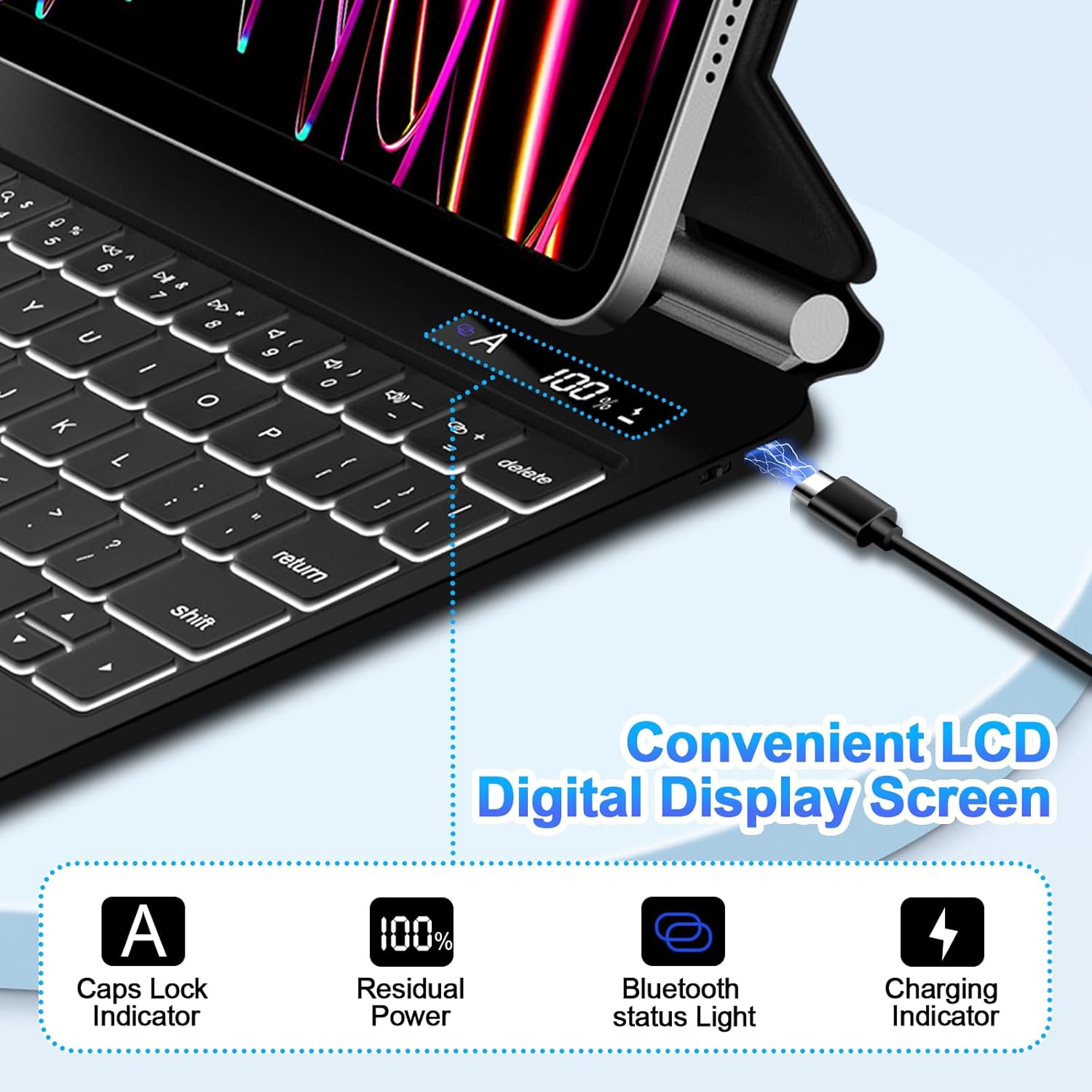
Figure 3: Keyboard connected to a USB-C charging cable, showing the charging indicator on the LCD display.
2. Attaching the iPad
The keyboard features a magnetic cantilever stand. Align your iPad with the magnetic area on the stand. The strong magnets will securely hold your iPad in place, allowing for a floating display and adjustable viewing angles.

Figure 4: Illustration of the iPad being magnetically attached to the keyboard's cantilever stand.
3. Bluetooth Pairing
- Turn on the keyboard by sliding the power switch located on the side. The Bluetooth indicator light will begin to flash.
- On your iPad, go to Settings > Bluetooth.
- Ensure Bluetooth is turned On.
- Look for "GOOJODOQ Keyboard" or a similar name in the "Other Devices" list and tap on it to connect.
- Once paired, the Bluetooth indicator light on the keyboard will stop flashing and remain solid, and your iPad will show the keyboard as "Connected".
The keyboard will automatically reconnect to your iPad when turned on, if it has been previously paired.
Video 1: Demonstrates the magnetic attachment and Bluetooth pairing process for the GOOJODOQ keyboard with an iPad.
Operating Instructions
Keyboard Functions
The keyboard features a full row of function keys for quick access to iPadOS features:
- Esc: Home screen
- Brightness Keys: Adjust screen brightness
- Search Key: Activate Spotlight search
- Media Control Keys: Play/Pause, Previous Track, Next Track
- Volume Keys: Mute, Volume Down, Volume Up
- Lock Key: Lock/Unlock iPad screen
- Fn + Light Bulb Key: Adjust backlight color and brightness.

Figure 5: The keyboard features 7-color LED backlighting with adjustable brightness levels for comfortable typing in various lighting conditions.
Trackpad Gestures
The click-anywhere trackpad supports multi-touch gestures for intuitive navigation:
- Single Finger Tap: Click/Select
- Two-Finger Scroll: Scroll up/down or left/right
- Pinch to Zoom: Zoom in/out on content
- Three-Finger Swipe Up: Go to Home screen
- Three-Finger Swipe Up and Hold: Open App Switcher
- Three-Finger Swipe Left/Right: Switch between open apps
- Palm Rejection: Prevents accidental touches while typing.

Figure 6: The large, precise trackpad supports various multi-touch gestures for enhanced navigation.

Figure 7: The keyboard's trackpad incorporates palm rejection technology to prevent unintended inputs during typing.
LCD Digital Display Screen
The convenient LCD display provides real-time status indicators:
- Caps Lock Indicator: Shows when Caps Lock is active.
- Residual Power: Displays the remaining battery percentage.
- Bluetooth Status Light: Indicates Bluetooth connection status (flashing for pairing, solid for connected).
- Charging Indicator: Shows when the keyboard is charging.
Figure 8: Close-up view of the LCD digital display screen showing indicators for Caps Lock, battery level, Bluetooth status, and charging.
Maintenance
Cleaning
To clean your keyboard, gently wipe the surfaces with a soft, lint-free cloth. For stubborn marks, slightly dampen the cloth with water. Avoid using harsh chemicals, abrasive cleaners, or excessive moisture.
Storage
When not in use, close the keyboard with the iPad attached to protect both devices. Store in a cool, dry place away from direct sunlight and extreme temperatures.
Troubleshooting
| Problem | Possible Cause | Solution |
|---|---|---|
| Keyboard not connecting via Bluetooth. | Keyboard is off, low battery, or not in pairing mode. iPad Bluetooth is off or previously paired device interference. | Ensure keyboard is on and charged. Put keyboard in pairing mode. Turn iPad Bluetooth off and on. Forget previous Bluetooth connections on iPad. |
| Keys not responding. | Keyboard is not connected, or battery is depleted. | Check Bluetooth connection. Charge the keyboard. Restart both iPad and keyboard. |
| Trackpad not working. | Bluetooth connection issue, or trackpad is disabled. | Ensure Bluetooth is connected. Check iPad settings for trackpad functionality. Restart keyboard and iPad. |
| Backlight not working or dim. | Backlight is turned off or set to lowest brightness. Low battery. | Press Fn + Light Bulb key to adjust brightness/color. Charge the keyboard. |
Specifications
- Model Number: A1901
- Connectivity: Bluetooth
- Special Features: Magnetic attachment, Click-Anywhere Trackpad, 7-Color Backlit Keyboard, LCD Digital Display
- Form Factor: Cover
- Color: Black
- Manufacturer: GOOJODOQ
- Item Weight: 2.18 pounds
- Package Dimensions: 10.87 x 8.07 x 1.06 inches
Warranty and Support
For warranty information and customer support, please refer to the product packaging or contact GOOJODOQ customer service through the retailer where the product was purchased. Specific warranty terms and support contact details may vary by region and purchase location.
Ask a question about this manual
Ask about setup, troubleshooting, compatibility, parts, safety, or missing instructions. Manuals+ will review the question and use this page’s manual context to help answer it.