Product Overview
The Altix G1 Wireless Smart Gateway is a central hub designed to connect and manage various smart home devices, enabling seamless automation and control. It supports multiple protocols including Wi-Fi, Bluetooth Low Energy (BLE), ZigBee, and SigMesh, allowing integration with a wide range of smart devices such as smart locks, lights, sensors, switches, and sockets.
This gateway facilitates remote control via the Tuya Smart App and integrates with popular voice assistants like Amazon Alexa and Google Home, providing a convenient and intelligent smart home experience.

Image: Front view of the Altix G1 Wireless Smart Gateway, a compact white square device with "Smart Home Gateway" text on its surface.
Package Contents
- Altix G1 Wireless Smart Gateway
- USB-C to USB-A Cable
- User Manual (this document)
Specifications
| Brand | Altix |
| Model Number | G1-TUYA (ALT-GW) |
| Dimensions (L x W x H) | 61 mm x 61 mm x 15 mm |
| Weight | 60 g |
| Color | White |
| Connectivity Protocols | Wi-Fi, Bluetooth Low Energy (BLE), ZigBee, SigMesh |
| App Compatibility | Tuya Smart App |
| Voice Assistant Integration | Amazon Alexa, Google Home |
| Power Source | USB-C (Cable included, power adapter not included) |
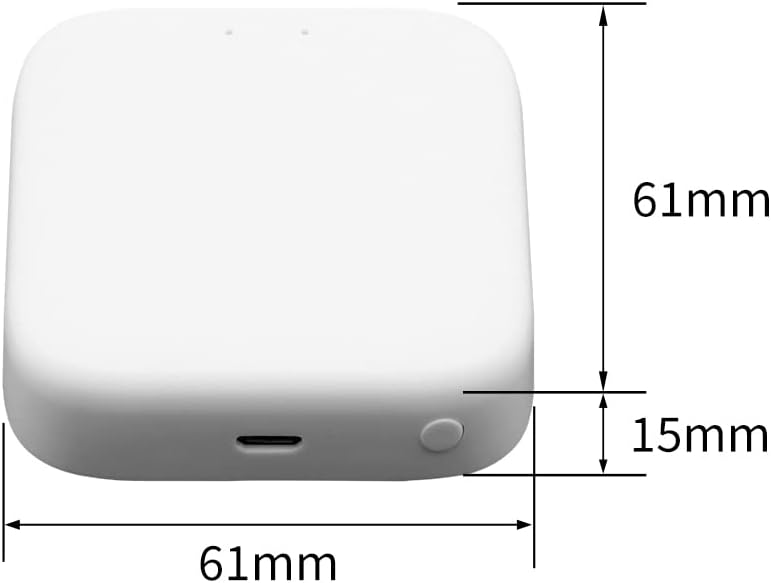
Image: Diagram showing the compact dimensions of the Altix G1 Gateway: 61mm length, 61mm width, and 15mm height.
Setup Guide
1. Powering On the Gateway
- Connect the provided USB-C to USB-A cable to the gateway's USB-C port.
- Plug the USB-A end of the cable into a compatible USB power adapter (5V/1A recommended, not included).
- The gateway will power on, and indicator lights will show its status.
2. Installing the Tuya Smart App
- Download the "Tuya Smart" app from your mobile device's app store (App Store for iOS, Google Play Store for Android).
- Register or log in to your Tuya Smart account.
3. Adding the Gateway to the App
- Open the Tuya Smart App.
- Tap the "+" icon in the top right corner to add a device.
- Select "Gateway" or "Control Hub" from the device list, then choose the specific gateway model (e.g., "Wireless Gateway").
- Follow the on-screen instructions to connect the gateway to your Wi-Fi network. Ensure your phone is connected to a 2.4GHz Wi-Fi network.
- Once successfully added, the gateway will appear in your device list.

Image: The Altix G1 Wireless Smart Gateway, highlighting its Zigbee and Bluetooth capabilities, indicating its role as a central hub for smart home devices.
Operating Instructions
1. Adding Sub-Devices
Once the gateway is connected, you can add compatible smart devices (sub-devices) to it through the Tuya Smart App.
- In the Tuya Smart App, select your Altix G1 Gateway.
- Tap "Add sub-device" or a similar option.
- Follow the app's instructions to put your sub-device into pairing mode.
- The gateway will discover and add the device.

Image: A diagram illustrating the Tuya Smart App's ability to set up automated scenes and control various sub-devices like lamps, window/door sensors, smoke alarms, smart switches, and smart sockets via the Altix G1 Gateway.
2. Creating Smart Scenes and Automations
Leverage the gateway's capabilities to create automated routines and scenes.
- In the Tuya Smart App, navigate to the "Smart" or "Automation" section.
- Choose to create a "Scene" (manual execution) or "Automation" (triggered by conditions).
- Define conditions (e.g., "when door sensor opens") and actions (e.g., "turn on living room light").
- Save and enable your new scene or automation.

Image: Visual examples of how the Altix G1 Gateway enables smart home control, including connecting smart switches for lighting, smart sensors for home status, and smart control devices for touch-button automation.

Image: An illustration demonstrating an automation scenario where opening windows triggers door sensors, which then communicate with the Altix G1 Gateway to automatically shut off air conditioning for ventilation.
3. Voice Control Integration
Connect your Altix G1 Gateway to Amazon Alexa or Google Home for voice commands.
- Ensure your gateway and smart devices are properly set up in the Tuya Smart App.
- Open the Amazon Alexa app or Google Home app.
- Search for and enable the "Tuya Smart" skill/service.
- Link your Tuya Smart account.
- Discover devices. You can now control your connected devices using voice commands (e.g., "Alexa, turn off the air conditioner").
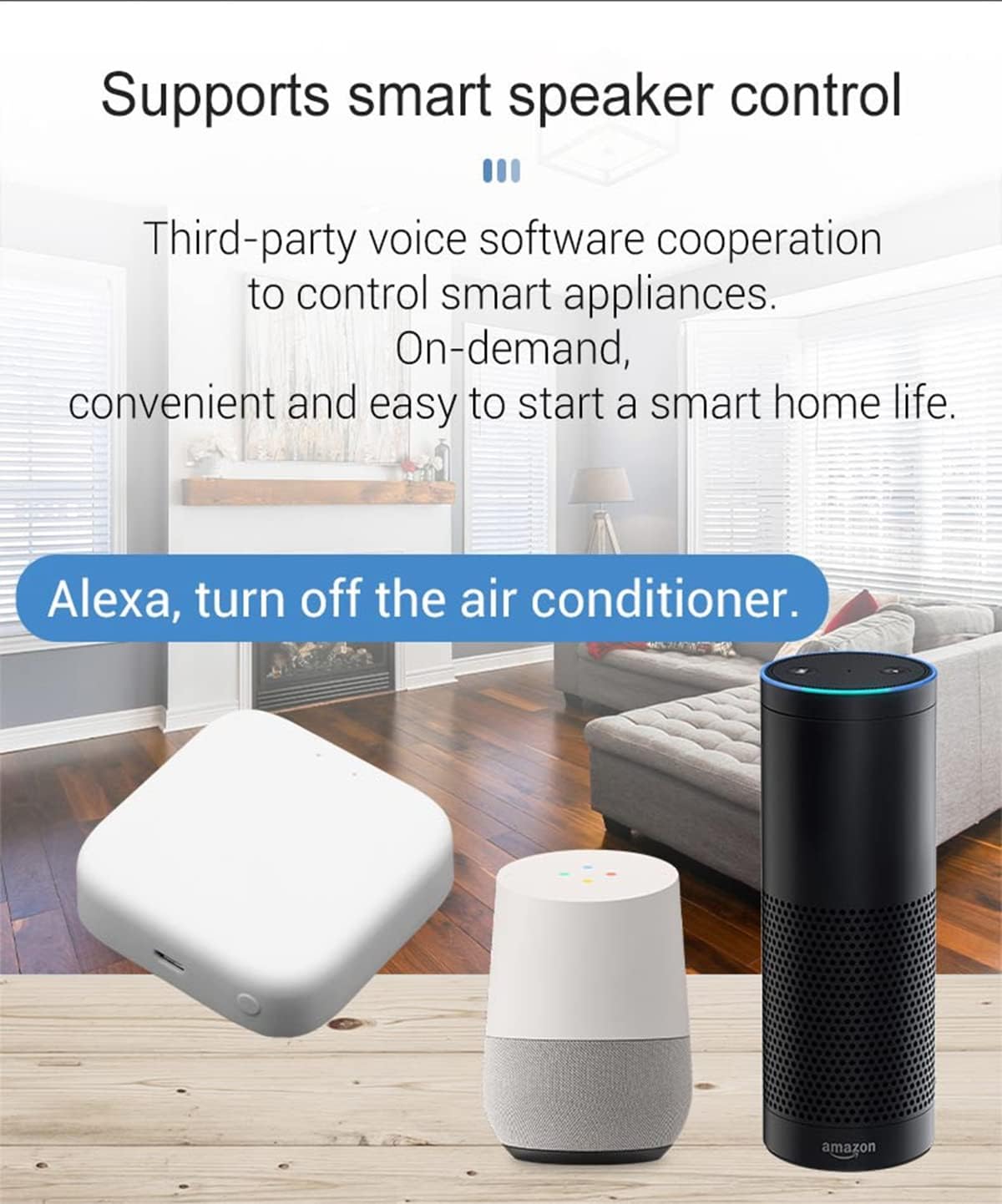
Image: The Altix G1 Gateway positioned alongside Amazon Echo and Google Home smart speakers, illustrating its compatibility and support for third-party voice control software to manage smart appliances.
Maintenance
- Cleaning: Use a soft, dry cloth to clean the surface of the gateway. Do not use liquid cleaners or aerosols.
- Firmware Updates: Periodically check the Tuya Smart App for firmware updates for your gateway to ensure optimal performance and security.
- Placement: Place the gateway in a central location within your home to ensure good signal strength for all connected devices. Avoid placing it near large metal objects or other sources of interference.
- Power Supply: Ensure a stable power supply. Avoid frequent power interruptions.
Troubleshooting
| Problem | Possible Cause | Solution |
|---|---|---|
| Gateway not powering on. | No power, faulty cable, or adapter. | Check USB-C cable connection. Try a different USB power adapter or USB port. |
| Cannot connect gateway to Wi-Fi. | Incorrect Wi-Fi password, 5GHz network, weak signal, or gateway too far from router. | Ensure correct 2.4GHz Wi-Fi network and password. Move gateway closer to router. Restart router and gateway. |
| Sub-devices not connecting to gateway. | Sub-device not in pairing mode, out of range, or incompatible. | Ensure sub-device is in pairing mode. Move sub-device closer to gateway. Verify device compatibility with Altix G1 and Tuya Smart App. |
| Voice control not working. | Tuya Smart skill not enabled, account not linked, or device not discovered. | Verify Tuya Smart skill is enabled and linked in Alexa/Google Home app. Re-discover devices. Ensure correct voice commands are used. |
Warranty and Support
For warranty information and technical support, please refer to the official Altix website or contact Altix customer service directly. Keep your purchase receipt as proof of purchase for warranty claims.
Manufacturer: Altix
Website: Visit the Altix Store on Amazon