1. Introduction
This manual provides essential information for setting up, operating, maintaining, and troubleshooting your VAIO Pro PF (Model: VJPF11C11N) notebook PC. Please read this manual thoroughly before using your device to ensure proper and safe operation.
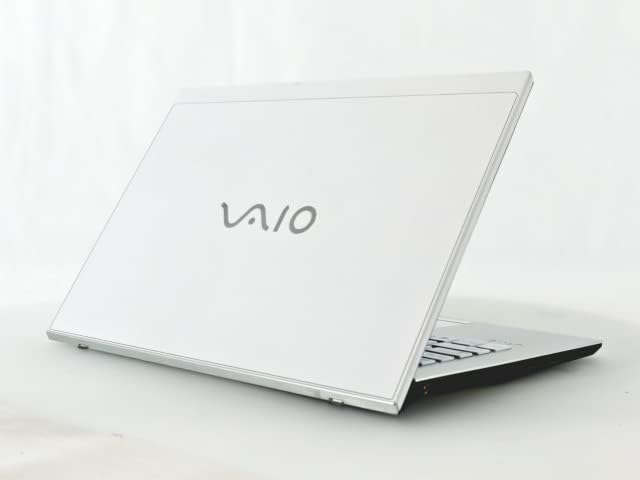
Figure 1: VAIO Pro PF Notebook PC
The VAIO Pro PF is a lightweight and compact mobile notebook designed for productivity. It features an 11.6-inch Full HD display, an Intel 8th Generation Core i5-8250U processor, 8GB of RAM, and a 256GB SSD, running on Windows 11 Pro. The device also includes a backlit keyboard for comfortable typing in various lighting conditions.
2. Setup
2.1 Unpacking
Carefully remove all components from the packaging. Ensure the following items are present:
- VAIO Pro PF Notebook PC
- AC Adapter and Power Cord
- Documentation (this manual, warranty information)
2.2 Connecting to Power
Before initial use, connect the AC adapter to the laptop's power input port and then plug the power cord into a wall outlet. Allow the battery to charge fully.
2.3 Initial Power On and Windows Setup
Press the power button to turn on the laptop. Follow the on-screen instructions to complete the initial Windows 11 Pro setup, including language selection, network connection, and user account creation.
3. Operating Your VAIO Pro PF
3.1 Keyboard and Touchpad
The VAIO Pro PF features a full-sized keyboard with a backlight for improved visibility. The touchpad located below the keyboard supports multi-touch gestures for navigation.

Figure 2: Keyboard and Touchpad Layout
3.2 Connecting External Devices
Your laptop is equipped with various ports for connecting external devices:
- USB 3.0 Ports (x3): For connecting USB devices such as external hard drives, mice, or keyboards.
- HDMI Port: For connecting to external displays or projectors with HDMI input.
- D-SUB15 (VGA) Port: For connecting to older external displays or projectors with VGA input.
- Wired LAN Port: For connecting to a wired network using an Ethernet cable.
- Headphone Jack: For connecting headphones or external speakers.
3.3 Wireless Connectivity
The VAIO Pro PF supports both Wi-Fi and Bluetooth connectivity:
- Wi-Fi (802.11n): To connect to a wireless network, go to Windows Settings > Network & Internet > Wi-Fi, turn Wi-Fi on, and select your desired network.
- Bluetooth: To connect Bluetooth devices, go to Windows Settings > Bluetooth & devices, turn Bluetooth on, and pair your device.
3.4 Using the Web Camera
The integrated web camera can be used for video calls and conferences. Access it through applications like Camera, Microsoft Teams, or Zoom.
4. Maintenance
4.1 Cleaning the Laptop
To clean the exterior of your laptop, use a soft, lint-free cloth slightly dampened with water or a mild, non-abrasive cleaning solution. Avoid spraying liquids directly onto the device. For the screen, use a specialized screen cleaner.
4.2 Software Updates
Regularly check for and install Windows updates to ensure your system has the latest security patches and performance improvements. Go to Windows Settings > Windows Update.
4.3 Battery Care
To prolong battery life, avoid extreme temperatures and fully discharging the battery frequently. For long-term storage, charge the battery to about 50-70%.
5. Troubleshooting
This section addresses common issues you might encounter with your VAIO Pro PF.
| Problem | Solution |
|---|---|
| Laptop does not power on. | Ensure the AC adapter is securely connected and the power outlet is functional. Try holding the power button for 10-15 seconds. |
| Wi-Fi connection issues. | Check if Wi-Fi is enabled in Windows Settings. Restart your router and the laptop. Ensure you are within range of the Wi-Fi network. |
| Keyboard backlight is not working. | Check if the backlight function key (often Fn + F key) is enabled. Adjust brightness settings if available. |
| External display not detected. | Ensure the cable is securely connected to both the laptop and the display. Use Windows display settings to detect or extend displays. Try a different cable or port if available. |
6. Specifications
| Feature | Detail |
|---|---|
| Model Name | VAIO Pro PF (VJPF11C11N) |
| Brand | VAIO (Manufacturer: SONY) |
| Display Size | 11.6 inches |
| Resolution | 1920x1080 pixels (Full HD) |
| CPU | Intel Core i5-8250U (8th Gen, 4 Cores, 8 Threads, 1.6 GHz base, up to 3.4 GHz) |
| RAM | 8 GB DDR4 SDRAM |
| Storage | 256 GB SSD (Solid State Drive) |
| Operating System | Windows 11 Pro (64-bit) |
| Graphics | Integrated Intel Graphics |
| Wireless Connectivity | Wi-Fi (802.11n), Bluetooth |
| Ports | 3x USB 3.0, 1x HDMI, 1x D-SUB15 (VGA), 1x Wired LAN, 1x Headphone Jack |
| Web Camera | Integrated |
| Keyboard | Backlit Keyboard |
| Weight | Approx. 0.87 kg (870 g) |
| First Available Date | May 10, 2023 |
7. Warranty and Support
For information regarding your product's warranty, please refer to the warranty card included with your purchase or visit the official VAIO support website. For technical assistance, driver downloads, or further inquiries, please contact VAIO customer support through their official channels.


