
1. Introduction
This manual provides detailed instructions for the installation, operation, and maintenance of the Generic Biometric Intel Lock IP65, Model BILHNDL. This smart lock offers a 5-in-1 entry system, including fingerprint, keypad code, RFID card, mobile app control, and traditional mechanical key access. It is designed as an addition to multi-point locking doors, not a replacement for the existing door system.
Please read this manual thoroughly before installation and use to ensure proper function and security.
2. Product Overview
2.1 Components and Features
Familiarize yourself with the various parts of your Biometric Intel Lock IP65:

Image 2.1: Product Detail Diagram. This image illustrates the key external and internal components of the smart lock, such as the fingerprint reader, touch keypad, RFID card reading area, mechanical keyhole cover, USB charging port for emergency power, the internal battery box, and the manual unlock button.
- Fingerprint Reader: Located at the top, for biometric access.
- Touch Keypad: Numbered 0-9, for coded access.
- Card Reading Area: For RFID card access.
- Mechanical Key Hole Cover: Conceals the traditional key cylinder for manual override.
- USB Charging Port: For emergency power supply.
- Battery Box (inside): Houses the power source.
- Unlock Button: Manual unlock from the interior.
2.2 Package Contents
Verify that all items are present in your package:

Image 2.2: Product Allocation. This image displays the complete list of items included in the product package, ensuring users can verify they have all necessary components for installation and operation.
| Item | Quantity | Item | Quantity |
|---|---|---|---|
| Outer panel | 1 | Battery | 1 set |
| Inner panel | 1 | Door package | 1 |
| Cylinder | 1 | IC card | 2 |
| Installation package | 1 | User manual | 1 |
| Mechanical key | 2 | QC | 1 |
3. Specifications
| Feature | Detail |
|---|---|
| Brand | Generic |
| Model Name | BILHNDL |
| Lock Type | Smart Biometric Lock |
| Special Features | Fingerprint, Wi-Fi Connectivity |
| Control Method | App, Fingerprint, Password, Smart Card, Key |
| Controller Type | Smart Life, Tuya |
| Connectivity Protocol | Wi-Fi |
| Material | Aluminum |
| Finish Type | Brushed |
| Color | Black |
| Item Dimensions (L x W x H) | 2.32 x 1.38 x 6.14 inches |
| Item Weight | 4.42 Pounds |
| Batteries Required | Yes |
| Battery Cell Type | Alkaline |
| Recommended Use | Multipoint Locking Door Smart Lock Addition (not replacement) |
4. Setup and Installation
This smart lock is designed as an addition to existing multi-point locking door systems. Professional installation is recommended to ensure proper alignment and functionality.
4.1 Pre-Installation Checks
- Ensure your door thickness and existing lock type are compatible.
- Verify all package contents are present (refer to Section 2.2).
- Gather necessary tools (e.g., screwdriver, drill).
4.2 Battery Installation
- Locate the battery box on the inner panel of the lock.
- Open the battery compartment cover.
- Insert the required alkaline batteries, ensuring correct polarity (+/-).
- Close the battery compartment cover securely.
4.3 App Pairing and Initial Setup
The lock is compatible with Smart Life and Tuya applications. Download the appropriate app from your device's app store.
- Download and install the Smart Life or Tuya app on your smartphone.
- Create an account or log in.
- Follow the in-app instructions to add a new device. This typically involves putting the lock into pairing mode (refer to the lock's specific pairing sequence, usually a button press or code entry).
- Connect the lock to your home Wi-Fi network via the app.
- Once paired, you can begin configuring users, fingerprints, passcodes, and RFID cards through the app.
5. Operating Instructions
5.1 Unlocking the Door
The Biometric Intel Lock IP65 offers multiple unlocking methods:
- Fingerprint: Place a registered finger on the fingerprint reader. The lock will unlock upon successful verification.
- Keypad Code: Enter your registered passcode on the touch keypad, followed by the '#' key.
- RFID Card: Present a registered RFID card to the card reading area.
- Mobile App: Use the Smart Life or Tuya app on your smartphone to remotely unlock the door.

Image 5.1: App Control. This image demonstrates the convenience of controlling the smart lock remotely using a mobile application, allowing for remote unlocking and management of access.

Image 5.2: Intelligent Card Unlock. This image illustrates the use of an RFID card to unlock the smart lock, highlighting the ease and speed of this access method.
- Mechanical Key: In case of emergency or battery depletion, insert the mechanical key into the keyhole (under the cover) and turn to unlock.
5.2 Locking the Door
The lock typically auto-locks after a set period. You can also manually lock it:
- Automatic Locking: The lock will engage automatically after the door closes and a preset time elapses.
- Manual Locking: From the exterior, press the '#' key. From the interior, turn the unlock button/knob to the locked position.
5.3 Access Log Viewing
Through the Smart Life or Tuya app, you can view a detailed history of all lock and unlock events, including the method used and the timestamp.
6. Maintenance
6.1 Battery Replacement
The lock will provide a low battery alert. Replace all batteries promptly when this alert occurs to ensure continuous operation.
- Open the battery compartment on the inner panel.
- Remove old batteries and dispose of them responsibly.
- Insert new alkaline batteries, observing correct polarity.
- Close the battery compartment.
6.2 Cleaning
Wipe the lock's exterior surfaces with a soft, dry cloth. Avoid using abrasive cleaners or solvents, which can damage the finish or electronic components.
7. Troubleshooting
- Lock not responding: Check battery levels. If batteries are low or depleted, use the mechanical key or connect a power bank to the emergency USB charging port.
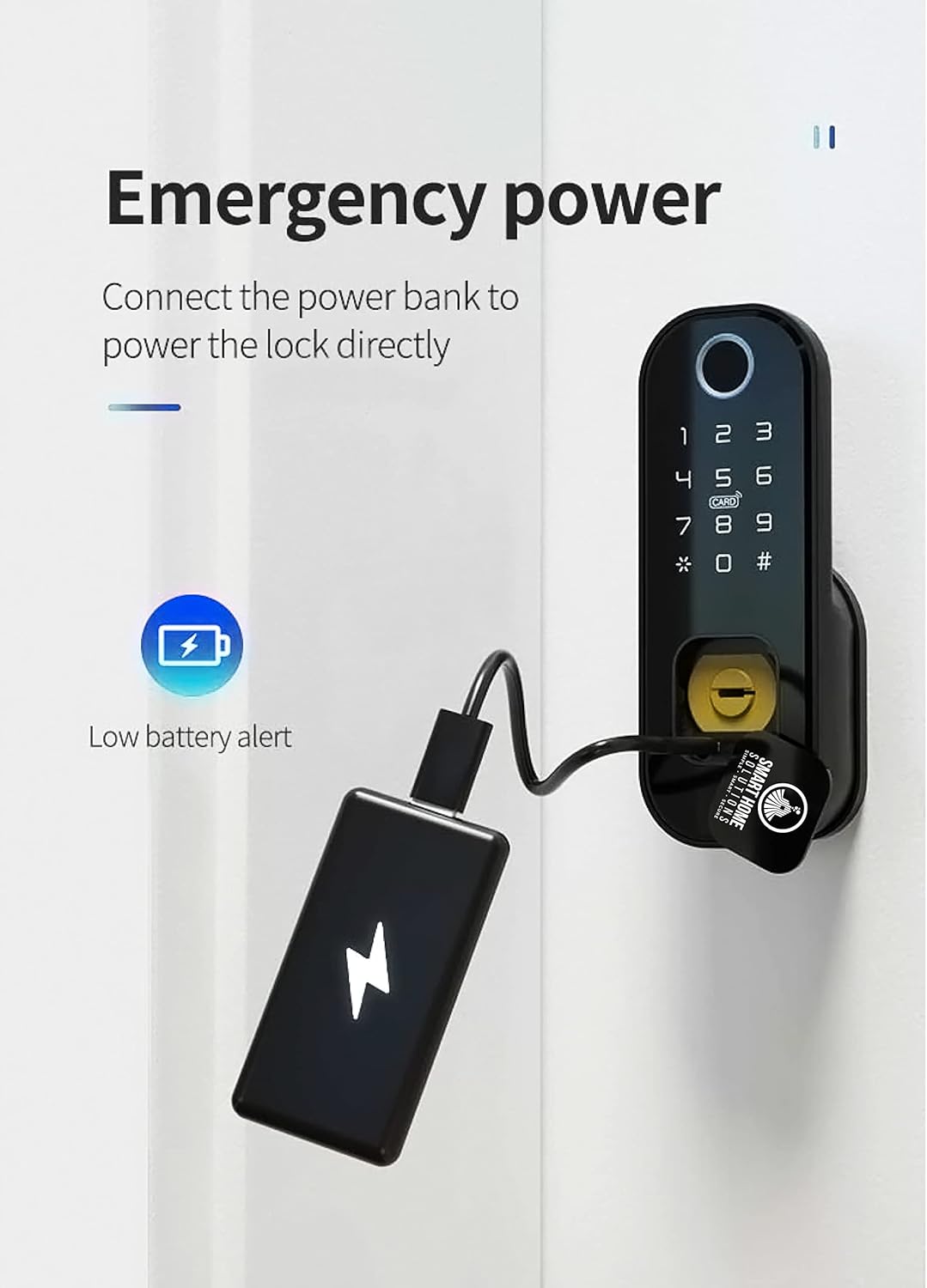
Image 7.1: Emergency Power. This image demonstrates how to connect an external power bank to the lock's USB charging port to provide emergency power in case of battery depletion, allowing access.
- Fingerprint not recognized: Ensure your finger is clean and dry. Re-register your fingerprint if issues persist.
- Keypad code not working: Verify the correct code is entered. Ensure the keypad is clean and free from obstructions.
- App connectivity issues: Check your home Wi-Fi network. Ensure the lock is within Wi-Fi range. Restart the app or re-pair the lock if necessary.
- Mechanical key not working: Ensure the key is fully inserted and turned correctly. Do not force the key.
8. Warranty and Support
For warranty information and technical support, please refer to the documentation provided at the time of purchase or contact your retailer. As this is a Generic branded product, specific warranty terms may vary by seller.
Always retain your proof of purchase for warranty claims.