
1. Introduction
This manual provides detailed instructions for the installation, operation, and maintenance of your Podofo 9-inch Portable Car Stereo. This device features a 9-inch IPS touchscreen, wireless Apple Carplay and Android Auto, Bluetooth connectivity, and multiple audio output options. Please read this manual thoroughly before use to ensure proper functionality and safety.
2. Product Features
- 9-inch IPS Touchscreen: High-resolution 1024x600P display for clear visuals and responsive touch control.
- Wireless Apple Carplay & Android Auto: Seamless integration with your smartphone for navigation, music, calls, and messages.
- Voice Control: Utilize Siri or Google Assistant for hands-free operation, enhancing safety and convenience.
- Multiple Audio Output Modes: Connect via Bluetooth, AUX, FM Transmitter, or use the built-in speaker.
- Adjustable Mount: Allows for optimal viewing angles and easy installation/removal without altering the original car stereo.
- Wide Voltage Compatibility: Supports 7-32V power input, suitable for various vehicles including cars, trucks, caravans, vans, trailers, and campers.
- Rear View Camera Support: Compatible with external rear view cameras (camera not included) for enhanced parking safety.
- Mirror Link: Screen mirroring functionality for compatible devices.
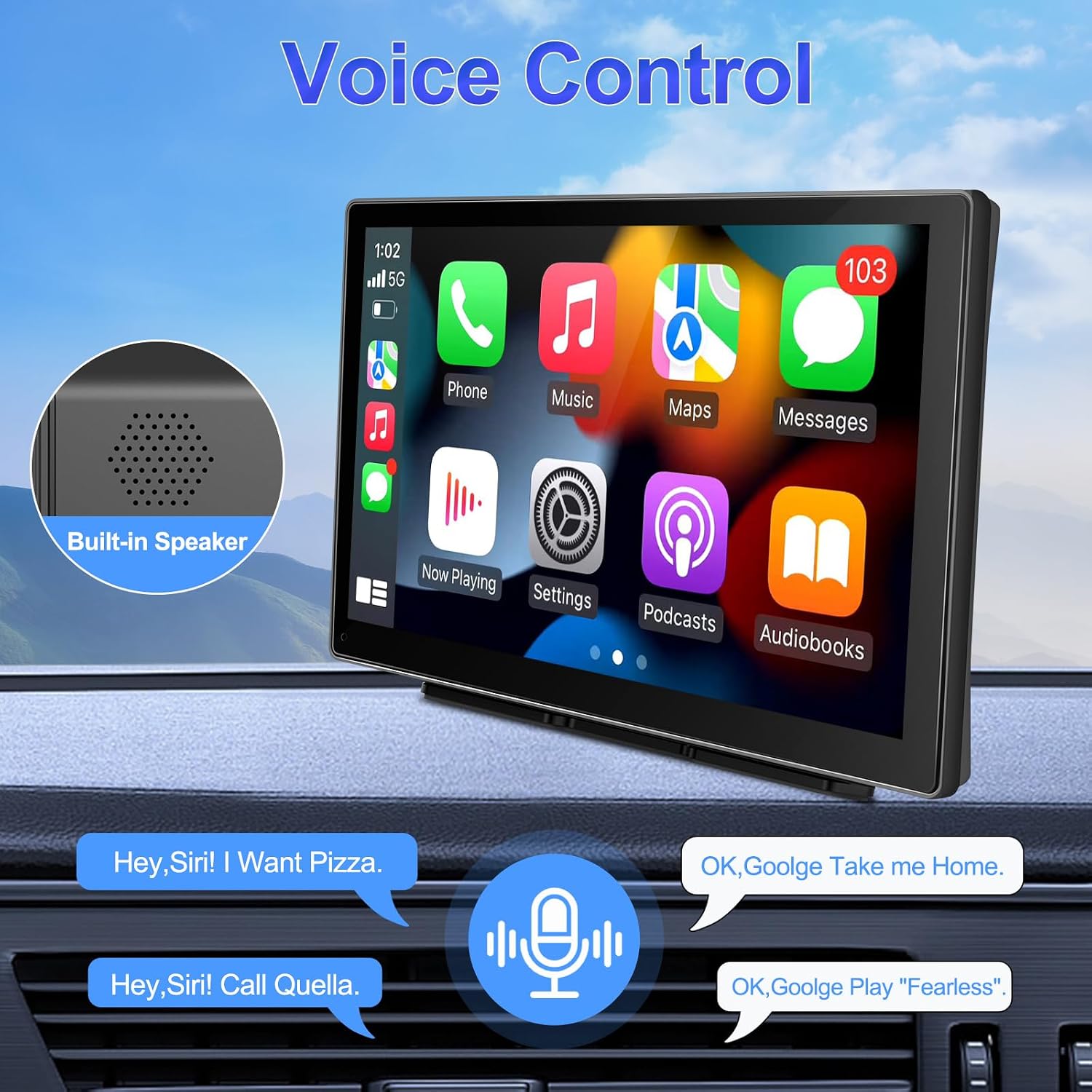
Image: The 9-inch display showing various connectivity options like Apple Carplay, Android Auto, and Mirror Link.

Image: Visual representation of the wide 7-32V compatibility across different vehicle types.
3. Setup and Installation
The Podofo Portable Car Stereo is designed for convenient installation using its adjustable mount. It typically connects via a car cigarette lighter socket.
3.1 Mounting the Device
Attach the adjustable mount to the back of the car stereo. Position the device on your car's dashboard or windshield using the suction cup or adhesive base. Adjust the angle and distance to achieve the best visual experience. The design allows for easy removal, keeping your original car's interior intact.
3.2 Power Connection
Connect the provided power cord to the device and plug the other end into your car's cigarette lighter socket. Ensure the connection is secure. The device supports a voltage range of 7-32V.
Important Note: If you are not using the original charger, ensure any replacement cigarette lighter charger is of high quality and compliant with voltage requirements to prevent damage to the unit or potential injury from insufficient voltage or overheating.

Image: Illustration of the convenient cigarette lighter installation method.
4. Operating Instructions
4.1 Wireless Apple Carplay / Android Auto
- Ensure Bluetooth and Wi-Fi are enabled on your smartphone.
- On the car stereo, navigate to the Carplay or Android Auto option.
- Pair your phone's Bluetooth with the car stereo (default password: 0000). The Bluetooth name will appear as "CarBT123".
- Once paired, the system will automatically switch to the Zlink application, displaying the Carplay or Android Auto interface.
- You can now access smartphone functions like music, GPS navigation, calls, messages, and more directly on the car stereo screen.
The system will automatically connect to your phone for Carplay/Android Auto on subsequent uses.

Image: Wireless Apple Carplay and Android Auto functionality displayed on the screen.
4.2 Voice Control
With your smartphone connected via Carplay or Android Auto, you can use voice commands (Siri for Apple, Google Assistant for Android) to control various functions. This includes making calls, playing music, getting directions, and sending messages, all without taking your hands off the wheel.

Image: Demonstrating voice control capabilities with a built-in speaker.
4.3 Audio Output Modes
The device offers several ways to output audio:
- Built-in Speaker: For direct audio playback from the unit.
- Bluetooth: Connect to your car's existing Bluetooth system for clearer and more stable audio.
- AUX: Use the provided AUX cable to connect to your car's AUX input for high-quality audio transmission.
- FM Transmitter: Transmit audio wirelessly to your car's FM radio by tuning both devices to the same FM frequency.

Image: Overview of the four available audio output modes.
4.4 Split Screen Functionality
The device supports split-screen display, allowing you to view two applications simultaneously, such as navigation and music playback.

Image: The split screen feature in action, displaying navigation and media.
5. Connectivity
The Podofo car stereo offers various connectivity options:
- Bluetooth: For wireless audio streaming and hands-free calling.
- AUX Input: Connect external audio devices using a 3.5mm AUX cable.
- USB Port: For media playback from USB drives or charging devices.
- TF Card Slot: Insert a TF (microSD) card for media playback.
- Type-C Port: For additional connectivity or power.
- Rear View Camera Input: Connect a compatible rear view camera (not included) for automatic display when reversing.

Image: The device supports a rear view camera for parking assistance.
6. Specifications
| Brand | Podofo |
| Model Number | f1c25435-828c-4349-8ebb-c117c310998c |
| Screen Size | 9 inches |
| Screen Resolution | 1024 x 600P |
| Connectivity Technology | AUX, Bluetooth, USB, Wi-Fi |
| Special Features | Android Auto, Apple CarPlay, Touchscreen |
| Compatible Devices | Speaker, Smartphone |
| Audio Output Mode | Stereo, Surround Sound |
| Video Codecs | H.264, H.265/HEVC |
| Output Power | 50 Watts |
| Number of Channels | 4 |
| Control Method | Touch, Voice |
| Included Components | User Manual |

Image: Product dimensions and size overview.
7. Troubleshooting
7.1 Bluetooth Connection Issues
If you encounter difficulties pairing your phone via Bluetooth:
- Ensure your phone's Bluetooth is discoverable.
- Try manually connecting the car stereo's Wi-Fi to your phone's hotspot. (Navigate to Car Settings > Android Car Settings > Network > Hotspot Sharing > Enable Hotspot > View > Hotspot Name).
- Delete any existing Bluetooth pairing data for the car stereo on your phone and attempt to reconnect.
7.2 General Issues
- No Power: Check the cigarette lighter connection and ensure the car's power outlet is functioning. Verify the power cord is securely plugged into the device.
- No Sound: Check the selected audio output mode (Built-in Speaker, Bluetooth, AUX, FM Transmitter). Ensure volume levels are adequate on both the car stereo and your car's audio system.
- Unresponsive Touchscreen: Try restarting the device. If the issue persists, contact customer support.
8. Warranty and Support
This product comes with a 1-year warranty from the date of purchase. For technical assistance or warranty claims, please contact Podofo customer support. We aim to provide 24-hour support and high-quality service.
For further inquiries, please refer to the contact information provided with your purchase or visit the official Podofo website.