Introduction
This manual provides detailed instructions for the setup, operation, and maintenance of your Sumicor 2D Bluetooth Wireless Barcode Scanner. Please read this manual thoroughly before using the device to ensure proper functionality and to maximize its lifespan.
Package Contents

Image: Contents of the Sumicor Barcode Scanner package, including the scanner, stand, USB cable, dongle, and manual.
Verify that all items are present in the package:
- 1 x Sumicor Barcode Scanner
- 1 x Charging/Data USB Cable
- 1 x 2.4G Wireless USB Dongle
- 1 x Scanner Stand
- 1 x User Manual (this document)
Product Overview
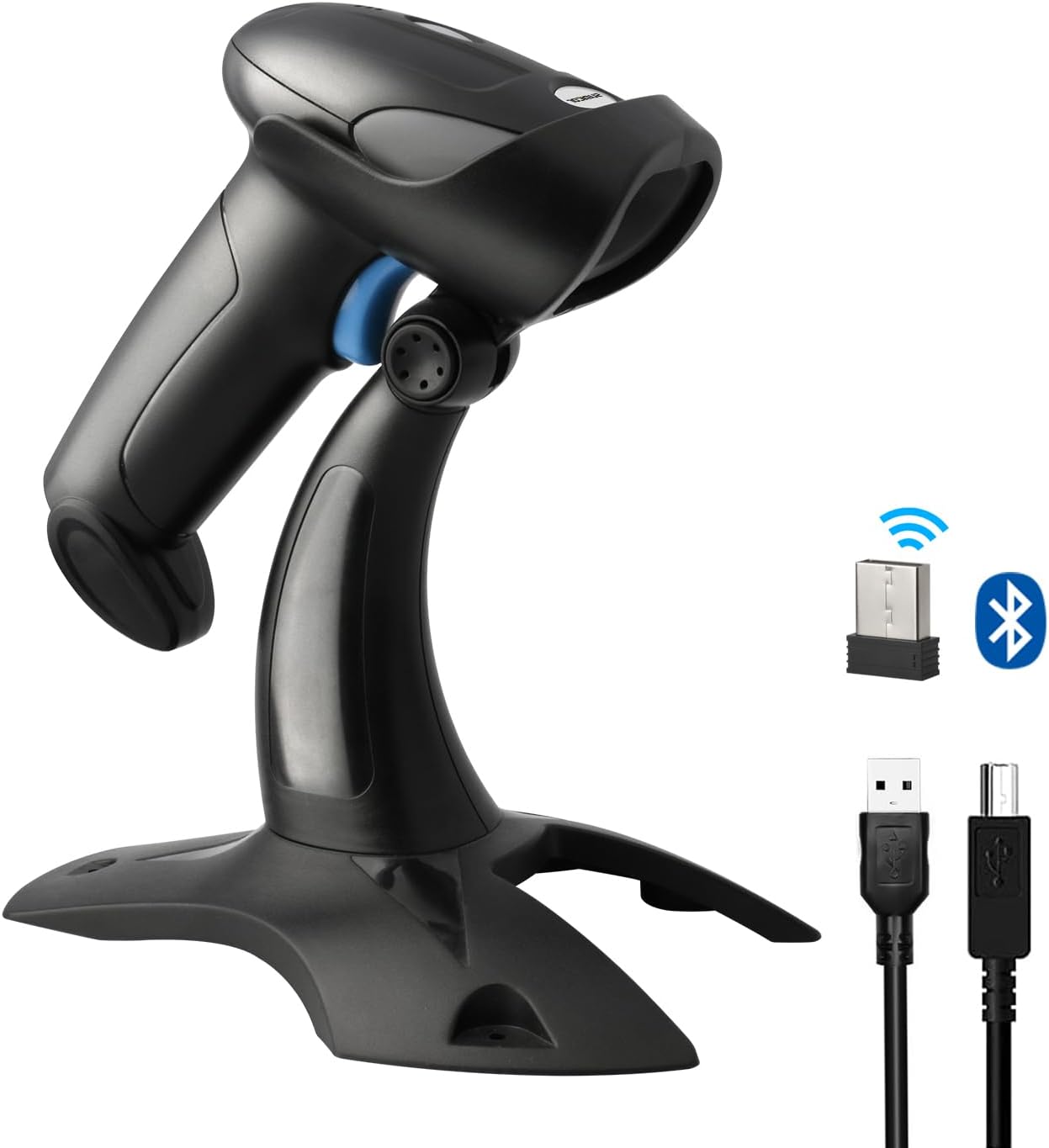
Image: The Sumicor barcode scanner, its stand, USB dongle, and charging cables.
The Sumicor 2D Bluetooth Wireless Barcode Scanner is designed for efficient and accurate scanning of 1D and 2D barcodes. It features multiple connectivity options and scanning modes to suit various operational needs.
Key Features:
- COMS Sensor: High-performance optical lens for scanning 3 mil high-density and long barcodes.
- Screen Scanning: Capable of scanning 1D/2D codes directly from digital screens (phones, tablets, etc.).
- Wireless Connectivity: Supports Bluetooth 5.0 (up to 30m/90ft) and 2.4G wireless (up to 100m/330ft open air, 20m/66ft indoor).
- Long Battery Life: Equipped with a 2000mAh rechargeable battery, offering up to 20 hours of continuous scanning.
- Durable Design: Shockproof TPU material, resistant to drops from 1.5 meters.
- Ergonomic Handle: Designed for comfortable long-term use.
Setup
1. Charging the Scanner

Image: Illustration of the scanner's 2000mAh battery and its charging/usage statistics.
- Connect the provided USB charging cable to the scanner's charging port.
- Connect the other end of the USB cable to a power source (e.g., computer USB port, USB wall adapter).
- The scanner's indicator light will show charging status. A full charge typically takes 5-6 hours.
- A fully charged battery provides up to 20 hours of continuous scanning or 70 days of standby time.
2. Connecting the Scanner to a Device

Image: Depicts the three connection methods: Wireless (2.4G dongle), Bluetooth, and USB 2.0 cable.
The scanner supports three connection methods:
- 2.4G Wireless Connection:
- Insert the 2.4G USB dongle into an available USB port on your computer.
- Turn on the scanner. It should automatically connect to the dongle.
- A successful connection is indicated by a specific sound or light pattern (refer to the scanner's LED indicator guide in the full PDF manual for details).
- Bluetooth Connection:
- Ensure your device (smartphone, tablet, PC) has Bluetooth enabled.
- Put the scanner into Bluetooth pairing mode (refer to the scanner's specific instructions for entering pairing mode, usually by scanning a special barcode or holding a button).
- On your device, search for Bluetooth devices and select "Sumicor Scanner" (or similar name) from the list.
- Confirm pairing.
- USB Cable Connection:
- Connect the scanner directly to your computer using the provided USB cable.
- The scanner will function as a wired device and also charge simultaneously.

Image: The barcode scanner shown with icons indicating compatibility with iOS, Android, Linux, Windows, and Mac OS.
The scanner is compatible with various operating systems, including iOS, Android, Linux, Windows, and Mac OS.
Operating the Scanner
1. Scanning Modes

Image: Demonstrates the Auto-induction scan mode with the scanner on a stand, and Manual mode with a user holding the scanner.
The scanner supports two primary scanning modes:
- Manual Mode: Press the trigger button to activate the scan beam and read a barcode. This is suitable for targeted scanning.
- Auto-Induction Scan Mode: When placed on its stand, the scanner can automatically detect and scan barcodes presented within its field of view without needing to press the trigger. This is ideal for hands-free operation.
To switch between modes, refer to the specific configuration barcodes provided in the comprehensive user manual (PDF).
2. Data Upload Modes

Image: Illustrates Instant Upload Mode, where scans are immediately sent to a computer, and Storage Mode, where scans are saved internally for later upload.
The scanner offers two methods for uploading scanned data:
- Instant Upload Mode: Barcodes are synchronously uploaded to your connected computer or device immediately after scanning.
- Storage Mode: The scanner stores up to 20,000 barcodes in its built-in flash memory. Data can be uploaded to your computer at a later time when needed. This mode is useful for inventory tasks where real-time connection is not always available.
Switching between these modes is done by scanning specific configuration barcodes found in the detailed user manual (PDF).
3. Barcode Compatibility

Image: Examples of 1D and 2D barcodes being scanned, including from a laptop screen, highlighting the scanner's ability to read various types.
The Sumicor scanner is capable of decoding a wide range of 1D and 2D barcodes:
- 1D Barcodes: Code 11, Code 93, MSI, Codabar, Code 128, EAN-128, Code 39, EAN-8, EAN-13, UPC-A, ISBN, Industrial 25, Interleaved 25, Standard 25, Matrix.
- 2D Barcodes: QR Code, Micro QR, PDF-417, Micro PDF417, Aztec Code, Maxi Code, Data Matrix, Han Xin Code.
It can scan barcodes from both printed labels and digital displays.
Maintenance
- Cleaning: Use a soft, dry cloth to clean the scanner's exterior. For the scanning window, use a lens cleaning cloth and a mild, non-abrasive cleaner if necessary. Avoid harsh chemicals.
- Storage: Store the scanner in a cool, dry place away from direct sunlight and extreme temperatures.
- Battery Care: To prolong battery life, avoid fully discharging the battery frequently. Charge the scanner regularly, especially if it will be stored for an extended period.
- Physical Protection: While durable, avoid unnecessary drops or impacts to prevent damage to internal components.
Troubleshooting
If you encounter issues with your Sumicor barcode scanner, please refer to the following common troubleshooting steps:
- Scanner Not Connecting:
- Ensure the scanner is charged.
- For 2.4G wireless, verify the USB dongle is securely inserted and recognized by the computer.
- For Bluetooth, ensure Bluetooth is enabled on your device and the scanner is in pairing mode. Try unpairing and re-pairing.
- Try connecting via USB cable to rule out wireless connectivity issues.
- Scanner Not Reading Barcodes:
- Ensure the barcode is clean, undamaged, and well-lit.
- Adjust the distance and angle between the scanner and the barcode.
- Verify the scanner is in the correct scanning mode (Manual or Auto-induction).
- Check if the barcode type is supported by the scanner (refer to "Barcode Compatibility" section).
- Clean the scanner's optical window.
- Incorrect Data Output:
- Ensure the scanner is configured for the correct keyboard layout or data format for your system.
- Perform a factory reset (refer to the full PDF manual for instructions).
For more advanced troubleshooting or specific configuration settings, please consult the detailed Sumicor Barcode Scanner User Manual (PDF).
Specifications
| Model | B0C4H3MH26 |
| Connectivity Technology | Bluetooth 5.0, 2.4G Wireless, USB Cable |
| Sensor Type | COMS Optical Lens |
| Barcode Compatibility (1D) | Code 11, Code 93, MSI, Codabar, Code 128, EAN-128, Code 39, EAN-8, EAN-13, UPC-A, ISBN, Industrial 25, Interleaved 25, Standard 25, Matrix |
| Barcode Compatibility (2D) | QR Code, Micro QR, PDF-417, Micro PDF417, Aztec Code, Maxi Code, Data Matrix, Han Xin Code |
| Battery Capacity | 2000mAh Lithium Polymer |
| Continuous Scanning Time | Up to 20 hours |
| Standby Time | Up to 70 days |
| Charging Time | Approx. 5-6 hours |
| Wireless Transmission Range (Bluetooth) | Up to 30m (90ft) |
| Wireless Transmission Range (2.4G) | Up to 100m (330ft) in open air, 20m (66ft) indoor |
| Drop Resistance | 1.5 meters |
| Item Weight | 1.01 pounds |
| Package Dimensions | 8.94 x 4.96 x 3.43 inches |
| Compatible Devices | Desktop, Laptop, Smart Phone, Tablet |
Warranty and Support
Sumicor products are designed for reliability and performance. For warranty information, technical support, or further assistance, please refer to the official Sumicor website or contact their customer service directly.
A comprehensive User Manual (PDF) is available for download, which includes detailed configuration options and advanced settings.