
1. Introduction
This manual provides detailed instructions for the installation, operation, and maintenance of your KAMEP Wireless WiFi Video Doorbell Camera with Chime. Please read this manual thoroughly before using the product to ensure proper function and safety. Keep this manual for future reference.
2. Product Overview
2.1 Package Contents
- KAMEP Wireless WiFi Video Doorbell Camera
- Wireless Indoor Chime
- Mounting Bracket
- Mounting Screws and Wall Anchors
- USB Charging Cable
- User Manual
2.2 Doorbell Components

Image: Front and back view of the KAMEP video doorbell and the wireless indoor chime. The doorbell features a 2K lens, PIR motion detection sensor, speakers, LED indicator, and doorbell button on the front. The back includes AC power terminals, an SD card slot, a USB charging port, and a reset hole. Dimensions are shown as 5.2 inches in height and 2.16 inches in width for the doorbell, and 3 inches in height and 2.4 inches in width for the chime.
- 2K Lens: Captures high-definition video.
- PIR Motion Detection: Detects human movement.
- Speakers: For two-way audio communication.
- LED Indicator: Shows device status.
- Doorbell Button: Activates the doorbell and initiates calls.
- Microphone (MIC): For audio input during two-way communication.
- AC Power Terminals: For optional wired power connection (12-24V AC).
- SD Card Slot: For local video storage (supports up to 128GB).
- USB Charging Port: For charging the internal battery.
- Reset Hole: For factory reset.
3. Setup
3.1 Charging the Battery
Before initial use, fully charge the doorbell camera using the provided USB cable. Connect the USB cable to the doorbell's USB charging port and a standard 5V USB power adapter (not included). The LED indicator will show charging status and turn solid when fully charged. A full charge typically lasts 4-6 months depending on usage.
3.2 App Installation and Account Creation
- Download the companion app from your smartphone's app store (iOS or Android). Search for "Cloudot" or refer to the QR code in the quick start guide.
- Open the app and follow the on-screen instructions to create a new account.
- Log in to your newly created account.
3.3 Connecting to Wi-Fi
- Ensure your smartphone is connected to a 2.4GHz Wi-Fi network. The doorbell does not support 5GHz Wi-Fi.
- In the app, select "Add Device" and choose your doorbell model.
- Follow the app's instructions to put the doorbell into pairing mode. This usually involves pressing and holding the reset button until the LED indicator flashes.
- Scan the QR code displayed on your phone with the doorbell camera, or manually enter your Wi-Fi credentials as prompted by the app.
- Wait for the doorbell to connect to your Wi-Fi network. The LED indicator will change to a solid color once connected.

Image: A hand holding a smartphone displaying the KAMEP doorbell application. The app shows a live view from the doorbell camera and various control options such as 'Live', 'History', 'Cloud', 'Screenshot', 'Intercom', 'Record', 'Motion Detector', and 'Siren'.
3.4 Doorbell Mounting (Physical Installation)
The doorbell can be installed using the included screws and wall anchors. Choose a location near your door that provides a clear view of your entrance. For optimal performance, mount the doorbell at a height of approximately 4-5 feet (1.2-1.5 meters) from the ground.
- Position the mounting bracket at your desired location and mark the screw holes.
- Drill pilot holes and insert wall anchors if mounting on masonry or stucco.
- Secure the mounting bracket to the wall using the screws.
- Attach the doorbell camera to the mounting bracket. Ensure it clicks securely into place.
- Optional: If using AC power, connect the 12-24V AC wires to the terminals on the back of the doorbell before mounting.
3.5 Chime Setup
Plug the wireless indoor chime into a standard electrical outlet inside your home. The chime will automatically pair with the doorbell. You can adjust the volume and select from 4 different chime sounds using the buttons on the chime unit.
4. Operating Instructions
4.1 Live View and Two-Way Audio
Open the app to access the live view from your doorbell camera. When someone rings the doorbell or motion is detected, you will receive a push notification on your phone. Tap the notification to view the live feed and engage in two-way audio communication.

Image: A woman is shown interacting with her KAMEP doorbell camera via a smartphone app, demonstrating the two-way audio feature. Speech bubbles indicate a conversation: "Hello, your package delivery" from the person at the door and "Put it by the door, thanks" from the user.
- Real-time Talk: Tap the microphone icon in the app to speak to the visitor.
- Pre-recorded Messages: You can set up a 30-second pre-recorded voice message in the app settings to quickly respond to visitors.
4.2 Motion Detection Settings
The doorbell features a PIR motion sensor that detects movement in front of your door. You will receive instant push notifications on your phone when motion is detected.

Image: A man is shown walking towards a KAMEP doorbell camera mounted on a wooden wall. A blue detection zone highlights the area in front of the doorbell. A smartphone in the foreground displays a notification from the 'Cloudot' app, stating "There is a motion at Front door", illustrating the PIR motion detection feature.
- Adjust motion sensitivity in the app settings to minimize false alerts.
- Set detection zones to focus on specific areas.
4.3 Video Recording and Storage
The doorbell supports both local storage via an SD card (up to 128GB, not included) and encrypted cloud storage (subscription may be required). Recorded videos can be accessed and played back through the app.

Image: A split image demonstrating the 2K Full HD Vision of the KAMEP doorbell camera. The top half shows a clear color image of a delivery person during the day (2K Day Vision). The bottom half shows an equally clear black and white image of a delivery person at night (2K Night Vision), highlighting the camera's performance in low-light conditions.
- Insert a formatted SD card into the doorbell's SD card slot for local storage.
- Review cloud storage options and activate if desired through the app.
4.4 Multi-User Sharing
You can share access to your doorbell camera with multiple family members or trusted individuals through the app. Each user will need to download the app and create an account.
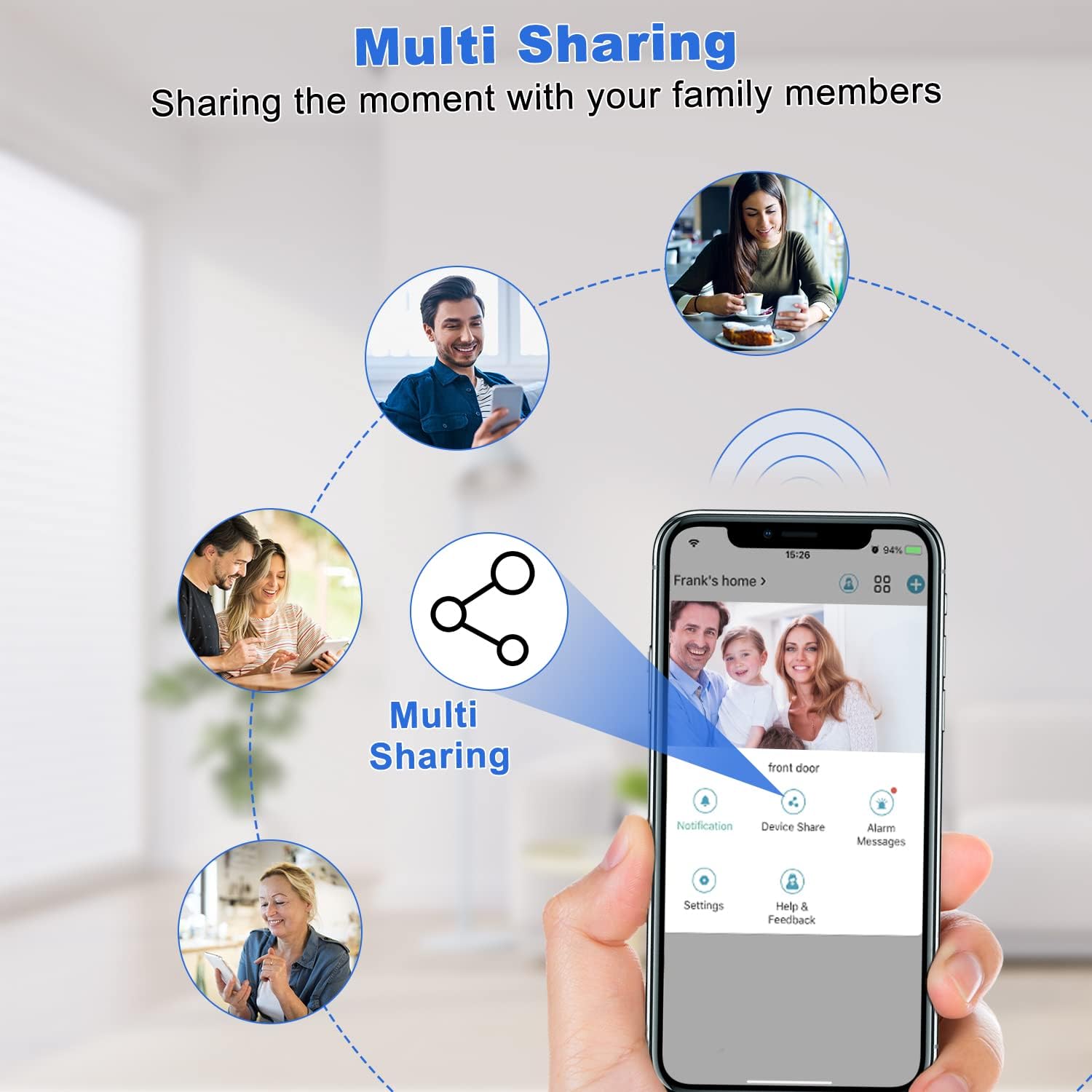
Image: A diagram illustrating the 'Multi Sharing' feature. A central smartphone screen shows the doorbell app with a 'Multi Sharing' icon, connected via dashed lines to several other circular images of people using their own devices, indicating that multiple family members can share access to the doorbell camera.
- In the app, navigate to device settings and find the "Share Device" option.
- Invite other users by entering their account information or scanning a QR code.
- Shared users will receive an invitation and can then access the doorbell's features.
5. Maintenance
5.1 Battery Charging
Monitor the battery level through the app. When the battery is low, remove the doorbell from its mounting bracket and recharge it using the USB cable. Alternatively, if wired to AC power, the battery will trickle charge.
5.2 Cleaning
Periodically clean the doorbell camera lens and body with a soft, damp cloth. Avoid using harsh chemicals or abrasive cleaners, as these can damage the device. Ensure the camera is dry before re-mounting or exposing to weather.

Image: The KAMEP doorbell camera is shown mounted on a wall, with water droplets on its surface, emphasizing its IP65 weather resistance. Icons represent protection against snow, rain, sunshine, and dust, indicating its durability in various outdoor conditions.
5.3 Firmware Updates
The manufacturer may release firmware updates to improve performance and add new features. Check the app regularly for available updates and follow the instructions to install them. Ensure the doorbell has sufficient battery charge before starting an update.
6. Troubleshooting
- Doorbell not connecting to Wi-Fi:
Ensure you are using a 2.4GHz Wi-Fi network. Check your Wi-Fi password. Move the doorbell closer to your router. Perform a factory reset on the doorbell and try pairing again. - No push notifications:
Check app notification settings on your phone and within the doorbell app. Ensure the app has necessary permissions. Verify the doorbell is connected to Wi-Fi. - Poor video quality:
Check your Wi-Fi signal strength at the doorbell's location. Clean the camera lens. Ensure there are no obstructions. - Battery draining quickly:
Reduce motion detection sensitivity or frequency. Ensure the doorbell is not in an area with excessive motion. Consider connecting to 12-24V AC power for continuous charging. - Chime not ringing:
Ensure the chime is plugged into a working outlet. Verify the chime is paired with the doorbell. Try re-pairing if necessary. - Two-way audio issues:
Check microphone and speaker settings in the app. Ensure there is no physical obstruction to the microphone or speaker on the doorbell.
7. Specifications
| Feature | Specification |
|---|---|
| Model Number | Bell J4N |
| Video Resolution | 2K Full HD |
| Field of View | 166° Wide Angle Lens |
| Motion Detection | PIR (Passive Infrared) with 120° human detection range |
| Audio | 2-Way Audio |
| Power Source | Rechargeable Battery (2 Lithium Polymer included), 12-24V AC Wired Power |
| Battery Life | 4-6 months (typical usage) |
| Connectivity | 2.4GHz Wi-Fi (IEEE 802.11b/g/n) |
| Storage | Cloud Storage, Local Storage (up to 128GB SD card) |
| Weather Resistance | IP65 |
| Operating Temperature | 14°F to 140°F (-10°C to 60°C) |
| Dimensions (Doorbell) | 3.11 x 2.36 x 1.38 inches (7.9 x 6.0 x 3.5 cm) |
| Weight (Doorbell) | 1.12 pounds (0.51 kg) |
| Material | Plastic |
| Compatible Devices | Smartphones (iOS, Android) |
8. Warranty and Support
KAMEP is committed to providing reliable products and customer service. For any inquiries or assistance, please refer to the following support options:
- Lifetime Technical Support: Access to technical assistance for the lifespan of your product.
- 24-Hour Service Support: Dedicated support available around the clock.
- 30-Day Return Support: For returns or exchanges within 30 days of purchase.
Please visit the official KAMEP website or contact customer service through the app for the most up-to-date support information and contact methods.

Image: A customer service representative wearing a headset is depicted, symbolizing reliable customer service. Below are three icons representing key support features: a gear for lifetime technical support, a clock for 24-hour service support, and a shopping cart with an arrow for 30-day return support.