
1. Introduction
This manual provides essential instructions for the setup, operation, maintenance, and troubleshooting of your HPE ProLiant DL360 Gen11 1U Rack Server. Please read this document thoroughly before operating the server to ensure proper functionality and longevity.
2. Product Overview
The HPE ProLiant DL360 Gen11 is a compact 1U rack server designed for diverse workloads and environments, offering enhanced performance, expandability, and density. It is suitable for IT infrastructure, whether physical, virtual, or containerized.
Key features include:
- Supports 4th Generation Intel® Xeon® Scalable Processors with up to 60 cores.
- Utilizes 4800 MT/s HPE DDR5 SmartMemory, supporting up to 4.0 TB per socket.
- Features PCIe Gen5 and Intel® Software Guard Extensions (SGX) support.
- Designed for versatility and resiliency.
This server is an excellent choice for general compute, database management, Virtual Desktop Infrastructure (VDI), Content Delivery Networks (CDN), edge acceleration, and intelligent video analytics.

Figure 2.1: Front view of the HPE ProLiant DL360 Gen11 1U Rack Server, showing drive bays and front panel controls.
3. Setup Instructions
Follow these steps for initial server setup:
- Unpacking and Inspection: Carefully remove the server from its packaging. Inspect for any physical damage that may have occurred during shipping. Report any damage to your supplier immediately.
- Rack Installation: Install the server into a standard 19-inch server rack using the appropriate rail kit (sold separately or included). Ensure proper airflow around the server for optimal cooling.
- Power Connection: Connect the power cables to the server's power supply units (PSUs) and then to a grounded power source. For redundancy, connect each PSU to a separate power circuit if available.
- Network Connection: Connect Ethernet cables from the server's network ports to your network switch or router. Utilize the dedicated management port (iLO) for remote management access.
- Peripheral Connections: Connect any necessary peripherals such as a monitor, keyboard, and mouse for initial configuration, if not using remote management.
- Initial Power On: Press the power button on the front panel. Observe the boot process and system status indicators.

Figure 3.1: Rear view of the HPE ProLiant DL360 Gen11 1U Rack Server, showing power supply units, network ports, and other I/O connections.
4. Operating Instructions
This section covers basic server operation.
4.1 Powering On/Off
- Power On: Press the power button on the front panel. The system will initiate the boot sequence.
- Normal Shutdown: For a controlled shutdown, always use the operating system's shutdown procedure.
- Forced Shutdown: In emergencies, press and hold the power button for approximately 5 seconds until the server powers off. This should be avoided during normal operation to prevent data corruption.
4.2 Remote Management (iLO)
The HPE Integrated Lights-Out (iLO) management processor allows for remote server management, including power control, virtual media, and console access, even when the operating system is not running. Refer to the iLO documentation for detailed configuration and usage.
4.3 Operating System Installation
Install your preferred operating system (e.g., Windows Server, Linux distributions, VMware ESXi) using a bootable USB drive, optical media (if an optical drive is present), or virtual media via iLO. Follow the operating system's installation guide.
5. Maintenance
Regular maintenance ensures optimal server performance and longevity.
- Environmental Control: Ensure the server operates within recommended temperature and humidity ranges. Maintain proper airflow in the rack.
- Dust Removal: Periodically inspect and clean dust from air vents and internal components using compressed air. Ensure the server is powered off and disconnected from power before cleaning.
- Firmware Updates: Regularly check the HPE support website for the latest firmware updates for the server, iLO, and other components. Apply updates as recommended.
- Component Replacement: For component replacement (e.g., drives, memory, power supplies), refer to the detailed service manual available on the HPE support website. Always power down the server and disconnect power before performing internal maintenance.
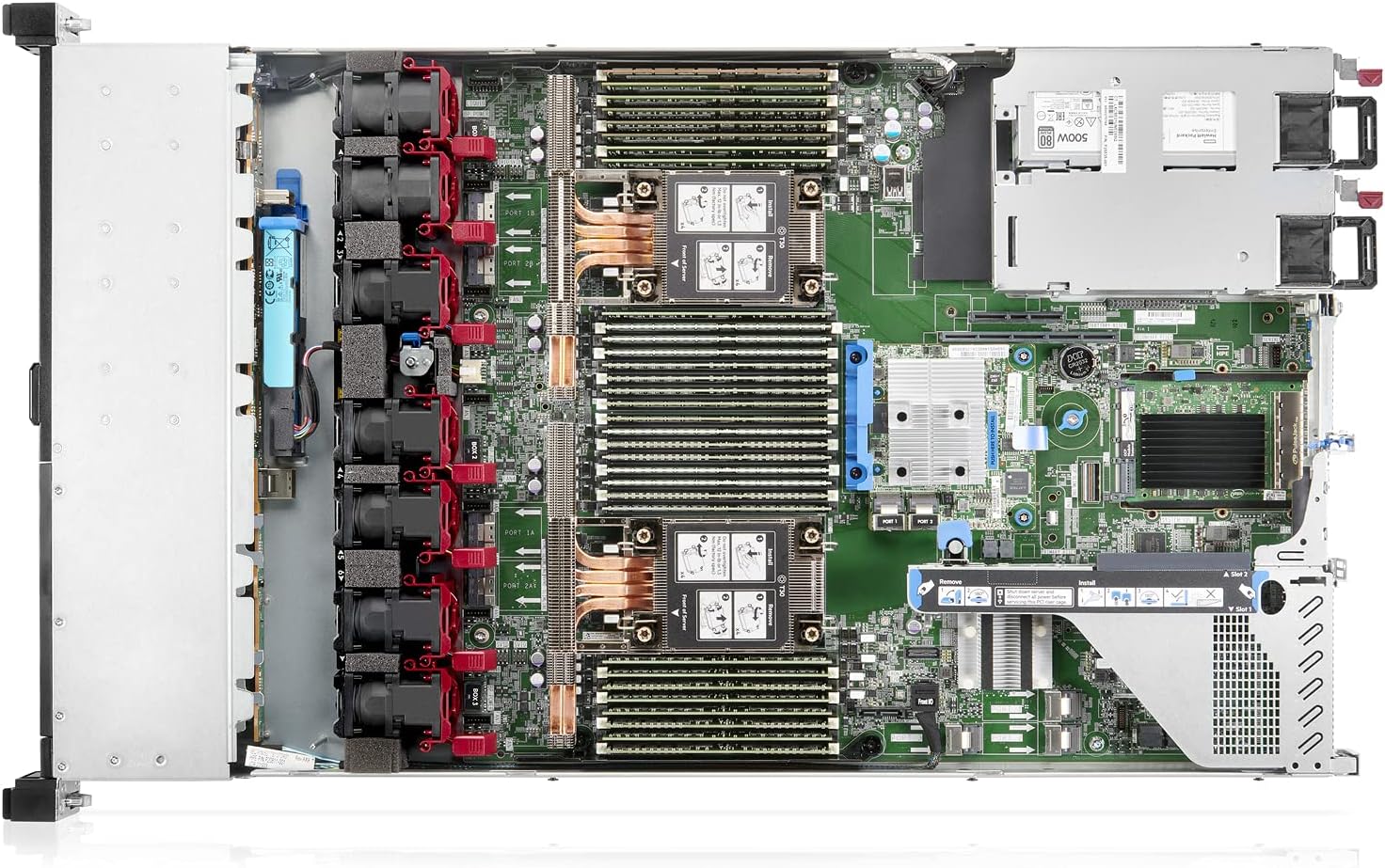
Figure 5.1: Internal view of the HPE ProLiant DL360 Gen11 1U Rack Server, showing CPU sockets, memory slots, and cooling fans.
6. Troubleshooting
This section provides basic troubleshooting steps for common issues.
- Server Does Not Power On:
- Verify power cables are securely connected to both the server and the power source.
- Check power supply unit (PSU) status LEDs.
- Ensure the power source is active.
- No Video Output:
- Ensure the monitor is connected and powered on.
- Try connecting to the server via iLO remote console.
- Reseat any installed video cards (if applicable).
- Operating System Fails to Boot:
- Check boot order in BIOS/UEFI settings.
- Verify the integrity of the boot drive.
- Consult operating system documentation for specific boot errors.
- Network Connectivity Issues:
- Check network cable connections.
- Verify network adapter status LEDs.
- Confirm network configuration in the operating system.
For more advanced troubleshooting, consult the HPE ProLiant DL360 Gen11 documentation or contact HPE support.
7. Specifications
| Component | Detail |
|---|---|
| Product Line | ProLiant |
| Product Series | DL360 Gen11 |
| Processor Manufacturer | Intel |
| Processor Type | Xeon Silver |
| Processor Model | 4410Y |
| Processor Speed | 2 GHz |
| Number of Processors Supported | 2 |
| Number of Processors Installed | 1 |
| Standard Memory | 32 GB |
| Maximum Memory Supported | 8 TB |
| Memory Technology | DDR5 SDRAM |
| Error Checking | ECC |
| Chipset Manufacturer | Intel |
| Chipset Model | C741 |
| Form Factor | 1U Rack |
8. Warranty Information
The HPE ProLiant DL360 Gen11 server is backed by a comprehensive warranty. For specific terms, conditions, and duration of your product's warranty, please refer to the documentation included with your server or visit the official HPE support website.
9. Support
For additional assistance, technical support, driver downloads, and further documentation, please visit the official Hewlett Packard Enterprise (HPE) support website:
When contacting support, please have your server's serial number and model information readily available.