1. Introduction
Thank you for choosing the Gigastone 24 inch 165Hz IPS Gaming Monitor. This manual provides essential information for setting up, operating, and maintaining your monitor. Please read it thoroughly before use to ensure optimal performance and safety.
This monitor features a 23.8-inch Full HD (1920x1080) IPS panel with a 165Hz refresh rate and 5ms response time, designed to deliver a smooth and immersive visual experience. It includes FreeSync technology to reduce screen tearing and stuttering, and Eye Care technology for comfortable viewing during extended use. The monitor also comes with built-in speakers and supports VESA mounting.
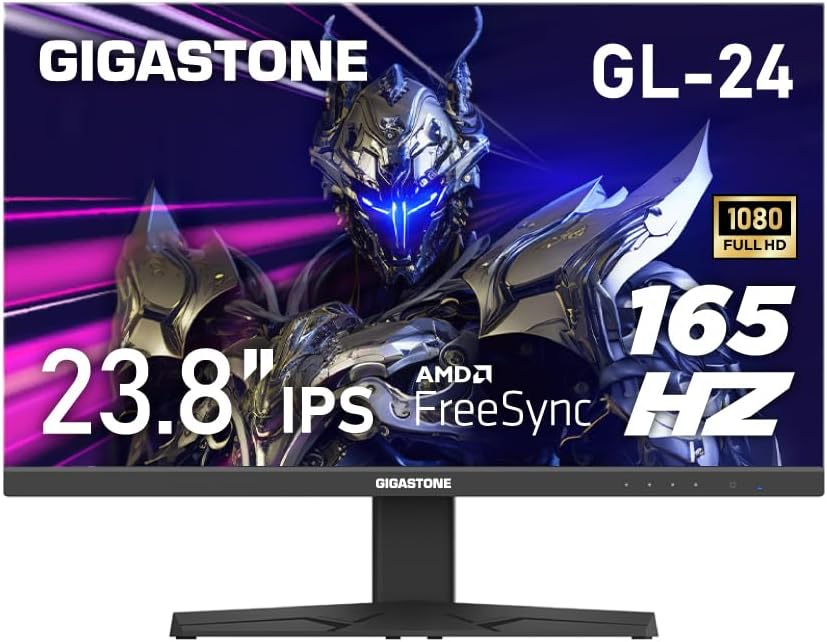
Figure 1: Front view of the Gigastone 24 inch 165Hz IPS Gaming Monitor.
2. Package Contents
Please check the package contents to ensure all items are present:
- Gigastone 24 inch 165Hz IPS Gaming Monitor
- Monitor Stand (Base and Neck)
- Power Adapter
- HDMI Cable
- DisplayPort (DP) Cable
- User Manual (this document)
3. Setup
3.1 Assembling the Monitor Stand
- Carefully remove the monitor from its packaging, placing it face down on a soft, clean surface to prevent scratches.
- Attach the stand neck to the monitor panel by aligning the tabs and pushing until it clicks into place.
- Attach the stand base to the stand neck. Secure it with the captive screw located at the bottom of the base.
3.2 Connecting the Monitor
Connect the monitor to your computer or other devices using the appropriate cables.

Figure 2: Rear view of the monitor with port labels.
- Power Connection: Connect the power adapter to the monitor's power input port, then plug the other end into a power outlet.
- HDMI Connection: Connect one end of the HDMI cable to the HDMI port on your computer's graphics card and the other end to one of the HDMI ports (HDMI Ver 2.0) on the monitor.
- DisplayPort (DP) Connection: Connect one end of the DP cable to the DisplayPort on your computer's graphics card and the other end to the DP Ver 1.2 port on the monitor.
- Audio Output: For external speakers or headphones, connect them to the Audio Out port on the monitor. The monitor also has built-in speakers.
3.3 VESA Mounting
The monitor supports VESA 100x100mm mounting standards, allowing you to attach it to a compatible wall mount or monitor arm (sold separately). To do this, remove the stand and attach the VESA mount using appropriate screws.

Figure 3: Monitor highlighting VESA 100x100mm mounting points.
4. Operating the Monitor
4.1 Powering On/Off
Press the power button located on the bottom right side of the monitor to turn it on or off. The power indicator light will illuminate when the monitor is on.
4.2 On-Screen Display (OSD) Menu
The OSD menu allows you to adjust various monitor settings. Use the control buttons (usually located on the bottom right or rear of the monitor) to navigate the menu.
- Navigation: Use the directional buttons to move through menu options.
- Selection: Press the central button to select an option or confirm a setting.
- Exit: Use the 'Exit' or 'Back' button to return to the previous menu or exit the OSD.
4.3 Key Features and Settings
- Refresh Rate (165Hz): This monitor supports a high refresh rate of 165Hz, providing smoother motion and reduced input lag, especially beneficial for gaming. Ensure your graphics card and connection cable (DisplayPort or high-speed HDMI) support 165Hz at 1920x1080 resolution. You may need to adjust this setting in your computer's display settings.

Figure 4: Visual comparison demonstrating the smoothness of 165Hz refresh rate versus 75Hz.
- FreeSync / Adaptive-Sync: This technology synchronizes the monitor's refresh rate with your graphics card's frame rate, eliminating screen tearing and reducing stuttering. To enable FreeSync, ensure it is activated in the monitor's OSD menu and in your graphics card's control panel (e.g., AMD Radeon Software).

Figure 5: Visual comparison showing the effect of FreeSync technology on screen tearing.
- Eye Care Technology: The monitor incorporates features like Blue Light Shift and Anti-Flicker technology to reduce eye strain during prolonged use. These settings can typically be adjusted within the OSD menu.
- Input Source Selection: If you have multiple devices connected, use the OSD menu to switch between HDMI 1, HDMI 2, or DisplayPort inputs.
- Audio Settings: Adjust the volume of the built-in speakers or connected external audio devices via the OSD menu.
Video 1: An official product video demonstrating the monitor's features and gaming experience. This video highlights the visual quality and performance aspects of the Gigastone gaming monitor.
5. Maintenance
Proper maintenance ensures the longevity and optimal performance of your monitor.
- Cleaning the Screen: Gently wipe the screen with a soft, lint-free cloth. For stubborn marks, dampen the cloth slightly with water or a monitor-specific cleaning solution. Do not spray liquid directly onto the screen.
- Cleaning the Casing: Use a soft, dry cloth to clean the monitor casing. Avoid using abrasive cleaners or solvents.
- Ventilation: Ensure the monitor's ventilation openings are not blocked to prevent overheating.
- Power Off: Always turn off the monitor and unplug it from the power outlet before cleaning or if it will be unused for an extended period.
6. Troubleshooting
If you encounter issues with your monitor, refer to the following common troubleshooting steps:
| Problem | Possible Solution |
|---|---|
| No image on screen |
|
| Image is flickering or distorted |
|
| No sound from speakers |
|
If the problem persists after trying these steps, please contact Gigastone customer support for further assistance.
7. Specifications
| Feature | Detail |
|---|---|
| Model Number | GL-24FF3 |
| Screen Size | 24 Inches (23.8" actual) |
| Panel Type | IPS |
| Resolution | 1920 x 1080 (FHD) |
| Refresh Rate | 165Hz |
| Response Time | 5ms |
| Aspect Ratio | 16:9 |
| Viewing Angle | 178° Wide View |
| Brightness | 300 Candela |
| Contrast Ratio | 1000:1 |
| Connectivity | 2x HDMI (Ver 2.0), 1x DisplayPort (Ver 1.2), Audio Out |
| VESA Mount | 100x100mm |
| Special Features | FreeSync, Eye Care Technology (Blue Light Shift & Anti-Flicker), Built-in Speakers |
| Product Dimensions (L x W x H) | 1.87 x 21.26 x 16.39 inches |
| Item Weight | 12.41 pounds |
8. Warranty and Support
This Gigastone monitor comes with a 3-year manufacturer's warranty. For warranty claims, technical support, or any inquiries, please contact Gigastone customer service. They offer 24/7 world-wide customer service.
Please refer to the official Gigastone website or your purchase documentation for the most up-to-date contact information and detailed warranty terms and conditions.


