
1. Introduction
This manual provides essential instructions for the installation, operation, and maintenance of your Generic 850VA SLA Intelligent Uninterruptible Power Supply (UPS). A UPS provides backup power when your regular power source fails or drops to an unacceptable voltage level. It also protects your electronic devices from power surges and fluctuations. Please read this manual thoroughly before operating the unit to ensure proper use and safety.
2. Safety Instructions
Please observe the following safety precautions to prevent injury and damage to the UPS unit or connected equipment:
- Electrical Safety: The UPS operates with high voltages. Do not open the UPS casing. There are no user-serviceable parts inside. Refer all servicing to qualified service personnel.
- Environment: Install the UPS in a well-ventilated area, away from direct sunlight, heat sources, and excessive moisture. Avoid placing it near flammable liquids or gases.
- Connection: Connect the UPS to a grounded AC power outlet. Do not use extension cords or power strips to connect the UPS to the wall outlet.
- Load: Do not overload the UPS. Ensure the total power consumption of connected equipment does not exceed the UPS's capacity (850VA / 490W).
- Battery: The UPS contains a sealed lead-acid battery. Do not dispose of batteries in a fire, as they may explode. Follow local regulations for battery disposal.
- Emergency: In case of fire or other emergency, immediately disconnect the UPS from the AC power source and all connected equipment.
3. Package Contents
Verify that all items are present in the package:
- Generic 850VA SLA Intelligent UPS Unit
- User Manual (this document)
- Power Cord (for connecting UPS to wall outlet)
- RJ11 Cable (for surge protection of telephone/fax lines)
4. Product Overview
The Generic 850VA SLA Intelligent UPS is designed to provide reliable power backup and surge protection for your electronic devices. It features multiple outlets and RJ11 protection for telephone/fax lines.
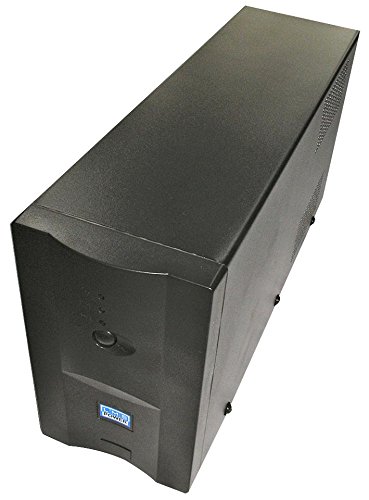
Image 1: Generic 850VA SLA Intelligent UPS unit. This image shows an angled view of the black UPS unit, highlighting its compact tower design. The front panel features a small display or indicator area, and ventilation grilles are visible on the side.
Front Panel Indicators/Controls:
- Power Button: Turns the UPS on or off.
- Status Indicators: LEDs or a small display (depending on model) show operational status, battery level, and fault conditions.
Rear Panel Connections:
- AC Input: For connecting the UPS to the wall power outlet.
- Output Outlets (4 outlets): For connecting your devices (computers, monitors, routers, etc.). These outlets provide battery backup and surge protection.
- RJ11 In/Out Ports: For connecting a telephone or fax line to provide surge protection.
5. Setup
Follow these steps to set up your UPS:
- Unpacking: Carefully remove the UPS from its packaging. Inspect for any shipping damage.
- Placement: Place the UPS on a flat, stable surface in a cool, dry, and well-ventilated indoor area. Ensure there is adequate space around the unit for proper airflow.
- Initial Charge: Connect the UPS power cord to a grounded wall outlet. Allow the UPS to charge for at least 8 hours before connecting any equipment. This ensures the battery is fully charged and ready to provide maximum backup time.
- Connect Equipment: After the initial charge, connect your computer, monitor, and other critical electronic devices to the UPS output outlets.
- RJ11 Protection (Optional): If desired, connect your telephone or fax line to the RJ11 IN port on the UPS, and then connect a cable from the RJ11 OUT port to your telephone/fax device. This provides surge protection for your communication lines.
- Power On: Press the power button on the front panel to turn on the UPS. The status indicators should illuminate.
6. Operating Instructions
Turning the UPS On/Off:
- To Turn On: Press and hold the power button for a few seconds until the indicators light up.
- To Turn Off: Press and hold the power button for a few seconds until the indicators turn off.
Understanding Status Indicators:
Refer to the specific indicator lights or display on your UPS model for detailed information. Generally, these indicate:
- AC Mode: UPS is receiving power from the wall outlet and providing power to connected devices.
- Battery Mode: UPS is providing power from its internal battery due to a power outage or low voltage. An audible alarm may sound.
- Battery Low: The battery charge is critically low. Save your work and shut down connected equipment immediately.
- Fault/Overload: Indicates an internal error or that connected equipment exceeds the UPS's capacity.
Battery Backup Function:
During a power outage, the UPS will automatically switch to battery power. An audible alarm will typically sound to alert you. The duration of battery backup depends on the load connected. When the battery is low, the alarm will become more frequent, signaling that you should save your work and shut down your equipment gracefully.
7. Maintenance
Proper maintenance ensures the longevity and optimal performance of your UPS.
- Battery Care: To maximize battery life, keep the UPS connected to an AC outlet at all times. Avoid frequent deep discharges. If the UPS is stored for an extended period, recharge it every 3 months for at least 8 hours.
- Cleaning: Disconnect the UPS from the AC outlet and all connected equipment before cleaning. Use a soft, dry cloth to wipe the exterior. Do not use liquid or aerosol cleaners.
- Ventilation: Ensure the ventilation openings on the UPS are not blocked to prevent overheating.
- Battery Replacement: The internal battery has a limited lifespan. When the battery can no longer hold a charge, it will need to be replaced by qualified service personnel.
8. Troubleshooting
If you encounter issues with your UPS, refer to the following common problems and solutions:
| Problem | Possible Cause | Solution |
|---|---|---|
| UPS does not turn on | Battery not charged; Power cord not connected; UPS fault. | Ensure UPS is plugged into a live outlet and charged for 8 hours. Check power cord connection. If problem persists, contact support. |
| UPS beeps continuously in AC mode | Overload condition. | Disconnect non-essential equipment until the alarm stops. Ensure total load is within 850VA / 490W capacity. |
| Short backup time | Battery not fully charged; Battery nearing end of life; Overload. | Allow UPS to charge for 8+ hours. Reduce connected load. Consider battery replacement if old. |
| No power to connected devices | UPS is off; UPS in fault mode; Devices not properly connected. | Ensure UPS is on. Check UPS status indicators for fault. Verify device power cords are securely plugged into UPS outlets. |
9. Specifications
Detailed technical specifications for the Generic 850VA SLA Intelligent UPS:
- Model Number: LMLMSP850INTTA
- Capacity: 850 VA / 490 W
- Input Voltage: 240 V AC max
- Output Voltage: 230 V
- Number of Outlets: 4 (Battery Backup & Surge Protected)
- Dimensions (Approximate):
- Height: 160 mm
- Length: 320 mm
- Width: 95 mm
- Battery Type: Sealed Lead-Acid (SLA)
- Protection: Overload, Short Circuit, Overcharge, Over-discharge, RJ11 Surge Protection
10. Warranty and Support
Specific warranty details for this product are not available in the provided information. For warranty claims or technical support, please contact your retailer or the manufacturer directly. Keep your purchase receipt as proof of purchase.
Information regarding spare parts availability and software update guarantees is not available for this product.