
1. Introduction
This manual provides comprehensive instructions for the installation, operation, and maintenance of your Govee Smart Recessed Lighting 4 Inch (Model H601B). These Wi-Fi and Bluetooth-enabled RGBWW LED downlights offer versatile lighting options, including 16 million colors, tunable white light from 2700K to 6500K, and various scene modes. They are designed for direct control via the Govee Home App and are compatible with Alexa and Google Assistant for smart voice control.
2. Safety Information
Please read all safety instructions before installation and use. Failure to follow these instructions may result in electric shock, fire, or other hazards.
- Electrical Safety: Always turn off power at the circuit breaker before installing, removing, or servicing the fixture. Ensure all electrical connections comply with local and national electrical codes.
- Indoor Use Only: This product is designed for indoor use in dry locations. Do not expose to water or moisture.
- Voltage: Ensure the power supply voltage (120 Volts) matches the fixture's requirements.
- No External Dimmers: These smart lights are not compatible with traditional external dimmers. Dimming is controlled via the Govee Home App or voice assistants.
- Proper Installation: Follow the installation steps carefully. If you are unsure about electrical wiring, consult a qualified electrician.
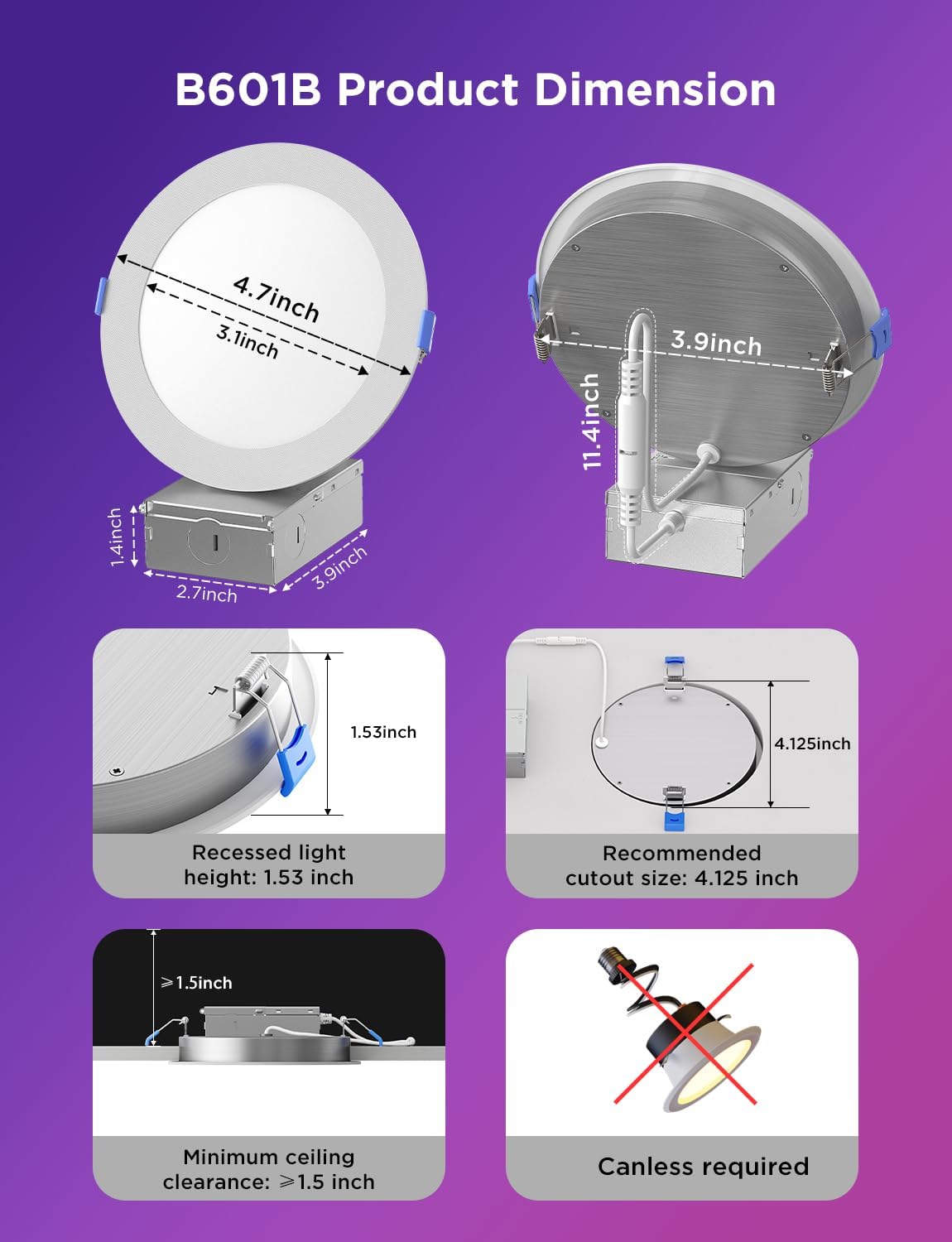
- Heat Dissipation: Ensure adequate clearance around the fixture for proper heat dissipation. Minimum ceiling clearance is >1.5 inches.
3. What's in the Box
Verify that all components are present before beginning installation.
- Recessed Lighting Fixtures (4 units)
- Junction Boxes (4 units)

4. Specifications
| Brand | Govee |
| Model Number | H601B |
| Size | 4 Inch |
| Light Color | RGBWW (Red, Green, Blue, Warm White, Cool White) |
| Color Temperature | 2700K - 6500K (Tunable White) |
| Brightness | 850 Lumen |
| Wattage | 11 watts |
| Voltage | 120 Volts |
| Connectivity | Wi-Fi (2.4GHz only), Bluetooth |
| Control Method | Govee Home App, Amazon Alexa, Google Assistant |
| Installation Type | Recessed, Canless |
| Indoor/Outdoor Usage | Indoor |
| Material | Plastic |
| Fixture Type | Non-Removable LED |
Note: The specification for 'Bulb Base: GU10' appears to be a generic entry and does not apply to this integrated LED downlight.
5. Setup and Installation
Follow these steps to properly install your Govee Smart Recessed Lighting.
5.1 Pre-Installation Considerations
- Ensure power is turned off at the circuit breaker before starting.
- Verify that your ceiling has a minimum clearance of >1.5 inches above the drywall for the fixture.
- The recommended cutout size for the ceiling hole is 4.125 inches.
5.2 Installation Steps
- Cut Hole: Using a template (if provided) or measuring carefully, cut a 4.125-inch diameter hole in the ceiling at the desired location.
- Connect Wiring: Open the junction box. Connect the household electrical wires (live, neutral, ground) to the corresponding wires inside the junction box using appropriate wire connectors. Ensure secure connections.
- Close Junction Box: Securely close the junction box cover.
- Connect Fixture to Junction Box: Connect the cable from the recessed light fixture to the cable extending from the junction box. Ensure the connectors click into place.
- Insert Junction Box: Push the junction box up into the ceiling hole.
- Secure Fixture: Press the spring clips on the sides of the recessed light fixture upwards. Carefully push the fixture into the ceiling hole until the clips engage and hold the light flush against the ceiling.
5.3 App Pairing and Connectivity
After physical installation, download the Govee Home App and pair your lights.
- Download the Govee Home App from the App Store (iOS) or Google Play Store (Android).
- Create an account or log in.
- Turn on the power to the lights at the circuit breaker. The lights should blink, indicating pairing mode.
- In the Govee Home App, tap the '+' icon in the top right corner to add a new device.
- Select your Govee Smart Recessed Lighting (H601B) from the device list.
- Follow the in-app instructions to connect the lights to your 2.4GHz Wi-Fi network. (5GHz Wi-Fi is not supported).
- Once connected, you can control your lights via Wi-Fi or Bluetooth.
6. Operating Instructions
Control your Govee Smart Recessed Lighting using the Govee Home App or compatible voice assistants.
6.1 Color and Brightness Adjustment
- Access 16 million colors to create any desired ambiance.
- Adjust brightness from 1% to 100%.
- Select tunable white light from 2700K (warm white) to 6500K (cool daylight) for functional or relaxing lighting.

6.2 Scene Modes and Music Sync
- Choose from 65 preset scene modes within the Govee Home App for various occasions (e.g., Reading, Relax, Leisurely, Dance Party).
- Utilize music modes to synchronize your lights with your favorite audio.

6.3 Group Control
The Govee Home App allows you to group multiple lights for simultaneous control or create separate groups for different rooms or zones.
- Create custom groups for specific areas like 'Bedroom' or 'Living Room'.
- Adjust colors, brightness, and scene modes for an entire group with a single command.

6.4 Voice Control
Integrate your Govee lights with Amazon Alexa or Google Assistant for convenient voice commands.
- Link your Govee account to Alexa or Google Assistant through their respective apps.
- Use commands such as "Alexa, turn the lights into movie mode" or "Hey Google, turn on the living room lights."

6.5 Scheduling
Set schedules for your lights to automatically turn on or off at specific times.
- Configure daily or weekly schedules for individual lights or groups.
- Use the 'Wake up' feature to gradually brighten lights in the morning.

7. Maintenance
Govee Smart Recessed Lighting requires minimal maintenance.
- Cleaning: Ensure the power is off before cleaning. Use a soft, dry cloth to wipe the surface of the light fixture. Do not use abrasive cleaners or solvents.
- No User-Serviceable Parts: The LED components are integrated and not user-replaceable. Do not attempt to disassemble the fixture.
8. Troubleshooting
If you encounter issues with your Govee Smart Recessed Lighting, refer to the following common solutions:
| Problem | Possible Cause / Solution |
|---|---|
| Light does not turn on. |
|
| Cannot connect to Wi-Fi/Bluetooth. |
|
| Voice control not working. |
|
| Lights are flickering or unresponsive. |
|
9. Warranty and Support
Govee products come with a standard warranty. For detailed warranty information, please refer to the warranty card included with your product or visit the official Govee website.
If you require further assistance, technical support, or have questions not covered in this manual, please contact Govee Customer Support:
- Website: www.govee.com
- Email: Refer to the Govee website for current support email addresses.
- In-App Support: Access support directly through the Govee Home App.