1. Introduction
The Carlinkit 5.0 2air adapter is designed to convert your vehicle's existing wired CarPlay or wired Android Auto system into a wireless connection. This allows for seamless use of navigation, music playback, voice assistants, and phone calls directly from your smartphone to your car's infotainment system without the need for a physical cable connection.
This manual provides detailed instructions for setting up, operating, and maintaining your Carlinkit 5.0 2air adapter, along with troubleshooting tips.
2. What's in the Box
Please verify that all items are present in the package:
- Carlinkit 5.0 2air Adapter (1 unit)
- USB-A to USB-C Cable (1 unit)
- USB-C to USB-C Cable (1 unit)
- User Manual (1 unit)

Image: Contents of the Carlinkit 5.0 2air package, including the adapter, two types of USB cables, and the user manual.
3. Compatibility
3.1 Vehicle Compatibility
The Carlinkit 5.0 2air adapter is compatible with approximately 98% of car models manufactured between 2017 and 2023 that feature factory-installed wired CarPlay and wired Android Auto. This includes over 600 car models.
Important Notes:
- The adapter is not compatible with B-MW vehicles.
- The product does not support converting wired Android Auto to wireless CarPlay.
- The product does not support converting wired CarPlay to wireless Android Auto.
- Specific incompatible models include Nissan Murano (2017) and Mitsubishi L200 (2021).

Image: Visual representation of the Carlinkit 5.0 2air adapter's broad compatibility with various car brands and models.
3.2 Phone Compatibility
- iPhone: Supported for iPhone 6 and later models running iOS 10 and later.
- Android: Supported for Android phones running Android 11.0 and above.
- Note: HUAWEI phones may be incompatible.
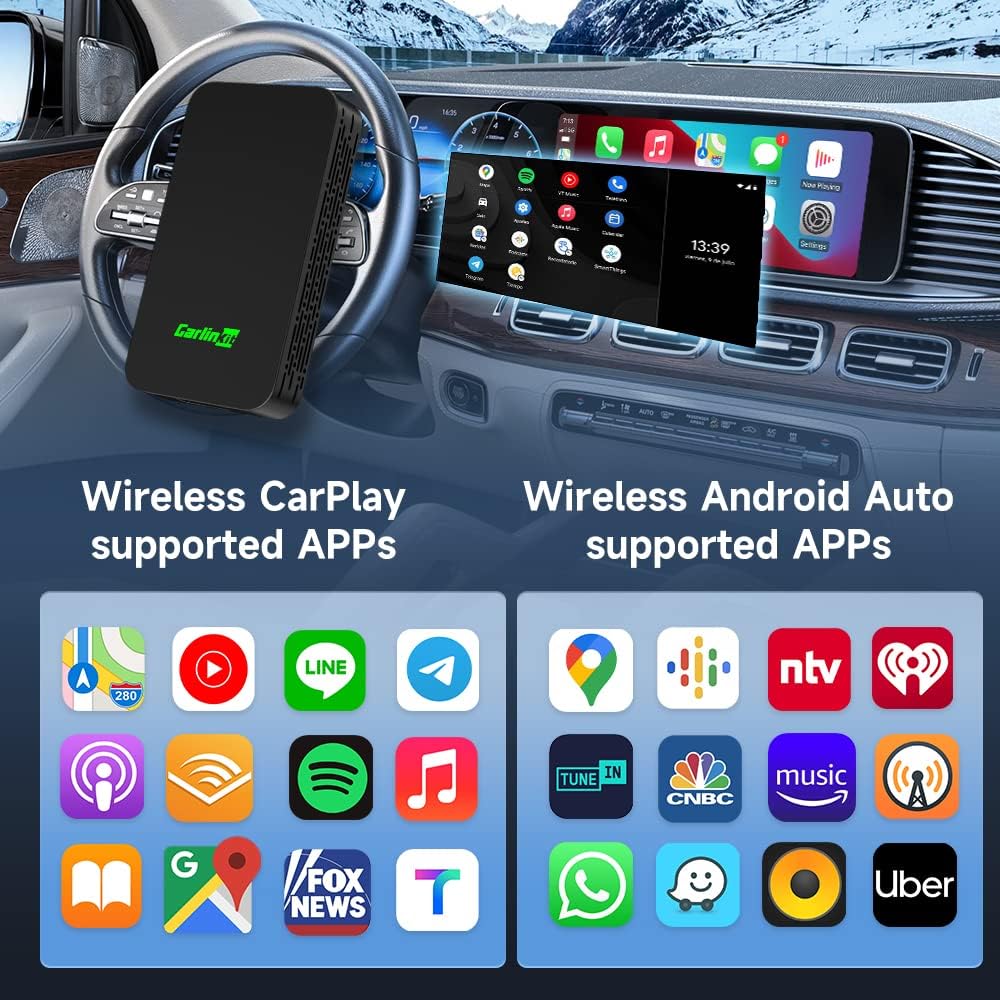
Image: Examples of applications supported by Wireless CarPlay and Wireless Android Auto through the adapter.
4. Setup Instructions
The Carlinkit 5.0 2air adapter features a plug-and-play design for easy setup. No additional drivers, apps, or complex system upgrades are required for initial use.
4.1 Initial Connection Steps
- Plug in the Adapter: Connect the Carlinkit 5.0 2air adapter to your car's USB port that supports wired CarPlay or Android Auto. Use the appropriate USB-A to USB-C or USB-C to USB-C cable provided.
- Activate Phone Features: On your smartphone, ensure both Bluetooth and Wi-Fi are turned on.
- Pair with Adapter: On your phone's Bluetooth settings, search for and connect to the device named "Autokit-xxxx" (where xxxx is a unique identifier).
- Confirm Connection:
- For iPhone (CarPlay): An iPhone pop-up prompt will appear. Tap "Use CarPlay" to complete the connection.
- For Android (Android Auto): Wait for the connection to establish, then tap "Android Auto" on your car's screen or phone to finish.

Image: Visual instructions for connecting an iPhone to wireless CarPlay using the adapter.

Image: Visual instructions for connecting an Android phone to wireless Android Auto using the adapter.
4.2 Indicator Lights
The adapter features indicator lights to show its status:
- Red Flashing Light: Product power on.
- Blue Blinking Light: Bluetooth connection is successful.
- Green Flashing Light: System has entered CarPlay/Android Auto.

Image: Details on the adapter's physical size, package contents, and the meaning of its LED indicator lights.
5. Operating the Adapter
5.1 Automatic Reconnection
After the initial successful pairing, the adapter will automatically activate the wireless CarPlay or Android Auto connection each time your car starts. This provides a seamless experience without requiring manual reconnection.

Image: Depiction of the adapter automatically connecting to CarPlay or Android Auto upon car ignition.
5.2 Multi-Device Support
The Carlinkit 5.0 2air adapter can store up to 5 devices in its memory, allowing for seamless auto-connections without repetitive setup. This feature facilitates easy sharing of the device among family and friends, ensuring a smooth user experience for multiple users.
Switching Between Devices: If you wish to switch to a different phone, you must first turn off the Bluetooth and Wi-Fi on the currently connected phone. The adapter will then automatically attempt to connect to other recent phones in its stored list.

Image: Illustration of the adapter's ability to support and connect to multiple user devices.
6. OTA Online Firmware Update
To ensure optimal performance and access to the latest features, it is recommended to keep your adapter's firmware updated. The Carlinkit 5.0 2air supports Over-The-Air (OTA) updates.
- Connect and Power On: Plug the adapter into your car's USB port.
- Connect Phone to Adapter's Wi-Fi: On your mobile phone, turn on Wi-Fi and search for a Wi-Fi network that starts with "VOLKSW". Connect to this network. The default password is "12345678".
- Access Update Interface: Open a web browser on your phone and enter the URL: 192.168.50.2. This will take you to the device's background interface.
- Check for Updates: Navigate to the "Help" page within the interface and click "Check for Updates" to initiate the online firmware upgrade process.

Image: Visual guide for updating the adapter's firmware via the online OTA method.
7. Specifications
| Feature | Detail |
|---|---|
| Product Dimensions (L x W x H) | 2.76 x 1.57 x 0.39 inches (70 x 40 x 10 mm) |
| Item Weight | 0.988 ounces (28 grams) |
| Model Number | 1 |
| ASIN | B0C4F33B65 |
| Manufacturer | CarlinKit |
| Compatible Devices | iPhone 6 and later (iOS 10+), Android phones (Android 11.0+) |
| Specific Uses | Car, Phone |
| Connector Type | USB Type C |
| Color | Black |
8. Troubleshooting
If you encounter issues with your Carlinkit 5.0 2air adapter, please refer to the following common solutions:
- Connection Issues / Device Not Starting: If the device fails to connect or start automatically, try disconnecting the adapter from the USB port and plugging it back in. Restarting your car's infotainment system or the car itself can also resolve temporary glitches.
- Phone Not Connecting: Ensure your phone's Bluetooth and Wi-Fi are both enabled. Verify that you have selected the correct "Autokit-xxxx" Bluetooth device. If multiple phones are stored, ensure the previous phone's Bluetooth and Wi-Fi are turned off.
- Intermittent Disconnections: Ensure the adapter is securely plugged into the USB port. Check for any physical obstructions or loose connections. Consider performing an OTA firmware update (Section 6) to address potential software-related stability issues.
- Compatibility Concerns: Double-check the compatibility requirements for your specific car model and phone operating system (Section 3). Note that some car models and phone brands (e.g., HUAWEI) may have known incompatibilities.
- Wi-Fi Password for Updates: When connecting to the adapter's Wi-Fi for firmware updates, the default password is "12345678".
9. Maintenance
To ensure the longevity and optimal performance of your Carlinkit 5.0 2air adapter, follow these simple maintenance guidelines:
- Keep Dry: Avoid exposing the adapter to moisture, rain, or liquids.
- Clean Gently: Use a soft, dry cloth to clean the exterior of the adapter. Do not use harsh chemicals or abrasive cleaners.
- Avoid Extreme Temperatures: Do not store or operate the adapter in extremely hot or cold environments.
- Handle with Care: Avoid dropping or subjecting the adapter to strong impacts.
10. Customer Support
If you encounter any product problems or require further assistance, please do not hesitate to contact Carlinkit customer service. We are committed to providing support and will respond to inquiries within 24 hours.
For more information and support, you can visit the official Carlinkit store: Carlinkit Store on Amazon.

Image: Carlinkit customer service team ready to assist with product inquiries.


