
PRO60
Wireless Bluetooth Earbuds TWS PRO 60 User Manual
Model: PRO60 | Brand: Generic
Introduction
The TWS5.1 PRO60 wireless earbuds are designed to provide a high-quality audio experience for music, gaming, and calls. Featuring a low-latency design, these earbuds offer clear sound and powerful bass. Their ergonomic design ensures a comfortable and secure fit, making them suitable for extended use during various activities. The hands-free functionality allows for seamless management of calls and music playback.
What's in the Box
Upon opening your package, please ensure all the following components are present:
- TWS PRO true wireless headset host (earbuds)
- Real wireless charging box
- Micro 5pin charging cable
- User Manual (this document)
Setup
Initial Charging
Before first use, it is recommended to fully charge both the earbuds and the charging case. Connect the provided Micro 5pin charging cable to the charging case and a compatible USB power source. The charging time for a full charge is approximately 1.5 hours. The charging case features an LED indicator that flashes while charging and becomes solid when fully charged.
Pairing with Your Device
- Ensure your device's Bluetooth is turned on.
- Open the lid of the charging case. The earbuds will automatically power on and enter pairing mode.
- On your device, search for Bluetooth devices and select "CroSo Ear Earphone PRO 60" or "TWS PRO 60" from the list.
- Once connected, the earbuds will indicate successful pairing (e.g., a voice prompt or LED change).
- For subsequent uses, simply open the charging case, and the earbuds will automatically connect to the last paired device.

Figure 1: Automatic Connection Upon Opening Case. This image shows the TWS PRO 60 earbuds in their charging case with the lid open, positioned next to a smartphone. The visual emphasizes the ease of connection: simply open the case, and the earbuds automatically connect to your device.
Wearing the Earbuds
The TWS PRO 60 earbuds are designed for comfortable wear. Gently insert each earbud into your ear canal, ensuring a snug fit. The ergonomic design helps reduce ear pressure and keeps the earbuds secure during various activities, including sports.
Operating Instructions
Touch Controls
The earbuds feature smart touch-controls for easy management of audio playback, calls, and voice assistant activation. The specific touch gestures are as follows:
- Play/Pause: Single tap on either earbud.
- Next Track: Double tap on the right earbud.
- Previous Track: Double tap on the left earbud.
- Answer/End Call: Single tap on either earbud during an incoming call.
- Reject Call: Press and hold either earbud for 2 seconds during an incoming call.
- Activate Voice Assistant: Triple tap on either earbud.
- Volume Control: Specific gestures for volume control may vary; refer to the quick start guide included with your product for precise details if not listed here. Generally, a long press on one earbud might increase volume, and on the other, decrease it.
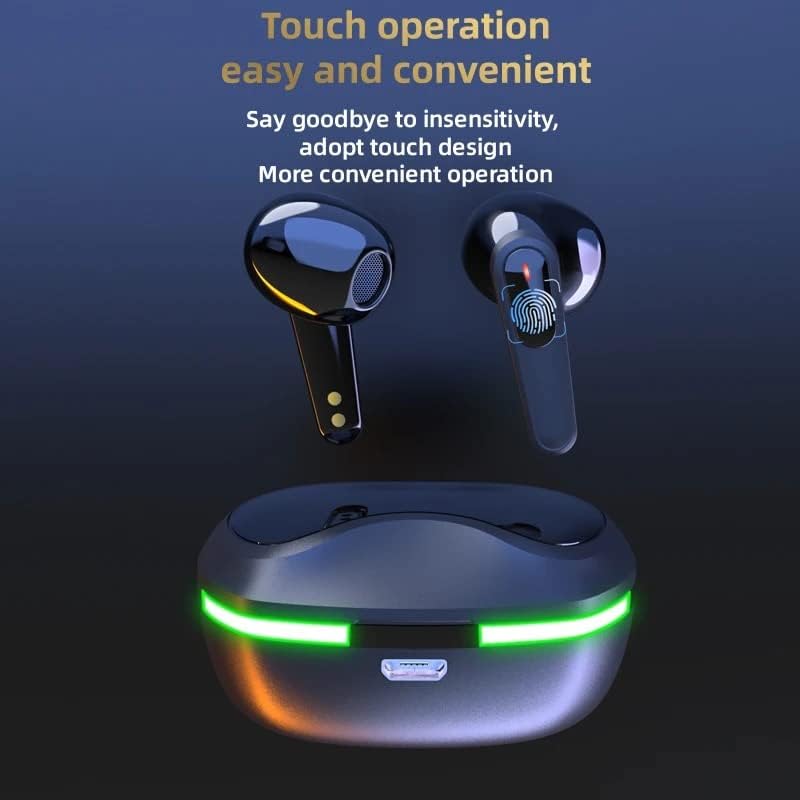
Figure 2: Touch Operation Area. This image highlights the touch-sensitive surface on the earbuds, indicated by a fingerprint icon. It demonstrates the intuitive and convenient touch control design, allowing users to manage functions with simple taps.
Single or Dual Earbud Use
The TWS PRO 60 earbuds support both single and dual earbud use. You can use either the left or right earbud independently for calls or music, or use both for a stereo audio experience.
Compatibility
These earbuds are universally compatible with a wide range of Bluetooth-enabled devices, including MP3 players, mobile phones, tablets, laptops, and other audio devices running on iOS and Android systems.
Maintenance
Charging the Earbuds and Case
To charge the earbuds, place them back into the charging case. They will automatically begin charging. To charge the case, connect the provided Micro 5pin USB cable to the charging port on the case and a power source. A full charge provides approximately 3.5-4 hours of playtime and call time. The charging case has a 300 mAh battery capacity.

Figure 3: Earbuds in Charging Case. This image displays the TWS PRO 60 earbuds nestled within their open charging case. The prominent green LED light strip around the base of the case signifies that the earbuds are charging or fully charged, providing a clear visual indicator of their power status.
Cleaning
Regularly clean your earbuds and charging case to maintain optimal performance and hygiene. Use a soft, dry, lint-free cloth to wipe down the surfaces. For the ear tips, you may use a slightly damp cloth, ensuring no moisture enters the speaker grille. Do not use harsh chemicals or abrasive materials.
Water Resistance
The TWS PRO 60 earbuds are IPX4 class waterproof and sweat-proof. This means they are resistant to splashing water from any direction, making them suitable for workouts and light rain. However, they are not designed for submersion in water. Avoid exposing them to strong jets of water or prolonged immersion.

Figure 4: IPX4 Water Resistance. This image shows the TWS PRO 60 earbuds and their charging case on a wet surface, with water droplets visible. It visually confirms the IPX4 waterproof rating, indicating the earbuds' resistance to splashes and sweat, making them suitable for active use.
Troubleshooting
If you encounter issues with your TWS PRO 60 earbuds, please refer to the following common solutions:
- Earbuds not pairing:
- Ensure both earbuds are charged.
- Turn off and on your device's Bluetooth.
- Forget the device from your Bluetooth list and try pairing again.
- Place earbuds back in the case, close the lid, wait a few seconds, then open to re-initiate pairing mode.
- No sound from one earbud:
- Ensure both earbuds are charged.
- Place both earbuds back into the charging case, close the lid, and then take them out again to re-sync.
- Check your device's audio balance settings.
- Charging case not charging:
- Ensure the charging cable is securely connected to both the case and the power source.
- Try a different USB port or power adapter.
- Check the charging cable for any damage.
- Low volume or poor sound quality:
- Adjust the volume on both your device and through the earbud controls.
- Ensure the earbuds are clean and free of debris, especially the speaker grilles.
- Try different ear tip sizes (if applicable, though not mentioned as included) to ensure a proper seal in your ear canal.
- Ensure you are within the Bluetooth range of your device.
Specifications
| Feature | Detail |
|---|---|
| Model Name | CroSo Ear Earphone PRO 60 |
| Connectivity Technology | Wireless (Bluetooth) |
| Bluetooth Version | 5.1 |
| Control Method | Touch, Voice Control |
| Battery Life (Earbuds) | Up to 5 Hours playtime |
| Charging Case Battery Capacity | 300 mAh |
| Charging Time | Approx. 1.5 Hours (case) |
| Water Resistance Level | IPX4 (Waterproof / Sweatproof) |
| Material | Premium ABS Plastic |
| Item Weight | 1.2 Ounces |
| Special Features | LED Display, Microphone Included, Noise Cancellation |
| Compatible Devices | MP3/Mobilephone/Tablet/Laptop/Audio Devices (iOS & Android) |
| Manufacturer | CrockettSolutions |

Figure 5: Advanced Wireless Technology. This image features the TWS PRO 60 earbuds and their charging case set against a futuristic circuit board background. The visual emphasizes the advanced wireless technology and the concept of "wireless without boundaries, unlimited imagination," highlighting the product's cutting-edge design and capabilities.
Warranty and Support
For information regarding warranty coverage and terms, please refer to the documentation provided with your purchase or contact the manufacturer directly. As this product is manufactured by CrockettSolutions, it is recommended to visit their official website or contact their customer service for specific warranty details and technical support.
For further assistance or inquiries not covered in this manual, please reach out to the customer support of the retailer where the product was purchased or the manufacturer, CrockettSolutions.
Ask a question about this manual
Ask about setup, troubleshooting, compatibility, parts, safety, or missing instructions. Manuals+ will review the question and use this page’s manual context to help answer it.