1. Product Overview
The Samsung Galaxy Tab S9 is a powerful and versatile Android tablet designed for both productivity and entertainment. Featuring a durable design, a vibrant AMOLED screen, and advanced AI capabilities, it's built to enhance your daily digital experience.
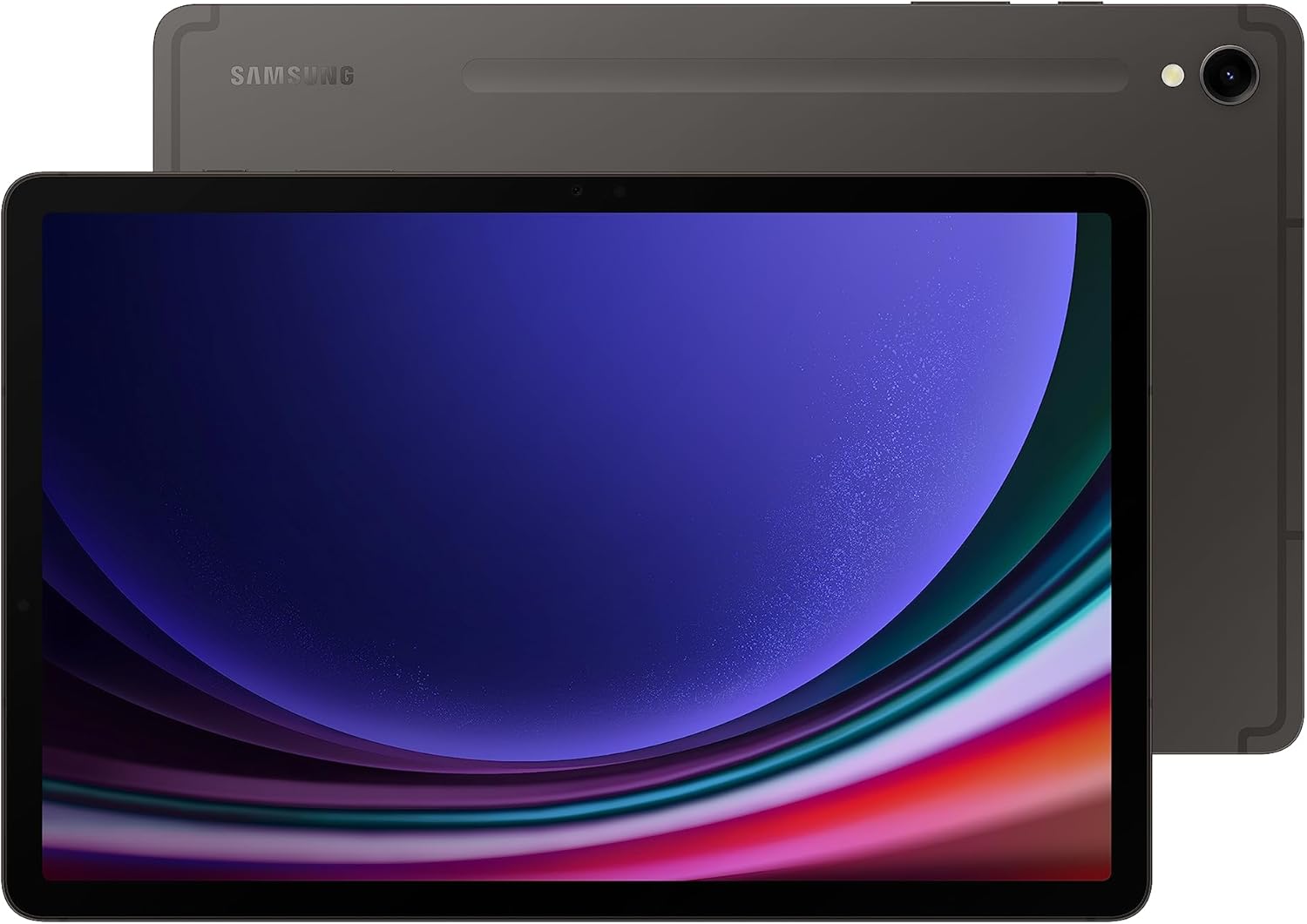
Figure 1: Front and back view of the Samsung Galaxy Tab S9.
2. Setup
2.1 What's in the Box
- Galaxy Tab S9+ (Tablet)
- S Pen
- Ejection Pin
- Data Cable (USB-C)

Figure 2: Included items in the Galaxy Tab S9 packaging.
2.2 Initial Power-On and S Pen Setup
- Press and hold the Power button located on the side of the tablet until the Samsung Galaxy logo appears.
- Follow the on-screen prompts to select your language, connect to a Wi-Fi network, and sign in to your Google and Samsung accounts.
- The included S Pen can be attached magnetically to the back of the tablet for charging and storage. Ensure it is properly seated to pair and charge.
3. Operating Instructions
3.1 Display and Visual Experience
The Galaxy Tab S9 features an 11-inch Dynamic AMOLED 2X screen with a resolution of 2560 x 1600 pixels. The Vision Booster technology automatically adjusts brightness and contrast for optimal viewing in various lighting conditions.

Figure 3: Display dimensions of the Samsung Galaxy Tab S9.
3.2 Performance and Multitasking
Equipped with a superfast Snapdragon 8 Gen 2 processor, the tablet delivers powerful performance for all your tasks, from demanding games to creative projects. It supports seamless multitasking and smooth operation.
DeX Mode
Transform your tablet into a PC-like experience with DeX Mode. This feature allows you to multitask with multiple windows and folders, work from a taskbar, and easily drag and drop files. A compatible keyboard cover (sold separately) can further enhance this experience.

Figure 4: Galaxy Tab S9 in DeX Mode with an optional keyboard cover.
3.3 Galaxy AI Features
The Galaxy Tab S9 integrates advanced AI features to streamline your workflow and creativity:
- Circle to Search: Search for anything on your screen by simply circling it, without switching apps.
- Transcript Assist: Automatically transcribe and summarize recorded lectures and meetings.
- Note Assist: Format your notes into clear summaries and organize them instantly.
- Photo Assist: Effortlessly edit and enhance your photos, including relocating objects.

Figure 5: Overview of Galaxy AI capabilities on the Tab S9.
3.4 Camera and Audio
The tablet features a high-resolution front camera with Auto-Focus for clear video calls. Quad speakers with Dolby Atmos surround sound provide rich and immersive audio.
4. Maintenance
4.1 Durability and Protection
The Galaxy Tab S9 is built with an Armor Aluminum frame, providing protection against bumps. It also boasts an IP68 rating, making it resistant to dust and water. For optimal protection, consider using a protective case.

Figure 6: The durable Armor Aluminum back of the tablet.
4.2 Battery Care
To maximize battery lifespan, avoid extreme temperatures and prolonged exposure to direct sunlight. Utilize Super Fast Charging for quick power-ups when needed.
5. Troubleshooting
5.1 General Issues
- Device Unresponsive: If the tablet becomes unresponsive, press and hold the Power button and Volume Down button simultaneously for about 7 seconds to force restart.
- App Crashing: Clear the cache and data for the problematic app in Settings > Apps. If the issue persists, reinstall the app.
- Slow Performance: Close unused apps, clear device cache, and ensure sufficient storage space. Consider performing a factory reset as a last resort (back up your data first).
5.2 Connectivity Issues
- Wi-Fi Connection Problems: Restart your Wi-Fi router and the tablet. Forget the network in tablet settings and reconnect.
- Bluetooth Pairing Issues: Ensure both devices are in pairing mode and within range. Restart Bluetooth on both devices.
6. Specifications
| Feature | Detail |
|---|---|
| Brand | Samsung |
| Model Name | S9 |
| Item Model Number | SM-X710NZAAXAR |
| Operating System | Android 13 |
| Standing Screen Display Size | 11 Inches |
| Screen Resolution | 2560 x 1600 pixels |
| Max Screen Resolution | 2560 x 1600 pixels |
| Processor | 3.36 GHz (Qualcomm Snapdragon 8 Gen 2) |
| Memory Storage Capacity | 128 GB |
| Wireless Type | 802.11ax (Wi-Fi 7 compatible) |
| Average Battery Life (in hours) | 18 Hour |
| Item Weight | 1.65 pounds |
| Product Dimensions | 0.83 x 7.26 x 10.78 inches |
| Color | Graphite |
| Rear Webcam Resolution | 12 MP |
| Power Source | Battery Powered |
| SD Card Slot | Not available |
| Earphone Jack | Not available |
7. Warranty and Support
The Samsung Galaxy Tab S9 comes with a standard manufacturer's warranty. For specific warranty details, terms, and conditions, please refer to the documentation included with your product or visit the official Samsung support website.
For additional protection plans, such as Samsung Care+, please check the product listing or Samsung's official channels.
For further assistance, troubleshooting, or to access support resources, please visit the Samsung Store on Amazon or the official Samsung support website.