
1. Introduction
The Hitron HTEM5 MoCA 2.5 Adapter Kit provides a solution for extending your home network using existing coaxial cabling. MoCA (Multimedia over Coax Alliance) technology allows for high-speed Ethernet connectivity over the same coaxial cables used for cable TV or internet, transforming them into a robust wired backbone for your network. This kit enables multi-gigabit speeds, ideal for demanding applications such as 4K/8K streaming, online gaming, and enhancing mesh WiFi system performance.
This manual provides detailed instructions for setting up, operating, and troubleshooting your HTEM5 MoCA 2.5 Adapters.
2. Product Overview
The Hitron HTEM5 MoCA 2.5 Adapter Kit includes two MoCA adapters, designed to create a high-speed wired network connection over your home's coaxial infrastructure. Each adapter features a coaxial port for connection to your home's coax wiring and an Ethernet port for connecting to network devices.

Figure 1: Hitron HTEM5 MoCA 2.5 Adapters
This image displays two black Hitron HTEM5 MoCA 2.5 adapters. They are rectangular with a perforated design for ventilation and feature a series of LED indicator lights on the front panel, indicating power, MoCA link status, and Ethernet activity. A coaxial connector is visible on the top of one adapter.
2.1 Indicator Lights
- Power LED: Indicates the power status of the adapter.
- MoCA LED: Indicates the status of the MoCA connection. A solid light typically means a successful MoCA link.
- Ethernet LED: Indicates the status of the Ethernet connection and activity.
3. Setup and Installation
Setting up your Hitron HTEM5 MoCA 2.5 Adapters is a straightforward process. Follow these steps to establish your MoCA network:

Figure 2: Easy Setup Steps
This diagram illustrates the three simple steps for connecting a Hitron MoCA adapter. Step 1 shows connecting a coaxial cable to the F-connector. Step 2 shows connecting an Ethernet cable to the RJ45 port. Step 3 shows connecting the power adapter to the DC input.
- Connect the First Adapter (Near Router/Modem):
- Connect one end of a coaxial cable (included) to a coaxial wall outlet.
- Connect the other end of this coaxial cable to the "Coax In" port on the first HTEM5 adapter.
- Connect one end of an Ethernet cable (included) to an available LAN port on your router or modem.
- Connect the other end of this Ethernet cable to the Ethernet port on the first HTEM5 adapter.
- Connect the power adapter to the HTEM5 adapter and plug it into an electrical outlet.
- Connect the Second Adapter (At Device Location):
- At the location where you need a wired Ethernet connection (e.g., near a smart TV, gaming console, or mesh WiFi access point), connect one end of a coaxial cable (included) to a coaxial wall outlet.
- Connect the other end of this coaxial cable to the "Coax In" port on the second HTEM5 adapter.
- Connect one end of an Ethernet cable (included) to the device you wish to connect to the network.
- Connect the other end of this Ethernet cable to the Ethernet port on the second HTEM5 adapter.
- Connect the power adapter to the HTEM5 adapter and plug it into an electrical outlet.
- Verify Connection:
- Once both adapters are powered on, observe the indicator lights. The MoCA LED on both adapters should turn solid, indicating a successful MoCA link. The Ethernet LED should also light up when a device is connected and active.
Important Note on Coax Wiring:
For MoCA to function correctly, all coaxial outlets you intend to use must be wired to the same central splitter in your home. If your outlets are isolated or disconnected, MoCA may not work. It is recommended to verify your home's coaxial wiring configuration before installation.
4. Operating Principles and Compatibility
MoCA 2.5 technology utilizes the existing coaxial cables in your home to create a high-speed Ethernet network. This allows you to extend your wired network without running new Ethernet cables, leveraging the robust and shielded nature of coaxial wiring.
4.1 Network Enhancement
- Mesh WiFi Backhaul: Create a dedicated wired backhaul for your mesh WiFi system, ensuring maximum speed and stability between your router and satellite access points.

Figure 3: Supercharge Your Mesh WiFi
This diagram illustrates a two-story house with a mesh WiFi setup. HTEM5 MoCA adapters are shown connecting mesh WiFi pods via the home's coaxial wiring, creating a 2.5 Gbps wired backhaul to improve WiFi performance throughout the house.
- 4K/8K Streaming: Enjoy smooth, buffer-free streaming of high-resolution content.

Figure 4: Enhanced Streaming Experience
This image depicts a person comfortably watching a movie on a large screen TV, with a Hitron MoCA adapter visible on a coffee table. The text overlay emphasizes that better WiFi, enabled by MoCA, leads to smoother streaming with fewer interruptions and buffering.
- Lag-Free Gaming: Achieve ultra-low latency connections for a superior online gaming experience.
- General Wired Connectivity: Provide stable, high-speed wired connections for desktops, laptops, smart TVs, and game consoles in any room with a coax outlet.

Figure 5: Broad Device Compatibility
This image illustrates the broad compatibility of the MoCA adapters with various devices that have an Ethernet port, including wireless routers, access points, mesh extenders, gaming consoles, streaming set-top boxes, and desktop computers.
4.2 Coax Wiring Compatibility
The HTEM5 MoCA 2.5 Adapter Kit is designed for homes with cable or fiber internet service that utilize coaxial wiring. It is crucial that all coax outlets intended for MoCA use are part of the same connected coaxial network within your home.

Figure 6: Coax Wiring Compatibility
This diagram shows two scenarios for coax wiring. The "Compatible" scenario depicts a cable modem connected to a MoCA adapter, which then connects to a router and a wall outlet, indicating a continuous coax network. The "Not Compatible" scenario shows a satellite dish connected to an isolated coax line or a splitter, with a MoCA adapter connected to a wall outlet, highlighting that satellite TV systems or isolated lines are not suitable for MoCA.
Incompatibility:
The HTEM5 adapters are not compatible with:
- Direct TV, Dish, or other satellite TV systems. These services operate on frequencies that overlap with MoCA, preventing simultaneous use on the same coaxial network.
- AT&T Internet or AT&T U-verse coax networks.
If your home was previously wired for satellite TV, your coax outlets might be isolated or disconnected from a central splitter, which would prevent MoCA from working.
5. Troubleshooting
If you encounter issues with your Hitron HTEM5 MoCA 2.5 Adapter Kit, consider the following common solutions:
- No MoCA Link (MoCA LED Off):
- Ensure both adapters are powered on and their power LEDs are solid.
- Verify that the coaxial cables are securely connected to both the adapters and the wall outlets.
- Confirm that the coaxial outlets you are using are part of the same connected network in your home. MoCA requires a continuous coax path between adapters.
- Check for MoCA-compatible splitters. Older or non-MoCA rated splitters can degrade the signal.
- Ensure your internet service is not satellite-based (e.g., DirecTV, Dish) or AT&T U-verse, as these are incompatible.
- Slow Ethernet Speed:
- While the HTEM5 supports 2.5 Gbps MoCA speeds, the actual Ethernet speed will be limited by the slowest component in your network chain.
- Ensure that the Ethernet ports on your router, mesh WiFi access points, or connected devices (e.g., computer, smart TV) are 2.5 Gbps compatible. If they are 1 Gigabit Ethernet ports, your speed will be limited to approximately 940 Mbps.
- Check the quality of your Ethernet cables. Use CAT5e or CAT6 cables for optimal performance.
- Intermittent Connection:
- Inspect coaxial cables for damage or loose connections.
- Ensure there are no unnecessary splitters or attenuators in the coaxial line between the adapters.
- Consider adding a MoCA filter at the point where your internet service enters your home to prevent MoCA signals from leaving your premises and to improve signal integrity.
6. Specifications
The Hitron HTEM5 MoCA 2.5 Adapter Kit offers robust performance for home networking. Below are the key specifications:
| Feature | Specification (HTEM5) |
|---|---|
| Technology | MoCA 2.5 |
| MoCA Speeds | Up to 2.5 Gbps |
| Ethernet Port (LAN) | 10/100/1000/2500 (2.5 Gbps) |
| MoCA Compatibility | All MoCA Generations |
| Network Expansion Size | Up to 16 MoCA Adapters |
| Product Dimensions | 4.33"L x 2.76"W x 1"H (11 x 7 x 2.54 cm) |
| Item Weight | 3.88 ounces (110 Grams) |
| Hardware Interface | Ethernet, Coaxial |
| Compatible Devices | Desktop, Game Console, Laptop, Smart TV |
| UPC | 860009155343 |
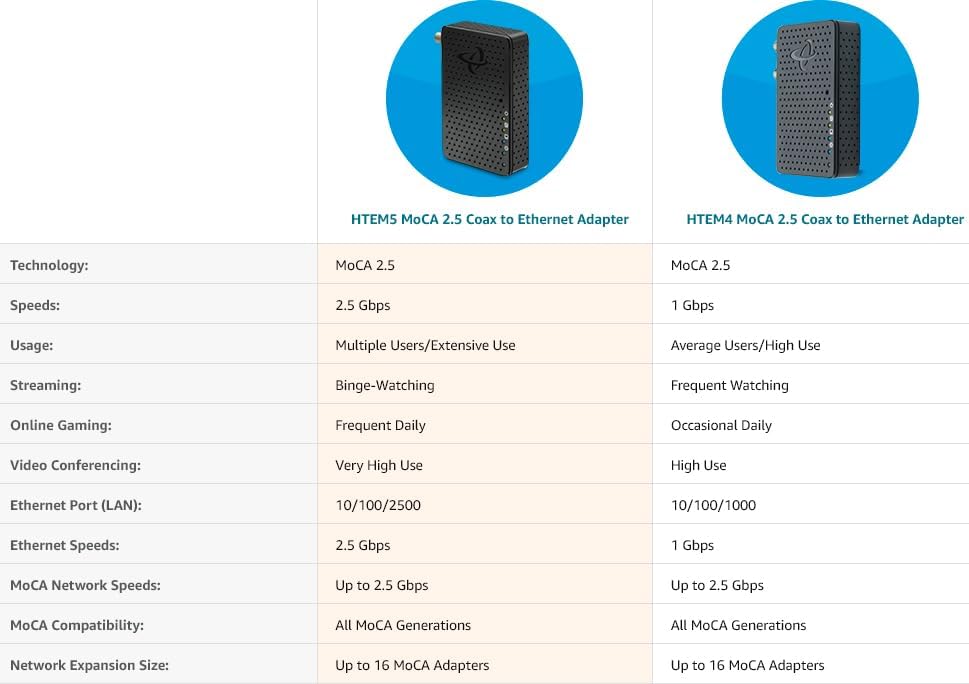
Figure 7: HTEM5 vs. HTEM4 Comparison
This table compares the specifications of the HTEM5 and HTEM4 MoCA 2.5 adapters, highlighting differences in speeds (2.5 Gbps for HTEM5 vs 1 Gbps for HTEM4) and Ethernet port capabilities.
7. What's in the Box
Your Hitron HTEM5 MoCA 2.5 Adapter Kit includes the following components:

Figure 8: Kit Contents
This image displays all items included in the Hitron HTEM5 MoCA 2.5 Adapter Kit: two black HTEM5 adapters, two power adapters, two white coaxial cables, two orange Ethernet cables, and a blue quick install guide.
- 2 x Hitron HTEM5 MoCA 2.5 Adapters
- 2 x Power Supplies
- 2 x Coaxial Cables
- 2 x Ethernet Cables
- 1 x Quick Install Guide (PDF version available online)
8. Support and Warranty
For technical support, troubleshooting assistance, or warranty information, please contact Hitron customer support. You can find contact details and additional resources on the official Hitron website.
An installation manual in PDF format is also available for download: Download Installation Manual (PDF).
Hitron products are carrier-grade tested and approved by major Broadband Internet Providers, ensuring reliable performance.


