
OIEXI 666186954140
OIEXI UHD 4K Video Camera Camcorder Instruction Manual
Model: 666186954140
Introduction
This manual provides comprehensive instructions for the operation and maintenance of your OIEXI UHD 4K Video Camera Camcorder. Designed for ease of use, this camcorder features 4K Ultra HD video recording, 64MP photo capabilities, 18X digital zoom, a 4.0-inch rotating touchscreen, and various advanced functions to capture high-quality visuals. Please read this manual thoroughly before using the device to ensure optimal performance and longevity.

Figure 1: OIEXI UHD 4K Video Camera Camcorder and Included Accessories.
Product Overview and Components
Familiarize yourself with the various parts of your camcorder to ensure proper operation.

Figure 2: Detailed diagram of the camcorder's components.
- 1. Handle Charging Port: For charging the camera via the handle.
- 2. Battery: Main power source for the camcorder.
- 3. Video Button: Initiates and stops video recording.
- 4. Photo Button: Captures still images.
- 5. Confirmation Button/Control Wheel: Navigates menus and confirms selections.
- 6. DISP Button: Toggles display information on/off.
- 7. USB Interface/Camera Charging Port: Connects to computer or charger.
- 8. MIC Interface: Connects external microphone.
- 9. HDMI Interface: Connects to external display.
- 10. Lens: The primary optical component for capturing images.
- 11. Power Button: Turns the camcorder on/off.
- 12. Menu Button: Accesses the camcorder's settings menu.
- 13. Mode Button: Switches between different operating modes (e.g., video, photo, playback).
- 14. Playback Button: Enters playback mode to review recorded media.
- 15. SD Card Slot: Insert your SD card here.
- 16. Speaker: For audio playback.
- 17. Internal Hot Shoe: For attaching accessories like the external microphone.
- 18. Handle Video/Photo Button: Alternative buttons on the handle for recording video or taking photos.
- 19. Handle Digital Zoom: Controls digital zoom from the handle.
- 20. Camera Zoom: Controls optical/digital zoom.
- 21. Camera Hot Shoe: For attaching accessories.
Setup
1. Charging the Battery
Before first use, fully charge the included Lithium Ion battery. The 4500mAh battery provides over 3 hours of continuous use. You can also record while charging.
- Insert the battery into the battery compartment.
- Connect the USB cable to the camera's charging port (7) or the handle charging port (1) and then to the charger.
- Plug the charger into a power outlet. The charging indicator will show the charging status.

Figure 3: Battery charging and SD card insertion.
2. Inserting the SD Card
This camcorder supports SD cards up to 256GB. A 64GB SD card is included for immediate use.
- Locate the SD card slot (15) on the camcorder.
- Insert the SD card with the metal contacts facing down until it clicks into place.
3. Attaching Accessories
- External Microphone: Connect the external microphone to the MIC Interface (8) for improved audio clarity and noise reduction.
- Lens Hood: Attach the lens hood to the front of the lens (10) to protect it from damage and reduce glare, improving photo color and contrast.
- Handheld Stabilizer: For low-angle shots and improved video stability, attach the camcorder to the included handheld stabilizer. The stabilizer also features zoom and shooting buttons for convenience.
Operating Instructions
1. Power On/Off
Press the Power Button (11) to turn the camcorder on or off.
2. Basic Recording (Video & Photo)
- Video Recording: Press the Video Button (3) or the Handle Video Button (18) to start recording. Press again to stop.
- Photo Capture: Press the Photo Button (4) or the Handle Photo Button (18) to take a still picture.
- Zoom: Use the Camera Zoom (20) or Handle Digital Zoom (19) controls to adjust the 18X digital zoom.
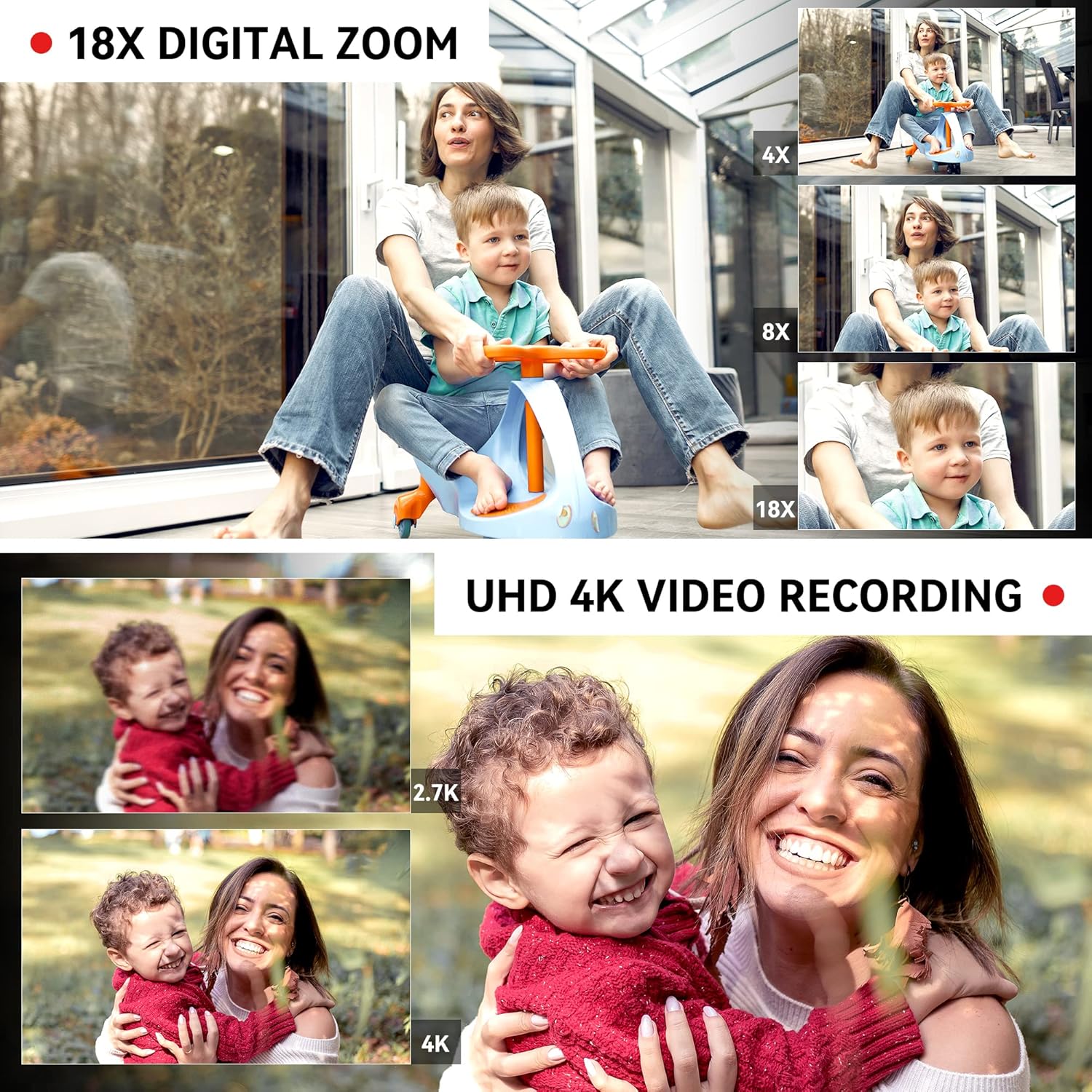
Figure 4: Demonstrating 18X Digital Zoom and 4K video quality.
3. Touchscreen and Menu Navigation
The 4.0-inch 270-degree rotating touchscreen allows for easy navigation. Use the Confirmation Button/Control Wheel (5) or touch the screen directly to select options and adjust settings via the Menu Button (12).
Video 1: This video demonstrates the camcorder's physical features, including the rotating screen, and shows the menu interface for selecting multiple shooting modes and adjusting focus. It also illustrates the wireless connection feature.
4. Multiple Shooting Modes
Press the Mode Button (13) to switch between various shooting modes, including:
- Pause Function: Temporarily stop and resume recording within the same file.
- Time-Lapse: Capture images at set intervals to create a time-lapse video.
- Slow Motion: Record video at a higher frame rate for slow-motion playback.
- Continuous Shooting: Take multiple photos in quick succession.
- Self-Timer: Set a delay before taking a photo.
- Loop Recording: Continuously record, overwriting the oldest files when the memory card is full.

Figure 5: Visual representation of different shooting modes available.
5. Focus Adjustment
The camcorder supports both manual and auto-focus. Adjust focus as needed for sharp images and videos.
6. Connectivity and File Transfer
- Wireless Connection (Wi-Fi): Use the "XDV PRO" app on your smartphone to remotely control the camcorder and transfer videos and photos. No internet connection is required for direct file transfer between the camera and phone via Wi-Fi.
- USB Connection (Webcam/Mass Storage): Connect the camcorder to a computer using the USB cable. You can select "Webcam" for live streaming or video calls, or "Mass Storage" to transfer files directly to your computer.
- HDMI Output: Connect the camcorder to a TV or monitor using the HDMI cable (9) for a larger viewing experience.

Figure 6: Connecting the camcorder to a computer and selecting modes.

Figure 7: Remote and Wi-Fi control options.
7. Remote Control
The included 2.4G wireless remote control allows you to easily control shooting functions from up to 65 feet away.
Maintenance
- Cleaning: Use the provided wiping cloth to gently clean the lens and screen. Avoid using harsh chemicals.
- Storage: When not in use, store the camcorder in the included camera bag in a cool, dry place away from direct sunlight and extreme temperatures.
- Battery Care: To prolong battery life, avoid fully discharging the battery frequently. Charge it regularly, even if not in use for extended periods.
- SD Card Management: Regularly back up your files and format the SD card in the camera to maintain optimal performance.
Troubleshooting
| Problem | Possible Cause | Solution |
|---|---|---|
| Camcorder does not power on. | Battery is not charged or not inserted correctly. | Ensure the battery is fully charged and properly inserted. Try charging the battery for at least 30 minutes before attempting to power on again. |
| SD card not recognized or files corrupted. | SD card not inserted correctly, incompatible, or corrupted. | Reinsert the SD card. Ensure it is a compatible SDXC card (up to 256GB). Try formatting the SD card within the camera (this will erase all data). If issues persist, try a different SD card. |
| Poor sound quality. | Internal microphone limitations or external microphone not connected/charged. | Ensure the external microphone is securely connected to the MIC interface (8). If using an external microphone, ensure its battery is charged (if applicable). For optimal sound, use the external microphone. |
| Video recording stops or files are split/corrupted during long recordings. | SD card speed is too slow or card is faulty. | Use a high-speed SD card (Class 10 or higher, U3 recommended for 4K). Format the SD card regularly. If the problem persists, try a different, high-quality SD card. |
| Cannot connect to phone via Wi-Fi. | Incorrect Wi-Fi settings or app issues. | Ensure Wi-Fi is enabled on the camcorder and your phone. Check that you have the correct "XDV PRO" app installed. Restart both devices and try again. |
Specifications
| Feature | Detail |
|---|---|
| Brand | OIEXI |
| Model Number | 666186954140 |
| Video Capture Resolution | 4K Ultra HD (60FPS) |
| Photo Resolution | Up to 64 Megapixels |
| Digital Zoom | 18X |
| Screen Size | 4.0 Inches (270° Rotating Touchscreen) |
| Sensor Type | 1/2" CMOS Sensor |
| Battery Type | Lithium Ion (4500mAh) |
| Storage Media | SD Card (up to 256GB, 64GB included) |
| Connectivity | Wi-Fi, USB, HDMI |
| Special Features | Built-In Light, Microphone Input, Remote Control, Time Lapse, Touchscreen, Pause Function, Slow Motion, Continuous Shooting, Self-Timer, Anti-Shake |
| Dimensions | 7.09 x 3.92 x 3.14 inches |
| Weight | 3.45 pounds |

Figure 8: Camcorder dimensions and weight.
What's in the Box
Your OIEXI UHD 4K Video Camera Camcorder package includes the following items:
- 1 x Camcorder
- 1 x Battery
- 1 x Charger
- 1 x 64GB SD Card
- 1 x Handheld Stabilizer
- 1 x Camera Bag
- 1 x Instruction Manual
- 1 x Wiping Cloth
- 1 x Remote Control
- 2 x Remote Control Batteries
- 1 x USB Cable
- 1 x HDMI Cable
- 1 x External Microphone
- 1 x Lens Hood

Figure 9: All accessories included in the package.
Warranty and Support
For warranty information and customer support, please refer to the documentation provided with your purchase or contact the seller directly. Keep your proof of purchase for any warranty claims.
Ask a question about this manual
Ask about setup, troubleshooting, compatibility, parts, safety, or missing instructions. Manuals+ will review the question and use this page’s manual context to help answer it.