1. Introduction
This manual provides essential information for the installation, operation, and maintenance of your ASUS PRIME H610M-E D4-CSM Desktop Motherboard. Please read this manual thoroughly before beginning installation to ensure proper setup and to prevent damage to the components. Keep this manual for future reference.
Safety Precautions:
- Always disconnect the power supply from your computer before installing or removing any components.
- Wear an anti-static wrist strap or frequently touch a grounded metal object to discharge static electricity before handling the motherboard or other components.
- Handle the motherboard by its edges to avoid touching sensitive components.
- Ensure all cables are connected correctly and securely before powering on the system.
2. Product Overview
The ASUS PRIME H610M-E D4-CSM commercial motherboard is designed to provide a stable and reliable foundation for your computing needs, featuring comprehensive system protection and an improved management suite. It supports 12th and 13th Gen Intel Core, Pentium Gold, and Celeron Processors with an LGA 1700 socket.
Key Features:
- Intel LGA 1700 socket: Ready for 12th & 13th Gen Intel Core, Pentium Gold and Celeron Processors.
- Comprehensive cooling: Features a PCH heatsink and Fan Xpert 2+ for efficient thermal management.
- Ultrafast connectivity: Includes a 32Gbps M.2 slot, Realtek 1 Gb Ethernet, and USB 3.2 Gen ports.
- ASUS CSM motherboard: Part of the ASUS Corporate Stable Model program, ensuring 12-month supply, EOL notice, and ECN control.
- ASUS Control Center Express (ACCE): Facilitates efficient IT endpoint management.
Product Images:

Image 2.1: The ASUS PRIME H610M-E D4-CSM motherboard alongside its retail packaging, highlighting the product and its box design.

Image 2.2: A direct top-down view of the ASUS PRIME H610M-E D4-CSM motherboard, showing the layout of components including the CPU socket, RAM slots, and PCIe slots.

Image 2.3: An angled perspective of the ASUS PRIME H610M-E D4-CSM motherboard, providing a clearer view of the various ports and connectors on the board.

Image 2.4: A different angled view of the ASUS PRIME H610M-E D4-CSM motherboard, emphasizing the heatsinks and power delivery components.
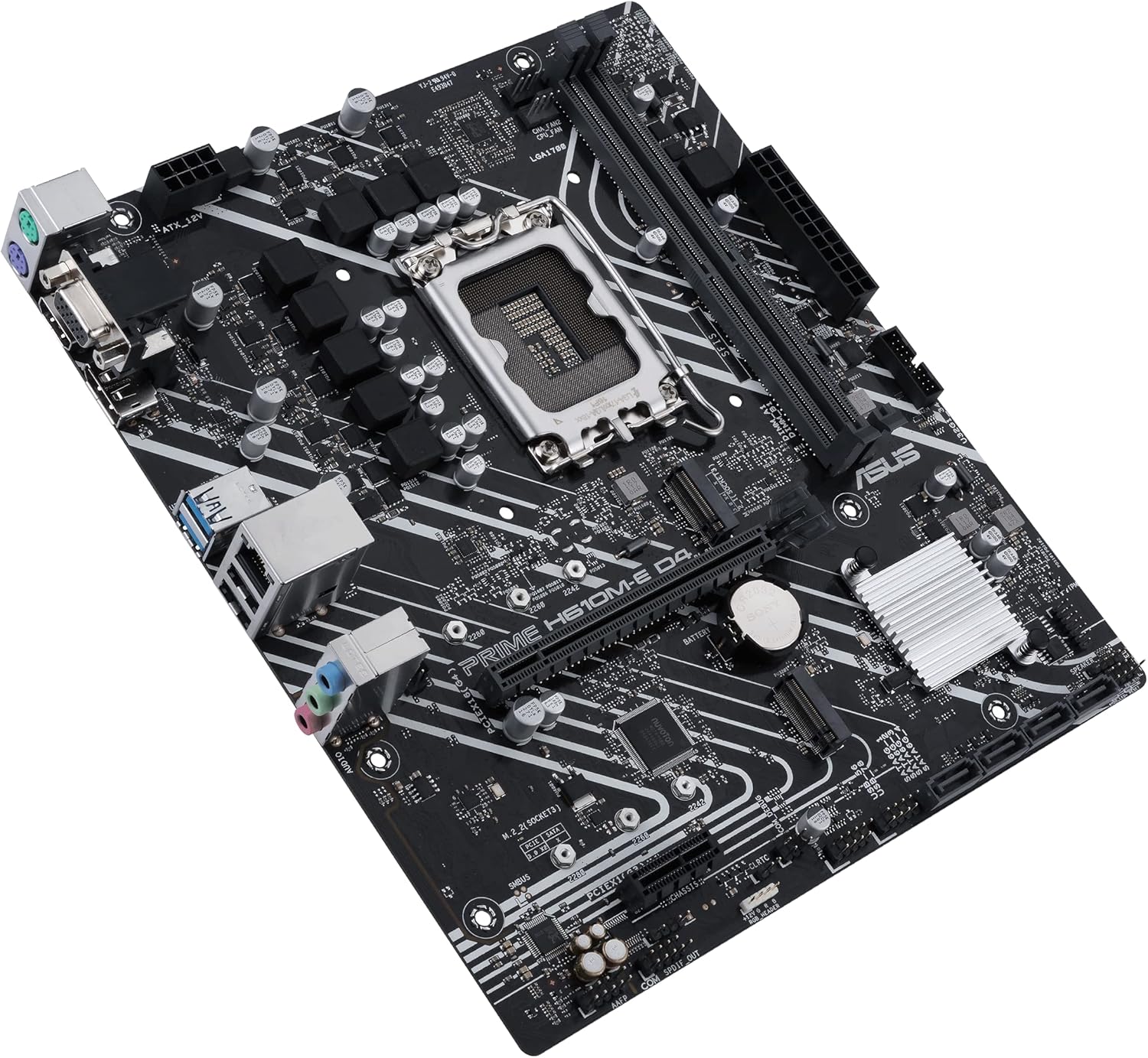
Image 2.5: A broader perspective view of the ASUS PRIME H610M-E D4-CSM motherboard, showing its overall form factor and component placement.

Image 2.6: A close-up view of the rear input/output (I/O) panel of the ASUS PRIME H610M-E D4-CSM motherboard, detailing the available ports such as USB, Ethernet, and audio jacks.

Image 2.7: The rear I/O shield for the ASUS PRIME H610M-E D4-CSM motherboard, showing the cutouts for the various ports.
3. Setup and Installation
Follow these general steps for installing your motherboard. Refer to your PC case manual for specific instructions related to your chassis.
3.1 Preparation:
- Ensure you have all necessary components: CPU, CPU cooler, RAM, storage devices (M.2 SSDs, SATA drives), power supply, and graphics card (if not using integrated graphics).
- Prepare your PC case by installing standoffs in the correct positions for your motherboard's form factor.
3.2 CPU Installation:
- Open the CPU socket lever and lift the load plate.
- Carefully align the CPU with the socket, ensuring the gold triangle on the CPU matches the triangle on the socket. Do not force the CPU into the socket.
- Lower the load plate and press down the lever to secure the CPU.
- Install the CPU cooler according to its manufacturer's instructions.
3.3 RAM Installation:
- Open the clips on both ends of the DIMM slots.
- Align the notch on the DDR4 memory module with the key in the DIMM slot.
- Press down firmly on both ends of the memory module until the clips snap into place.
3.4 Motherboard Installation:
- Install the I/O shield into the rear opening of your PC case.
- Carefully place the motherboard into the case, aligning the screw holes with the standoffs.
- Secure the motherboard with screws.
3.5 Storage Device Installation:
- M.2 SSD: Insert the M.2 SSD into the M.2 slot at an angle, then push it down and secure it with the provided screw or latch.
- SATA Drives: Connect SATA data cables from your storage drives to the SATA ports on the motherboard.
3.6 Power Connections:
- Connect the 24-pin ATX main power connector from your power supply to the motherboard.
- Connect the 8-pin (or 4-pin) ATX 12V CPU power connector to the motherboard.
3.7 Front Panel and Peripheral Connections:
- Connect the front panel headers (power button, reset button, HDD LED, power LED) to the corresponding pins on the motherboard. Refer to the motherboard's silkscreen labels for correct orientation.
- Connect USB and audio headers from your case to the motherboard.
- Install your graphics card into the primary PCIe x16 slot and secure it. Connect PCIe power cables from the power supply to the graphics card if required.
4. Operating Instructions
4.1 Initial Boot-Up:
- After all components are installed and connected, ensure your monitor is connected to the graphics output (either motherboard's integrated graphics port or discrete graphics card).
- Connect the power cord to the power supply and turn on the power supply switch.
- Press the power button on your PC case.
4.2 BIOS/UEFI Setup:
During the boot process, press the DEL or F2 key to enter the BIOS/UEFI setup utility. Here you can configure system settings, boot order, and monitor hardware status.
4.3 Driver Installation:
After installing your operating system, install the necessary drivers for your motherboard's components (chipset, audio, LAN, graphics, etc.). These can typically be found on the ASUS support website for your specific motherboard model.
4.4 Operating System Installation:
Insert your operating system installation media (USB drive or DVD) and follow the on-screen prompts to install your preferred operating system (e.g., Windows 10, Windows 11).
5. Maintenance
Regular maintenance helps ensure the longevity and optimal performance of your motherboard and system.
- Cleaning: Periodically clean dust from inside your PC case, especially from fans and heatsinks, using compressed air. Ensure the system is powered off and unplugged before cleaning.
- BIOS Updates: Check the ASUS support website for BIOS updates. BIOS updates can improve compatibility, stability, and performance. Follow the instructions provided by ASUS carefully when updating the BIOS.
- Driver Updates: Keep your drivers updated to ensure optimal performance and compatibility with new software and hardware.
- Physical Inspection: Occasionally inspect the motherboard for any signs of damage, loose connections, or bulging capacitors.
6. Troubleshooting
If you encounter issues with your motherboard, consider the following common troubleshooting steps:
- No Power/No Boot:
- Check all power connections (24-pin ATX, 8-pin CPU, PCIe for GPU).
- Ensure the power supply is switched on and functioning.
- Verify front panel power button connection.
- No Display:
- Ensure the monitor is connected to the correct display output (motherboard or graphics card).
- Reseat the graphics card and RAM modules.
- Try booting with only one RAM stick.
- POST Code/Beep Codes:
- If your motherboard has a POST code display or emits beep codes, consult the ASUS website or the full motherboard manual for their meaning. These codes indicate specific hardware issues.
- System Instability/Crashes:
- Ensure all drivers are up to date.
- Check CPU and GPU temperatures to prevent overheating.
- Run memory diagnostic tools to check for RAM issues.
For more detailed troubleshooting or persistent issues, please visit the official ASUS support website or contact their customer service.
7. Specifications
| Feature | Specification |
|---|---|
| Brand | ASUS |
| Series | PRIME H610M-E D4-CSM |
| Item Model Number | PRIME H610M-E D4-CSM |
| CPU Socket | LGA 1700 |
| Compatible Processors | Intel Core (12th/13th Gen), Pentium Gold, Celeron |
| Chipset Type | Intel H610 |
| RAM Memory Technology | DDR4 |
| Memory Speed | Up to 4600 MHz (OC) |
| Number of USB 2.0 Ports | 12 (total, including internal headers) |
| Item Weight | 1.1 pounds |
| Product Dimensions (LxWxH) | 9.6 x 8.3 x 1.53 inches |
| Platform | Windows 11, Windows 10 |
| Color | BLACK |
| Country of Origin | China |
| First Available Date | May 1, 2023 |
8. Warranty and Support
ASUS provides a limited warranty for its products. For detailed warranty terms and conditions, including duration and coverage, please refer to the official ASUS website or the warranty card included with your product.
Customer Support:
For technical assistance, driver downloads, BIOS updates, and further product information, please visit the official ASUS support website:
You can also utilize the ASUS Control Center Express (ACCE) for enhanced IT endpoint management, as mentioned in the product features.


