
1. Introduction
This manual provides comprehensive instructions for the VILNIU Presentation Clicker with Green Laser Pointer, Model GX78-G. Please read this guide thoroughly to ensure proper setup, operation, and maintenance of your device. This wireless presenter is designed to enhance your presentations with easy slide navigation and a bright green laser pointer.
2. Product Overview and Features
The VILNIU Presentation Clicker (Model GX78-G) offers a range of features to facilitate smooth and engaging presentations:
- Wireless Control Range: The clicker operates wirelessly up to 98 feet (30 meters), allowing freedom of movement during presentations.
- Green Laser Pointer: Features a bright green laser with a range of up to 328 feet (100 meters) for highlighting key information.
- Ergonomic Design: Designed for comfortable grip and intuitive button placement to prevent accidental presses.
- Plug and Play Functionality: Requires no software installation or complex setup. Simply plug the USB receiver into your computer.
- Wide Compatibility: Supports Windows (2003, XP, Vista, 7, 8, 10), Mac OS, and Linux operating systems. Compatible with presentation software such as Google Slides, MS Word, Excel, PowerPoint/PPT, and more.
- Long Battery Life: Powered by two AAA batteries (included), offering extended use and an on/off switch to conserve power.
- Integrated USB Receiver Storage: The USB dongle conveniently stores within the presenter's body when not in use, preventing loss.
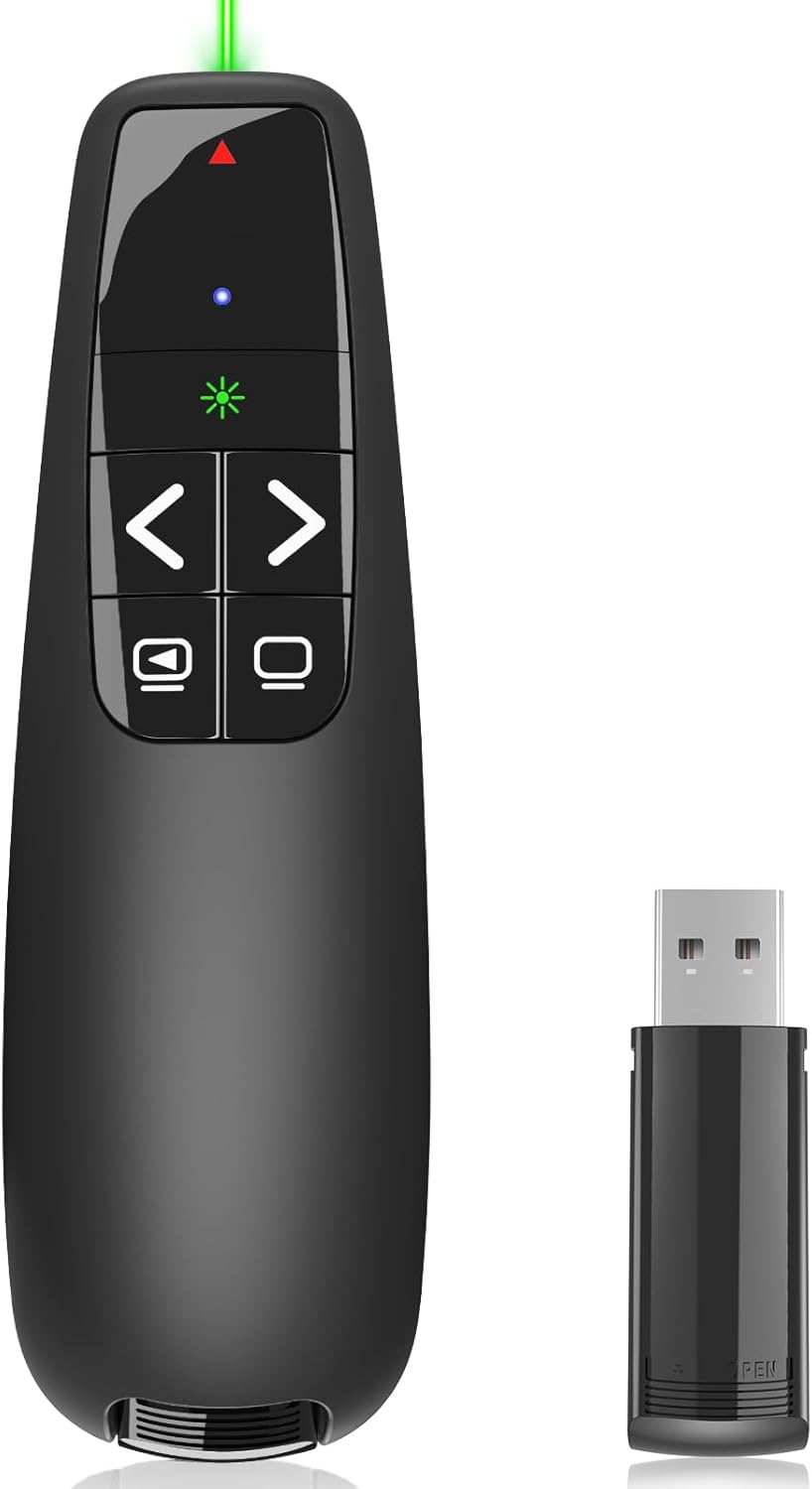
Figure 2.1: VILNIU Presentation Clicker and its USB receiver. The clicker is black with control buttons, and the small USB receiver is shown next to it.

Figure 2.2: Overview of VILNIU PowerPoint Clicker features including page navigation, wireless range, light range, USB receiver, and full screen function.
3. Setup
- Insert Batteries: Open the battery compartment on the back of the presenter. Insert two AAA batteries, ensuring correct polarity (+/-). The batteries are included with the device.
- Retrieve USB Receiver: The USB receiver is stored securely within the presenter's body. Gently slide it out from its slot.
- Connect USB Receiver: Plug the USB receiver into an available USB-A port on your computer (laptop or desktop). Your computer should automatically detect and install the necessary drivers.
- Power On: Locate the ON/OFF switch on the side of the presenter and slide it to the "ON" position. The blue indicator light on the presenter will illuminate, indicating it is ready for use.

Figure 3.1: The USB receiver is shown plugged into a laptop, demonstrating the plug-and-play setup.

Figure 3.2: The battery compartment of the VILNIU Presentation Clicker showing two AAA batteries inserted, highlighting its long standby time.
4. Operating Instructions
Once the USB receiver is connected and the presenter is powered on, you can begin using it for your presentations:

Figure 4.1: Diagram illustrating the function of each button on the VILNIU Presentation Clicker, including Page Up, Page Down, Green Laser Button, Full Screen, Black Screen, and the ON/OFF switch.
- Page Up/Down: Use the arrow buttons (< and >) to navigate through your presentation slides. The left arrow typically moves to the previous slide, and the right arrow moves to the next slide.
- Green Laser Pointer: Press the central button (often marked with an asterisk or laser icon) to activate the green laser pointer. This is useful for drawing attention to specific areas on your screen or projection.

Figure 4.2: Close-up of the VILNIU Presentation Clicker emitting a bright green laser light, useful for highlighting presentation content.
- Full Screen/Black Screen: The buttons below the arrow keys control full screen and black screen functions.
- The button with a monitor icon (often top-left of the bottom two) may toggle full-screen mode for your presentation.
- The button with a blank monitor icon (often top-right of the bottom two) can be used to black out the screen, redirecting audience attention to the presenter. Press again to resume the presentation.
- Indicator Lights: The presenter features indicator lights to provide status information.

Figure 4.3: Explanation of the indicator lights: a red light signifies low power, while a blue light indicates normal operation.
- A blue light typically indicates normal operation.
- A red light may indicate low battery power, signaling that batteries need replacement.
5. Maintenance
- Battery Replacement: When the low power indicator (red light) appears, replace both AAA batteries with new ones. Ensure correct polarity.
- Cleaning: Use a soft, dry cloth to clean the exterior of the presenter. Avoid using liquid cleaners or abrasive materials.
- Storage: When not in use, turn off the presenter using the ON/OFF switch to conserve battery life. Store the USB receiver in its designated slot within the presenter. Keep the device in a cool, dry place away from direct sunlight and extreme temperatures.
6. Troubleshooting
| Problem | Possible Cause | Solution |
|---|---|---|
| Presenter not responding. | Device is off, low battery, or USB receiver not connected/detected. | Ensure the ON/OFF switch is in the "ON" position. Replace batteries if the low power indicator is on. Re-insert the USB receiver into a different USB port. |
| Laser pointer not working. | Device is off, low battery, or laser button not pressed. | Ensure the device is ON and batteries are fresh. Press and hold the laser button firmly. |
| Slides not advancing/going back. | Incorrect software focus, or compatibility issue. | Ensure your presentation software (e.g., PowerPoint, Google Slides) is the active window. Verify your operating system and software are listed as compatible. |
7. Specifications
| Feature | Detail |
|---|---|
| Model Number | GX78-G |
| Wireless Technology | Radio Frequency (RF) |
| Control Range | Up to 98 feet (30 meters) |
| Laser Type | Green Laser |
| Laser Range | Up to 328 feet (100 meters) |
| Power Source | 2 x AAA Batteries (included) |
| Compatible Operating Systems | Windows 2003, XP, Vista, 7, 8, 10, Mac OS, Linux |
| Compatible Software | Google Slides, MS Word, Excel, PowerPoint/PPT, etc. |
| Dimensions | 4.61 x 1.81 x 1.26 inches |
| Item Weight | 2.47 ounces |
8. Warranty and Support
For warranty information, technical support, or any inquiries regarding your VILNIU Presentation Clicker, please refer to the product packaging or contact the seller directly through the platform where the purchase was made. Keep your purchase receipt for warranty claims.