
1. Introduction
This manual provides comprehensive instructions for the installation, operation, and maintenance of your OFFTV Fingerprint Door Lock (Model CG002). This smart door knob offers multiple access methods including fingerprint recognition, passcode entry, mechanical key, and smartphone application control. Please read this manual thoroughly before installation and use to ensure proper functionality and security.

Figure 1.1: OFFTV Fingerprint Door Lock and its accompanying smartphone application interface.
2. Product Overview
2.1 Key Features
- Multiple Access Modes: Fingerprint, anti-privacy virtual password, mechanical key, and smartphone application.
- High Capacity: Supports up to 100 fingerprints and 50 passcodes.
- Fast Fingerprint Recognition: 99% recognition rate, unlocks in approximately 1 second.
- Enhanced Fingerprint Sensor: Features a 160x160 DPI sensor, 35% larger than previous models, for improved identification efficiency.
- Anti-Peeping Passcode: Allows entry of random numbers before and after the actual password to prevent onlookers from guessing the code.
- Automatic Locking: Configurable auto-lock feature for added security.
- Passage Mode: Temporarily disables auto-lock for convenient frequent access.
- Silent Mode: Disables keypad sounds for quiet operation.
- Emergency Power: USB charging port for temporary power in case of battery depletion.
- Mechanical Key Override: Includes 2 spare keys for manual unlocking.
- App Control & Management: Manage users, check battery status, adjust volume, and view unlock records via the smartphone app.
- Voice Control Compatibility: Compatible with Alexa and Google Assistant (Gateway audio not included).
- Anti-Theft Locking: System locks automatically after 8 incorrect fingerprint or password attempts, invalidating credentials for 3 minutes.
2.2 Package Contents
- Front Handle Assembly
- Rear Handle Assembly
- Adjustable Latch
- Strike Plate
- Mounting Screws
- 2 Mechanical Keys
- User Manual
3. Installation
The OFFTV Fingerprint Door Lock is designed for easy installation on standard doors. Ensure your door thickness is between 1-1/8" and 2-1/8" (30-55mm).
3.1 Pre-Installation Check
- Verify all package contents are present.
- Confirm door dimensions are compatible.
- Ensure the door frame is clear and the strike plate can be installed correctly.
3.2 Installation Steps
- Install the Latch: Insert the adjustable latch into the door edge. Ensure the latch bolt faces the correct direction for your door swing. Secure with screws.
- Install the Front Handle: Position the front handle assembly on the exterior side of the door, aligning the spindle with the latch mechanism.
- Install the Rear Handle: Place the rear handle assembly on the interior side of the door. Connect the necessary cables from the front handle to the rear handle.
- Secure the Handles: Use the provided mounting screws to firmly attach both handle assemblies to the door. Avoid over-tightening.
- Install Batteries: Open the battery cover on the interior handle and insert 4 AAA batteries (not included), ensuring correct polarity.
- Test Functionality: After installation, test the mechanical key, keypad, and fingerprint sensor to ensure smooth operation before closing the door.
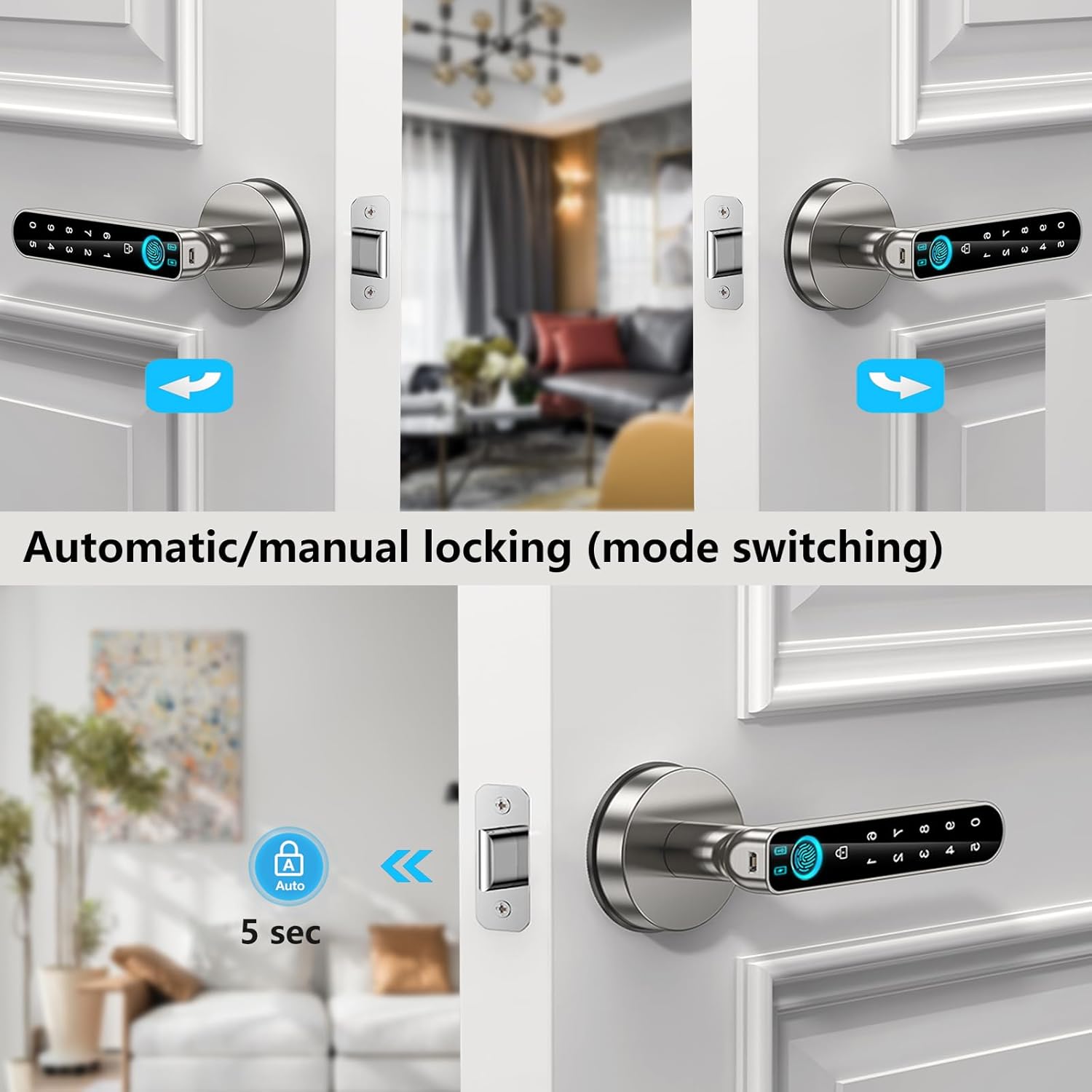
Figure 3.1: Installation diagram and suitable door thickness for the OFFTV Fingerprint Door Lock.
4. Operating Instructions
The OFFTV Fingerprint Door Lock offers multiple convenient ways to access your space.
4.1 Unlocking Methods
4.1.1 Fingerprint Unlocking
Place your registered finger firmly on the fingerprint sensor located on the handle. The lock will unlock within approximately 1 second if the fingerprint is recognized.

Figure 4.1: Unlocking the door using the fingerprint sensor.
4.1.2 Passcode Unlocking (Anti-Peeping Virtual Password)
Enter your registered passcode. To enhance security, you can input any random numbers before or after your actual passcode. As long as the correct passcode sequence is embedded within the entered numbers, the lock will unlock.

Figure 4.2: Example of using the anti-peeping virtual password feature.
4.1.3 Mechanical Key Unlocking
In case of battery failure or other emergencies, insert the mechanical key into the keyhole and turn to unlock the door manually.

Figure 4.3: Using the mechanical key for emergency access.
4.1.4 Smartphone Application Unlocking
Download the dedicated smartphone application. Pair your lock via Bluetooth. You can then unlock the door directly from the app interface.

Figure 4.4: Unlocking the door using the smartphone application.
4.2 Locking Mechanisms
4.2.1 Automatic Locking
The lock can be configured to automatically lock after a set period (e.g., 5 seconds) once the door is closed. This feature provides convenience and peace of mind.

Figure 4.5: The automatic locking feature in action.
4.2.2 Manual Locking
The door can also be manually locked from the interior by turning the knob or from the exterior by pressing a specific button on the keypad (refer to app settings for configuration).
4.3 Special Modes
4.3.1 Passage Mode
Activate Passage Mode when you need the door to remain unlocked for an extended period, such as during a party or when moving items. This temporarily disables the automatic locking feature.

Figure 4.6: Using Passage Mode for temporary unlocked access.
4.3.2 Silent Mode
Enable Silent Mode via the app to disable all keypad sounds. This is useful for maintaining quiet environments, such as at night.

Figure 4.7: Silent Mode for quiet operation.
4.4 App Control and Management
The smartphone application provides extensive control and management features for your door lock.
- User Management: Add, modify, or delete fingerprints and passcodes for various users.
- Temporary Passwords: Generate one-time or time-limited passcodes for guests or service providers.
- Battery Status: Monitor the current battery level of your lock.
- Volume Adjustment: Control the sound level of the lock's alerts and keypad.
- Unlock Records: View a history of all lock and unlock events, including method and user.
- Voice Control Integration: Connect with Alexa or Google Assistant for voice commands (requires compatible gateway, not included).

Figure 4.8: App control and management interface.

Figure 4.9: App-generated one-time password feature.

Figure 4.10: Viewing lock status changes and unlock records in the app.

Figure 4.11: Voice control compatibility with smart assistants.
5. Maintenance
5.1 Battery Replacement
The lock requires 4 AAA batteries. When the battery level is low, the lock will provide an alert. Replace all batteries simultaneously with new ones to ensure optimal performance. Always use high-quality alkaline batteries.
5.2 Emergency Power
If the batteries completely deplete, you can temporarily power the lock using a portable power bank connected to the USB charging port on the exterior handle. This allows you to unlock the door and replace the batteries.

Figure 5.1: Emergency USB charging option.
5.3 Cleaning
Clean the lock's surface with a soft, dry cloth. Avoid using abrasive cleaners or solvents, as these can damage the finish and electronic components. Regularly wipe the fingerprint sensor to ensure accurate readings.
6. Troubleshooting
- Lock not responding: Check battery level and replace if necessary. Use the mechanical key or emergency USB power.
- Fingerprint not recognized: Ensure your finger is clean and dry. Try re-registering your fingerprint in the app.
- Passcode not working: Verify the correct passcode is being entered. Remember the anti-peeping feature allows extra digits.
- Anti-Theft Locking Activated: If 8 incorrect fingerprint or password attempts are made, the system will lock for 3 minutes. Wait for the lockout period to expire before attempting access again.
- App connectivity issues: Ensure Bluetooth is enabled on your smartphone and you are within range of the lock. Restart the app or re-pair the device if necessary.

Figure 6.1: Anti-theft locking mechanism.
7. Specifications
| Brand | OFFTV |
| Model Name | RLOCKA16 |
| Item Model Number | CG002 |
| Lock Type | Biometric |
| Special Feature | Fingerprint |
| Material | Zinc, Aluminium (Handle) |
| Finish Type | Brushed |
| Color | Silver |
| Item Dimensions (L x W x H) | 3.94 x 1.57 x 1.57 inches |
| Item Weight | 1.59 pounds |
| Power Source | 4 AAA batteries (required, not included) |
| Connectivity Protocol | Wi-Fi (for app control, likely Bluetooth for direct connection) |
| Controller Type | Android, Hand Control, Mechanical knob |
| UPC | 709690842463 |
8. Warranty and Support
8.1 Warranty Information
This OFFTV product is covered by a standard manufacturer's warranty. Please refer to the product packaging or the official OFFTV website for specific warranty terms and conditions. Keep your proof of purchase for warranty claims.
8.2 Customer Support
For technical assistance, troubleshooting, or any questions regarding your OFFTV Fingerprint Door Lock, please contact OFFTV customer support. Contact details can typically be found on the product packaging or the official OFFTV website.