
PHILIPS 32PFL3453/F7
Philips 32PFL3453/F7 32-inch HD Roku Smart TV User Manual
Introduction
Welcome to the user manual for your Philips 32PFL3453/F7 32-inch HD Roku Smart TV. This guide provides essential information for setting up, operating, maintaining, and troubleshooting your television. Your Philips Roku TV offers a seamless streaming experience with access to a wide range of entertainment options and smart home integration.
Setup Guide
1. Unpacking
Carefully remove all components from the packaging. Ensure the following items are present:
- Philips 32-inch HD Roku Smart TV
- TV Stand components
- Remote Control with batteries
- Power Cord
- Quick Start Guide (if included)
2. Attaching the Stand
Place the TV screen-down on a soft, clean surface to prevent scratches. Align the stand components with the designated slots on the bottom of the TV and secure them using the provided screws. Refer to the Quick Start Guide for specific screw locations and tightening instructions.
3. Connecting Power
Plug the power cord into the TV's power input, then plug the other end into a wall outlet. The TV will enter standby mode.
4. Connecting External Devices
Your Philips Roku TV offers various connectivity options:
- HDMI Ports: Connect Blu-ray players, game consoles, cable boxes, or other HDMI-enabled devices.
- USB Port: For media playback from USB storage devices.
- Optical (Digital Audio Out): For connecting to soundbars or home theater systems.
- CVBS+Audio L/R In: For older analog devices.
Ensure all cables are securely connected to the correct ports.
5. Initial Roku TV Setup
Upon first power-on, the TV will guide you through the Roku TV setup process. This includes:
- Language Selection: Choose your preferred language.
- Network Connection: Connect your TV to your home Wi-Fi network. You will need your network name (SSID) and password.
- Roku Account: Create a new Roku account or sign in to an existing one. This is required to access streaming channels.
- Channel Installation: Select and install your favorite streaming channels like Netflix, Disney+, YouTube, and more.

Image Description: The main screen of the Philips Roku TV, showing a vibrant background with water droplets on a leaf. Various streaming application icons are overlaid, including Netflix, HBO GO, YouTube, Prime Video, Hulu, and NBC. Logos for 'Works with Alexa' and 'Works with Google Assistant' are visible at the bottom, indicating smart home compatibility.
Operating Your Philips Roku TV
1. Remote Control Basics
The included remote control allows you to navigate the TV's interface. Key functions include:
- Power Button: Turns the TV on or off.
- Directional Pad (D-Pad): Navigates menus and selects items.
- OK Button: Confirms selections.
- Home Button: Returns to the Roku Home screen.
- Back Button: Goes back to the previous screen.
- Volume Buttons: Adjusts the TV volume.
- Mute Button: Mutes or unmutes the sound.
- Instant Replay: Jumps back a few seconds in video playback.
- Star Button (*): Accesses options for selected items.
- Dedicated Channel Buttons: Provides quick access to popular streaming services.
2. Navigating the Roku Interface
The Roku Home screen displays all your installed streaming channels and input sources. Use the D-Pad on your remote to browse and select options. You can customize the order of your channels.
3. Streaming Content
Access a vast library of movies, TV shows, and live content through pre-installed and downloadable streaming channels. Popular options include Netflix, Prime Video, MAX, Apple TV+, Disney+, ESPN+, Hulu, YouTube TV, Pluto TV, Peacock, and NFL.
4. Mobile App Control
Download the free Roku Mobile App on your iOS or Android device to turn your smartphone or tablet into a powerful remote control. The app allows you to:
- Control TV functions (volume, power, navigation).
- Use voice search.
- Cast videos, music, and photos from your device to the TV.
- Listen privately with headphones connected to your mobile device.
Additionally, Apple AirPlay 2 allows you to share content directly from Apple devices.

Image Description: Three mobile phones are shown, each displaying a different screen from the Roku mobile app. The left phone shows a search interface for content, the middle phone displays a virtual remote control with navigation buttons, and the right phone shows a voice search function, illustrating how the app can be used as a streaming companion.
5. Voice Control Integration
Your Philips Roku TV is compatible with Amazon Alexa, Google Assistant, and Apple HomeKit devices. Pair your TV with these smart home systems to control it using voice commands, such as finding entertainment, controlling streaming, or turning the TV on/off.
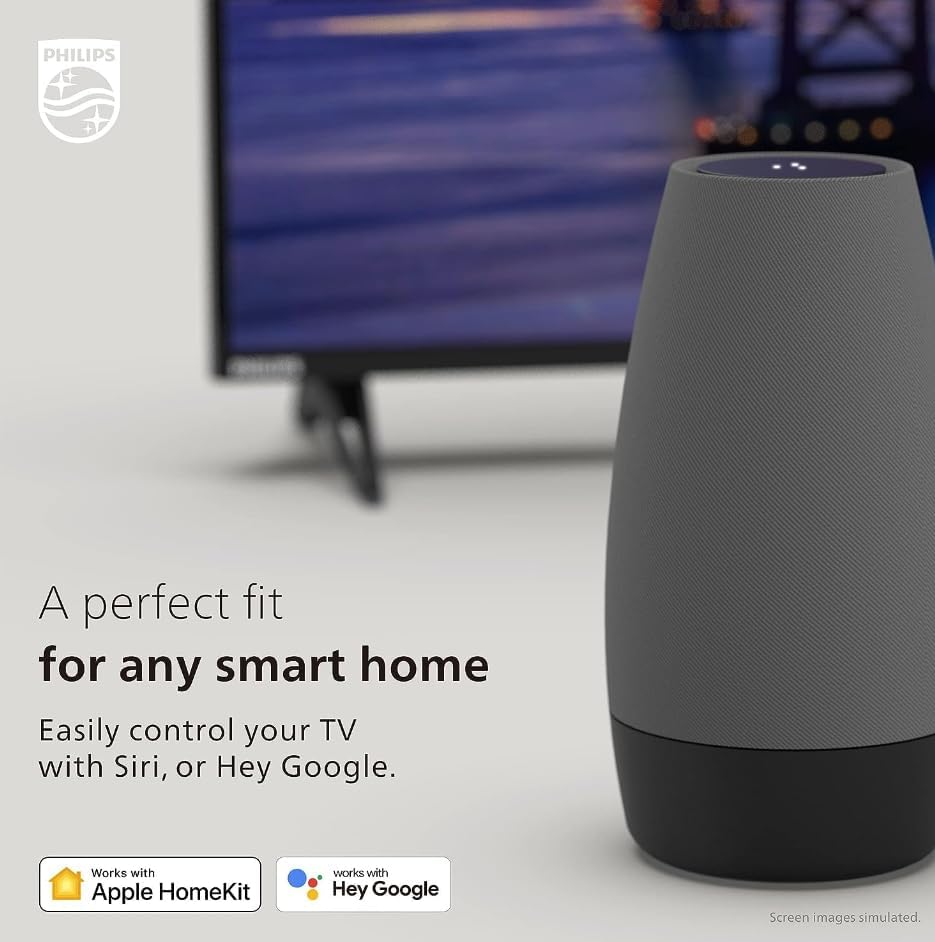
Image Description: A smart speaker is positioned next to a television, which displays a blurred image. Text on the image reads "A perfect fit for any smart home" and "Easily control your TV with Siri, or Hey Google." Below, logos for "Works with Apple HomeKit" and "Works with Hey Google" are displayed, emphasizing the TV's compatibility with various smart home ecosystems.
6. Motion Enhancement (120 PMR)
The 120 Perfect Motion Rate (PMR) technology enhances motion sharpness, providing clearer and smoother images for fast-paced content like sports and action movies. This reduces motion blur and judder, ensuring you experience every detail of the action.

Image Description: A television screen shows a dynamic image of a football game in progress, with players in motion on a green field. Overlay text highlights "120 PERFECT MOTION RATE" and explains that "120 PMR delivers unprecedented motion sharpness to your TV," illustrating the motion enhancement feature.
7. Fast and Easy Search
Utilize the Roku search function to quickly find movies, TV shows, actors, or directors across various streaming channels. The search results will indicate where content is available, including free options or the lowest price for rental/purchase.

Image Description: A person is shown holding a remote control, focused on a television screen that is not fully visible. Text on the image promotes "Fast and Easy Search" and instructs users to "Search by title, actor or director to see where to stream your favorite shows for free or at the lowest price," demonstrating the TV's content discovery feature.
Care and Maintenance
1. Cleaning the TV
To clean the screen, gently wipe it with a soft, lint-free cloth. For stubborn marks, slightly dampen the cloth with water or a screen-specific cleaning solution (never spray directly onto the screen). For the TV casing, use a soft, dry cloth. Avoid abrasive cleaners or solvents.
2. Software Updates
Your Philips Roku TV automatically checks for and installs software updates when connected to the internet. These updates provide new features, performance improvements, and security enhancements. Ensure your TV remains connected to the internet for optimal performance.
Troubleshooting Common Issues
If you encounter problems with your TV, refer to the following troubleshooting steps before contacting support.
1. No Power / TV Not Turning On
- Ensure the power cord is securely plugged into both the TV and a working wall outlet.
- Test the outlet with another device to confirm it has power.
- Check the remote control batteries and replace them if necessary.
- Press the power button on the TV itself (if available) to rule out a remote issue.
2. Remote Control Issues
- Replace the batteries with fresh ones.
- Ensure there is a clear line of sight between the remote and the TV's IR sensor.
- Remove any obstructions between the remote and the TV.
3. Picture or Sound Problems
- Check all cable connections (HDMI, audio) to external devices.
- Try a different input source to determine if the issue is with a specific device.
- Adjust picture and sound settings in the TV's menu.
4. Network Connectivity Issues
- Verify your Wi-Fi network is active and other devices can connect.
- Restart your Wi-Fi router and modem.
- Go to the TV's network settings to re-scan for networks or re-enter your Wi-Fi password.
5. Performance Lags or Freezes
- Restart the TV by unplugging it from the power outlet for 30 seconds, then plugging it back in.
- Ensure your internet connection is stable and fast enough for streaming.
- As a last resort, perform a factory reset through the TV's settings menu. Note that this will erase all personal settings and installed channels.
Product Specifications
| Feature | Specification |
|---|---|
| Brand | PHILIPS |
| Model Number | 32PFL3453/F7 |
| Screen Size | 32 Inches |
| Display Technology | LED |
| Resolution | 720p |
| Refresh Rate | 60 KHz |
| Special Features | 120 Perfect Motion Rate, Borderless attractive design |
| Connectivity Technology | HDMI, USB, Wi-Fi |
| Aspect Ratio | 16:9 |
| Product Dimensions (D x W x H) | 6.7" x 31" x 19.9" |
| Item Weight | 12.55 pounds (200.81 Ounces) |
| Included Components | Stand, TV |

Image Description: A Philips Roku TV is shown with its physical dimensions clearly marked. The width is indicated as 31 inches, the height as 19.9 inches, and the depth as 6.7 inches, providing a visual reference for the TV's size.
Warranty and Support Information
This product is a renewed item. For specific warranty details and support, please refer to the documentation provided at the time of purchase or contact the seller directly. General support for Roku TV features can be found on the official Roku support website.
Ask a question about this manual
Ask about setup, troubleshooting, compatibility, parts, safety, or missing instructions. Manuals+ will review the question and use this page’s manual context to help answer it.