
Maxcio WF-CS01
Maxcio Wi-Fi Smart Roller Shutter Switch User Manual
Model: WF-CS01 | Brand: Maxcio
Introduction
The Maxcio Wi-Fi Smart Roller Shutter Switch (Model WF-CS01) is designed to provide intelligent control over your motorized roller shutters and blinds. This compact 80x80mm switch offers multiple control options, including app control, voice commands via Amazon Alexa and Google Assistant, and direct touch screen operation. It features precise percentage control, automated scheduling, and remote access, enhancing convenience and energy efficiency in your home.

Image: Four Maxcio Wi-Fi Smart Roller Shutter Switches, showcasing their sleek white design.
Setup and Installation
1. Wiring Requirements
Important: Installation should be performed by a qualified electrician. Ensure the main power supply is disconnected before beginning any wiring work.
- A neutral wire is required for the proper operation of this switch.
- The switch is designed for AC motors with a neutral wire.
- Operating Voltage: 220 Volts.
- Current Rating: 10 Amperes.
2. App Connection
To connect the switch to your smart home system:
- Download the Maxcio or compatible smart home application (e.g., Smart Life) from your device's app store.
- Ensure your Wi-Fi network is operating on the 2.4GHz frequency during the connection process. This switch is not compatible with 5GHz Wi-Fi networks for initial setup.
- Follow the in-app instructions to add your new device.

Image: Diagram illustrating the compact 80x80mm dimensions of the Maxcio Smart Roller Shutter Switch, highlighting its suitability for various installations.
3. Built-in Reset Function
If the switch becomes unresponsive or locked, you can perform a reset:
- Locate the S1 switch on the back of the device (refer to the diagram below).
- Turn the S1 switch to the OFF position.
- Wait for 5-10 seconds.
- Turn the S1 switch back to the ON position. This will reset the switch.

Image: Detailed diagram of the Maxcio Smart Switch's internal components, highlighting the location of the S1 reset switch for troubleshooting.
Operating Instructions
1. Multiple Control Methods
The Maxcio Smart Roller Shutter Switch offers versatile control options:
- APP Control: Use the dedicated mobile application to control your roller shutters from anywhere.
- Voice Control: Compatible with Amazon Alexa (Echo/Dot/Spot) and Google Assistant for hands-free operation.
- Touch Screen Control: Directly operate the switch using its integrated touch panel.

Image: An overview of the Maxcio Smart Switch's key features, including percentage control, voice control, app control, timer and scheduling, backlight control, and group control.
2. Percentage Control
Adjust your roller shutters to a specific opening percentage for precise light and privacy management. This feature is accessible via the mobile application.
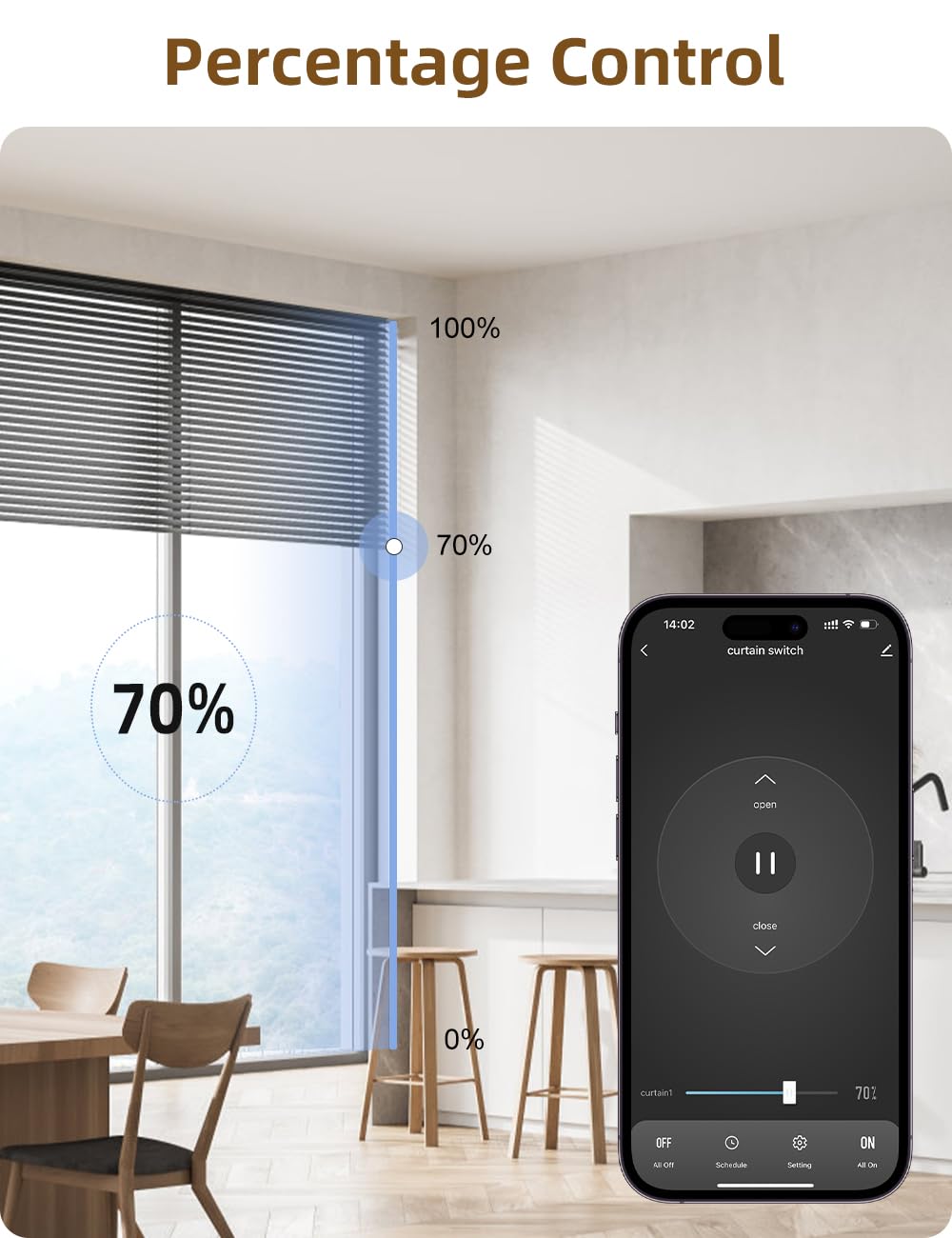
Image: A mobile app interface demonstrating the percentage control feature, allowing users to set their roller shutters to a specific open or closed percentage.
3. Voice Control
Integrate your switch with Amazon Alexa or Google Assistant for convenient voice commands. For example, say "Alexa, turn the curtain to 30%" to adjust your blinds.

Image: An illustration of voice control in action, showing a smart speaker responding to a command to adjust the roller shutters to 30%.
4. Automated Scenes (Timer & Schedule)
Set schedules for your smart switch to automatically turn on or off based on local temperature, humidity, sunrise, or sunset times. This allows for personalized automation of your window coverings.

Image: Screenshots from the mobile application demonstrating how to set up timers and schedules for the roller shutters, including specific times and percentages for opening and closing.
5. Remote Control and Group Control
- Remote Control: Manage your roller shutters from anywhere using the mobile app, even when you are away from home.
- Group Control: Control multiple Maxcio smart switches simultaneously by grouping them within the application.
- Backlight Control: Adjust or turn off the switch's backlight for comfort.
- Overload Protection: The device includes built-in overload protection for safety.
- Power Failure Memory: The switch retains its last state after a power outage.
- Family Sharing: Share control of the device with family members through the app.
Maintenance
The Maxcio Wi-Fi Smart Roller Shutter Switch requires minimal maintenance. Keep the surface clean with a soft, dry cloth. Avoid using abrasive cleaners or solvents, as these may damage the finish. Ensure the switch is not exposed to excessive moisture or extreme temperatures.
Troubleshooting
- Switch Unresponsive: If the switch is not responding to touch or app commands, try performing the built-in reset procedure (refer to "Built-in Reset Function" in the Setup section).
- Cannot Connect to Wi-Fi:
- Ensure your Wi-Fi network is 2.4GHz. This device does not support 5GHz networks for connection.
- Verify that your Wi-Fi signal is strong at the switch's location.
- Restart your Wi-Fi router.
- Ensure you have entered the correct Wi-Fi password.
- Voice Control Issues:
- Confirm that the switch is properly linked to your Amazon Alexa or Google Home account.
- Check your internet connection.
- Ensure your voice commands are clear and match the device's recognized commands.
- Motor Not Responding:
- Verify that the motor is correctly wired to the switch and that the neutral wire connection is secure.
- Check the power supply to the switch and the motor.
Specifications
| Feature | Detail |
|---|---|
| Product Dimensions (L x W x H) | 50 x 40 x 30 mm (5 x 4 x 3 cm) |
| Weight | 680 grams |
| Manufacturer | Maxcio |
| Model Number | WF-CS01 |
| Operating Mode | ON-OFF |
| Current Rating | 10 A |
| Operating Voltage | 220 Volts |
| Contact Type | Normally Open |
| Connector Type | Wiring |
| Switch Type | TRIAC |
| Terminal | Physical |
| Material | Plastic |
Warranty and Support
Maxcio provides a 24-month warranty for all its products. Additionally, lifetime technical consultation is available to assist you with any product-related inquiries or issues. For support, please refer to the contact information provided with your product packaging or visit the official Maxcio website.
Related documentsWF-CS01


Ask a question about this manual
Ask about setup, troubleshooting, compatibility, parts, safety, or missing instructions. Manuals+ will review the question and use this page’s manual context to help answer it.