1. Introduction
This manual provides detailed instructions for the installation, operation, and maintenance of your new hizpo 8 Core Car Stereo. This advanced audio-video receiver is designed to enhance your driving experience with its 10.1-inch QLED touchscreen, powerful 8-core processor, and extensive connectivity options including wireless CarPlay and Android Auto. Please read this manual thoroughly before use to ensure proper functionality and safety.

Image 1.1: hizpo 8 Core Car Stereo main unit.
2. Product Overview and Key Features
The hizpo 8 Core Car Stereo is a comprehensive infotainment system engineered for specific Chevrolet Silverado and GMC Sierra models. It integrates seamlessly into your vehicle's dashboard, offering a range of features for navigation, entertainment, and connectivity.
Key Features:
- Display: 10.1-inch QLED Touchscreen for vibrant visuals and responsive interaction.
- Performance: 8-Core Unisoc 7862 Processor (1.8-2.0GHz) with 8GB RAM and 128GB ROM for smooth operation and ample storage.
- Smartphone Integration: Wireless Apple CarPlay and Wireless/Wired Android Auto for seamless phone connectivity.
- Audio Quality: Built-in DSP (Digital Sound Processor) BU32107EFV for customizable sound settings and enhanced audio experience.
- Connectivity: Bluetooth 5.0 Dual Channel (RealTek8761), USB, Wi-Fi (2.4G/5G), and optional 4G LTE support.
- Navigation: Integrated GPS for reliable turn-by-turn directions.
- Multitasking: Split Screen functionality to run two applications simultaneously.
- Safety: Supports Rear View System (up to 1920*1080 pixels) and AHD Rearview Camera Input for improved parking and reversing safety.
- User Interface: Day/Night Mode switching, Picture-in-Picture (PIP) video playback, customizable button colors, and voice control.
- Vehicle Integration: Steering Wheel Control (SWC) compatibility and Canbus decoder box for vehicle data integration.
- Thermal Management: Small cooling fan to maintain optimal operating temperature.
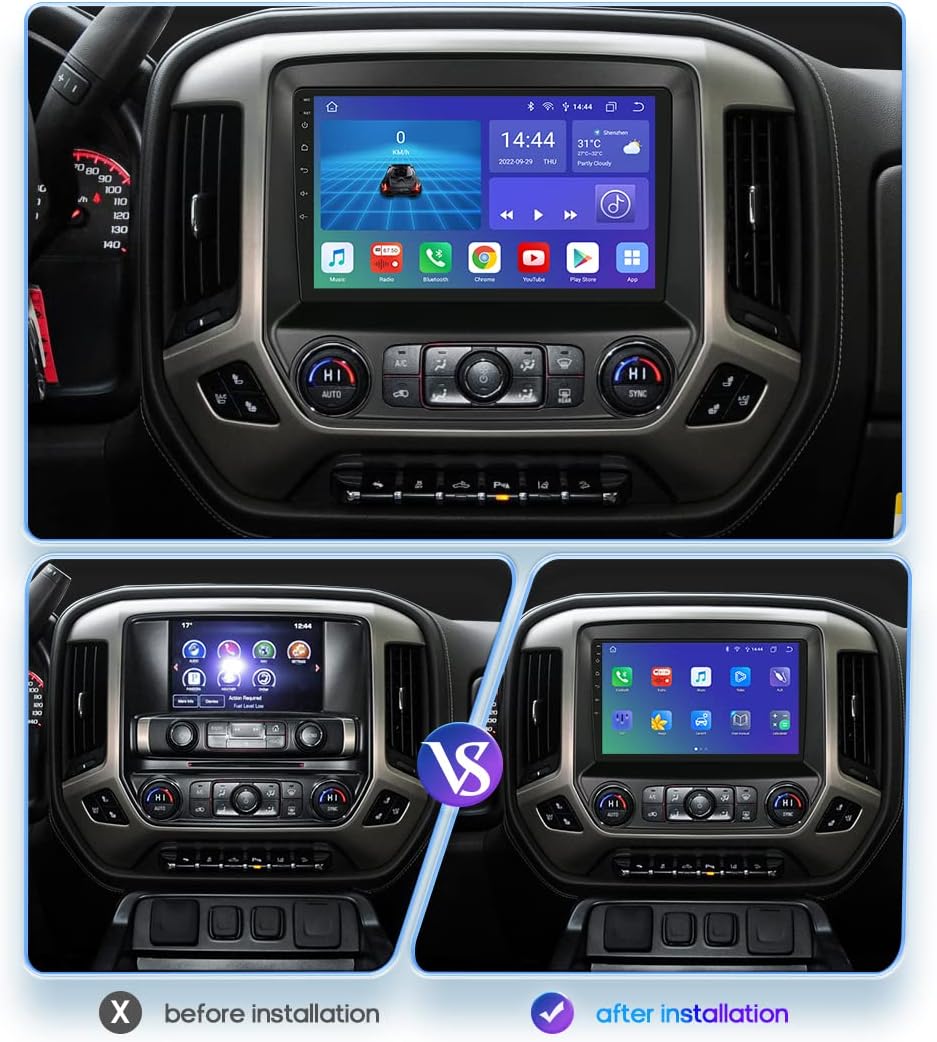
Image 2.1: hizpo car stereo seamlessly integrated into a Chevrolet Silverado dashboard.
3. Compatibility
This hizpo 8 Core Car Stereo is specifically designed for the following vehicle models:
- Chevrolet Silverado: 2014, 2015, 2016, 2017, 2018 models.
- GMC Sierra: 2014, 2015, 2016, 2017, 2018 models.
Important Note:
Non-amplifier audio systems are compatible with the default harnesses provided. If your truck is equipped with a Bose or fiber optic amplifier system, an additional adapter will be required for the audio system to function correctly. Please verify your vehicle's audio system configuration before installation.

Image 3.1: Visual representation of vehicle compatibility.
4. Package Contents
Please check the package carefully to ensure all components are present:
- Power Cable (1)
- Canbus Decoder Box (1)
- RCA Harness with 4G SIM Card Slot (1) (for 4G version only)
- USB Cables (2)
- Rear Camera Input RCA Cable (1)
- RCA Harness (1) (for WiFi version only)
- GPS Antenna (1)
- External Microphone (1)
- 4G LTE Antenna (1) (for 4G version only)
- Speaker (1)
- Factory USB Adapter Cable (1)
- Radio Antenna Adapter Cable (1)

Image 4.1: Overview of included accessories.
5. Setup and Installation
Professional installation is highly recommended for this product. Incorrect installation can lead to damage to the unit or your vehicle. The following steps are a general guide:
- Preparation: Disconnect the vehicle's battery before starting any electrical work.
- Remove Factory Unit: Carefully remove the existing car stereo and trim panels from your dashboard.
- Connect Wiring Harness: Connect the provided power cable and RCA harnesses to the corresponding ports on the new head unit and your vehicle's wiring. Ensure all connections are secure.
- Canbus Decoder Box: Connect the Canbus decoder box as per the wiring diagram to enable steering wheel controls and integrate with vehicle data.
- Antenna Connections: Connect the GPS antenna, Wi-Fi/4G LTE antenna (if applicable), and radio antenna adapter cable. Position the GPS antenna in a location with a clear view of the sky.
- USB and External Microphone: Connect the USB cables and external microphone to the designated ports. Route the microphone to a suitable location for clear voice input.
- Rear Camera (Optional): If installing a rear camera, connect its video input cable to the head unit.
- Test Connections: Before fully reassembling the dashboard, reconnect the battery and perform a basic power-on test to ensure the unit powers up and displays correctly.
- Mounting: Securely mount the hizpo car stereo into the dashboard opening.
- Reassemble: Reinstall all trim panels and secure them properly.

Image 5.1: Visual comparison of the dashboard before and after the car stereo installation.
6. Operating Instructions
This section details the various functions and how to operate your hizpo car stereo.
6.1 Basic Interface and System Settings
The main screen provides access to all applications and settings. You can adjust volume, brightness, and other display options.
- Volume/Brightness: Access quick settings from the top bar or dedicated settings menu to adjust audio volume and screen brightness.
- Day/Night Mode: The system supports automatic or manual switching between day and night modes for optimal visibility.
- Language: Select your preferred language from the system settings.
- Boot Logo: Customize the boot-up logo in the display settings.

Image 6.1: Day and Night Mode display for optimal viewing conditions.
6.2 Audio Settings (DSP)
The built-in Digital Sound Processor (DSP) allows for extensive audio customization.
- Equalizer: Adjust frequency bands to tailor the sound to your preference (Standard, Rock, Soft, Classical, Popular, or custom settings).
- Surround Sound: Configure the sound field for an immersive audio experience.
- Bass Enhancement: Boost low frequencies for richer bass.
- Sound Field Setting: Optimize audio output for different seating positions (Driver, Co-pilot, Rear car, Full car mode).
- Bass Filtering: Fine-tune bass range and cutoff frequencies.
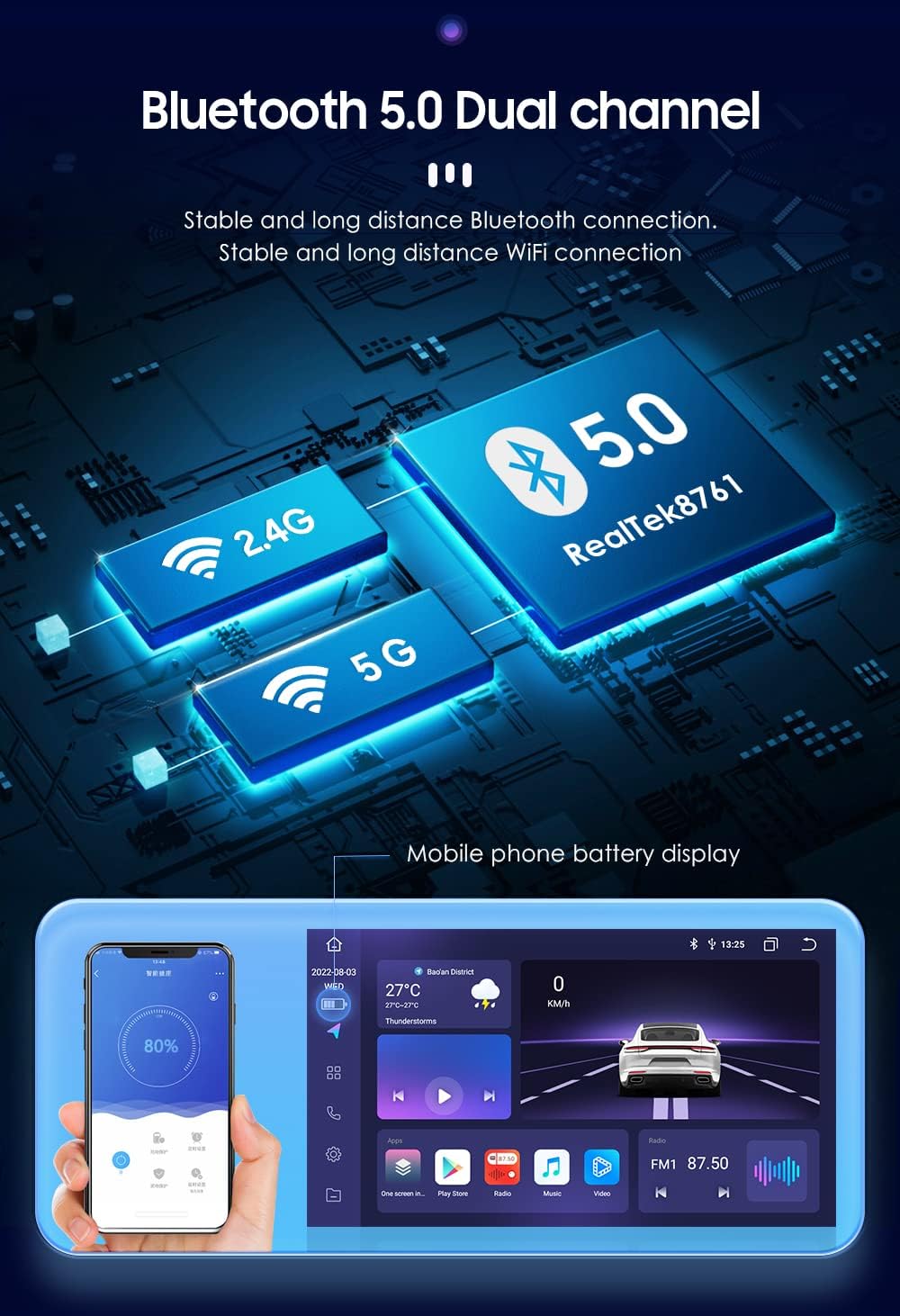
Image 6.2: Detailed DSP settings for audio customization.
6.3 Radio
Access FM and AM radio stations. You can scan for stations and save your favorites.
- Tuning: Manually or automatically scan for available radio frequencies.
- Saving Stations: Long-press on a frequency to save it as a preset.
- RDS: Radio Data System provides additional information like station name and song title (where available).
6.4 Bluetooth
Connect your smartphone or other Bluetooth devices for hands-free calling and audio streaming.
- Pairing: Enable Bluetooth on your device and search for the car stereo. Select the stereo and confirm pairing.
- Hands-free Calling: Make and receive calls directly from the stereo interface.
- Audio Streaming: Play music from your paired device through the car's speakers.

Image 6.3: Bluetooth 5.0 Dual Channel and Wi-Fi connectivity.
6.5 CarPlay / Android Auto
Integrate your smartphone for a safer and smarter way to use your phone in the car.
- Wireless Connection: Connect compatible iPhones via Wireless CarPlay or Android phones via Wireless Android Auto.
- Wired Connection: Connect Android phones via USB for Android Auto.
- Features: Access navigation, music, messages, and other compatible apps directly on the stereo screen.

Image 6.4: CarPlay and Android Auto functionality.
6.6 Navigation
Utilize the built-in GPS for accurate navigation.
- GPS Apps: The unit comes pre-installed with navigation applications like HERE WeGo and supports others from the Play Store (e.g., Google Maps).
- Route Planning: Enter your destination to get turn-by-turn directions.
6.7 Split Screen
Run two applications side-by-side on the large 10.1-inch display.
- Activation: Drag an app icon to one side of the screen or use the split-screen option in the recent apps menu.
- Usage: For example, use navigation on one side and play music on the other.

Image 6.5: Split Screen functionality in action.
6.8 Rear View System
Enhance safety with automatic display of the rear camera feed when reversing.
- Automatic Activation: When the vehicle is shifted into reverse gear, the display automatically switches to the rear camera view (if correctly installed).
- High Resolution: Supports backup cameras up to 1920*1080 pixels for clear visibility.
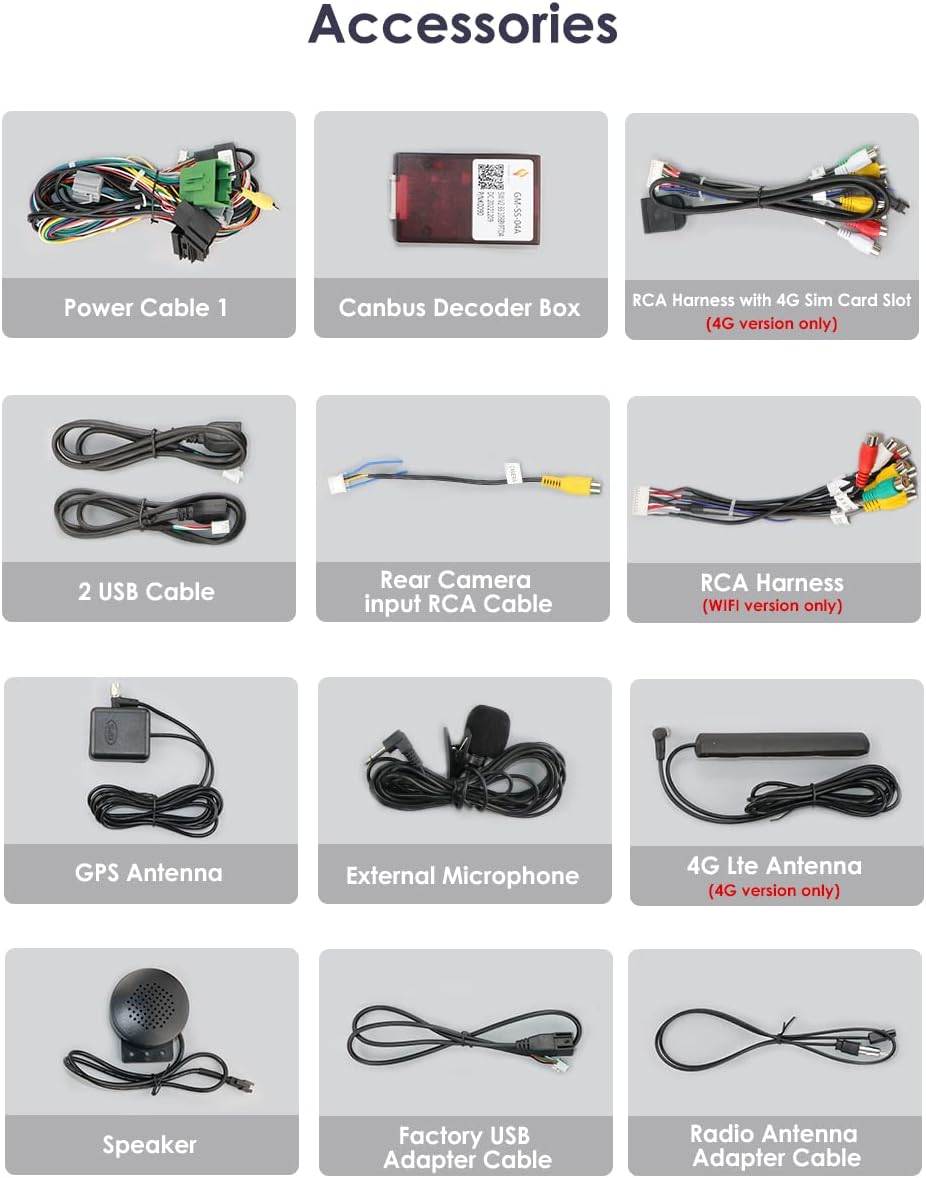
Image 6.6: Rear View System display.
6.9 Voice Control
Operate various functions using voice commands for convenience and safety.
- Activation: Activate the voice assistant by saying a trigger phrase or pressing a dedicated button.
- Commands: Use commands for navigation, music playback, calls, and more.

Image 6.7: Voice control functionality.
6.10 Picture-in-Picture (PIP)
Watch videos in a small, resizable window while using other applications.

Image 6.8: Picture-in-Picture video playback.
6.11 CarAPP Functions
Access vehicle-specific information and settings through the CarAPP application.
- Car Info: View real-time vehicle data such as mileage, engine speed, battery voltage, and more.
- AC Setting: Control and monitor your vehicle's air conditioning system.
- Amp Info: Adjust amplifier settings.
- TPMS Info: Monitor tire pressure (requires compatible TPMS sensors, sold separately).
- Drive Mode: Select different driving modes.
- Panel Control: Configure various panel settings.
- Compass: Digital compass display.

Image 6.9: TPMS (Tire Pressure Monitoring System) function.
6.12 Steering Wheel Control (SWC)
Program your vehicle's steering wheel buttons to control the car stereo.
- Learning Function: Access the SWC settings in the system menu. Follow the on-screen instructions to assign functions to each button on your steering wheel.
6.13 Other Features
- Weather Display: View current weather conditions on the main screen.
- Button Color Changing: Customize the color of the physical buttons on the unit.
- Optical and Coaxial Digital Audio Output: For high-quality audio connections to external amplifiers or sound systems.

Image 6.10: Weather display on the main interface.

Image 6.11: Button color changing function.

Image 6.12: Optical and coaxial digital audio output ports.
7. Maintenance
- Cleaning the Screen: Use a soft, lint-free cloth to clean the QLED touchscreen. Avoid abrasive cleaners or solvents.
- Software Updates: Periodically check for software updates to ensure optimal performance and access to new features. Updates can typically be found in the system settings or on the manufacturer's website.
- Cooling Fan: The unit includes a small cooling fan. Ensure the fan vents are not obstructed to prevent overheating.

Image 7.1: Small cooling fan for thermal management.
8. Troubleshooting
If you encounter issues with your hizpo car stereo, refer to the following common problems and solutions:
- No Power:
- Check all power connections and fuses.
- Ensure the vehicle's battery is charged.
- No Sound:
- Verify speaker connections.
- Check volume levels and DSP settings.
- Ensure the correct audio source is selected.
- If using an external amplifier, check its power and connections.
- GPS Not Working / Inaccurate:
- Ensure the GPS antenna is properly connected and has a clear view of the sky.
- Check GPS settings in the system menu.
- Update navigation maps if necessary.
- Bluetooth Connection Issues:
- Ensure Bluetooth is enabled on both the stereo and your device.
- Delete previous pairings and try pairing again.
- Restart both the stereo and your device.
- Touchscreen Unresponsive:
- Perform a system reset (refer to the system settings for the reset option).
- Ensure the screen is clean and free of debris.
- CarPlay/Android Auto Not Connecting:
- For wired connections, try a different USB cable.
- Ensure your phone's operating system is up to date.
- Check app permissions on your phone for CarPlay/Android Auto.
If the problem persists, please contact hizpo customer support for assistance.
9. Specifications
| Feature | Detail |
|---|---|
| Display Size | 10.1 inches |
| Display Type | QLED Touchscreen |
| Processor | 8 Core Unisoc 7862 |
| CPU Clock Speed | 1.8-2.0GHz |
| RAM | 8GB |
| ROM | 128GB |
| Operating System | Android 12 |
| Bluetooth | Bluetooth 5.0 Dual Channel (RealTek8761) |
| Wi-Fi | 2.4G/5G |
| Audio Processor | Built-in DSP BU32107EFV |
| Audio Output Mode | Stereo |
| Surround Sound Channel Configuration | 4.0 |
| Number of Channels | 4 |
| Video Encoding | MPEG-1 |
| Rear View Camera Support | Up to 1920*1080 pixels (AHD input) |
| Connectivity Technology | Bluetooth, USB, Wi-Fi |
| Special Features | CarPlay, Android Auto, GPS Navigation, RDS, SWC, Split Screen, PIP, Day/Night Mode, TPMS support, Optical/Coaxial audio output |
| Package Dimensions | 14.53 x 12.6 x 5.71 inches |
| Item Weight | 5.19 pounds |

Image 9.1: Performance specifications of the hizpo 8 Core Car Stereo.
10. Official Product Video
Watch this video for a demonstration of the hizpo 8 Core Car Stereo's features and user interface, including CarPlay and Android Auto functionality.
Video 10.1: Demonstration of the hizpo 8 Core Car Stereo's features.
11. Warranty and Support
hizpo is committed to providing quality products and customer satisfaction.
- 30-Day Refund: Enjoy a 30-day refund policy from the date of purchase.
- 1-Year Warranty: The product is covered by a 1-year warranty against manufacturing defects.
- After-sales Services: Dedicated customer support is available for any inquiries or issues you may encounter.
For further assistance, please visit the hizpo Store on Amazon or contact their customer service directly.


