
Introduction
The Generic Q19 Kids Smart Watch is designed to provide communication, entertainment, and safety features for children. This manual provides essential information for setting up, operating, maintaining, and troubleshooting your device.
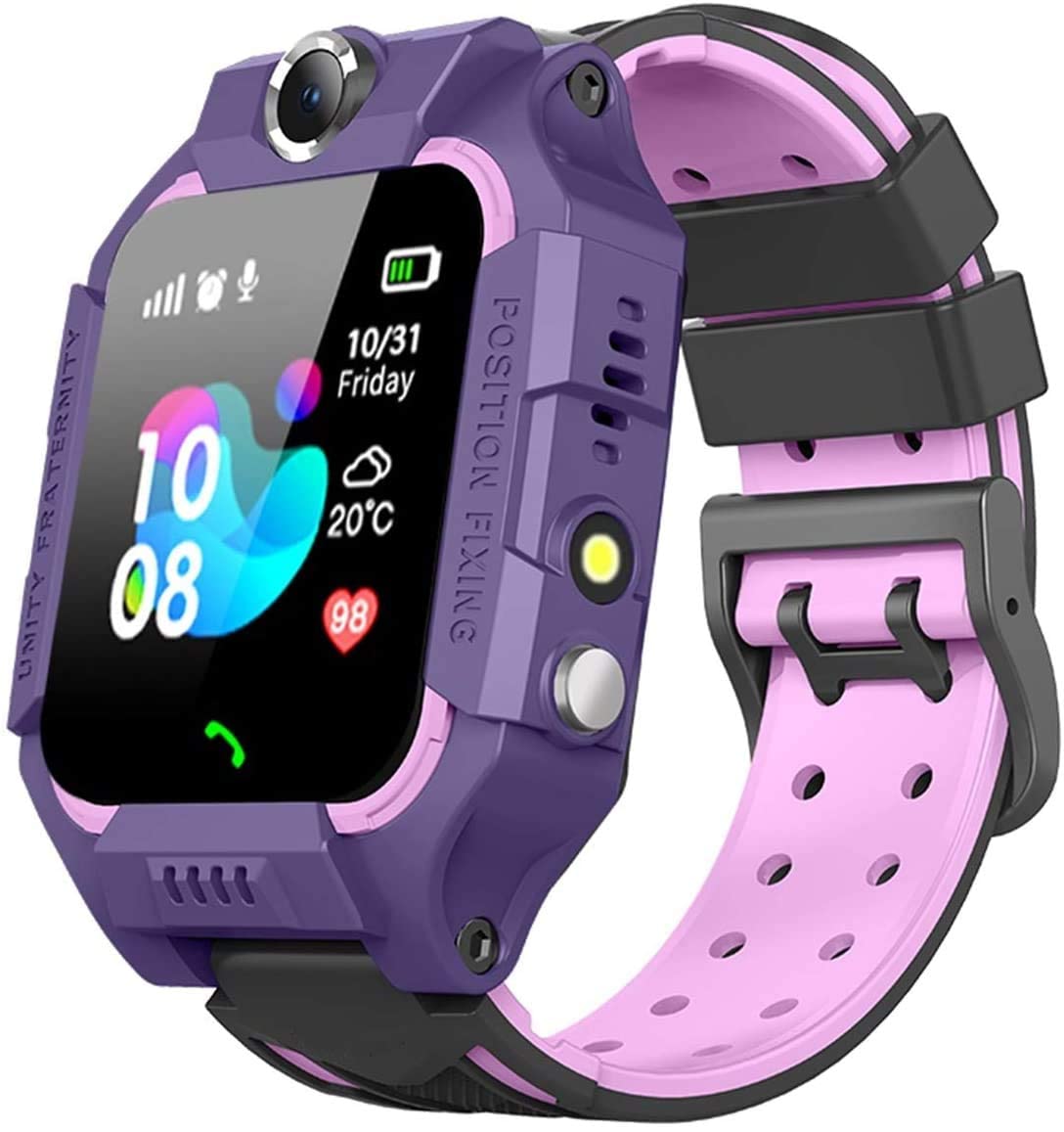
Image: Front view of the Generic Q19 Kids Smart Watch, showcasing its design and display.
What's in the Box
- Q19 Kids Smart Watch
- Charging Cable
- User Manual
Setup
1. SIM Card Installation
The Q19 Smart Watch requires a Micro SIM card to enable communication features. Ensure the SIM card supports 2G networks, as the watch is compatible only with 2G connectivity.
- Locate the SIM card slot on the side of the watch.
- Carefully open the SIM card slot cover.
- Insert a Micro SIM card into the slot with the gold contacts facing up and the notched corner aligned correctly.
- Close the SIM card slot cover securely.
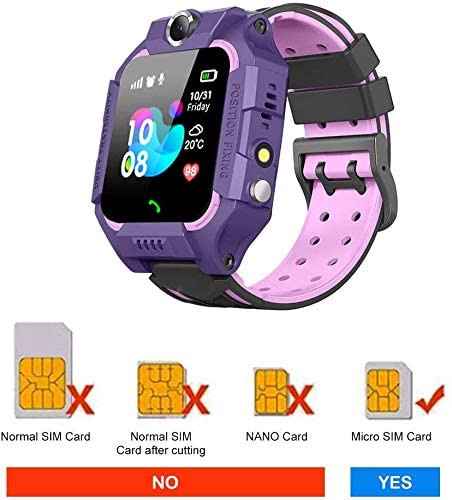
Image: Diagram illustrating the correct Micro SIM card type for the Q19 Smart Watch and incorrect types (Normal, Cut Normal, Nano SIM).
2. Charging the Watch
Before first use, fully charge the watch. Connect the charging cable to the watch's charging port and plug the other end into a standard USB power adapter (not included).
3. Power On/Off
- To Power On: Press and hold the power button (usually on the side) until the screen lights up.
- To Power Off: Press and hold the power button until the power-off option appears on the screen, then confirm.
Operating the Watch
1. Basic Navigation
The Q19 Smart Watch features a touchscreen for navigation. Swipe left/right or up/down to browse through menus and tap to select options. Physical buttons on the side may also be used for specific functions like power or back.
2. Two-Way Call Function
Once a valid 2G Micro SIM card is installed and activated, the watch can make and receive calls to pre-set contacts. Parents can manage the contact list through the watch settings.
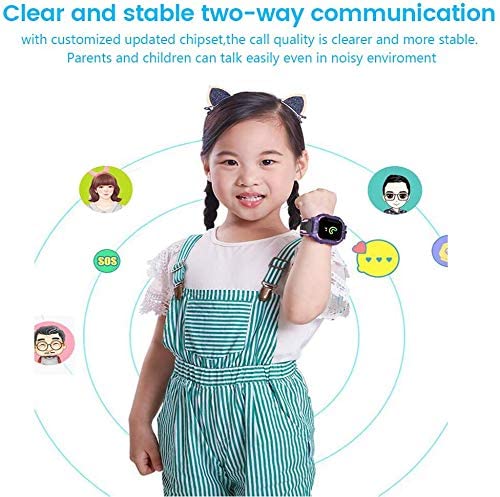
Image: A child wearing the Q19 Smart Watch, illustrating its two-way communication capability with clear call quality.
3. SOS Emergency Alarm
In an emergency, the child can press the SOS button twice to activate an emergency alarm. The watch will automatically call pre-set emergency contacts until one answers, and send location alerts.
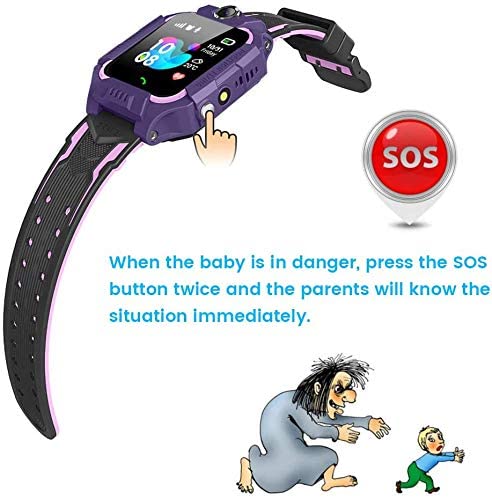
Image: The Q19 Smart Watch highlighting the SOS button, indicating that pressing it twice alerts parents in an emergency.
4. Camera Function
The watch includes a built-in camera for taking photos. Photos can be viewed in the watch's gallery. Remote photography may also be available, allowing parents to capture images from their mobile phone to monitor the child's surroundings.
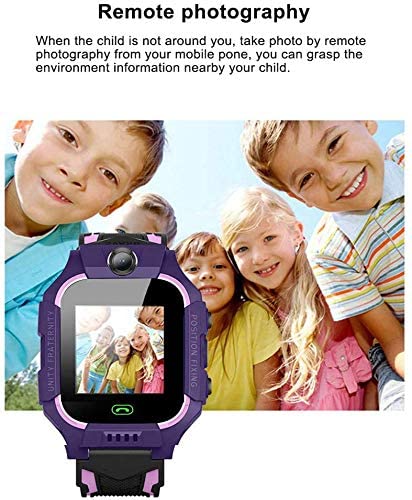
Image: The Q19 Smart Watch displaying a photo taken, demonstrating the remote photography feature.
5. Music Player
The watch features a music player. Music files can be loaded onto the watch's internal memory for playback.
6. Games
The Q19 Smart Watch includes 7 built-in puzzle games such as 2048, Basketball Shoot Master, Bee War, Pinball Hit Bricks, Car Grab Goods, Eat Gold, and Ultimate Racing. These games are designed to help improve logical thinking and hand-brain coordination.
7. Alarm Clock Function
Set multiple alarms to help children manage their daily schedule, such as waking up for school or reminding them of activities.

Image: The Q19 Smart Watch next to a traditional alarm clock, illustrating its alarm clock function for daily scheduling.
8. Time Format
The watch supports both 12-hour and 24-hour time formats, which can be adjusted in the settings.
9. Additional Features
- Positioning & Tracking: Utilizes dual control mode positioning (LBS) to track the watch's location.
- Intercom: Allows for voice messages between the watch and a paired mobile device.
- Safe Area: Parents can set virtual boundaries, receiving alerts if the watch leaves a designated safe zone.
- Low Battery Alarm: Notifies parents when the watch's battery is low.
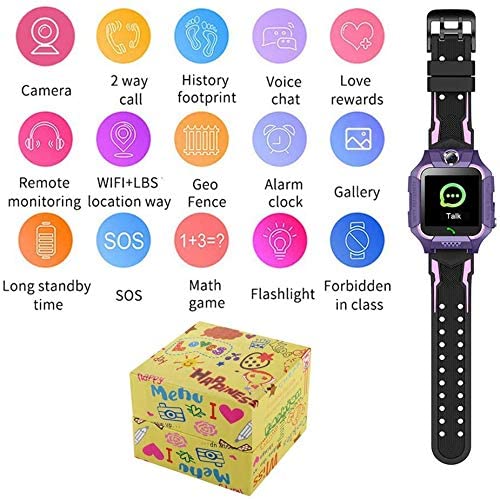
Image: A collection of icons representing various features of the Q19 Smart Watch, including camera, 2-way call, history footprint, voice chat, remote monitoring, LBS location, geo fence, alarm clock, gallery, long standby time, SOS, math game, flashlight, and forbidden in class mode.
Maintenance
1. Water Resistance (IP67)
The Q19 Smart Watch is IP67 waterproof, meaning it is resistant to splashes, sweat, and brief immersion in shallow water. It is suitable for daily activities like hand washing or light rain.
- DO NOT soak the watch in water for extended periods.
- DO NOT expose the watch to hot water, steam, or saunas.
- Ensure the SIM card slot cover is securely closed to maintain water resistance.
2. Cleaning
Wipe the watch regularly with a soft, dry, or slightly damp cloth. Avoid using harsh chemicals or abrasive materials.
3. Battery Care
To prolong battery life, avoid fully discharging the watch frequently. Charge the watch using the provided cable and a compatible USB power source.
Troubleshooting
Watch Not Powering On
- Ensure the watch is fully charged. Connect it to the charger for at least 30 minutes.
- Press and hold the power button for at least 10 seconds.
Cannot Make/Receive Calls
- Verify that a Micro SIM card is correctly installed and activated.
- Confirm that the SIM card has sufficient balance or an active plan.
- Check if the watch is in an area with 2G network coverage.
- Ensure the contact numbers are correctly saved in the watch's phonebook.
Charging Issues
- Check if the charging cable is securely connected to both the watch and the power adapter.
- Try using a different USB power adapter or port.
- Inspect the charging port on the watch for any debris or damage.
Screen Unresponsive
- Restart the watch by holding the power button.
- Ensure the screen is clean and dry.
Specifications
| Feature | Specification |
|---|---|
| Model | Q19 |
| Brand | Generic |
| Material | ABS |
| Battery Capacity | 400 mAh |
| Screen Size | 1.44 inches |
| Resolution | 240 x 240 |
| Product Weight | 0.1 KG |
| Body Memory | 512 MB |
| Running Memory | 128 MB |
| Camera | 1.3 million pixels |
| Operation Mode | Touchscreen + Keys |
| Communication Function | 2G Network Support |
| Water Resistance | IP67 |
| Operating System | Android |
| Product Dimensions | 21 x 4 x 1.2 cm |
Warranty Information
For warranty details, please refer to the warranty card included with your product or contact your retailer. Keep your proof of purchase for any warranty claims.
Support
If you encounter any issues not covered in this manual or require further assistance, please contact the retailer or manufacturer's customer support. Refer to your purchase documentation for contact information.