
1. Introduction
This manual provides detailed instructions for the installation, operation, and maintenance of your Hikity 7039B 1-DIN Car Stereo. This unit features a 7-inch touchscreen, wireless Apple CarPlay, wireless Android Auto, Bluetooth 5.1, FM radio, USB/AUX connectivity, and supports a rear view camera. Please read this manual thoroughly before using the product to ensure proper function and safety.
2. Package Contents
Verify that all items listed below are included in your package:
- 1 x Hikity 7039B Car Stereo Unit
- 1 x Rear View Camera
- 1 x Power Cable
- 1 x Speaker Cable (Horn Cable)
- 1 x Remote Control
- 1 x User Manual (This document)
- 1 x External Microphone

Image 2.1: Illustration of the Hikity 7039B car stereo unit, its dimensions, and included accessories such as the power cable, speaker cable, remote control, microphone, and rear camera.
3. Product Overview
The Hikity 7039B features a 7-inch HD IPS touchscreen and a standard 1-DIN chassis. The front panel includes essential controls for easy access, while the rear panel provides various connection ports.

Image 3.1: Front view of the Hikity 7039B car stereo displaying the CarPlay interface, along with the included rear camera, microphone, and a view of the unit's rear connections.
3.1 Front Panel Controls
- Power/Mode Button: Press to turn on/off, short press to switch modes.
- Volume Knob: Rotate to adjust volume. Press to mute/unmute.
- USB Port: For media playback and smartphone connection.
- AUX Input: For external audio devices.
- Reset Button: Small hole for factory reset (use a thin object).
- Microphone: Built-in for hands-free calling.
3.2 Rear Panel Connections
The rear panel houses various ports for power, speakers, antenna, and external devices. Refer to the wiring diagram in Section 4.2 for detailed connections.
4. Installation
Proper installation is crucial for the performance and safety of your car stereo. If you are unsure about any steps, it is recommended to seek professional assistance.
4.1 Safety Precautions
- Disconnect the vehicle's negative battery terminal before installation to prevent electrical shorts.
- Ensure all wiring is correctly connected and insulated to avoid damage to the unit or vehicle.
- Do not block ventilation openings.
- Securely mount the unit to prevent movement during driving.
4.2 Wiring Diagram
The following diagram illustrates the connections for power, speakers, and other accessories. Match the wires carefully according to their labels.
Image 4.1: Detailed wiring diagram for the Hikity 7039B car stereo, showing connections for power, speakers, microphone, camera, and other inputs/outputs.
- Power Cable: Connect to vehicle's power supply (constant 12V, accessory 12V, ground).
- Speaker Cables: Connect to vehicle's speakers (Front Left, Front Right, Rear Left, Rear Right). Ensure correct polarity.
- Rear Camera Input (CAMIN): Connect the video signal from the rear camera.
- Reverse Input (CVBS): Connect to the vehicle's reverse light signal for automatic camera display.
- Steering Wheel Control (SWC): Connect to vehicle's steering wheel control wires (Key1, Key2).
- External Microphone: Plug into the dedicated MIC input.
5. Basic Operation
5.1 Power On/Off
Press the power button on the front panel to turn the unit on or off. The unit will automatically power on when the vehicle's ignition is turned on.
5.2 Volume Control
Rotate the volume knob on the front panel to adjust the audio level. Press the knob to mute or unmute the sound.
5.3 Main Menu Navigation
Tap the icons on the 7-inch touchscreen to access different functions such as Radio, Bluetooth, CarPlay/Android Auto, USB, AUX, and Settings.
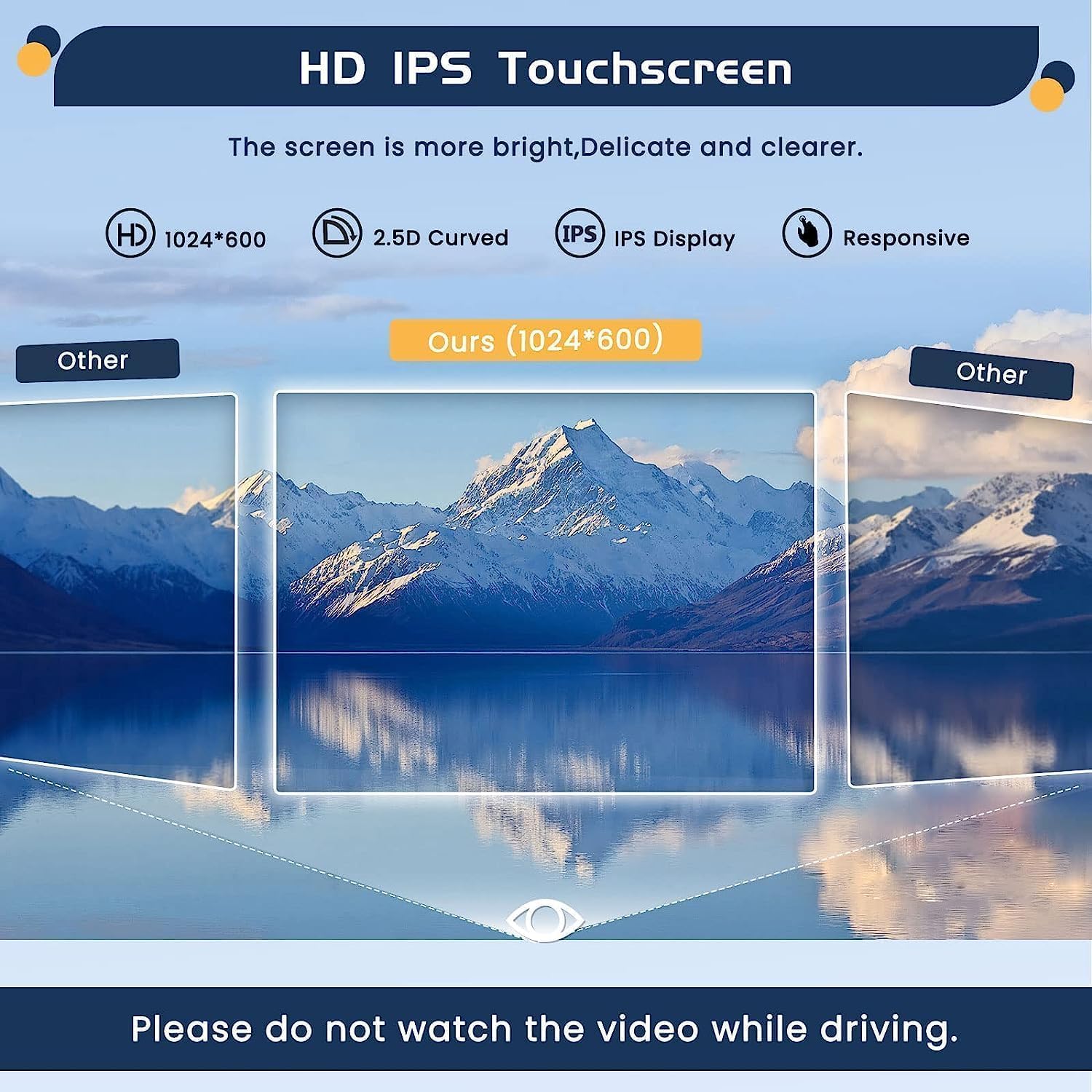
Image 5.1: The 7-inch HD IPS touchscreen of the Hikity 7039B, highlighting its clarity and responsiveness.
6. Wireless CarPlay & Android Auto
The unit supports wireless Apple CarPlay and Android Auto, allowing seamless integration of your smartphone for navigation, music, calls, and more.
6.1 Connection Procedure
- Ensure Bluetooth is enabled on your smartphone.
- On the car stereo, navigate to the Bluetooth menu and search for available devices.
- Select your phone from the list and pair the devices.
- Once paired, the unit will prompt you to activate CarPlay or Android Auto. Confirm the connection on your phone.
- For Android Auto, ensure the Android Auto app is installed on your phone.

Image 6.1: Visual representation of wireless Apple CarPlay and Android Auto interfaces working with the Hikity 7039B car stereo.
Once connected, you can control compatible apps directly from the car stereo's touchscreen or via voice commands.
7. Bluetooth Functions
The built-in Bluetooth 5.1 module allows for hands-free calling and wireless audio streaming.
7.1 Pairing a Device
- Enable Bluetooth on your mobile device.
- On the car stereo, select the "Bluetooth" icon from the main menu.
- Search for new devices on your phone and select "Hikity 7039B" (or similar name) from the list.
- Confirm the pairing code on both devices if prompted.
7.2 Hands-Free Calling
- Making Calls: Use the touchscreen dial pad, access your phonebook (after syncing), or use voice commands via CarPlay/Android Auto.
- Answering/Ending Calls: Tap the corresponding icons on the screen or use the steering wheel controls.
7.3 Bluetooth Audio Streaming (A2DP)
Once paired, you can stream audio from your phone to the car stereo. Select "BT Music" from the Bluetooth menu to control playback.
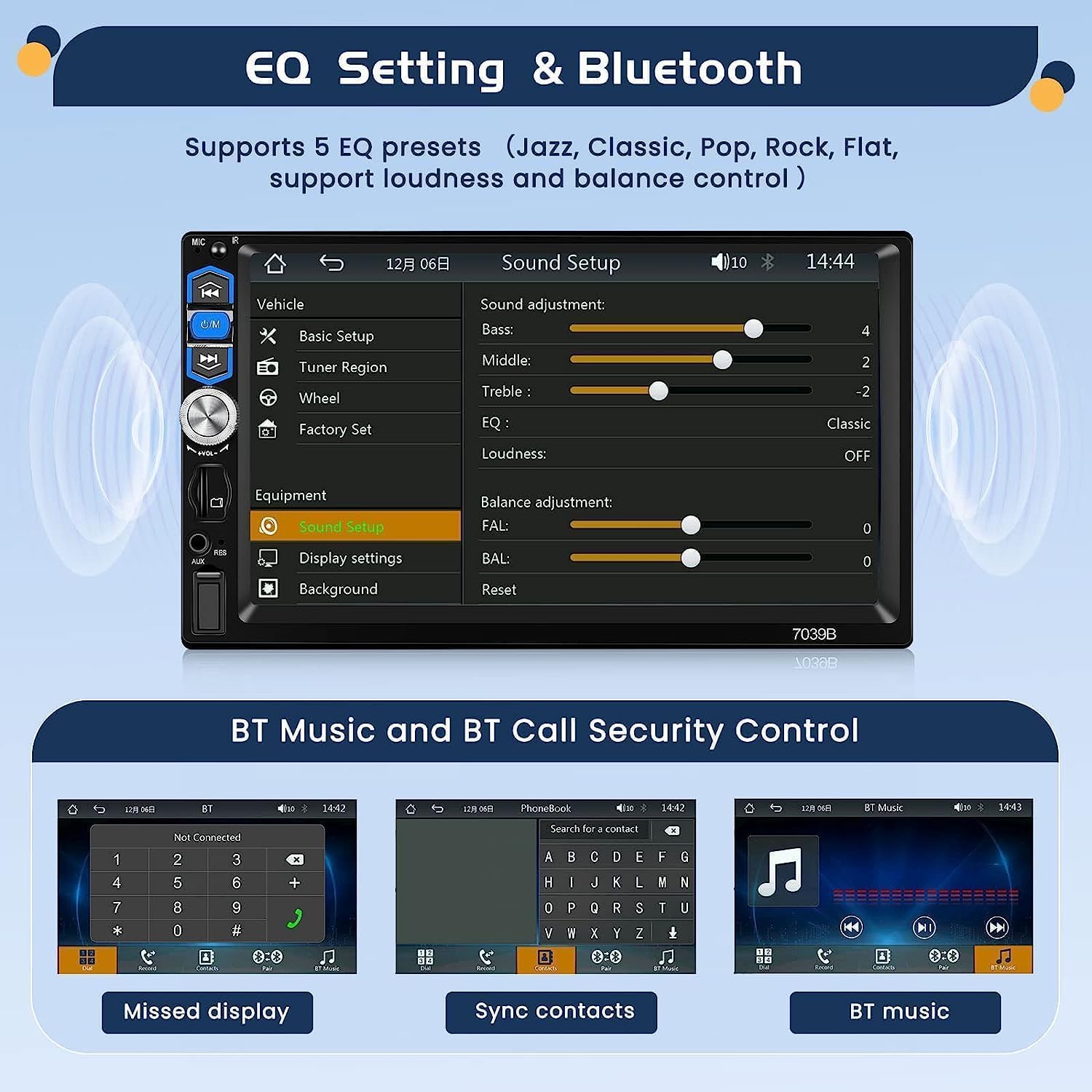
Image 7.1: Screenshot of the Hikity 7039B's interface for Bluetooth music playback, phonebook synchronization, and call management.
8. FM Radio Operation
The unit features an integrated FM tuner with a frequency range of 87.5-108.0 MHz.
8.1 Tuning and Presets
- Automatic Scan: Tap the "Scan" button to automatically search and save strong stations.
- Manual Tuning: Use the arrow buttons to fine-tune frequencies.
- Saving Presets: Long-press a preset number (P1-P6) to save the current station. The unit supports up to 28 preset stations.

Image 8.1: Screenshot of the Hikity 7039B's FM radio interface, showing frequency display, scan function, and preset buttons.
9. Rear View Camera
The included rear view camera enhances safety by providing a clear view of the area behind your vehicle when reversing.
9.1 Camera Connection and Operation
- Connect the camera's video output to the "CAMIN" input on the car stereo.
- Connect the camera's power cable to the vehicle's reverse light power supply.
- Connect the "Reverse Input" (CVBS) wire from the car stereo to the vehicle's reverse light signal.
- When the vehicle is shifted into reverse gear, the car stereo will automatically display the camera feed on the screen.
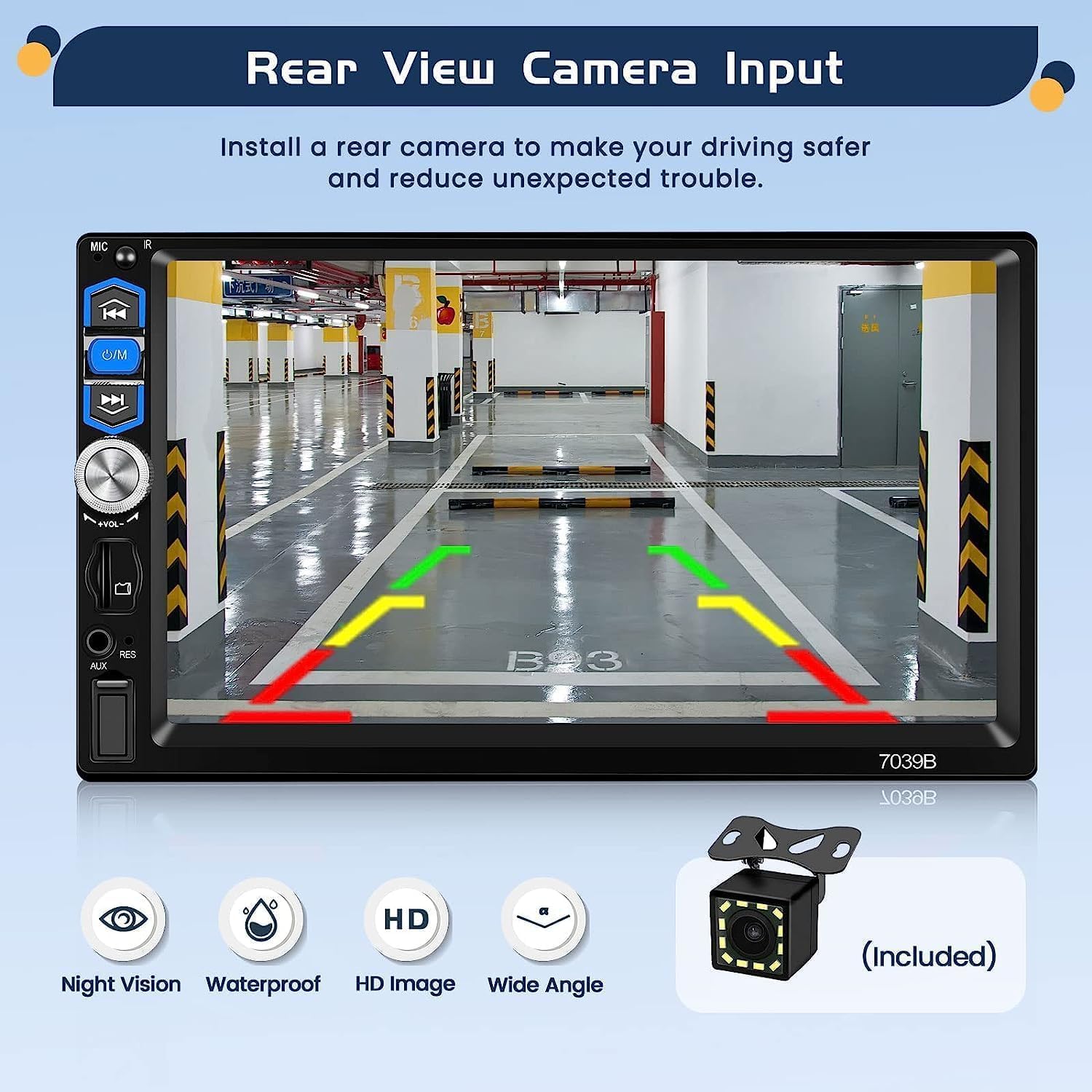
Image 9.1: The Hikity 7039B display showing the rear view camera feed with parking guidelines, indicating its night vision, waterproof, HD image, and wide-angle capabilities.
10. Steering Wheel Control (SWC)
The unit supports steering wheel controls, allowing you to operate basic functions without taking your hands off the wheel.
10.1 SWC Setup
- Ensure the SWC wires (Key1, Key2) from the car stereo are correctly connected to your vehicle's steering wheel control wires.
- Navigate to the "Steering Wheel Control" settings menu on the car stereo.
- Follow the on-screen instructions to program each steering wheel button to its corresponding function (e.g., Volume Up, Volume Down, Next Track, Previous Track, Mode, Answer Call).
Image 10.1: Screenshot of the Hikity 7039B's steering wheel control setup screen, showing options to assign functions to physical buttons on the steering wheel.
11. Mirror Link Function
The Mirror Link function allows you to display your smartphone's screen directly onto the car stereo's display via a USB cable.
11.1 Connecting via Mirror Link
- Connect your Android or iOS smartphone to the car stereo's USB port using a high-quality USB cable.
- On the car stereo, select the "Mirror Link" option.
- Follow any on-screen prompts on both your phone and the car stereo to establish the connection.
- For Android phones, two-way control is supported, allowing you to control your phone from the car stereo screen. iOS devices typically support one-way display.

Image 11.1: The Hikity 7039B display showing a mirrored smartphone screen via USB connection, illustrating the Mirror Link feature for both Android and iOS devices.
12. Audio Settings (EQ)
Customize your audio experience using the built-in Equalizer (EQ) and other sound settings.
12.1 Adjusting Sound Settings
- From the main menu, navigate to "Sound Setup" or "EQ Settings".
- You can choose from 5 preset EQ modes (Jazz, Classic, Pop, Rock, Flat) or manually adjust Bass, Middle, and Treble levels.
- Adjust Loudness and Balance (FAL/BAL) controls to optimize sound distribution within your vehicle.
Image 12.1: Screenshot of the Hikity 7039B's sound setup menu, displaying options for EQ presets, manual bass/middle/treble adjustments, and balance control.
13. Troubleshooting
If you encounter issues with your Hikity 7039B car stereo, refer to the following common problems and solutions:
| Problem | Possible Cause | Solution |
|---|---|---|
| No power | Incorrect wiring, blown fuse, vehicle battery issue. | Check power cable connections (constant 12V, accessory 12V, ground). Inspect vehicle fuses. Ensure battery is charged. |
| No sound | Speaker wires disconnected, volume too low, mute activated, incorrect audio source. | Check speaker connections. Increase volume. Deactivate mute. Select correct audio source (FM, Bluetooth, USB, AUX). |
| Bluetooth not connecting | Bluetooth off on phone/unit, device not paired, interference. | Ensure Bluetooth is enabled on both devices. Re-pair the device. Move phone closer to the unit. |
| CarPlay/Android Auto not working | Incorrect connection, phone software issue, app not installed. | Ensure proper Bluetooth connection for wireless. Check phone settings for CarPlay/Android Auto. Update phone OS and apps. |
| Rear camera not displaying | Camera power issue, video cable disconnected, reverse trigger wire not connected. | Verify camera power and video cable connections. Ensure the reverse trigger wire is correctly connected to the reverse light signal. |
| Unit freezes or is unresponsive | Software glitch, temporary error. | Press the reset button (small hole on the front panel) with a thin object. |
If the problem persists after trying these solutions, please contact Hikity customer support for further assistance.
14. Specifications
Technical specifications for the Hikity 7039B Car Stereo:
| Feature | Detail |
|---|---|
| Model | 7039B |
| System | WINCE |
| Screen Size | 7.0 inches |
| Screen Resolution | 1024*600 |
| Voltage | 12 V |
| Output Power | 4*45 W |
| Amplifier IC | 7388 |
| Bluetooth Version | 5.1 |
| USB Interface | USB2.0 (1 port) |
| Reverse Input | CVBS |
| Radio Range | FM 87.5-108.0 MHZ (Europe) |
| Operating Temperature | -10 ℃ ~ 60 ℃ |
| Audio Formats | MP3/WMA/WAV/APE/FLAC |
| Video Formats | MKV/AVI/TS/TP/MP4/M4V (Max Bitrate 50Mbps-80Mbps) |
| Special Features | Wireless Android Auto, Wireless Apple CarPlay, Built-in Bluetooth, EQ, SD Card Slot (TF card not included), AUX Input, Seven-color backlight |
| Dimensions (Product) | 6.3D x 17.8W x 10.3H cm |
| Weight | 800 Grams |
| Languages Supported | English, French, Spanish, Russian, Italian, Portuguese, German, Polish, Chinese (Simplified), Turkish, Arabic, Hebrew |
15. Warranty and Support
Hikity products are designed and manufactured to the highest quality standards. For warranty information and customer support, please refer to the warranty card included with your purchase or visit the official Hikity website. Please retain your proof of purchase for any warranty claims.
For technical assistance or inquiries, please contact Hikity customer service through the contact information provided on their official website or through your retailer.


